
Managing Detail Pages
Learn how to organize your generated GENCY detail pages into folders in your workspace, view thumbnails, product names, management names, and creation dates at a glance, and jump straight into the Editor to make edits. Even as your products grow, folders keep everything easy to find.
You can view and manage all the detail pages you've created at a glance in your workspace. Organize them by folder, check their status, and jump straight into editing whenever you need.
Exploring Your Workspace
When you log in, the home screen appears. In the workspace area of the left sidebar, you manage detail pages by folder.

- Create a folder ㅣ Click the + button next to Workspace to create a new folder.
- Name a folder ㅣ You can freely name folders by any criteria you like, such as brand, season, or category.
Organizing folders in advance lets you find products quickly even as your catalog grows.
Viewing the Detail Page List
Click a folder to see the list of detail pages stored in it.
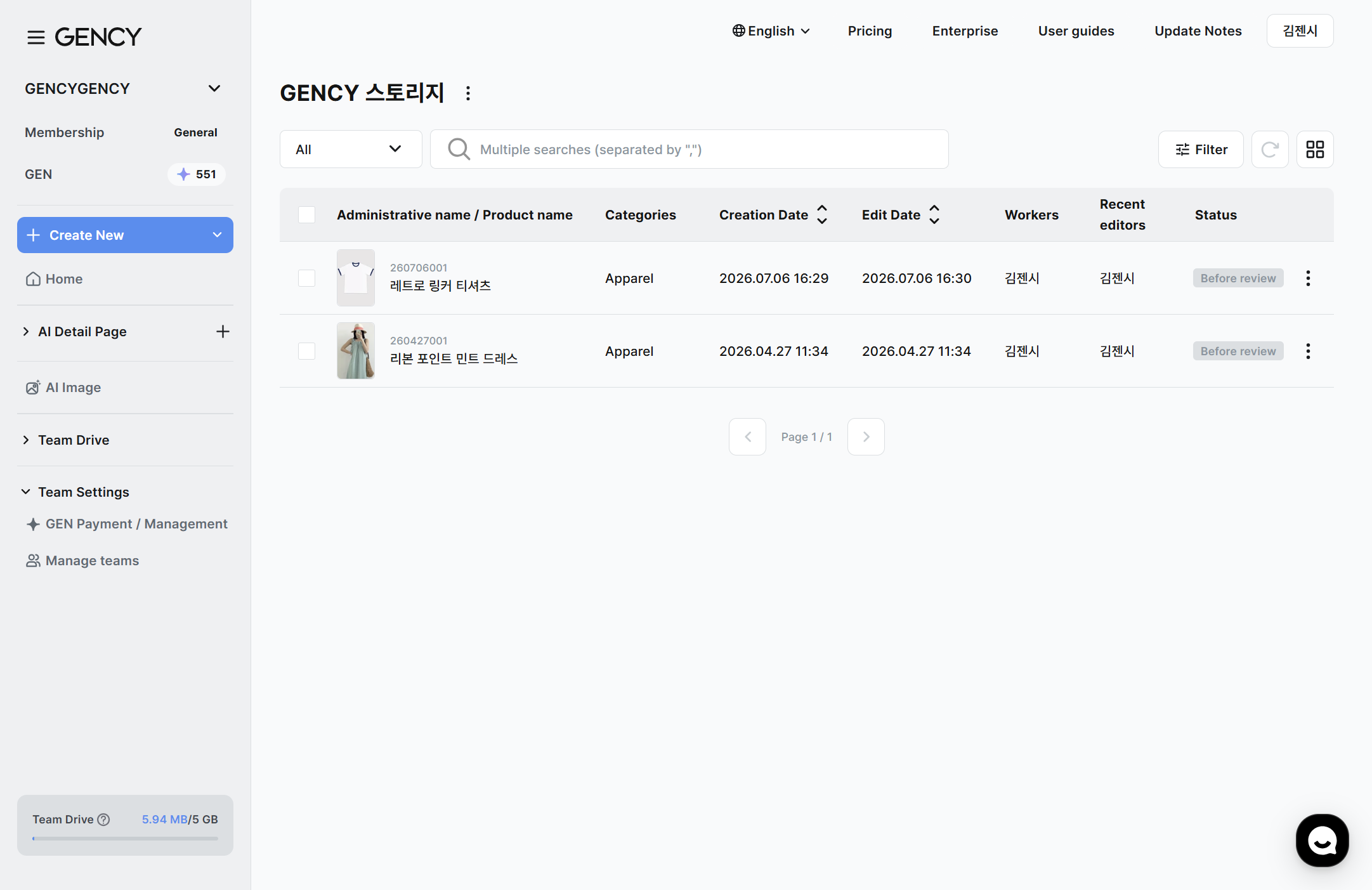
- You can see each detail page's thumbnail, product name, management name, creation date, and more at a glance.
- Click a detail page to jump straight to the Editor screen and start editing.
Understanding Detail Page Statuses
Each detail page is shown in one of the following three statuses.
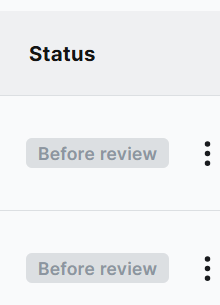
| Status | Meaning |
|---|---|
| Generating | The AI is creating the detail page. Please wait a moment. |
| Complete | Generation is finished; editing and downloading are available. |
| Draft | Only the pre-generation information has been saved. You can continue working on it. |
Setting Favorites
Mark detail pages you check often as favorites so you can see them together.
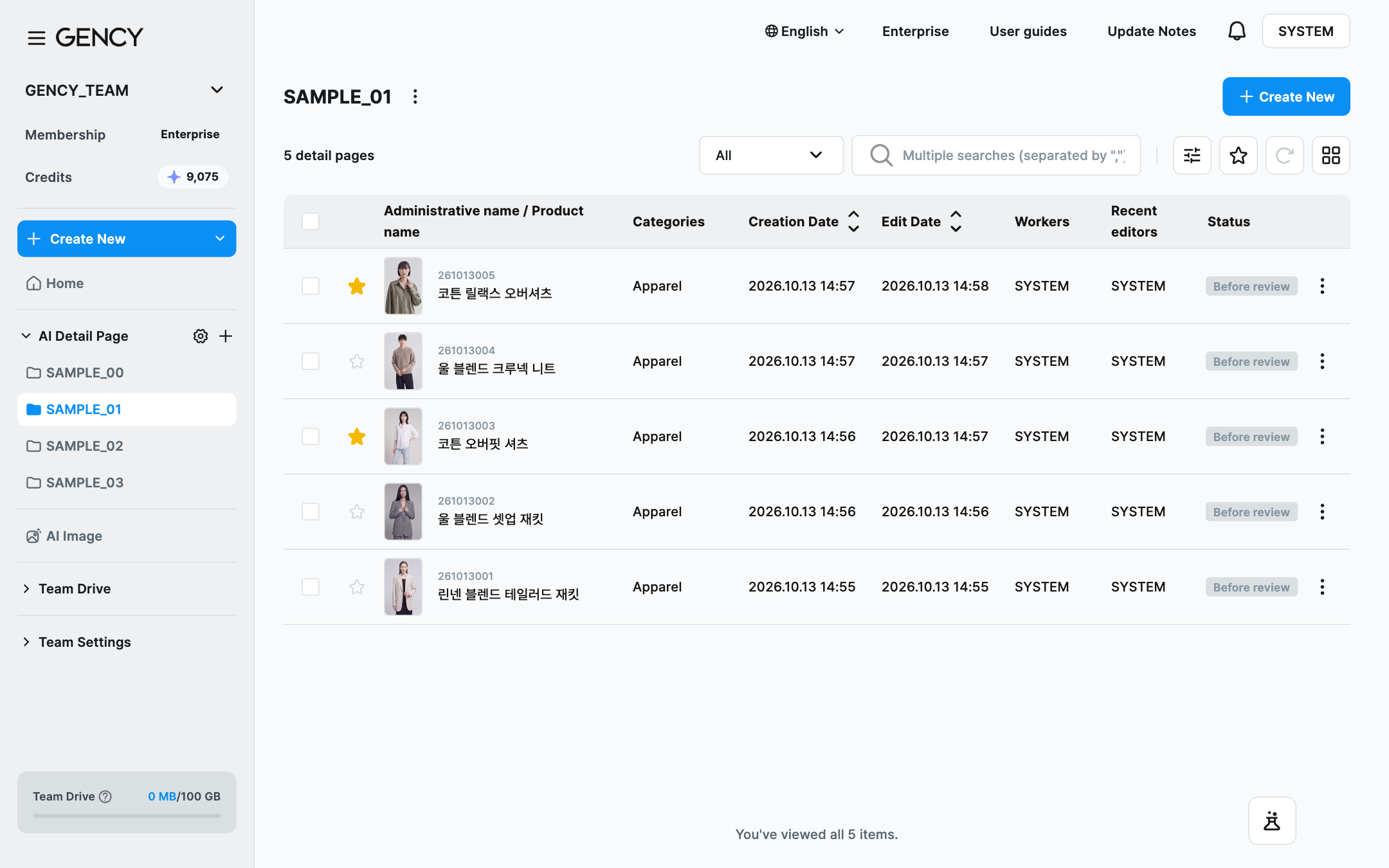
- Click the star icon on a detail page in the list.
- When the icon fills in yellow, the detail page is a favorite.
- Click it again to remove it from your favorites.
Where the star icon appears depends on the view.
| View | Icon position | When it appears |
|---|---|---|
| List view | Between the checkbox and the management name | Always shown. |
| Card view | Top right of the thumbnail | Appears when you hover over the card. Cards already marked as favorites always show it. |
Showing Only Your Favorites
Click the Favorites only filter (star icon) at the top of the list to show only the detail pages you've marked as favorites. You can combine it with search terms and other filters, and it stays applied when you share the URL or refresh the page.
To turn it off, click the Favorites only filter again.
Favorites are visible only to you. They don't appear on your team members' screens.
Marking a favorite doesn't change the order of the list — it only adds the mark.
Detail pages that are still generating can't be marked as favorites.
Favorites here are separate from file favorites in Team Drive. For file favorites, see Team Drive.
Organizing Several Detail Pages at Once
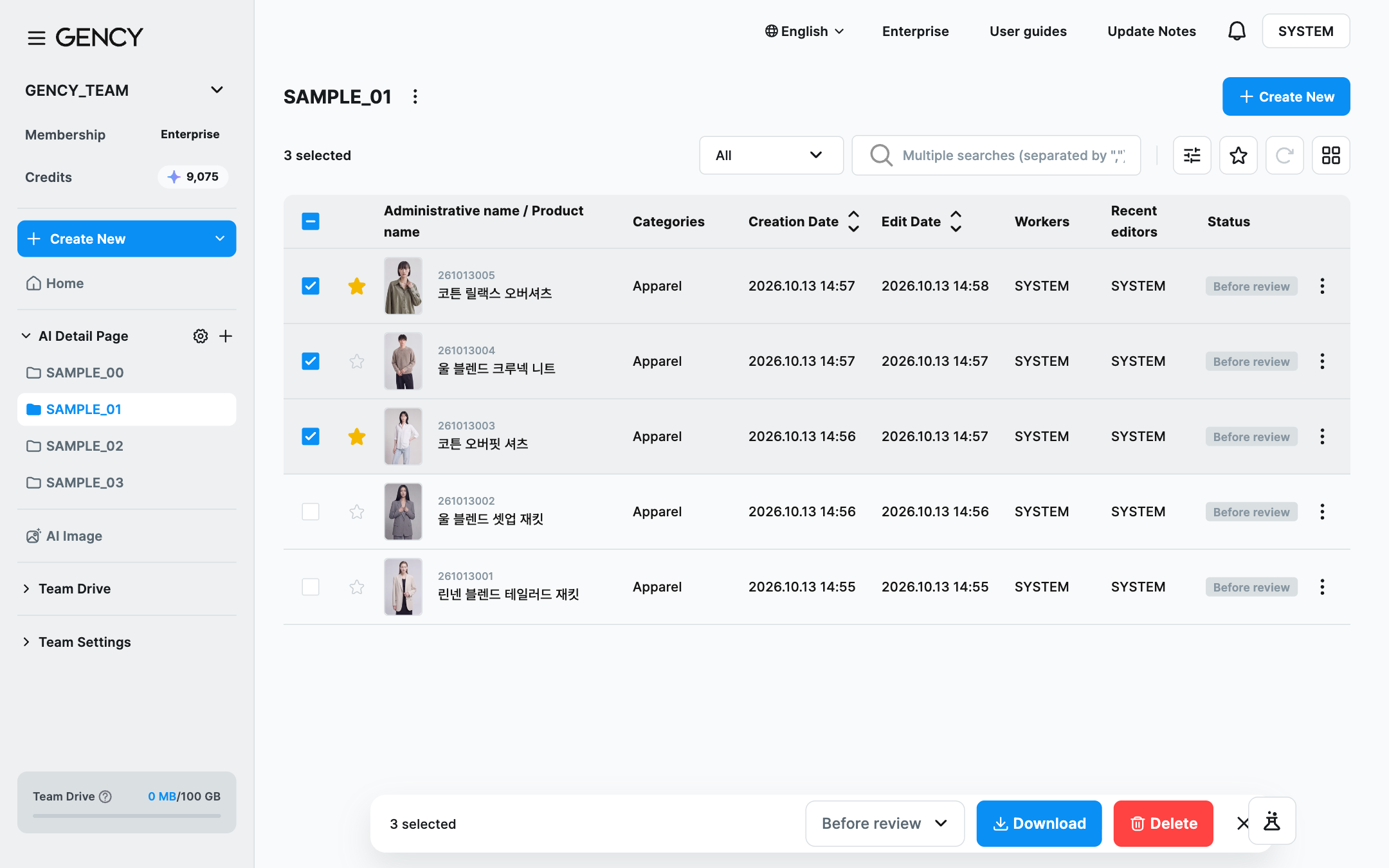
When you select several detail pages with their checkboxes, an action bar appears at the bottom of the screen. From there you can change the review status of all of them at once or delete them at once.
How to Select
- One at a time — In list view, click the checkbox on the left. In card view, click the checkbox that appears at the top left when you hover over a card.
- Select all — Click the select-all checkbox at the top of the list. You can also press
Ctrl+A(Cmd+Aon Mac). - Deselect — Click ✕ on the right of the action bar or press
Esc.
Select all doesn't select only the items you can see. It selects every detail page that matches the current search and filters.
Even if only 30 are shown on screen, if 1,200 detail pages match, the action bar shows 1,200 selected, and deleting removes all 1,200. Always check the number on the action bar before you go ahead.
Detail pages that are still generating can't be selected and aren't counted. If the list has 100 detail pages and 10 of them are generating, select all shows 90 selected.
Changing the search, filters or sort order clears the selection. This keeps detail pages you didn't intend from being processed after the conditions change.
Changing the Review Status at Once
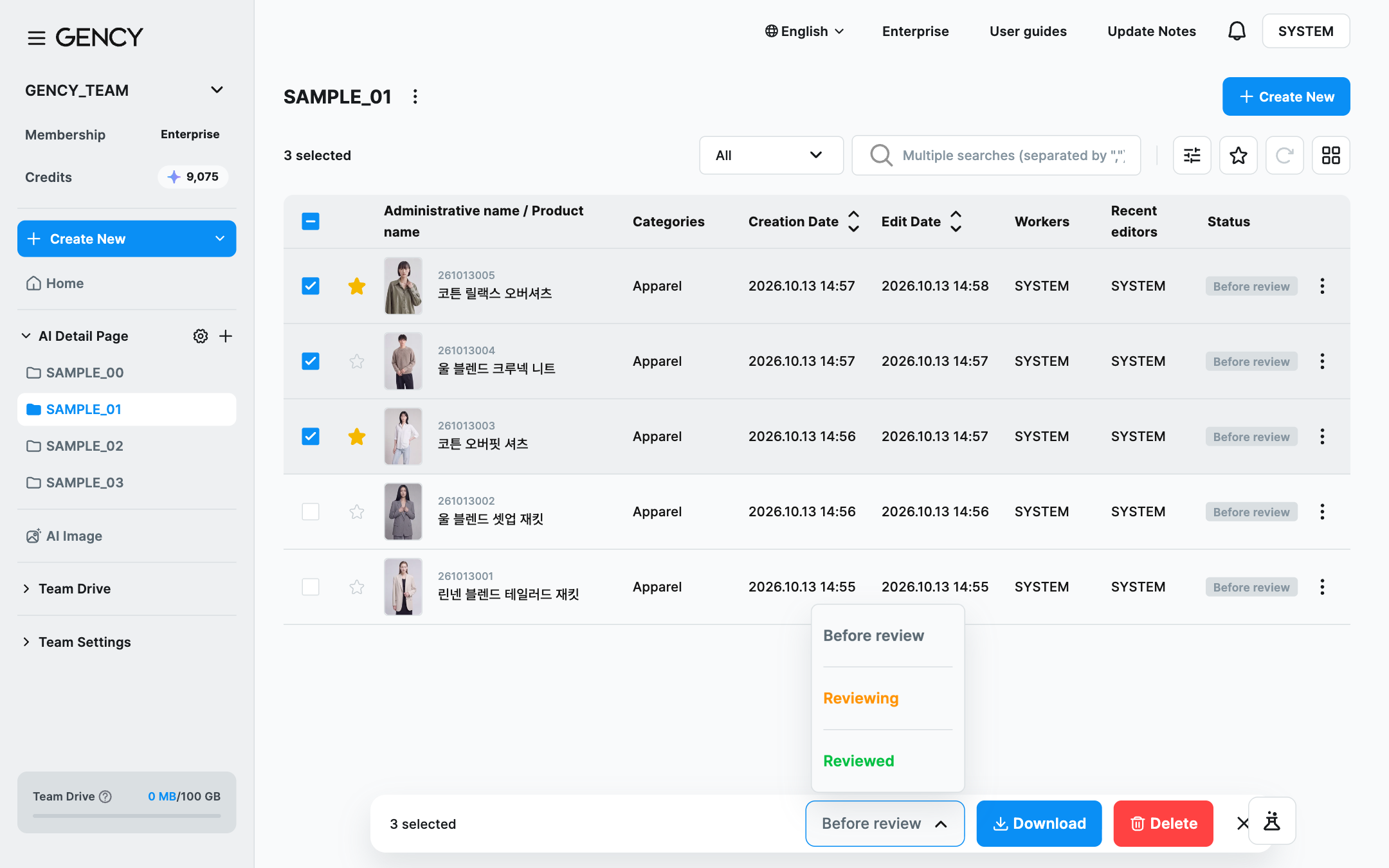
- Select the detail pages.
- Click the status button on the action bar.
- Choose Before review, Reviewing or Reviewed.
- When it's done, a message shows how many files were changed.
If all the selected detail pages have the same status, the button shows that status. If the statuses are mixed, it shows a general status-change label.
The review status of detail pages that are generating or have failed to generate isn't changed. If every selected item is in one of these states, you can't click the status button.
When you select several detail pages together, only the ones that can be changed are processed, and the message shows the number actually changed.
Review status changes apply right away, without a confirmation window. Check the number selected first.
Deleting Several Detail Pages at Once
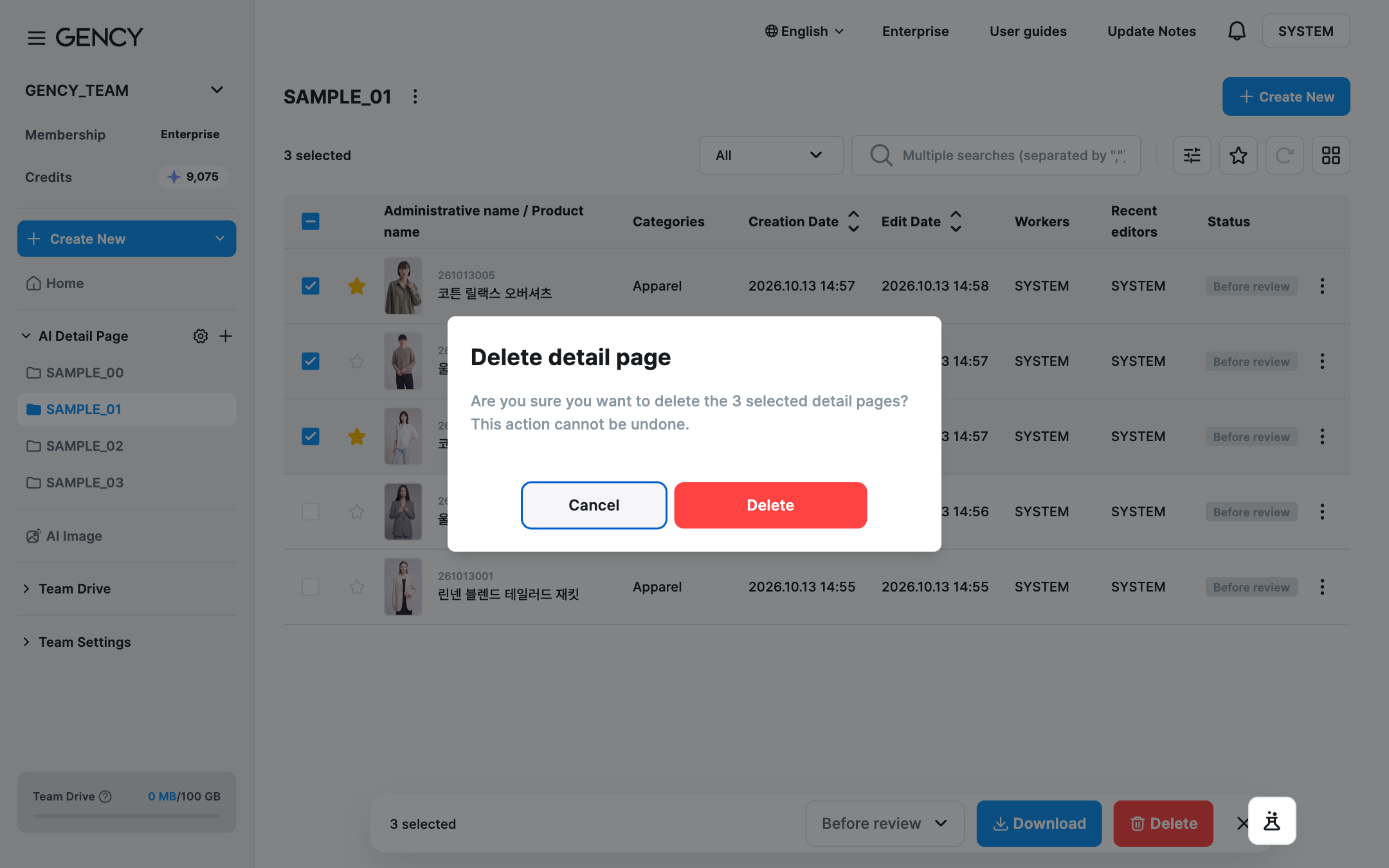
- Select the detail pages.
- Click Delete on the action bar.
- In the Delete detail page confirmation window, click Delete.
- When it's done, a message shows how many detail pages were deleted.
The same confirmation window appears when you delete a single detail page from the list.
Deleted detail pages can't be restored.
The workspace has no trash, so there's no way to undo it. Files deleted in Team Drive go to the trash, but detail pages are deleted immediately, so please be careful.
Adding Products in Bulk
If you want to create detail pages for multiple products at once, use the + Add Product button at the top.
- Select the workspace (folder) you want.
- Click the + Add Product button at the top.
- Enter the product information, and you can generate up to 50 at once.
Bulk generation consumes 100 credits per product.
Example: generating 10 products = 1,000 credits consumed
Related Guides
- Creating a detail page → Creating a Detail Page
- Editing a generated detail page → Editing a Detail Page
- Managing product images → Team Drive
- Checking your credit balance → Payment / Management