






Creating a Detail Page
Upload 6–50 apparel or jewelry product images and AI automatically generates a detail page. By following the recommended image conditions and the 6-step GENCY detail page generation guide, even first-time users can create a polished detail page in minutes.
Just upload your product images and enter some basic information, and the AI automatically creates a polished detail page for you. Even without design experience, you can complete one in a few minutes by following just 6 steps.
This guide walks you through the entire process, from uploading images to completing generation.
Check This Before You Start
The quality of your detail page depends heavily on the quality of the images you upload. Before you begin generating, please check the conditions below.
| Item | Requirement |
|---|---|
| Number of images | Minimum 6 – maximum 50 (GIFs are excluded from the 6) |
| Image formats | PNG, JPG, JPEG, GIF, WebP, HEIC |
| File size | Up to 80MB per file |
| Recommended resolution | At least 1200px wide |
| Recommended format | PNG (minimizes quality loss) |
| Supported categories | Apparel, Jewelry (Beta) |
If you're not sure how to prepare your images, check the Image Guide first.
The better your images meet the guidelines, the higher the quality of your results.
Detail Page Generation Steps
Follow the 6 steps below in order.
Step 1. Click "+ Create Detail Page"
Click the + Create Detail Page button at the top of the left sidebar. Clicking it takes you straight to the generation screen.
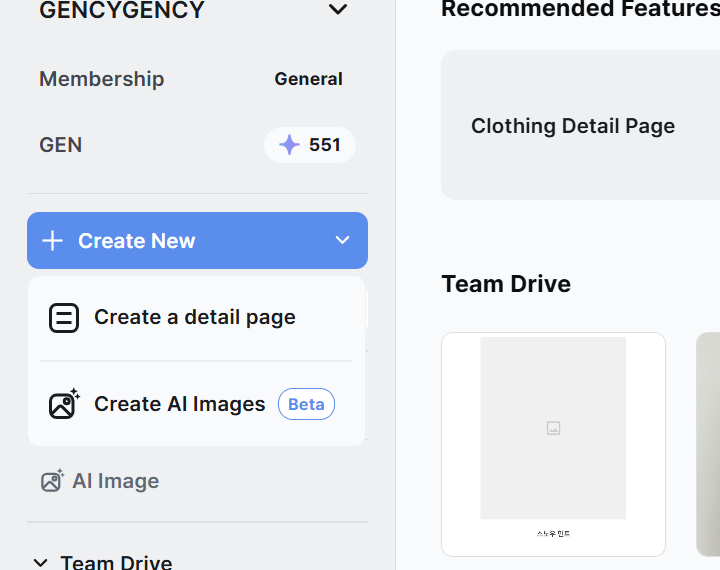
If you don't see the button, the left sidebar may be collapsed. Please expand the sidebar.
Step 2. Upload Your Product Images
When you enter the generation screen, an image upload area appears. Drop your prepared product images here.
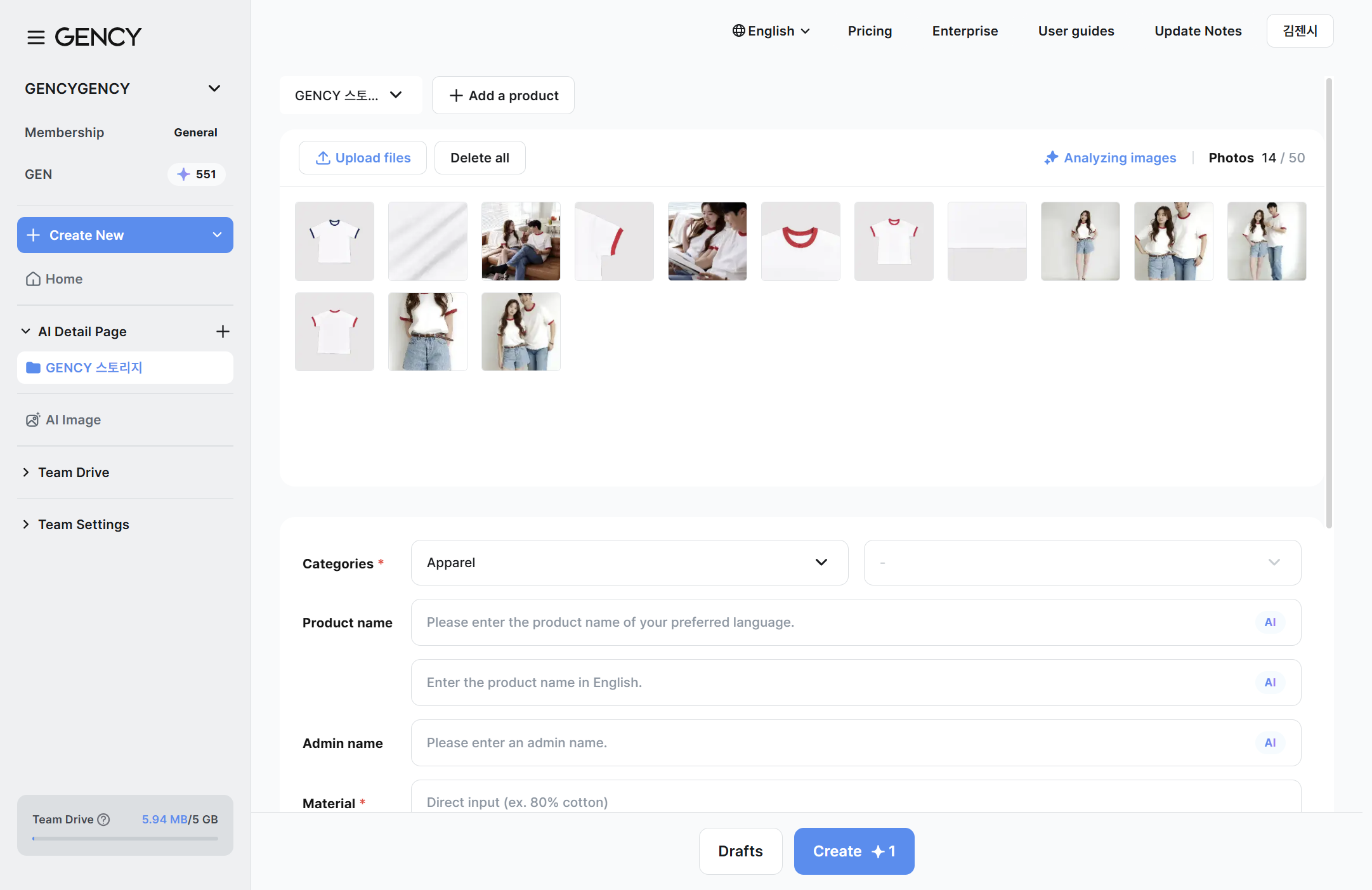
Here's how:
- Drag & drop your images, or click the Upload File button.
- You can also upload an entire folder at once.
- Uploaded images appear as thumbnails, and you can reorder or delete them.
If you already have images uploaded to Team Drive, you can load them directly in the Editor after generation.
→ Organizing your images in advance in Team Drive lets you work more efficiently.
Using the Excel file upload feature, you can also enter product information in bulk.
This is useful when registering multiple products repeatedly.
Step 3. Enter Basic Information
Once image upload is complete, basic information fields appear below. Select a category first, and the relevant input fields will be displayed.
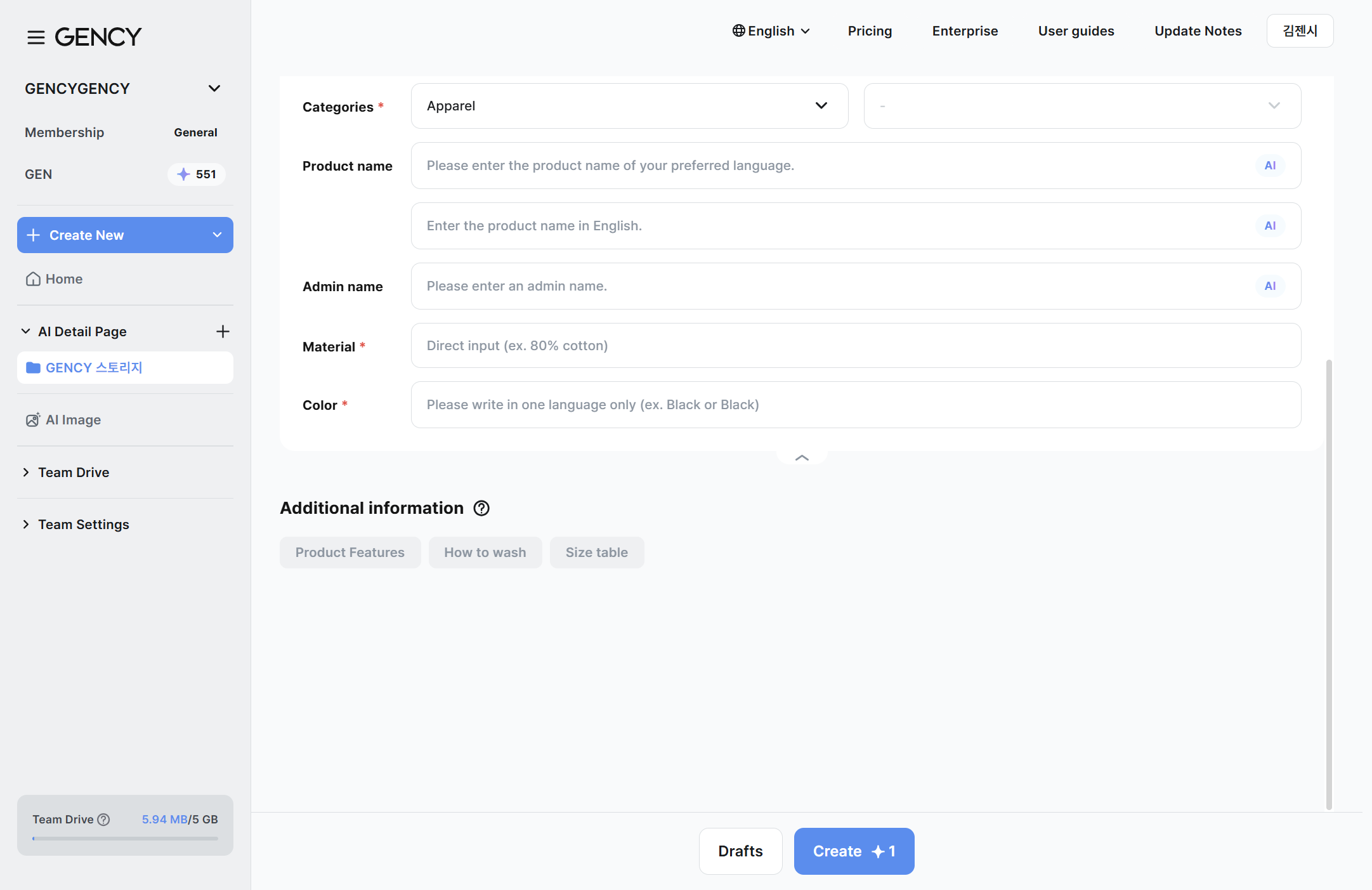
Common fields
| Item | Required | Description |
|---|---|---|
| Category * | Required | Choose Apparel or Jewelry |
| Product name | Optional | If left blank, GENCY automatically suggests a product name (up to 50 characters) |
| Management name | Optional | If left blank, GENCY automatically generates a management name (up to 50 characters) |
| Material * | Required | Enter material keywords — up to 20 |
| Color * | Required | Enter in one language only (e.g., Black) — up to 20 |
| Template language * | Required | The language the detail page is built in — Korean · Japanese · Traditional Chinese · English |
| Template | Optional | Pick one of the templates in the chosen language — check the whole thing with [Preview] (see below) |
Choosing the template language and template
Before you click Generate, you can decide which language and which template the page is built with. Use the Template language and Template rows below the basic information.
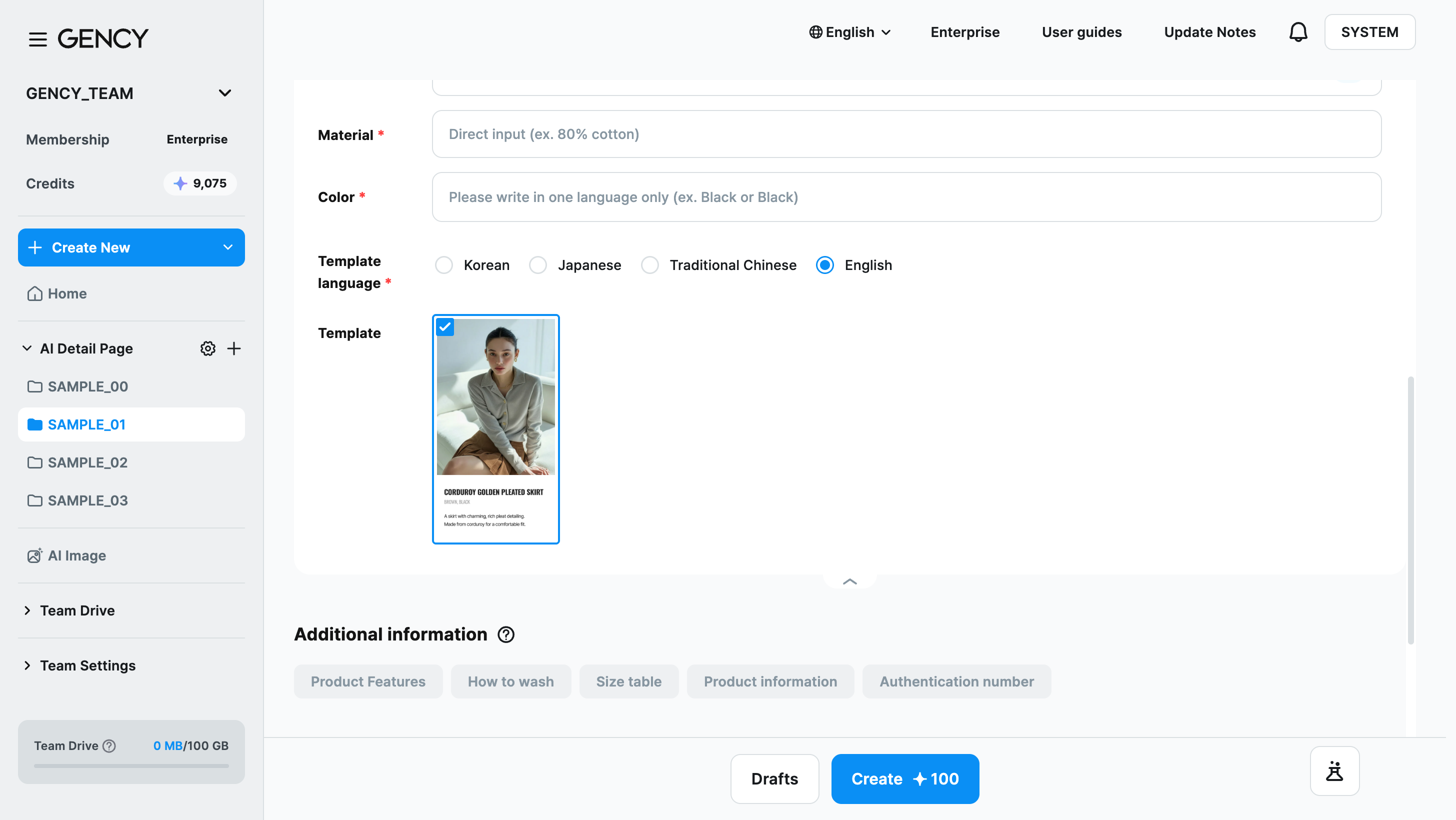
- Under Template language, choose Korean, Japanese, Traditional Chinese, or English.
- At first the display language is selected. Once you choose, the language you picked last is selected by default from the next generation on.
- Click a card in the Template row to select it.
- Only templates in the chosen language are shown. Templates you've favorited (★) come first, and the card with the check mark is the one currently selected.
- Hover over a card and a star appears at the top right. Click it to add or remove the template from your favorites.
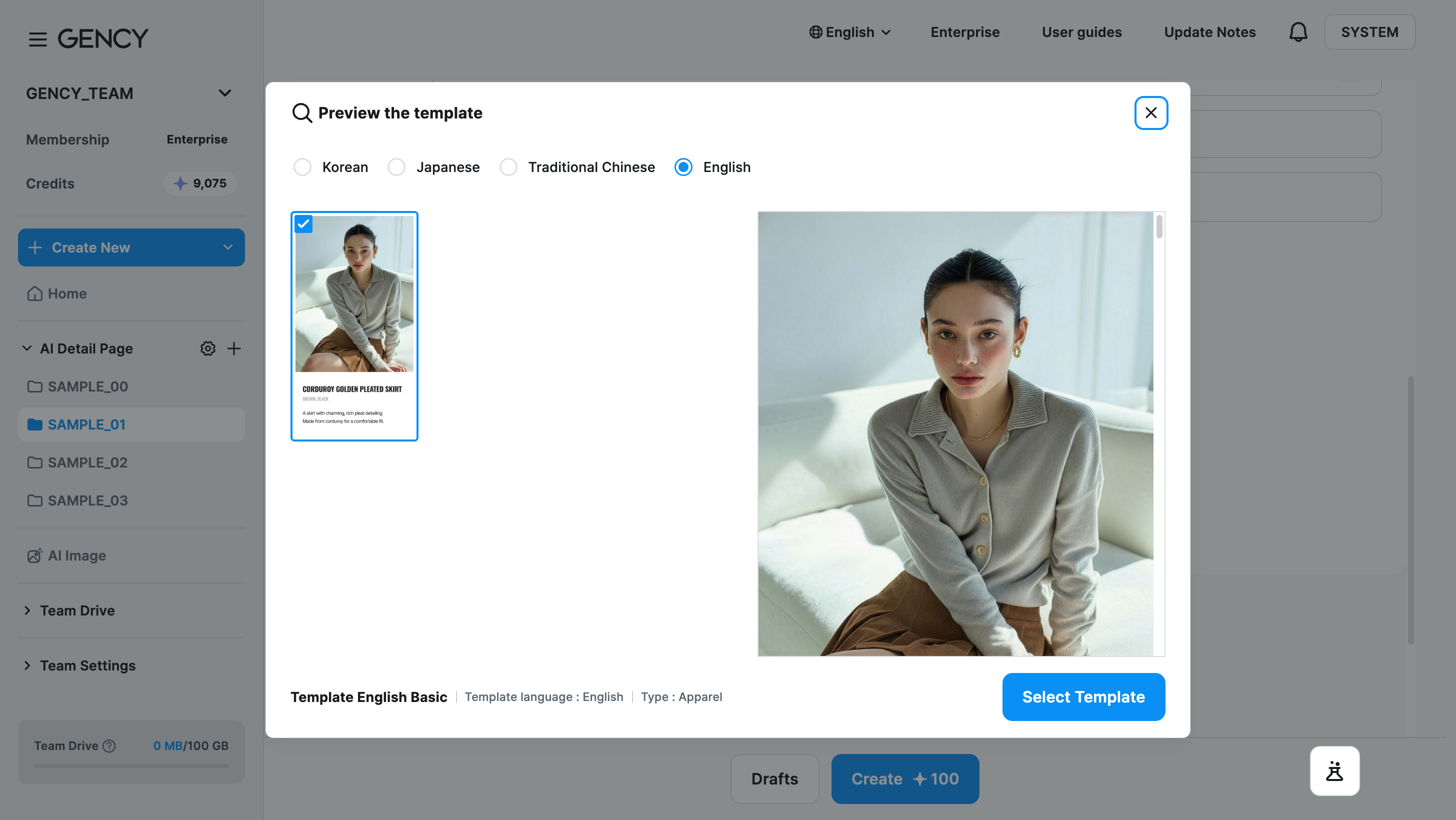
- To see the whole template before choosing, click [Preview] under the card.
- The Preview the template window opens. Click another template in the list on the left to change the large preview in the middle, and use the page thumbnails on the right to jump to a page.
- Change the language at the top of the window to browse templates in other languages.
- Click [Select Template] and the template you were looking at last is selected and the window closes. If you picked a template in another language, the template language changes with it. This button only changes the selection — it doesn't generate.
The detail page is built with the template language and template you chose in Step 3. For how templates and copy work in each language, see Detail Pages by Language.
In a workspace that only has Enterprise-exclusive templates, the template language selector doesn't appear and the page is built with that workspace's template right away.
Selected Jewelry?
When you select the Jewelry category, 3 additional required fields appear.
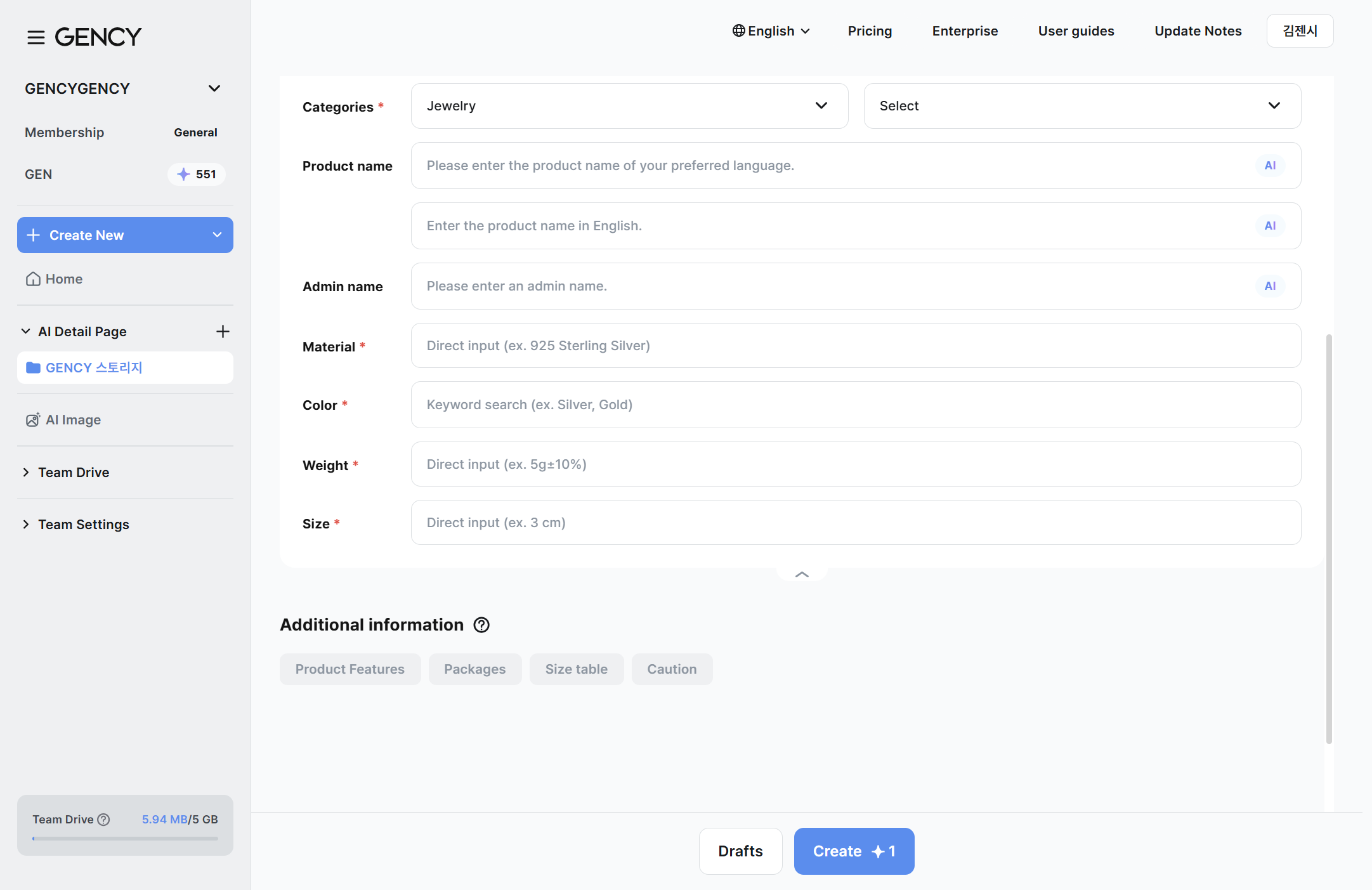
| Item | Required | Description |
|---|---|---|
| Subcategory * | Required | Choose one: necklace, ring, bracelet, anklet, earrings |
| Weight * | Required | Enter the product weight |
| Size * | Required | Enter the product size |
Jewelry has 3 more required fields than Apparel.
The contents of the additional information tabs also change depending on the subcategory, so please select carefully.
Apparel vs. Jewelry — Field Comparison
If you're unsure which items to enter, refer to the table below.
| Field | Apparel | Jewelry |
|---|---|---|
| Subcategory | — | Required (necklace/ring/bracelet/anklet/earrings) |
| Weight | — | Required |
| Size | — | Required |
| Material | Required (fabric material) | Required (precious metal/gemstone) |
| Color | Required (fashion color) | Required (metal color) |
Category, material, and color are common required fields.
For Jewelry, subcategory, weight, and size are also required. Generation won't start if these are not filled in.
Step 4. Enter Additional Information (Optional)
If you want a more refined detail page, try entering additional information too. It's not required, but the more you enter, the higher the quality of your results.
Apparel additional information
In the additional information area, you can enter product features, care instructions, size charts, and more, organized by tab.
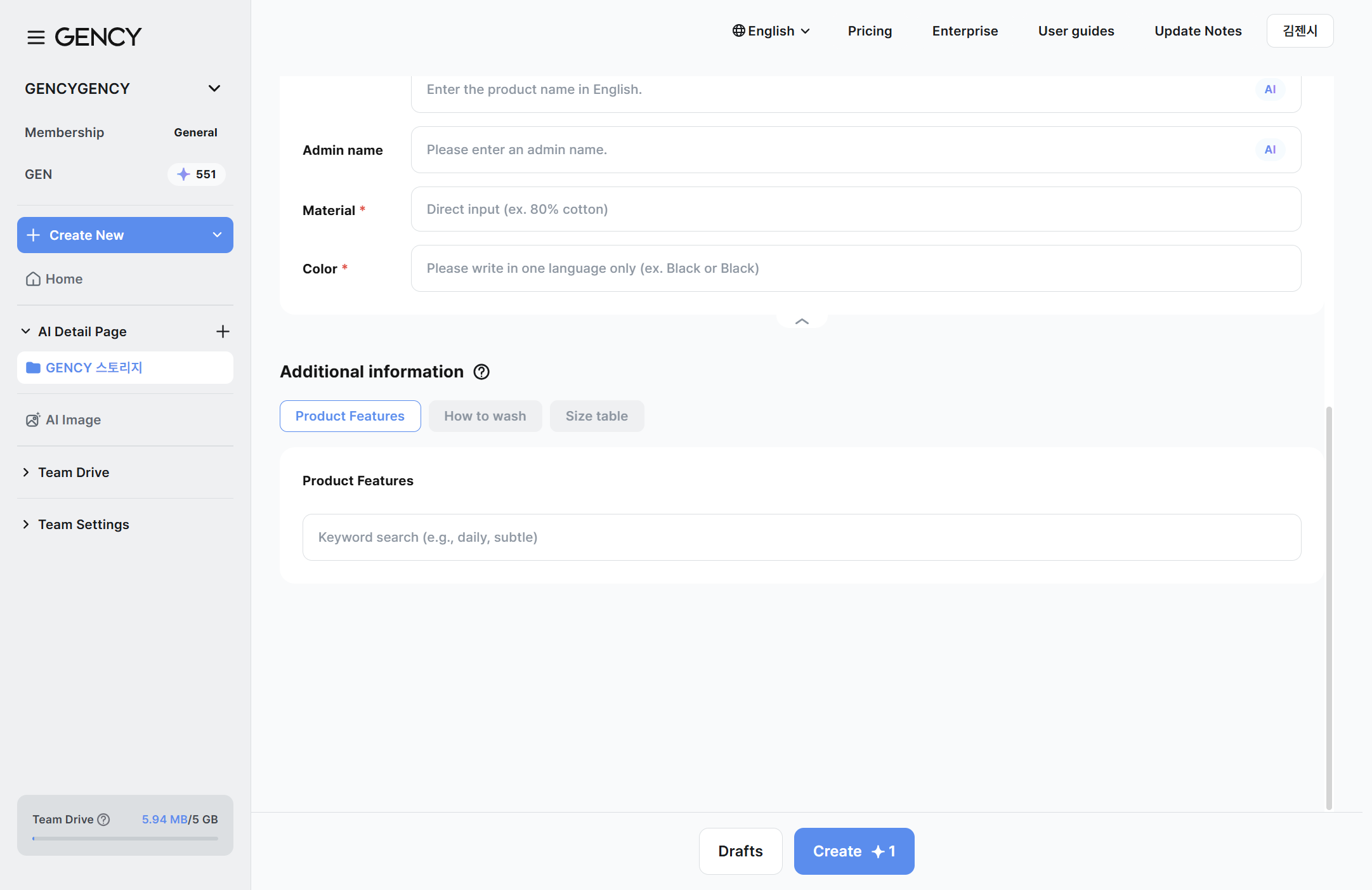
| Tab | Plan | Description |
|---|---|---|
| Product features | All | Enter the product's key features or selling points as keywords |
| Care instructions | All | Enter washing methods or care precautions as text (up to 300 characters) |
| Size chart | All | Choose from 9 presets by apparel type (coat, jacket, long sleeve, short sleeve, pants, etc.) or enter manually |
| Product info | Enterprise | Enter country of manufacture and manufacturing date |
| Certification number | Enterprise | Enter KC certification numbers and the like |
The Product info and Certification number tabs are exclusive to the Enterprise plan.
They are not shown on the standard (BASE) plan. For details on plans, see Payment / Management.
Jewelry additional information
For Jewelry, the tab layout of the additional information changes depending on the subcategory you selected.
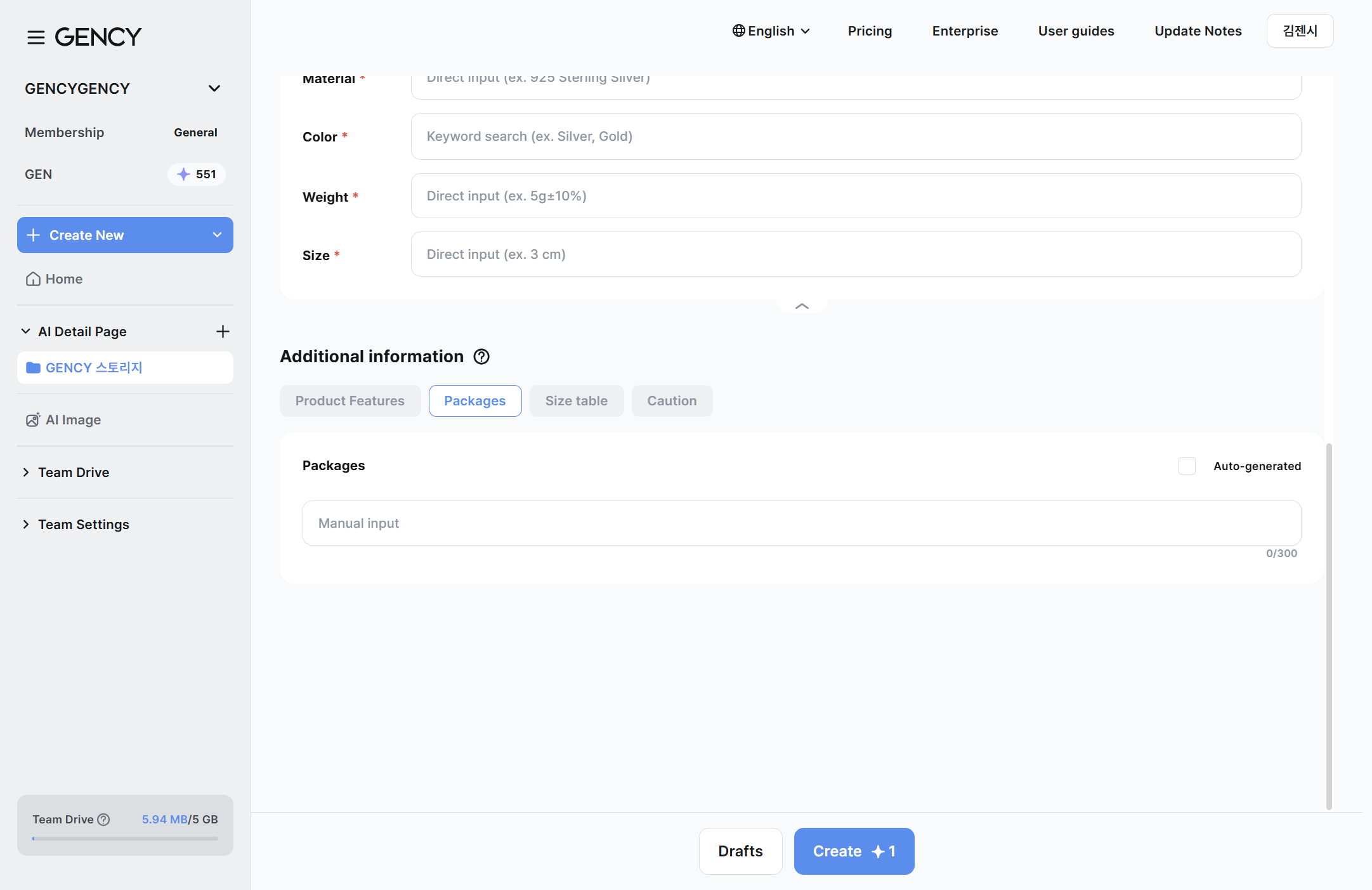
Common tabs:
| Tab | Description |
|---|---|
| Product features | Enter the product's key features as keywords |
| Packaging | Packaging composition information (auto text provided) |
| Size chart | Presets provided by subcategory |
| Precautions | Product handling precautions (auto text provided) |
Additional tabs by subcategory:
| Subcategory | Additional tabs |
|---|---|
| Earrings | Ear post type, one-touch fitting method |
| Ring | Lettering engraving, size measurement method |
| Bracelet / Anklet | Extension chain, size measurement method |
| Necklace | (no additional tabs) |
Jewelry additional information gives you access to all tabs regardless of plan.
Additional information is optional, but the more you enter, the more polished your detail page will be.
Step 5. Click the "Generate" Button
Once you've entered all the information, look at the buttons at the bottom of the screen.
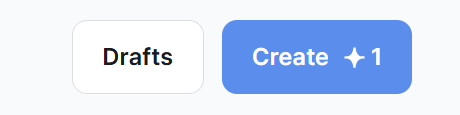
| Button | Description |
|---|---|
| Generate | Consumes 100 credits, and the AI generates the detail page |
| Save Draft | Use this when you want to continue later without generating yet |
Clicking Generate starts the AI's work immediately.
Credits are what you use to generate detail pages.
You can check your credit balance in the left sidebar, and top up in Payment / Management.
Step 6. Move to the Editing Screen After Generation
Once the AI finishes generating the detail page, you're automatically taken to the editing (Editor) screen. In the Editor, you can freely change templates, edit text, replace images, and more.
Even if you're not happy with the generated result, don't worry. You can edit it however you like in the Editor.
If you're curious about how to use the Editor, check Editing a Detail Page.
Frequently Asked Questions
I clicked Generate but no result appeared.
You may have fewer than 6 images, or one of the required fields (category, material, color) may be missing.
Please double-check your input.
Are categories other than apparel and jewelry unsupported?
Currently, GENCY only supports the Apparel and Jewelry categories.
More categories will be added in the future.
Do more images mean better results?
Yes—the more images you upload from various angles and of various details, the more accurately the AI can analyze them.
Refer to the recommended images in the Image Guide.
Can I choose a template before generating?
Yes. Choose under Template language and in the Template row in Step 3, and the page is built with that template right away. Check the whole thing with [Preview], and favorite it (★) so it comes first from the next generation on.
You can still change templates in the Editor's Template tab after generating.