





Getting started with the Editor
How to use the GENCY Editor to touch up the product detail page AI made for you. The screen layout, the order to work in, and where to find every feature — all in one place.
Ready to polish the product detail page AI made until it's exactly how you want it? Swapping photos, rewriting copy, and reordering pages — you can do it all in the GENCY Editor.
- When does it open? This screen opens automatically as soon as your product detail page is finished.
- Want to open it again? You can always come back to it from your
Workspacelist.
How the screen is laid out
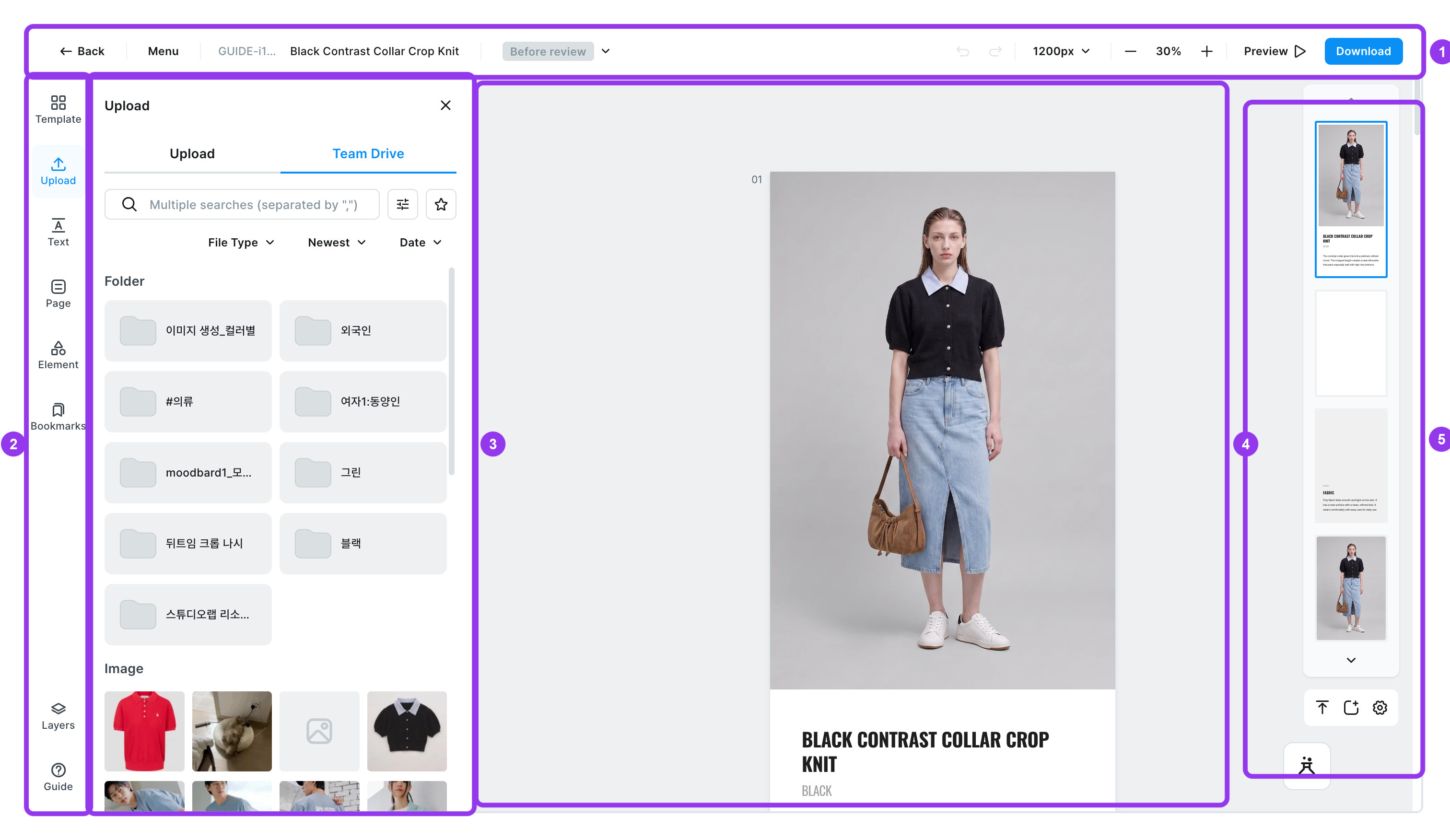
| No. | Area | What it does |
|---|---|---|
| 1 | Top menu | Check the product name and save status. Undo, zoom controls, and the [Preview] and [Download] buttons are gathered here. |
| 2 | Left menu | Where you pick the ingredients for your product detail page. Choose the feature you need — Template, Text, images, and more. |
| 3 | Panel | Slides open when you click something in the left menu. Fine-tune the look, color, and details of the photo or text you've selected. |
| 4 | Edit screen | The canvas where your actual product detail page is drawn. Drag things to move them, or edit text right on the spot. |
| 5 | Page preview | See the flow of all your pages at a glance. Click a page to jump straight to it. |
info
Here's what we'll call things in this guide
- Edit screen ㅣ the wide canvas in the middle where you decorate your product detail page
- Panel ㅣ the window that opens on the left for changing detailed settings
- Element ㅣ the catch-all word for the photos, text, shapes, and everything else you've placed on the edit screen
Saving happens on its own
Your work is kept even if you never press a save button. It saves 10 seconds after you pause, and at least once every 3 minutes while you keep working. See Saving and version history for details.
First time? Follow this order
- Template — Pick the overall design that suits your product first, before anything else.
- Upload — It's easiest to upload all the photos you'll use up front.
- Text — Rewrite the copy to fit your product and try a different font.
- Page — Delete the pages you don't need and put the rest in a natural order.
- Element — Add shapes or tables to make information easy to take in at a glance.
- Arrange — Select several elements at once and even out the spacing for a much cleaner look.
- Preview and download — Check the finished result and save it as a file.
warning
Hold on! Always pick your Template first
If you change the Template after fixing up your photos and copy, everything you've worked on gets reset.
Explore the Editor's features
- Template ㅣ Change the whole design theme with one click. Preview designs by category and pick one.
- Upload ㅣ Bring in photos from your PC or replace ones already placed. AI puts them where they fit best.
- Image editing ㅣ Crop photos to the ratio you want, cut them out to a shape, and adjust brightness and color.
- Text ㅣ Type text and change the font, size, and color. Ready-made text styles are there to use right away too.
- Element ㅣ Add shapes, lines, stickers, tables, and other touches to make information easy to take in.
- Page ㅣ Add or delete pages and change their order. They're merged into one long image when you download.
- Fit bottom padding ㅣ When text or photos run over, the page grows to fit its content. You can also set the bottom padding as a number.
- Arrange and position ㅣ Neatly line up several elements and even out their spacing. You can also group them to move them together.
- Groups and auto layout ㅣ Bundle several elements into one and keep the spacing inside automatic.
- Color ㅣ Change the accent colors used across your product detail page all at once.
- Copy style ㅣ Paste a look you set up once onto other elements. Use it when the same look is needed several times.
- Links ㅣ Attach a web address to photos or text so customers can click through, or drop in a card for your brand homepage.
- Layer ㅣ When things overlap and you can't select the one you want, pick it from a list.
- Bookmark ㅣ Save pages you use often and reuse them in other product detail pages with one click.
- View settings ㅣ Turn on rulers, grids, the minimap, and more to make the screen comfortable for you.
- Dark mode ㅣ Dim the area around the edit screen. Your product detail page stays exactly as it is.
- Menu ㅣ Find and replace text, and reach New, Language settings, and Shortcuts.
- Saving and version history ㅣ Your work saves itself. You can also roll the whole thing back to an earlier point.
- Preview ㅣ Check how it will look to your customers in the shop.
- Download result ㅣ Save the finished product detail page as an image file and register it in your shop right away.
- Shortcuts ㅣ Undo, copy, group, zoom and more — every shortcut for Mac and Windows.