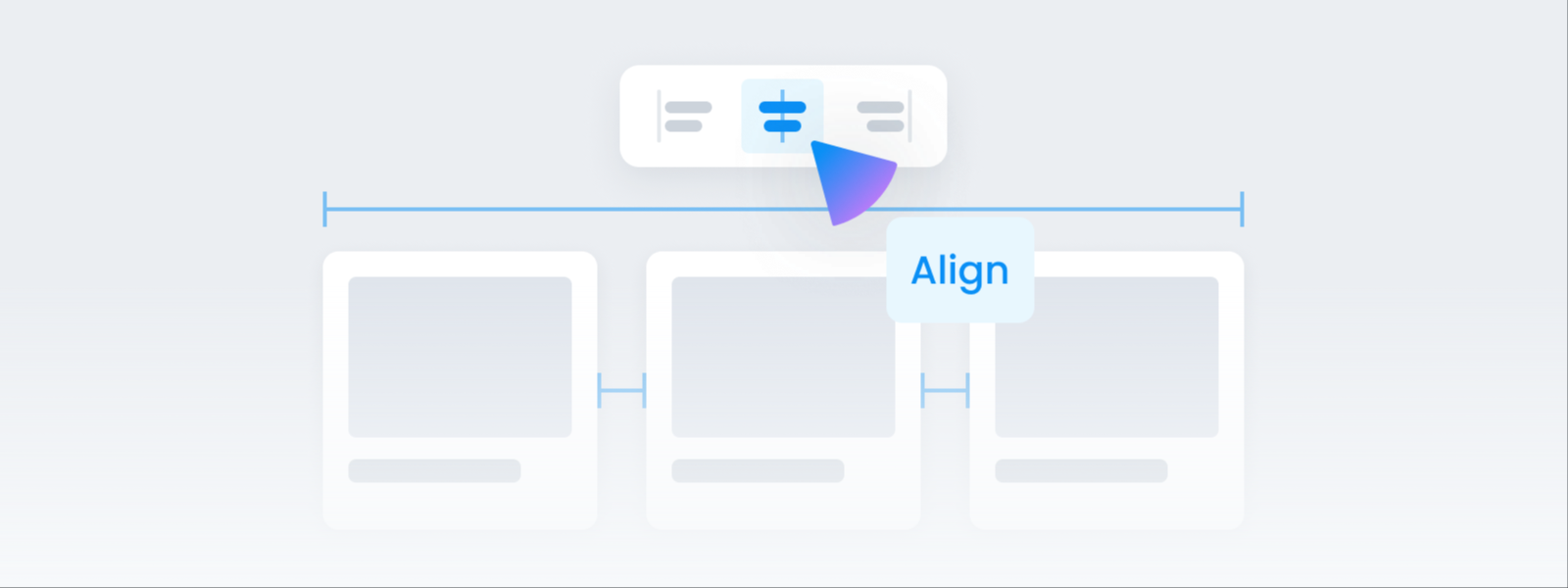
Arrange and position
Line up several elements and space them out evenly. Group them to move them together, or change colors, fonts, and sizes all at once.
Line things up by eye and they always look slightly off. Select several together and set the values, and everything looks much cleaner.
- How do I select several? Drag across an empty spot on the edit screen and everything inside gets selected.
- What can I do? Line things up · space them evenly · change several at once.
To select several at once
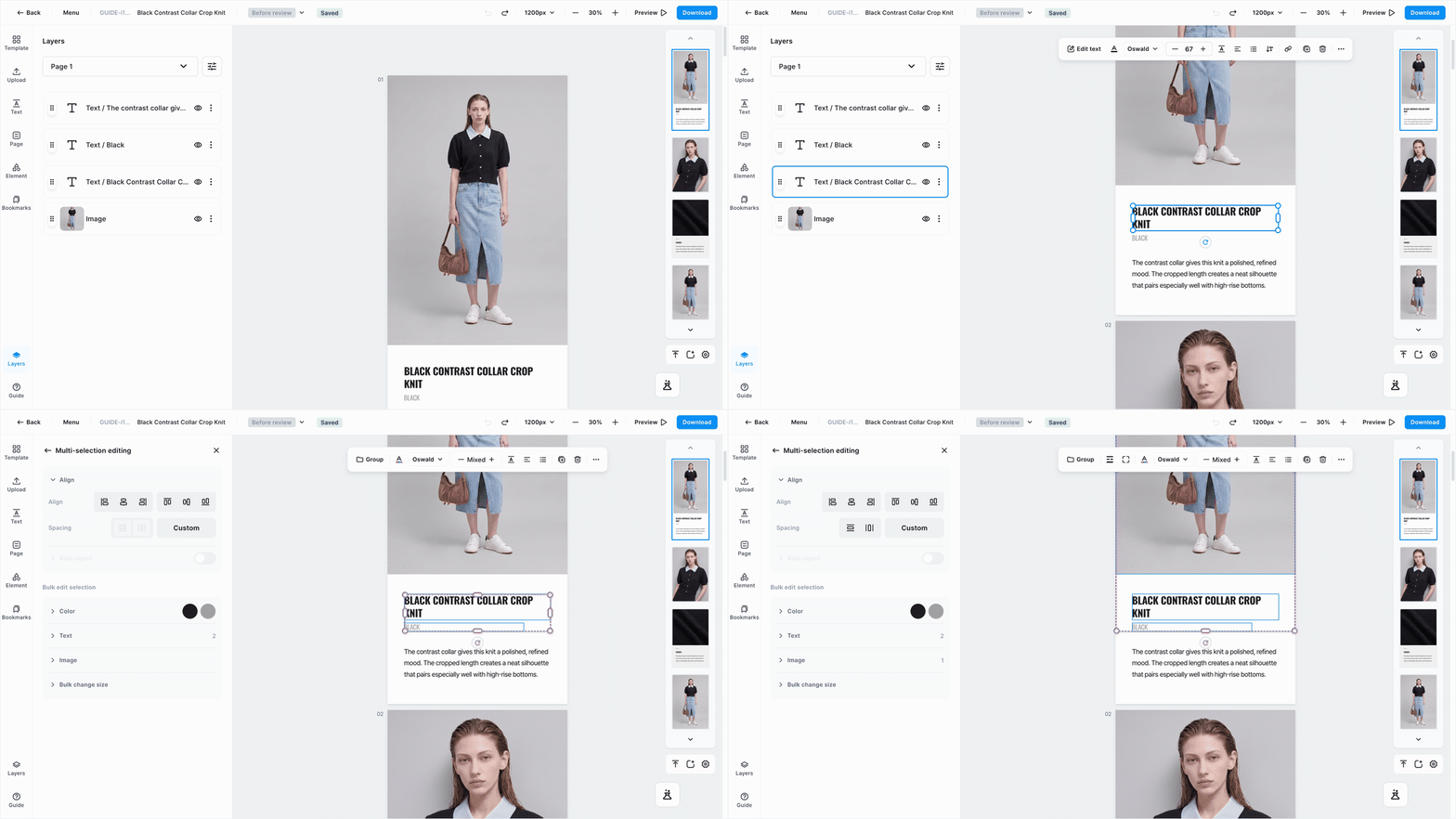
- Hold
Shiftand click to add items one at a time. - Drag a box from an empty spot and everything inside it gets selected.
⌘Aselects everything;Escdeselects.
Lining up and spacing evenly
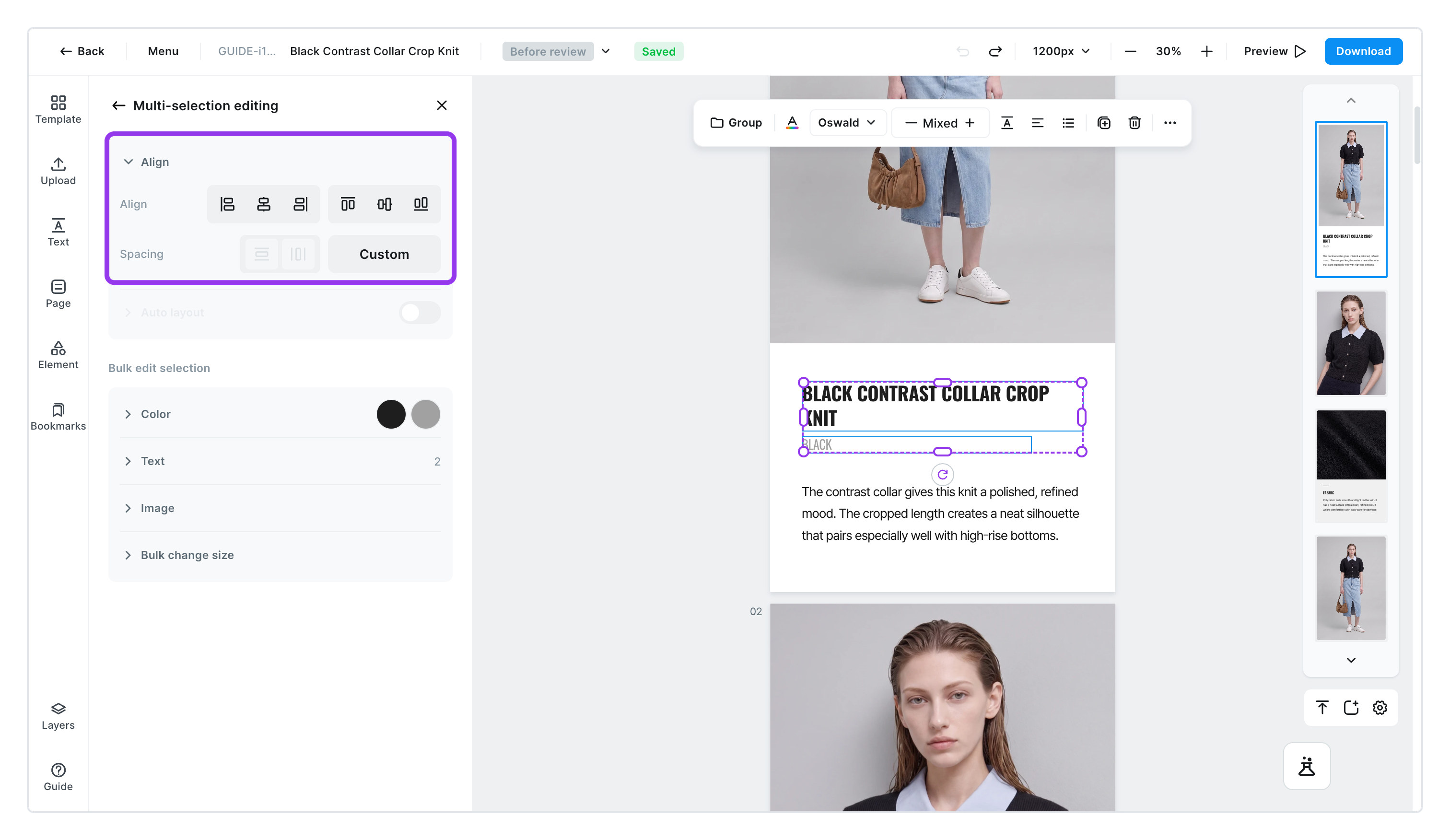
- Under
Align, pick which way to line things up- Horizontal ㅣ left · center · right
- Vertical ㅣ top · middle · bottom
- With one item selected, it aligns to the page; with several selected, they align to each other.
- Even out the
Spacing- [Distribute horizontal/vertical spacing evenly] ㅣ keeps both ends in place and splits the gaps equally. Works with 3 or more items.
- [Custom spacing] ㅣ set the gap as an exact number, anywhere from 0 to 200.
To change several at once
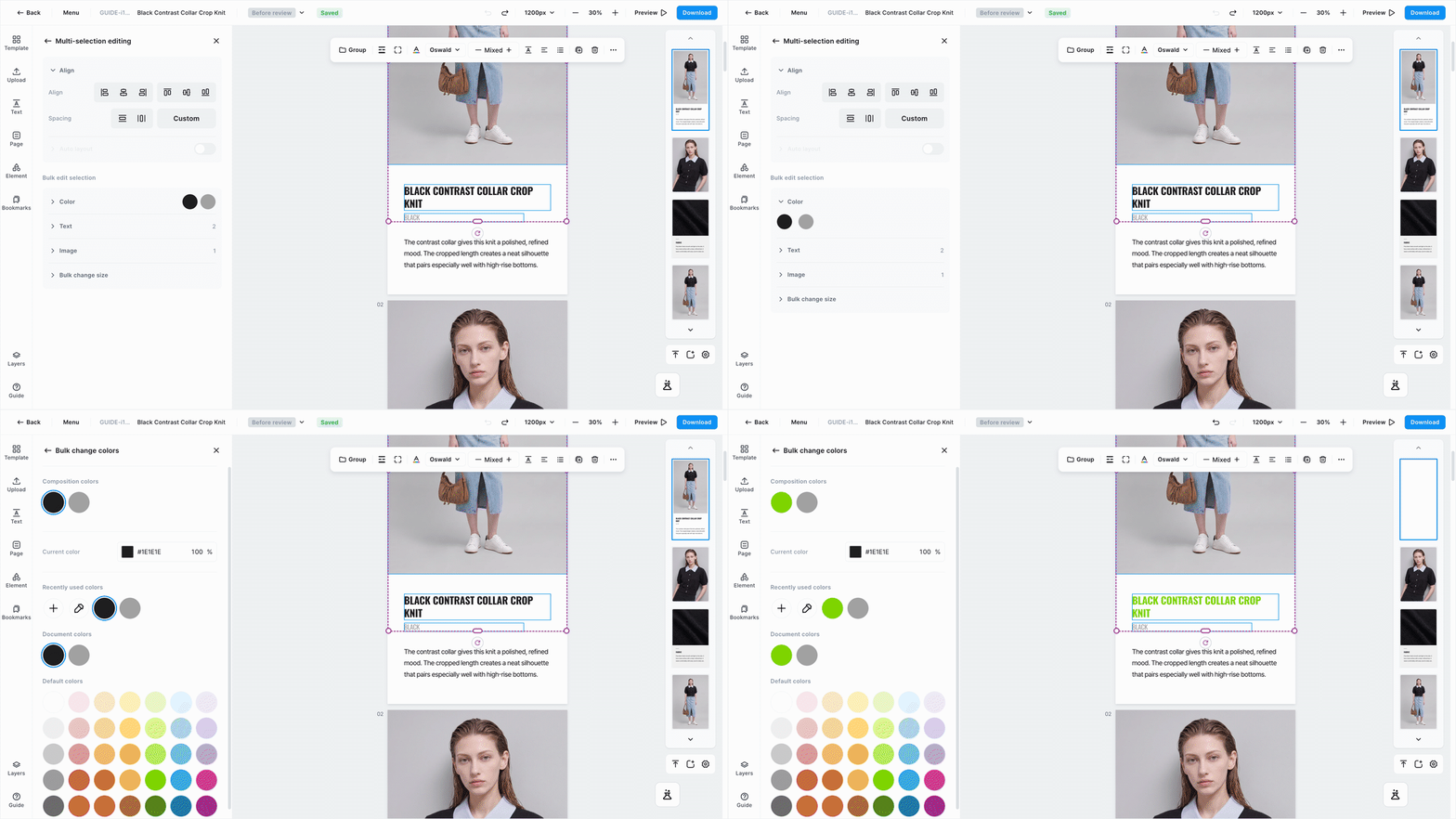
With several items selected, Bulk edit selection appears at the bottom of the left panel. Changes apply immediately, with no confirmation — if you don't like the result, press ⌘Z to undo.
| Item | What it changes | When it applies |
|---|---|---|
Color | Pick a color in use and swap it for another, everywhere at once | The moment you pick a color |
Text | Font and size, all together | When you press Enter or click elsewhere |
Image | The selected photos, swapped for another photo | The moment you pick a photo |
Bulk resize | Width and height, all to the same size | When you press Enter or click elsewhere |
Mixing photos and text in your selection is fine. Changes apply only where they can. Select both and change the color, and only the text changes color — the photos stay put. Sizes change for both.
To change front-to-back order or lock things
This decides what sits on top when things overlap.
Move something forward a step or send it all the way to the front from Order in the left panel, or with a shortcut. The full list is in Shortcuts.
Lock anything you shouldn't touch by accident, like a background photo. Locked items can't be selected by clicking. You can also unlock them in Layer.
| In this case | What happens |
|---|---|
| You lock a whole group | Everything inside gets locked too. |
| You lock only some items in a group | You can still move or resize the group as a whole. Anything that reaches inside — like changing colors in bulk — won't work. |
| You ungroup a group with locked items | It ungroups just fine. The locks stay on. |
To nudge things or copy a look
- Press an arrow key to move 1 pixel at a time, or hold
Shiftfor 10 pixels. Use it when something is just barely off. - Flip things with
Flip horizontal·Flip vertical. ⌘⌥Cto copy a style,⌘⌥Vto paste a style — carries the colors and borders straight onto something else. See Copy style for the details.
To add a clickable link
Attach a web address to a photo or text and it becomes clickable in the preview and in html files. See Links for the steps and examples.
Links can't be clicked in jpg or png image files. A picture is just a picture, after all. To keep links clickable, save as html in Download result.
Grouping and automatic spacing are covered in Groups and auto layout.