
Color
Pick any color used in your product detail page from a list and change it everywhere at once. You can also grab a color straight from the screen or make a gradient background.
Brand colors changed? No need to fix every piece of text and every shape one by one.
- Can I change them all at once? Yes. Pick a color from the list of colors in use, and everywhere that color appears changes.
- Want a color from a photo? Just tap anywhere on the screen with the eyedropper.
What are "colors in use"?
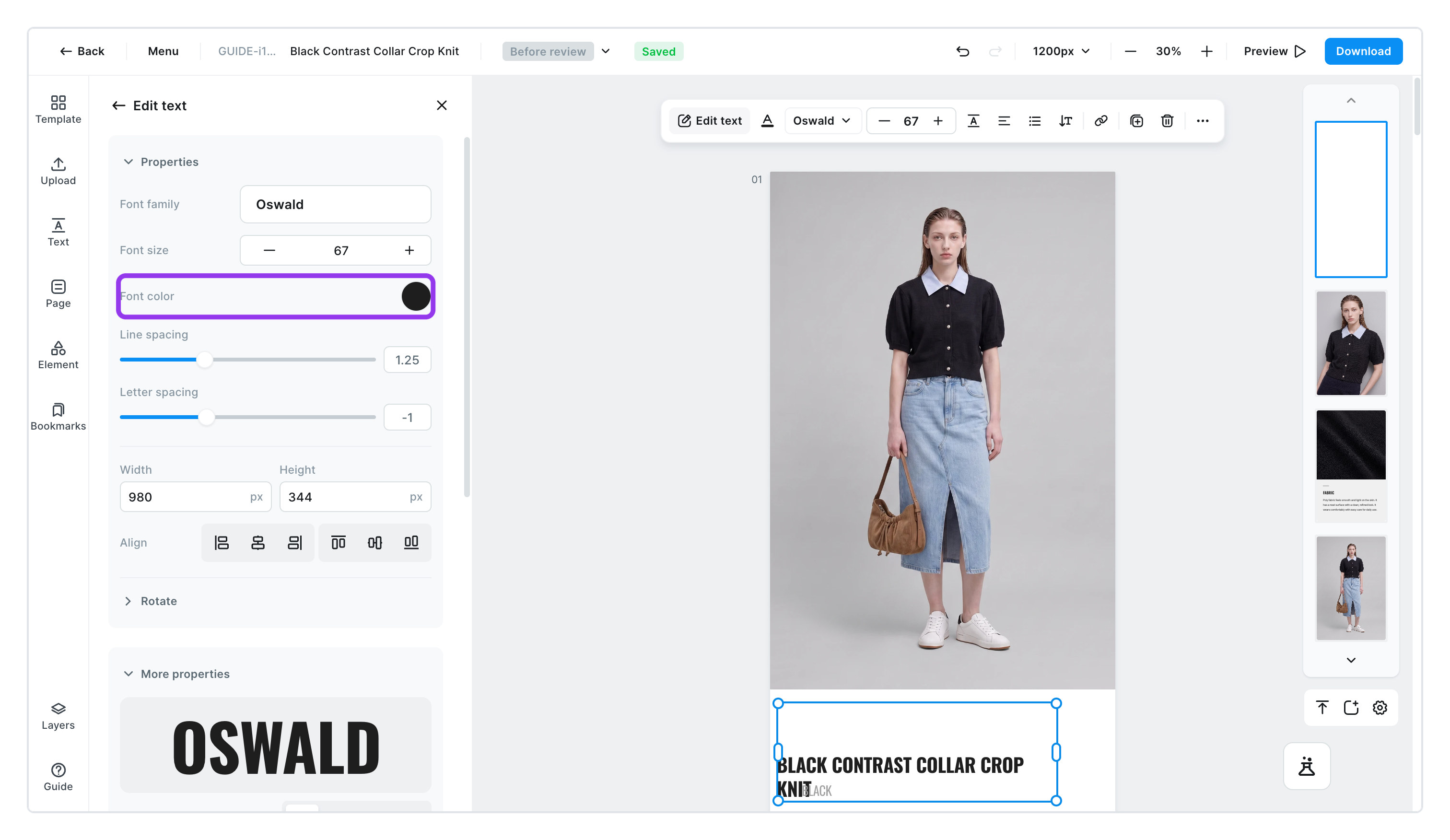
Where is it? Select a photo, text, or shape, then click the color circle in the left panel — the color window opens and the colors in use are inside it. The window is named after what you selected: Text color, Outline color, and so on.
- It's a list that scans your product detail page and shows only the colors actually being used. It's not a palette to pick from — it shows you which colors are in play right now.
- Change one color in the list and every place that used it changes together — text, shapes, lines, no exceptions.
- Colors inside photos don't show up here. Touch up photo colors in Image editing.
To change a color in use everywhere at once
Click the color circle and the color panel opens. Pick the color to change from the list, choose a new color, and you're done.
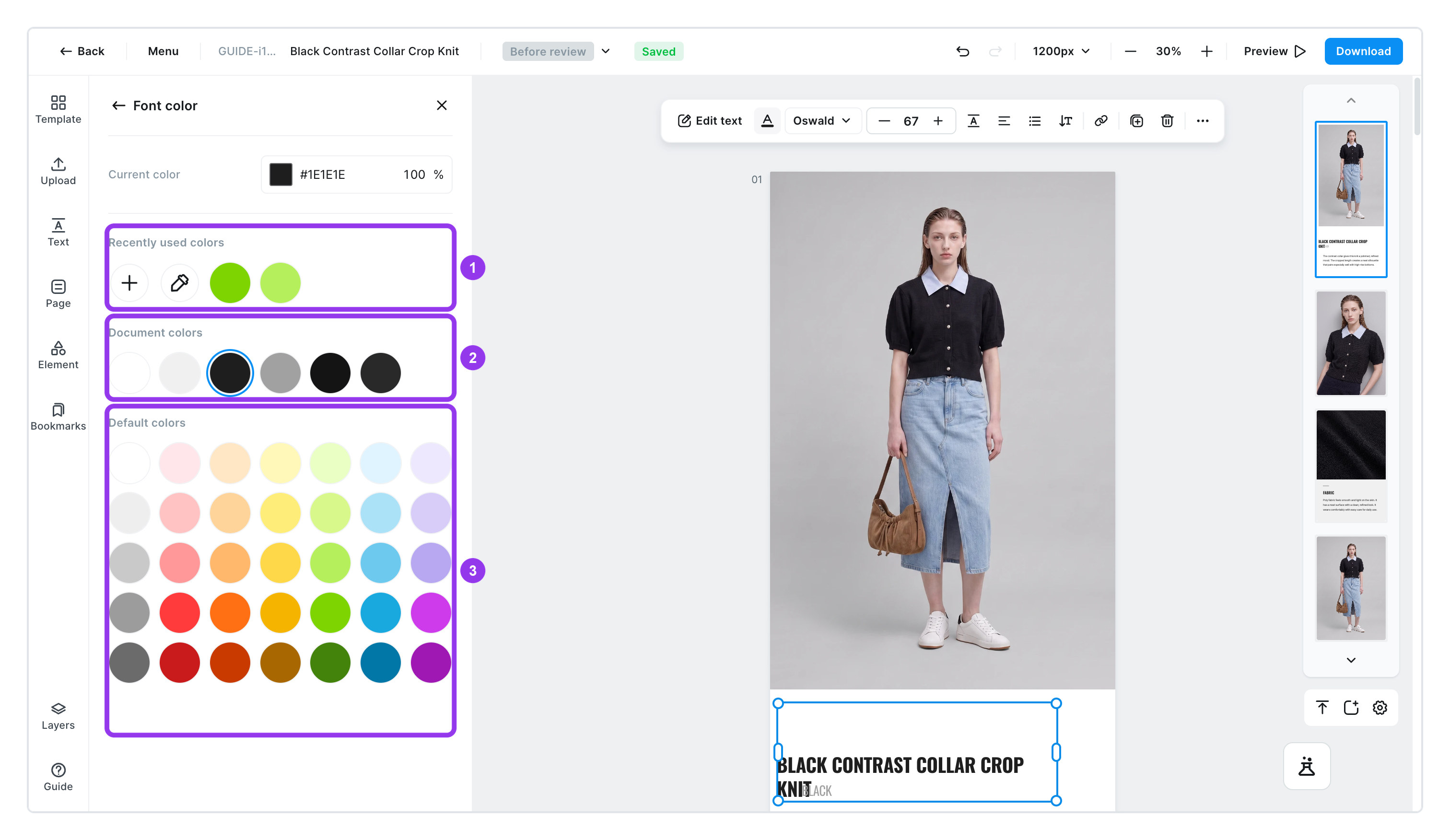
| No. | List | What is in it |
|---|---|---|
| 1 | Recently used colors | The colors you just used. [Add color] and [Eyedropper] live here too |
| 2 | Document colors | The colors actually in use on this product detail page |
| 3 | Default colors | The built-in palette that ships with the editor |
The second list is named after whatever you have selected.
| What you selected | The list you get |
|---|---|
| A photo, text, or shape | Document colors — the colors used across the whole page |
| A page | Page colors — the colors used only on that page |
| A group | Group colors — the colors used inside that group |
This is the fastest way to swap just the accent color of a finished product detail page to match the season. It catches the same color scattered across text, shapes, tables, and stickers in one go.
How do I pick the color I want?
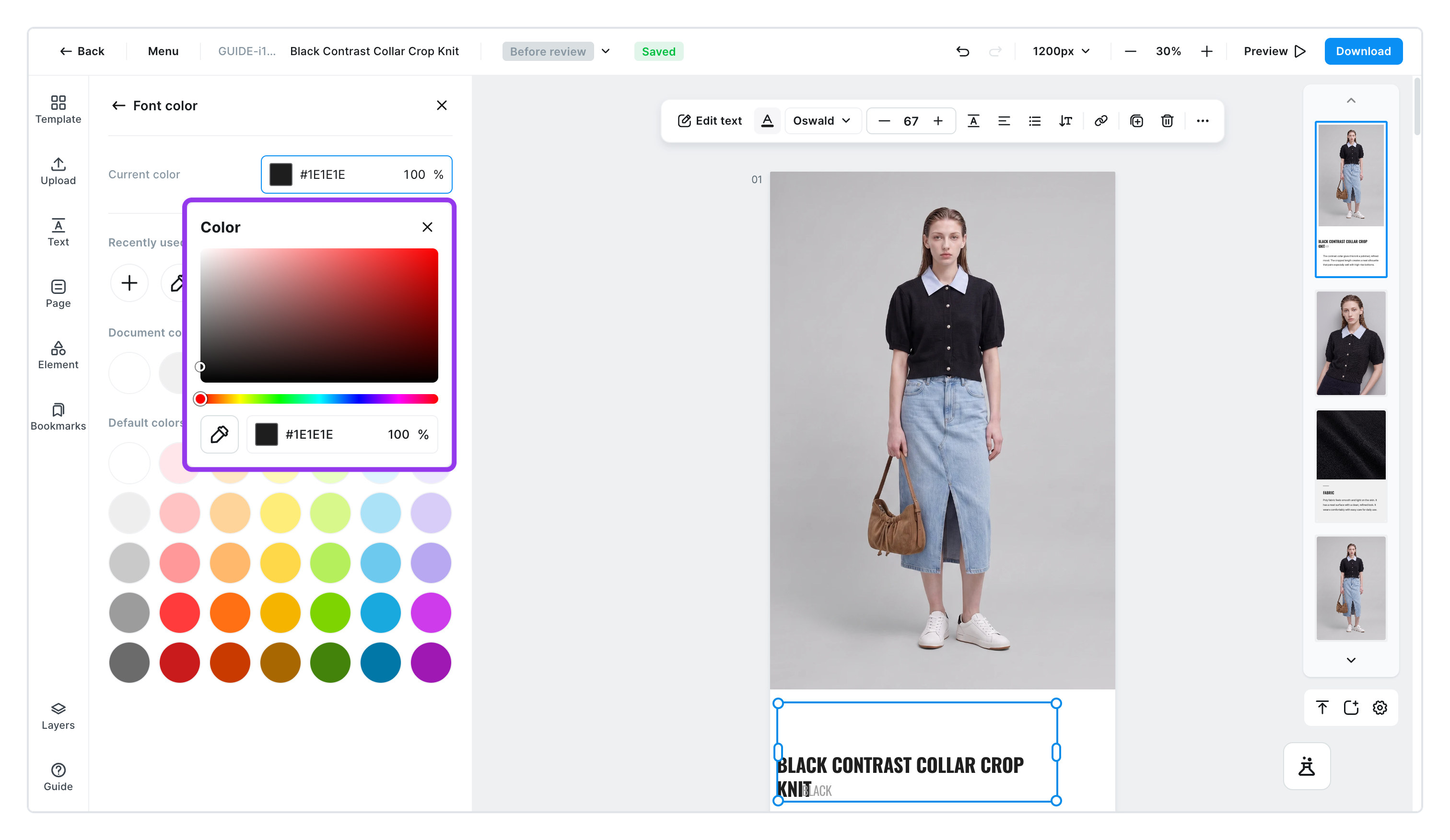
- Click the swatch next to
Current colorand the color picker opens. Pick a color directly or type a color code (like#FF5A36). You can set how see-through the color is at the same time. - The colors you just used stay in
Recently used colors. - Keep the colors you use often in the list with [Add color].
- Click [Eyedropper], then click anywhere on the screen to grab that exact color. It's the precise way to take a real color from your product photo and use it for a background or text.
Making a gradient background
You can make a background that fades smoothly from one color into another. Select a shape, open the color window from Shape color, then switch to Gradient.
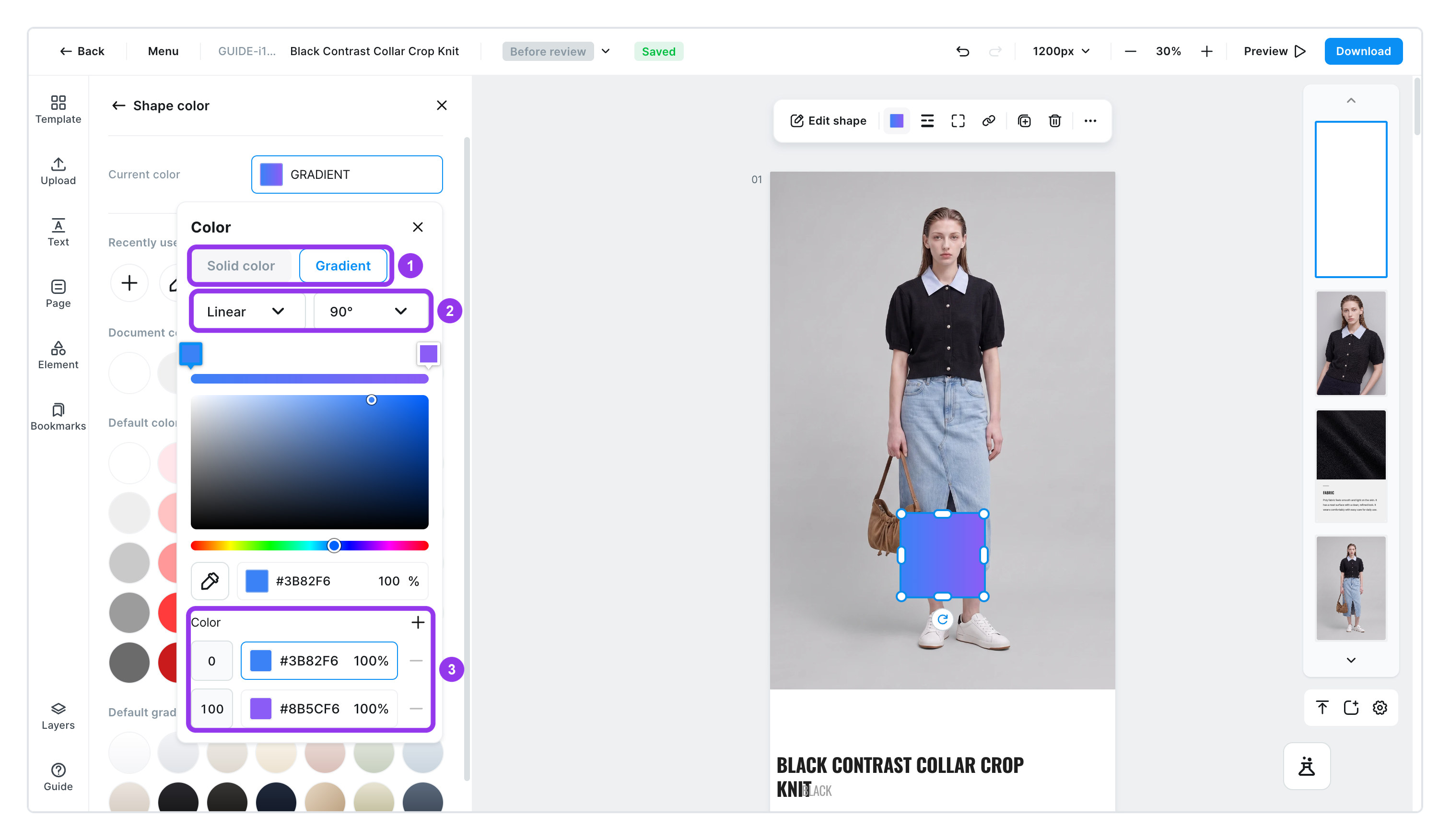
| No. | Control | What it does |
|---|---|---|
| 1 | Solid color / Gradient | Fill with one color, or blend between colors |
| 2 | Linear·Radial and the angle | Linear flows from one side to the other; Radial spreads from the center outward. The angle next to it rotates the blend |
| 3 | Color stops | The starting and ending colors. Use + to add colors in between for three or more |
Don't want to think about it? Default gradients, at the bottom of the color window, has fourteen ready-made combinations.
If you see There are no colors that can be changed., the item you selected doesn't carry a color of its own — photos are like that. Adjust a photo's colors in Image editing.