Element
Add shapes, lines, stickers, and tables to dress up your product detail page. Use a ready-made size chart or upload your own graphics.
Sometimes photos and text alone aren't enough. Lay down a background, draw a divider line, or drop in a size chart.
- What can I add? Four kinds: shapes · lines · stickers · tables.
- How do I add them? Click to drop one in the center, or drag it to exactly where you want it.
How do I add one?
![Click [Element] in the left menu for shapes, lines, stickers, and tables](/en/assets/screen-editor-where-element-en.jpg)
- Click [Element] in the left menu
- At the top, browse by
All·Shapes/Lines·Stickers·Tables.
- At the top, browse by
- Click the one you want, or drag it in
- Click to place it in the center of the page; drag to put it exactly where you want it.
Laying a background with shapes
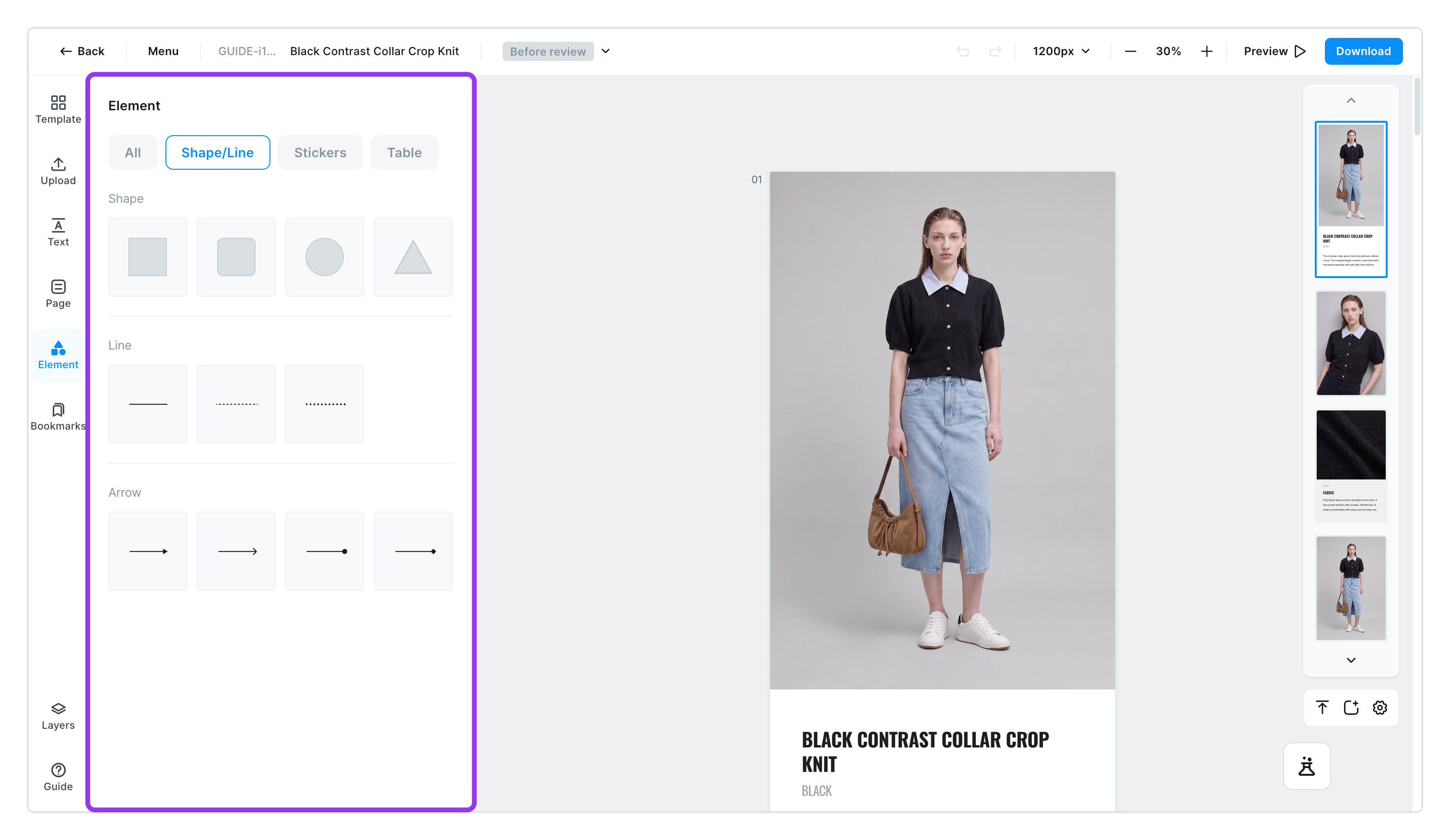
There are four: rectangle · rounded rectangle · circle · triangle. Fill one with color and it becomes a background; put one behind text and that part stands out.
Want to cut a photo into a circle or arch shape? That's not done here — use Image editing. Click the photo and open [Crop/Mask] to find shapes like circles, arches, and stars.
Dividing content with lines
- Lines ㅣ
solid·dashed·dotted - Arrows ㅣ
arrow·open arrow·circle arrow·diamond arrow
You can change the thickness and color, and set the two ends of a line separately. Arrows are handy for "from here to here" marks on size diagrams.
Adding stickers
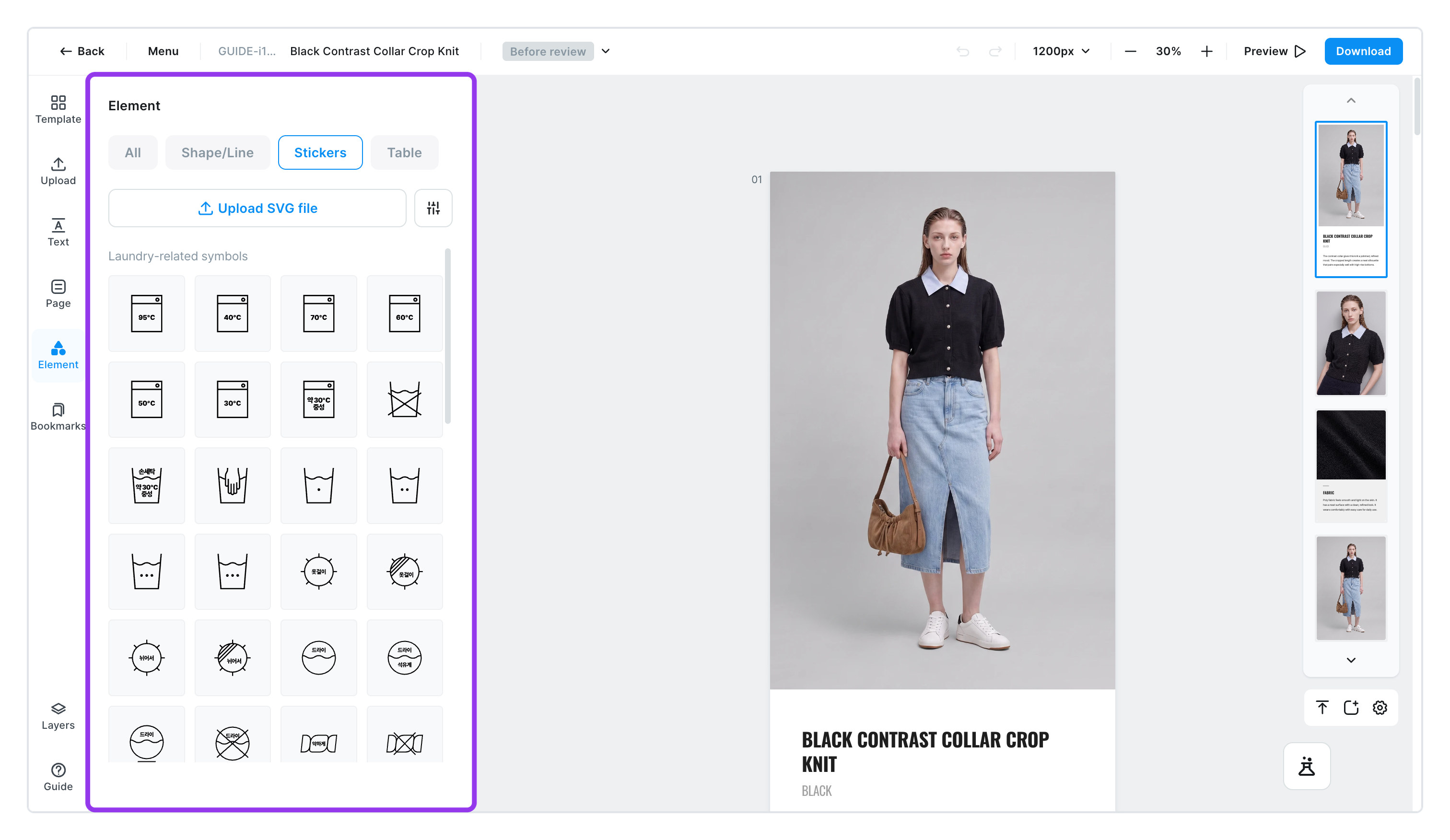
Frequently used symbols, like laundry care symbols, come ready-made by category.
Washing symbols·Bleaching symbols·Ironing symbols·Jewelry symbols
You can change the color of each sticker you've added. Use that to match your brand colors.
Making a size chart
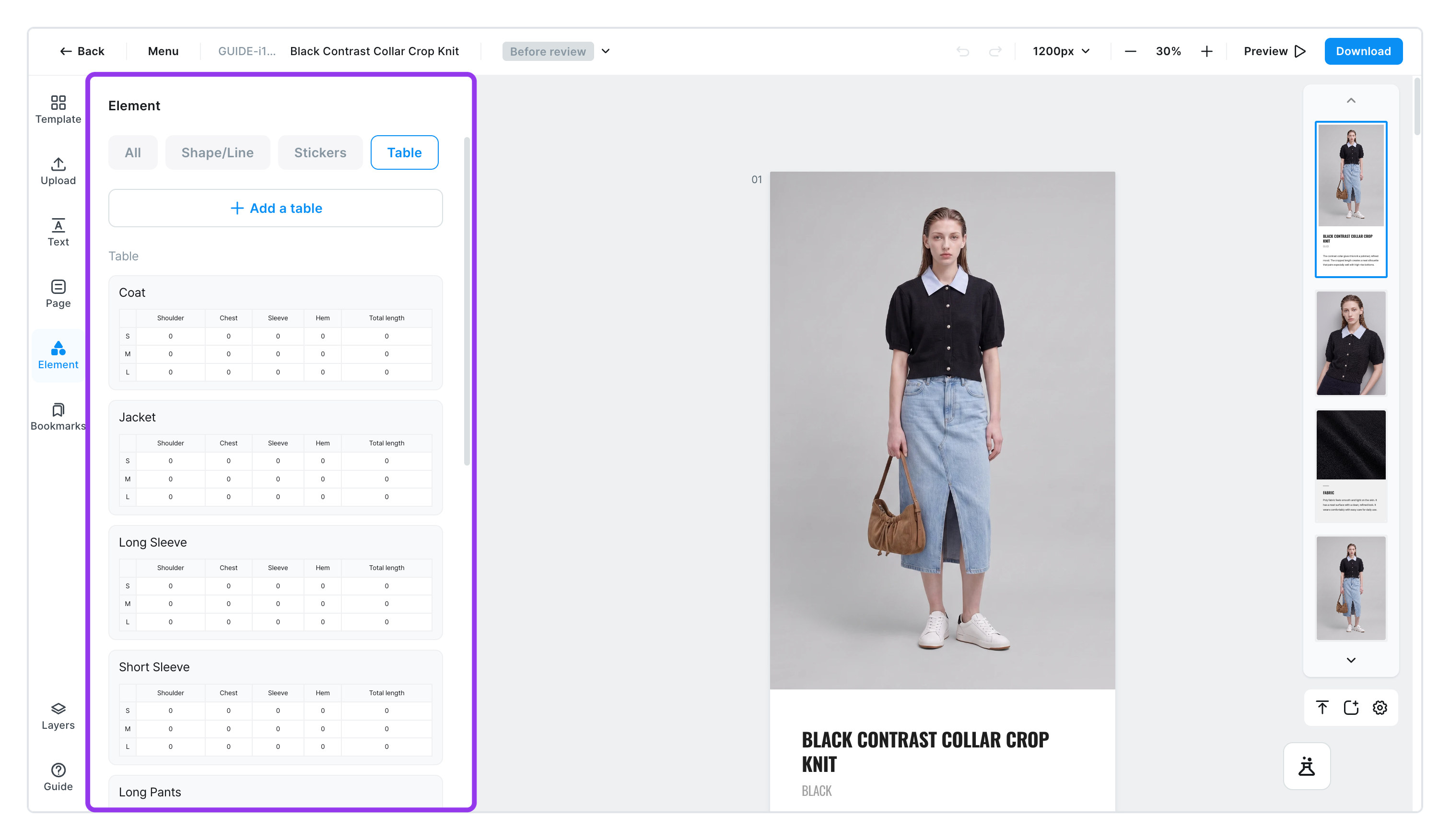
No need to draw a table from scratch. Pick a garment type and a table with the right rows and columns drops right in.
- Garment types ㅣ coat · jacket · long sleeve · short sleeve · pants · shorts · skirt · vest · dress · jumpsuit
- Included by default ㅣ shoulder width · chest width · sleeve length · hem width · total length
Right-click inside the table for a menu of cell actions: add a row above or below, add a column left or right, delete rows or columns, and clear a cell's contents.
Set Table background color 1 and 2 to different colors and the rows alternate colors, which makes the chart easier to read.
Uploading a logo file
Got a brand logo or icon file? Upload it yourself with [Upload SVG file].
- SVG is an image file that stays sharp no matter how big you make it — a great fit for logos.
- You can upload up to 80MB.
- After uploading, it tells you how many pieces came in, like
Imported 12 elements from the SVG.
The colors, borders, rounded corners, and shadows of the shapes, lines, stickers, and tables you've added change exactly the same way as photos — see Image editing. To line several up neatly, go to Arrange and position.