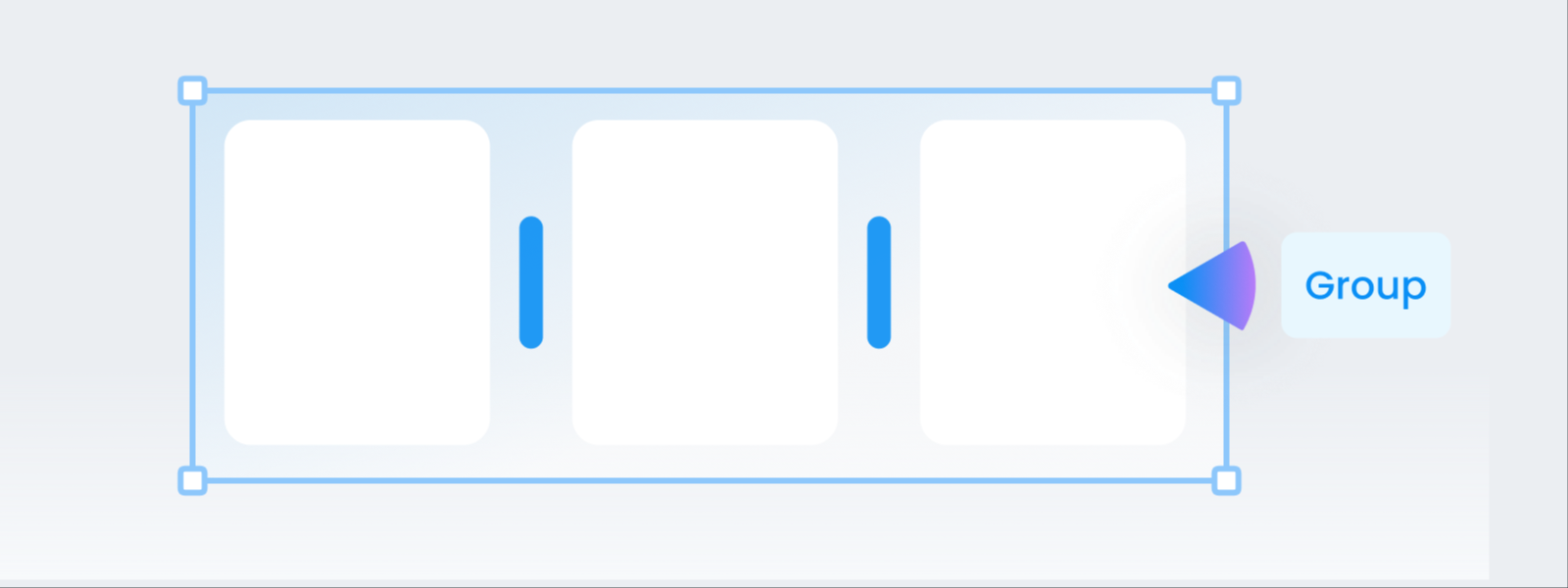
Groups and auto layout
How to treat several elements as one with groups, and how auto layout keeps the spacing between them.
Bundle several photos and texts so they behave as one, and let the spacing inside look after itself.
- When do I use it? When things need to move together, and when matching spacing by hand gets tedious.
- Where is it? [Group] appears above the selection once you pick two or more, and [Auto layout] sits in the left panel.
What are grouping and automatic spacing?
- Group ㅣ treating several photos and pieces of text as one thing. Grouped items move together and resize together.
- Auto layout (automatic spacing) ㅣ a feature that keeps the spacing inside a group tidy for you.
Say you lined up four photos and spaced them by hand. Delete one and it leaves a hole, so you'd have to move everything all over again. With automatic spacing on, the remaining three fall back into line by themselves.
To group several into one
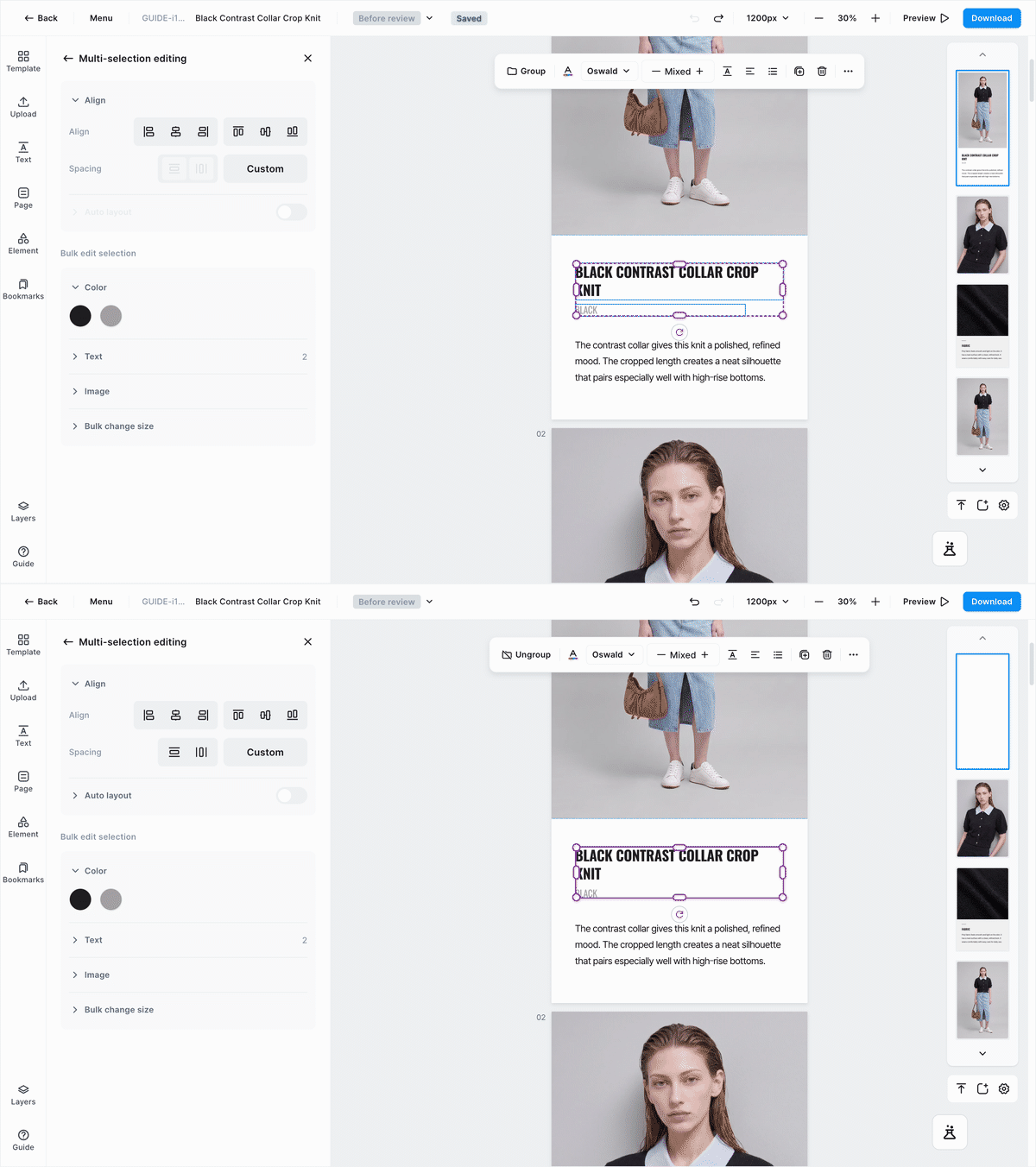
- Select two or more items
- You can't group just one.
- Click [Group] or press
⌘G- Once grouped, the icon changes to [Ungroup]. To ungroup, press
⌘⇧G.
- Once grouped, the icon changes to [Ungroup]. To ungroup, press
- To edit just one item inside a group, double-click
- Double-click a group to step inside and select items one by one. Click outside or press
Escto step back out.
- Double-click a group to step inside and select items one by one. Click outside or press
Any mix works. Group photos with photos, text with text, or photos and text together. You can even group groups.
To keep spacing automatic
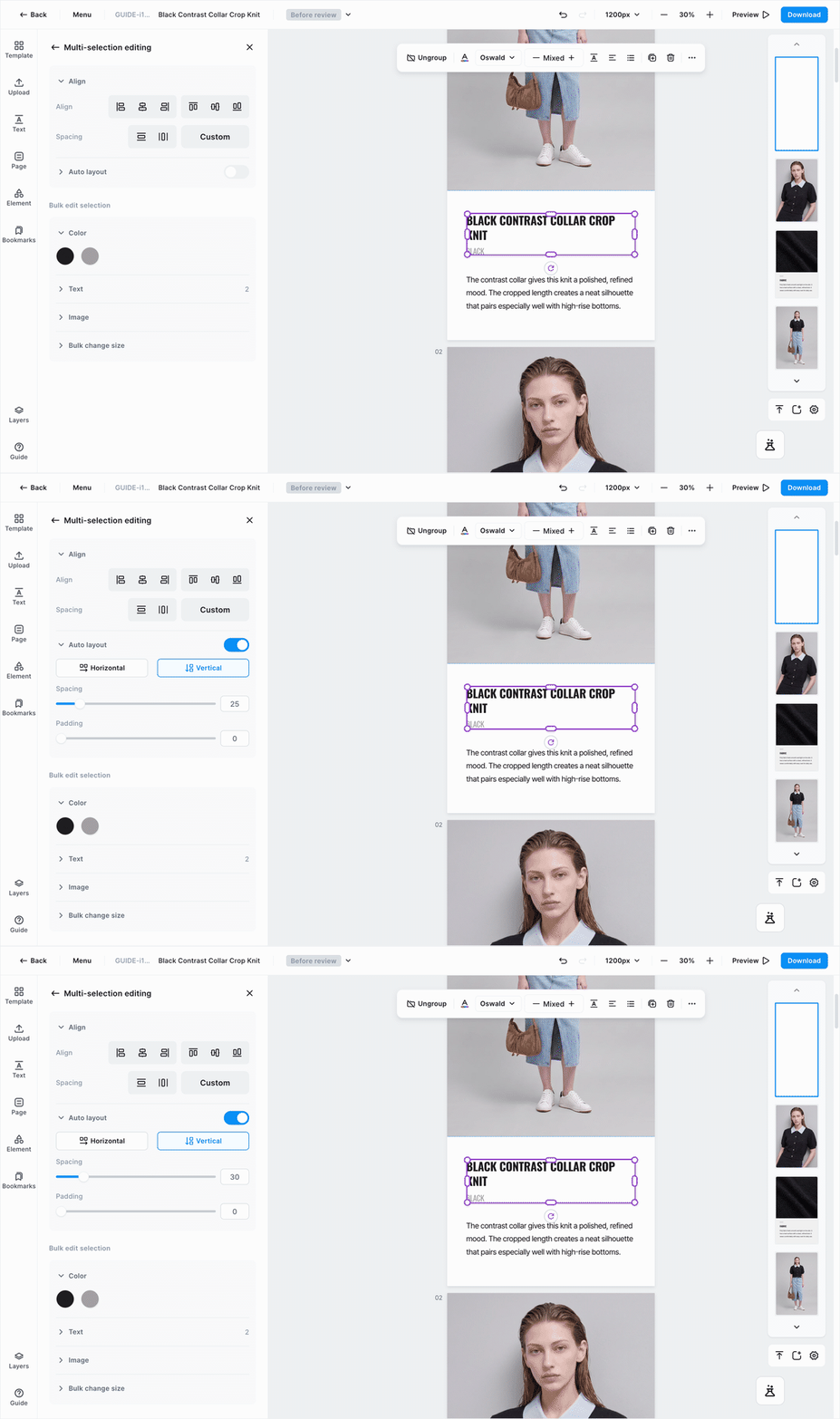
- Group first, then turn on [Auto layout]
- It can't be turned on without grouping.
- Pick which direction things line up in
Horizontal(side by side) orVertical(top to bottom)
- Set
SpacingandPaddingas numbersSpacing— the distance between the items inside. Change this one number and they all update together.Padding— the distance between the group's edge and what's inside it.
While it's on, you can also drag items inside to change their order. The rest fall back into line around the spot you moved it to.
Turning it off keeps everything where it was last arranged. Things don't go back to where they were before you turned it on. To go back, press ⌘Z.
To choose where things sit inside the group
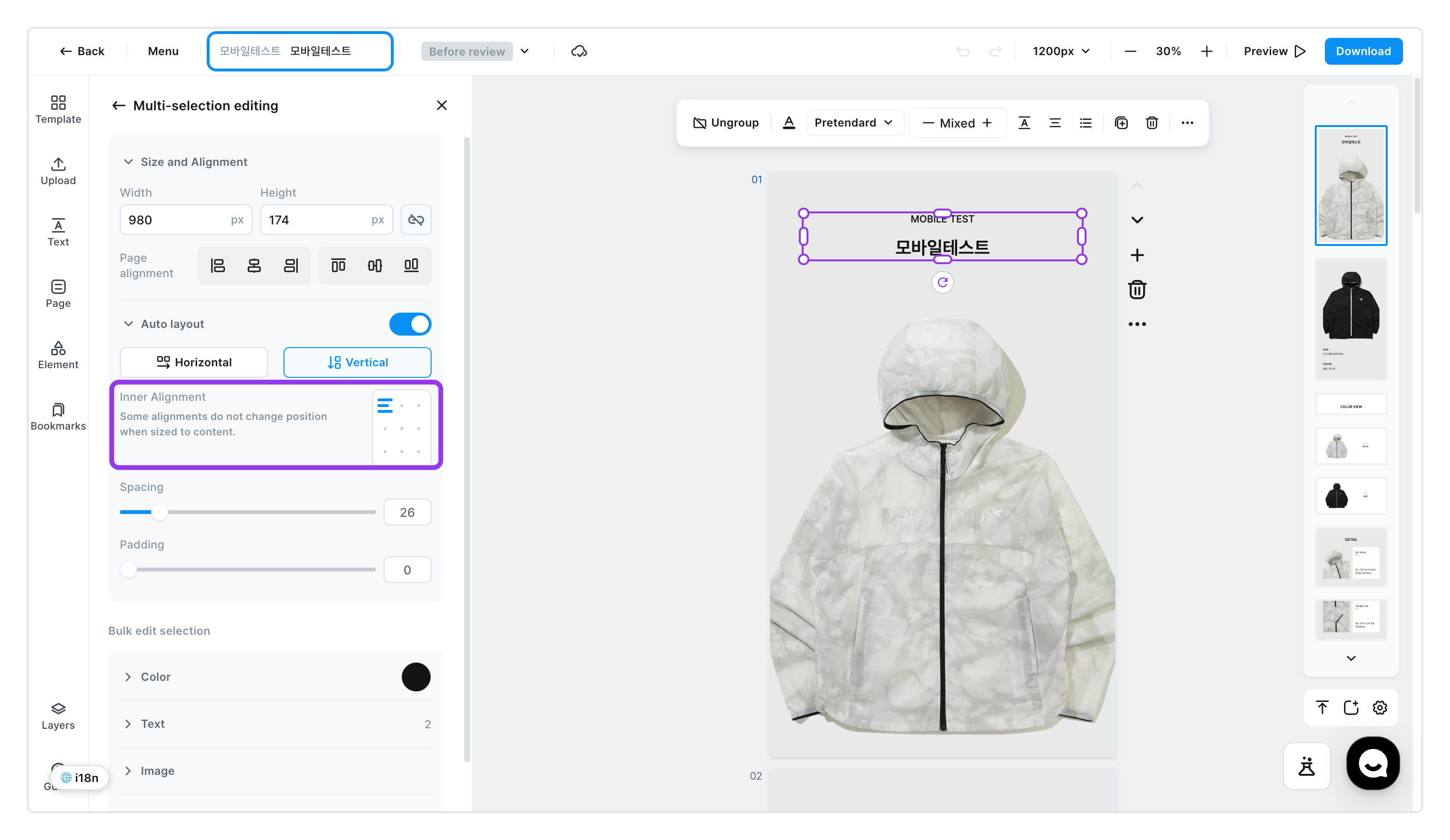
Group photos and text of different sizes and you have to decide what they line up against. In a group with [Auto layout] on, pick one of the nine cells under Inner Alignment in the left panel.
- The nine positions combine top · center · bottom with left · center · right. The cell you've picked shows a three-line mark. For example, set two texts laid out
HorizontaltoBottom Rightand the shorter one moves down so their bottoms line up. - By default a group is sized to its content. Along the direction things are laid out there's no empty space, so changing the alignment that way doesn't move anything. That's why the panel says
Some alignments do not change position when sized to content. - To see the alignment take effect, enter a number in
WidthorHeightabove to make the group bigger than its content. Empty space opens up and the items snap to the position you picked. - In a group where spacing is set to distribute or stretch, none of the nine cells is selected. Pick a cell and it switches to standard alignment.
- Any size or alignment you set on an individual item inside the group stays as it is.