Image editing
Crop photos and match their colors without Photoshop. Covers cropping to a ratio, cutting out to a shape (masking), and adjusting brightness and color.
When a photo isn't quite right, you don't need to open Photoshop. Cropping and touching up brightness and color — you can do it all here.
- How do I start? Just click a photo on the edit screen.
- What can I do? Three things: crop, cut out to a shape (masking), and adjust brightness and color.
To start fixing a photo
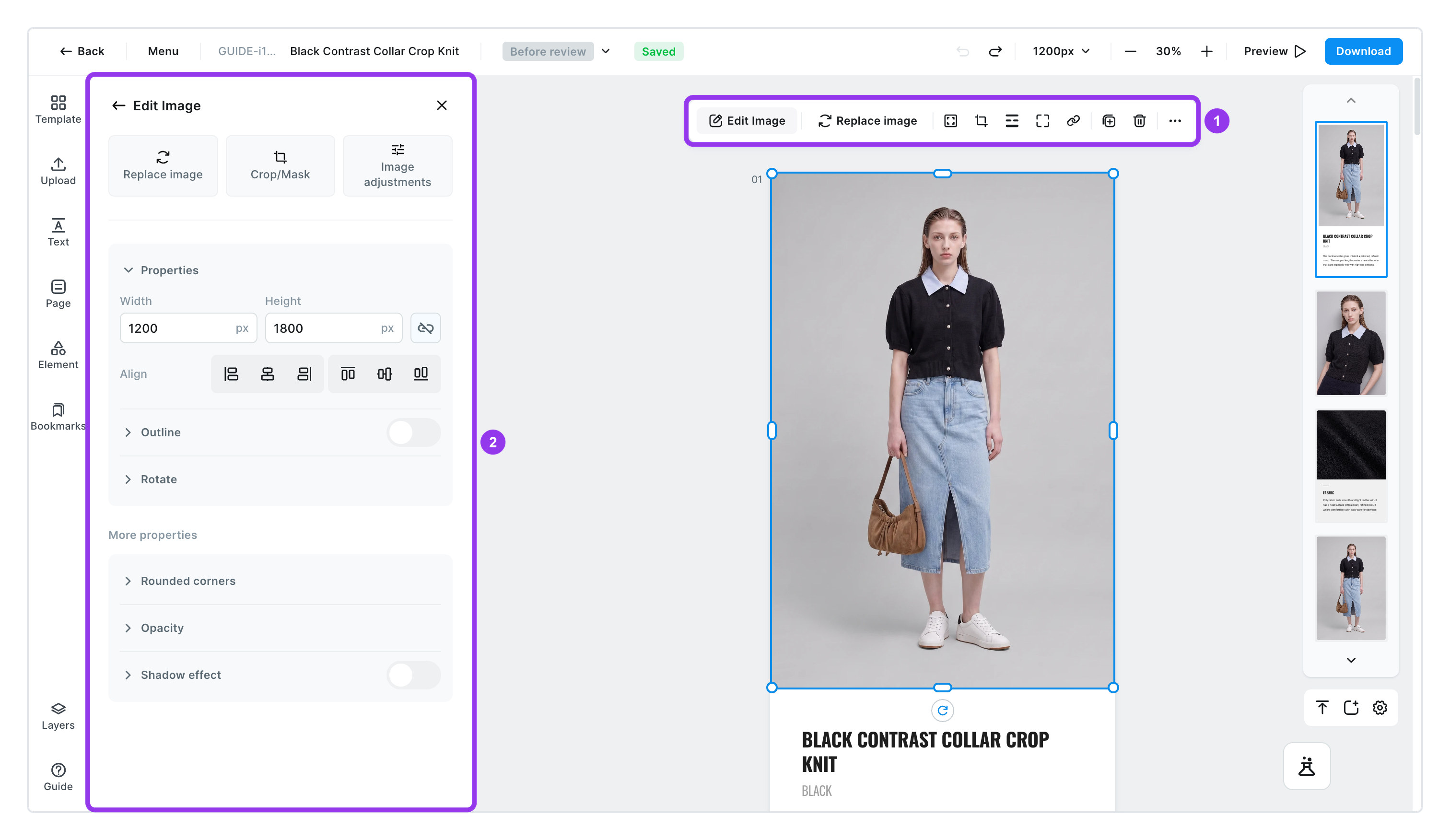
Click a photo on the edit screen. A small menu appears above it, and a photo-editing panel opens on the left. At the top of that panel are three buttons.
- [Replace image] ㅣ swap in a different photo
- [Crop/Mask] ㅣ crop the photo or cut it out to a shape
- [Adjust image] ㅣ touch up brightness and color
To change the size and position
- Drag a corner of the photo to resize it; drag the middle to move it.
- For exact numbers, type the
WidthandHeightin the panel. - Keep [Lock aspect ratio] on and the photo won't get squashed even if you change just one side.
- Use
Alignto snap it to the page's left, center, or right, and top, middle, or bottom.
To crop to the shape you want
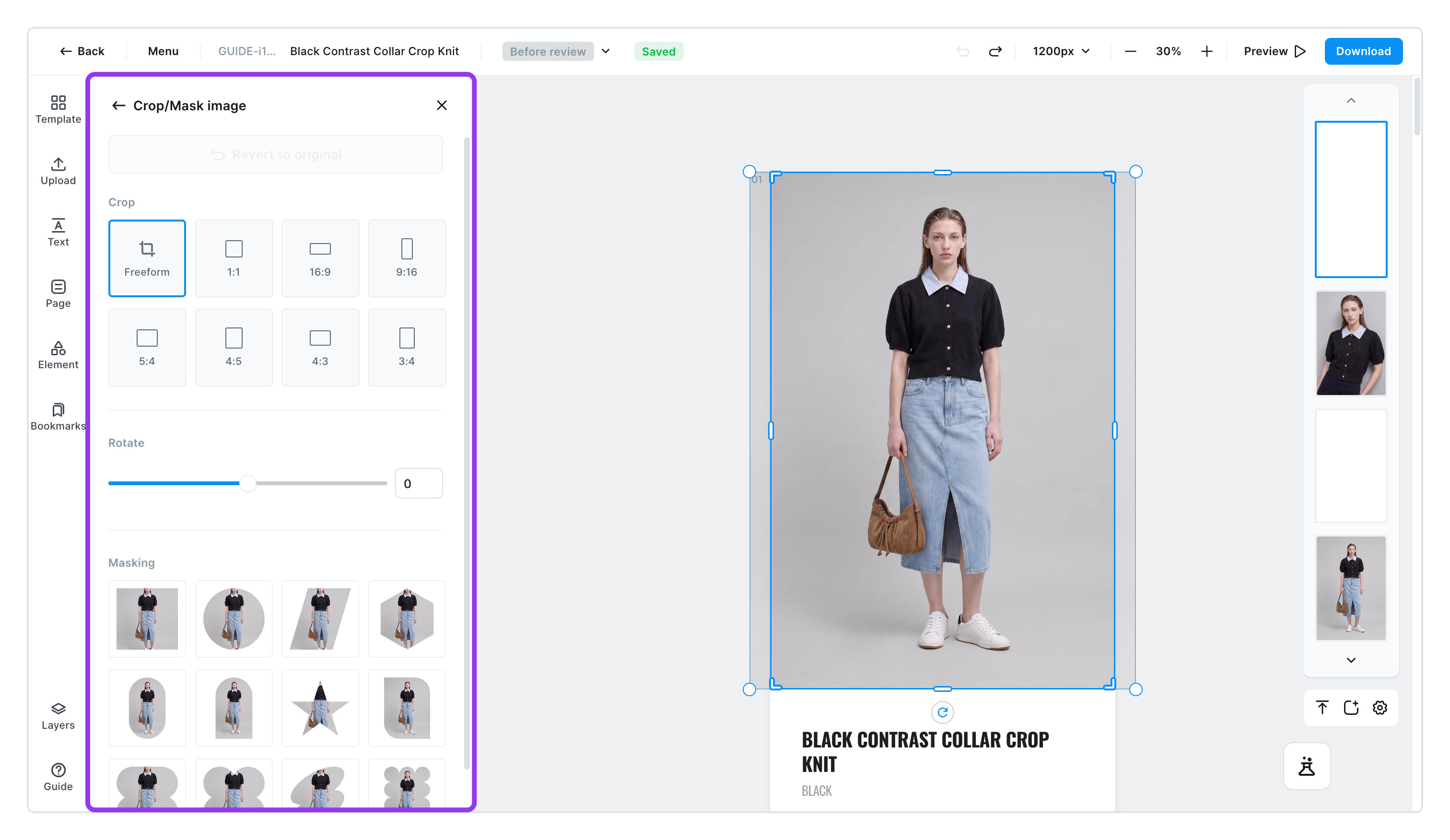
- Click [Crop/Mask]
- Pick a ratio
Free form·1:1·16:9·9:16·5:4·4:5·4:3·3:4- Matching several photos to the same ratio makes the page look much tidier.
3:4or4:5works well for photos with a person;1:1is a safe pick for close-up detail shots.
- If the photo is tilted, straighten it
- Slide
Rotateleft or right to adjust anywhere from −180° to 180°.
- Slide
- Want a round cutout? Use cut out to a shape (masking)
- Cut your photo into shapes like a circle, arch, or star. Each shape shows a preview of how your photo will look inside it.
Don't like the result? Click [Reset to original] at the top of the panel to go back to the photo as it was before cropping.
To match brightness and color
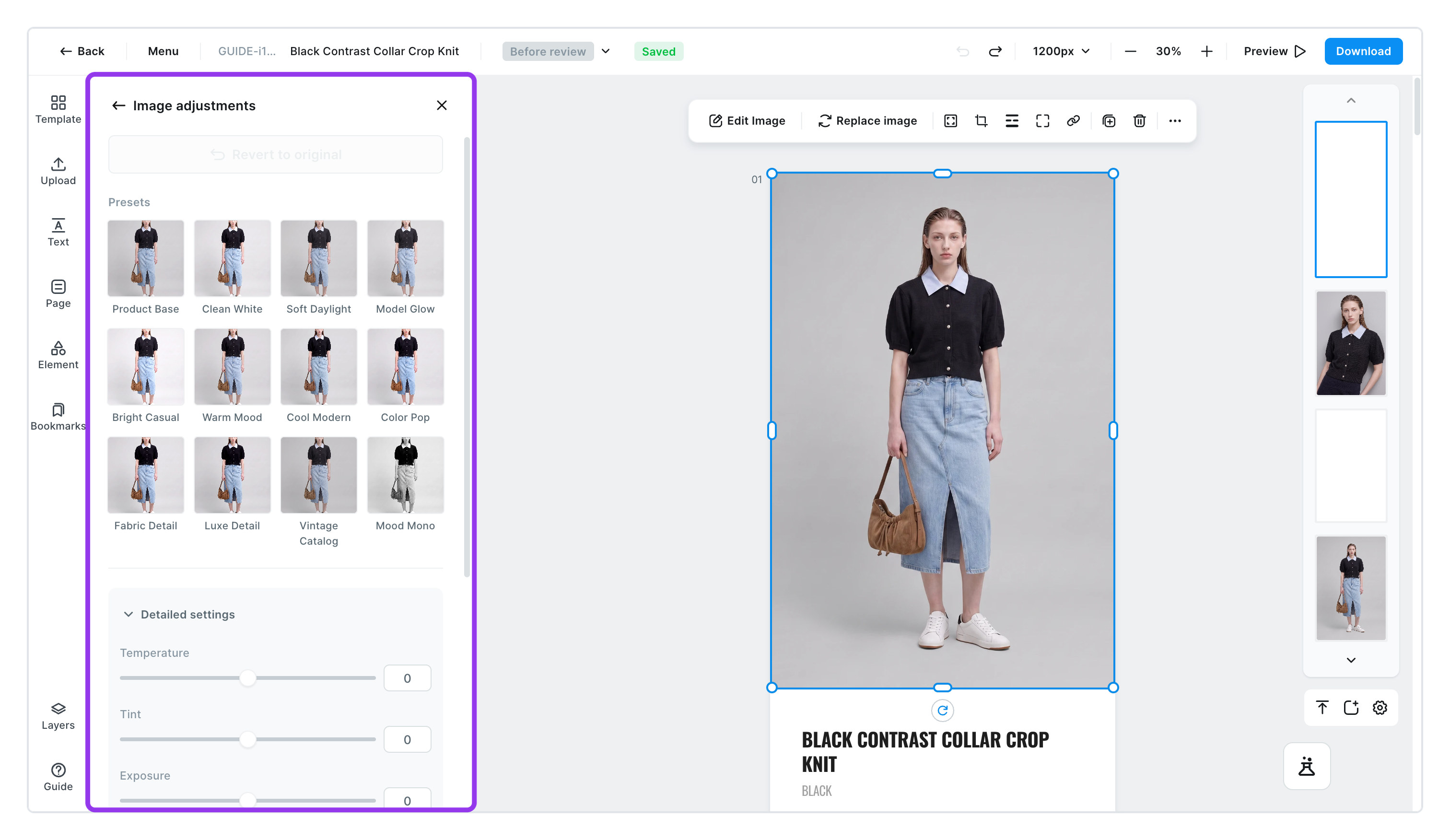
Click [Adjust image] and you'll see 12 ready-made color presets. Click one and it applies right away. The names are in English, so here's a quick reference.
| When it fits | Names |
|---|---|
| Product-only shots | Product Base · Clean White · Fabric Detail · Luxe Detail |
| Photos of someone wearing it | Model Glow · Bright Casual · Soft Daylight |
| When you want a mood | Warm Mood · Cool Modern · Color Pop · Vintage Catalog · Mood Mono |
Apply the same preset to every photo in a product detail page and the tones will match. When photos look mismatched because they were shot on different days under different lighting, try this first.
If that's not enough, fine-tune things yourself under Detailed settings. Slide left and right to adjust.
| Setting | Range | When to use it |
|---|---|---|
Temperature | −50 to 50 | When the lighting made the photo look yellow or blue |
Tint | −50 to 50 | When there's a green or purple cast |
Exposure | −100 to 100 | When the whole photo is too dark or too bright |
Contrast | −50 to 50 | When the photo looks flat and lifeless |
Highlights | −100 to 100 | When the bright parts are washed out to white |
Shadows | −100 to 100 | When the dark parts clump together into black |
Saturation | −100 to 100 | To make colors richer, or calmer |
Vignette | 0 to 100 | To darken the edges and draw the eye to the center |
Adjustments don't apply to animated GIFs. The presets, fine settings, and blend menus are switched off, and clicking one shows This feature is not available for GIF images. Shape-level features like size, cropping, and shadows still work. See the animated GIF section in Upload.
To add a border or shadow
| Item | What it does | Good to know |
|---|---|---|
Outline | Draws a line around the photo | Set the color and thickness, then pick a style: solid · dotted · dashed · long dash · short dash · rounded dots |
Rounded corners | Rounds off the four corners | [Individual corners] lets you round just one |
Opacity | Makes the photo fainter | Use it when laying a photo down as a background |
Shadow | Adds a shadow to the photo | An outer shadow looks like floating; an inner shadow looks pressed in |
Rotate | Tilts the photo | Drag just outside a corner, or hold Shift to snap in 15° steps |
The borders, corners, and shadows here work exactly the same on shapes, lines, stickers, and tables.