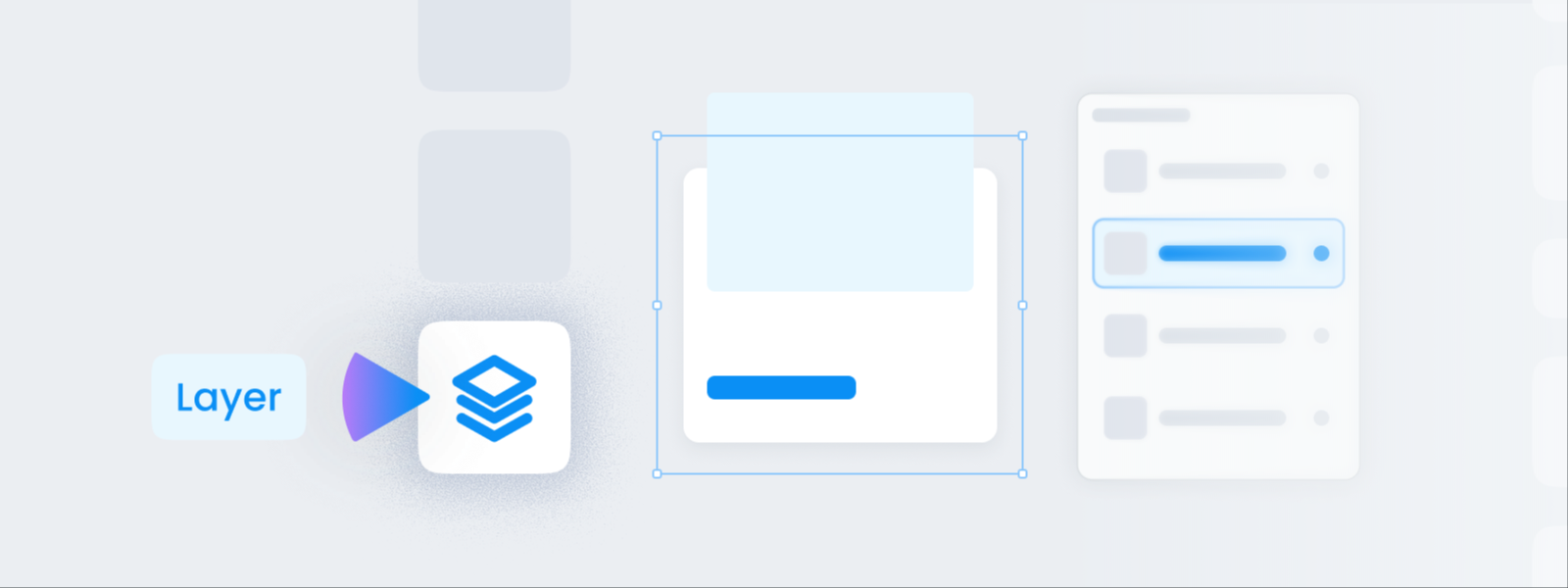
Layer
When overlapping elements won't let you click the one you want, pick it from a list. Also covers hiding things for a moment and changing the front-to-back order.
Ever struggled to click text hidden behind a photo? Pick it from the list and it's easy.
- What's a layer? A list of everything on the edit screen, lined up in order from top to bottom.
- When do I use it? When overlaps block your clicks, when you want to hide something for a moment, or when you want to change the front-to-back order.
What's a layer?
- It's a list of everything on the page, laid out in stacking order. The higher something sits in the list, the closer to the front it appears on screen.
- Even things you can't click on the edit screen can be selected precisely here — backgrounds tucked at the back, items completely covered by something else.
![Click [Layer] in the left menu to open the list of stacked items](/en/assets/screen-editor-where-layer-en.jpg)
How do I use it?
- Click [Layer] at the bottom of the left menu
- At the top, pick the page to look at. Pages are listed by number —
Page 1,Page 2, and so on.
- At the top, pick the page to look at. Pages are listed by number —
- Click the item you want in the list
- Each row reads
type / content.Text / BRANDmeans a piece of text that says BRAND. - Click a row and that item gets selected on the edit screen.
- Each row reads
- You can hide or lock things
- Click the eye icon to hide something for a moment. Handy for checking what's behind it.
- Drag rows up and down and the front-to-back order changes.
Types show as image · text · shape · line · group · table · sticker. Use the filter at the top to see only the type you're after.
warning
Hidden items don't appear in downloaded files either. If you hid something just to peek behind it, be sure to turn it back on before downloading.