
Links
A link is a web address attached to a photo or text. There are two forms.
- Link ㅣ When a customer clicks, they go to that address. Use it to send them to other items that go well together, or to your brand page.
- Embed ㅣ Puts a card with the site's title, description and name into the page. Use it as a signpost to your brand homepage or social account. Clicking the card opens the site.
- Where is it? Select a photo or text and press [Link] in the small menu that appears above it.
Links and embeds don't work in jpg or png image files. A picture is just a picture. To keep them clickable, save as html in Download result. Before saving, you can try them in Preview.
To add a clickable link
- Select the photo or text you want to link
- Press [Link] in the small menu above it
- Paste the web address. Leave the type as [Link]
- Press [Add]
- When you select a linked element, a
Linktag appears at its top-left and the link icon in the small menu turns blue. Linked text is underlined.
- When you select a linked element, a
If a photo and a product name introduce the same item, link both. You never know which one the customer will click.
Example 1 — Send customers to items that go well together
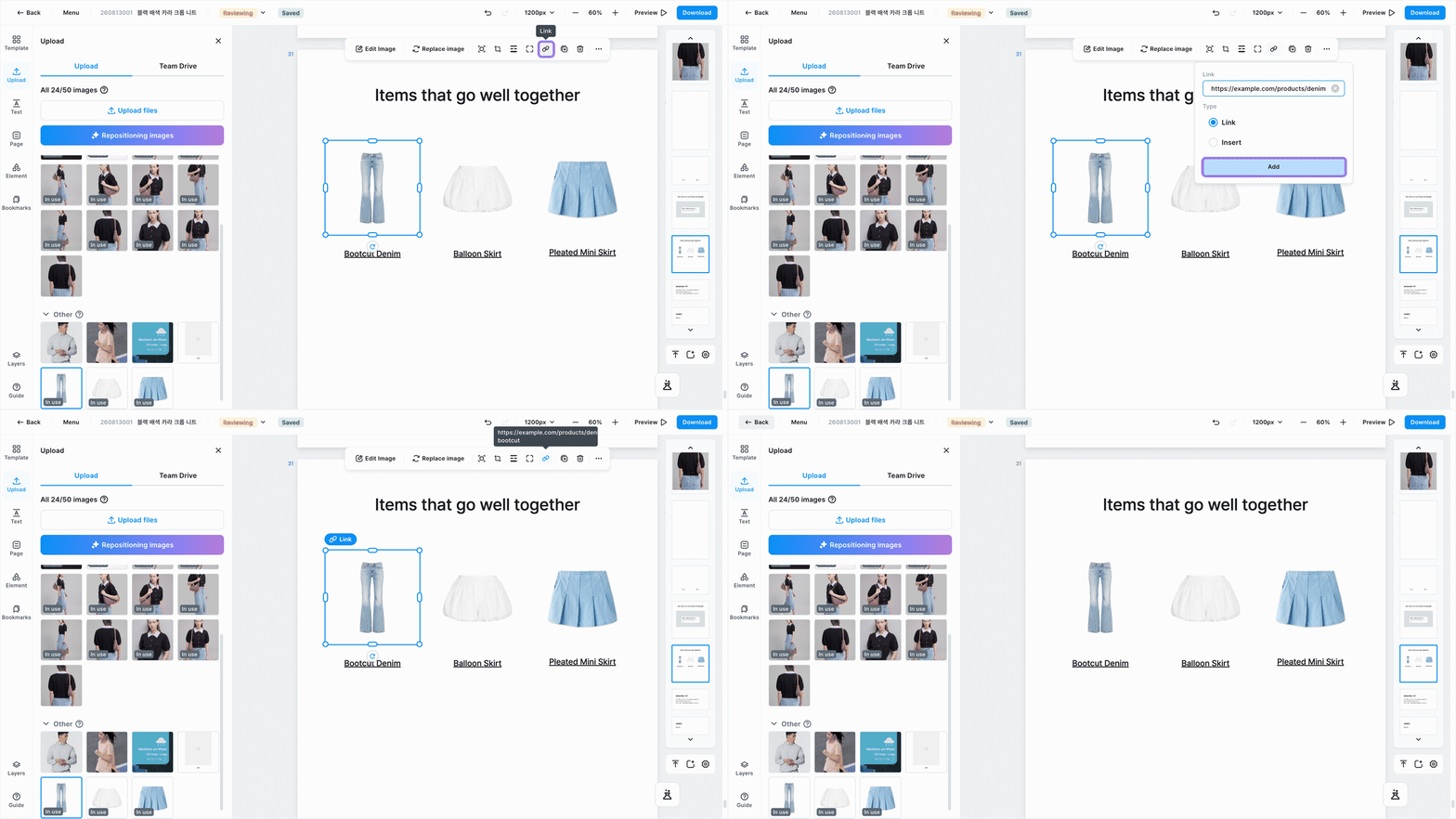
This example lines up other items worth wearing together at the end of the page and gives every photo and product name the address of that item's sales page. Customers click straight through to the other item, which makes sales more likely.
To put another site in as a card
Embed reads the site's title and description for you and builds a card from just the address. You don't have to write or style any text yourself, which makes it handy for signposts to your brand homepage, Instagram, or another product page.
- Select the photo or shape where the card should go
- The card is created in the middle of what you selected. A shape behind the card works well as a backdrop.
- Press [Link] in the small menu and paste the address
- Switch the type to [Embed] and press [Add]
The card is created like a new photo. Once made, you can move and resize it like any photo, and selecting it and pressing [Link] lets you change the address. Changing the address refreshes the card.
Example 2 — A card for your brand homepage
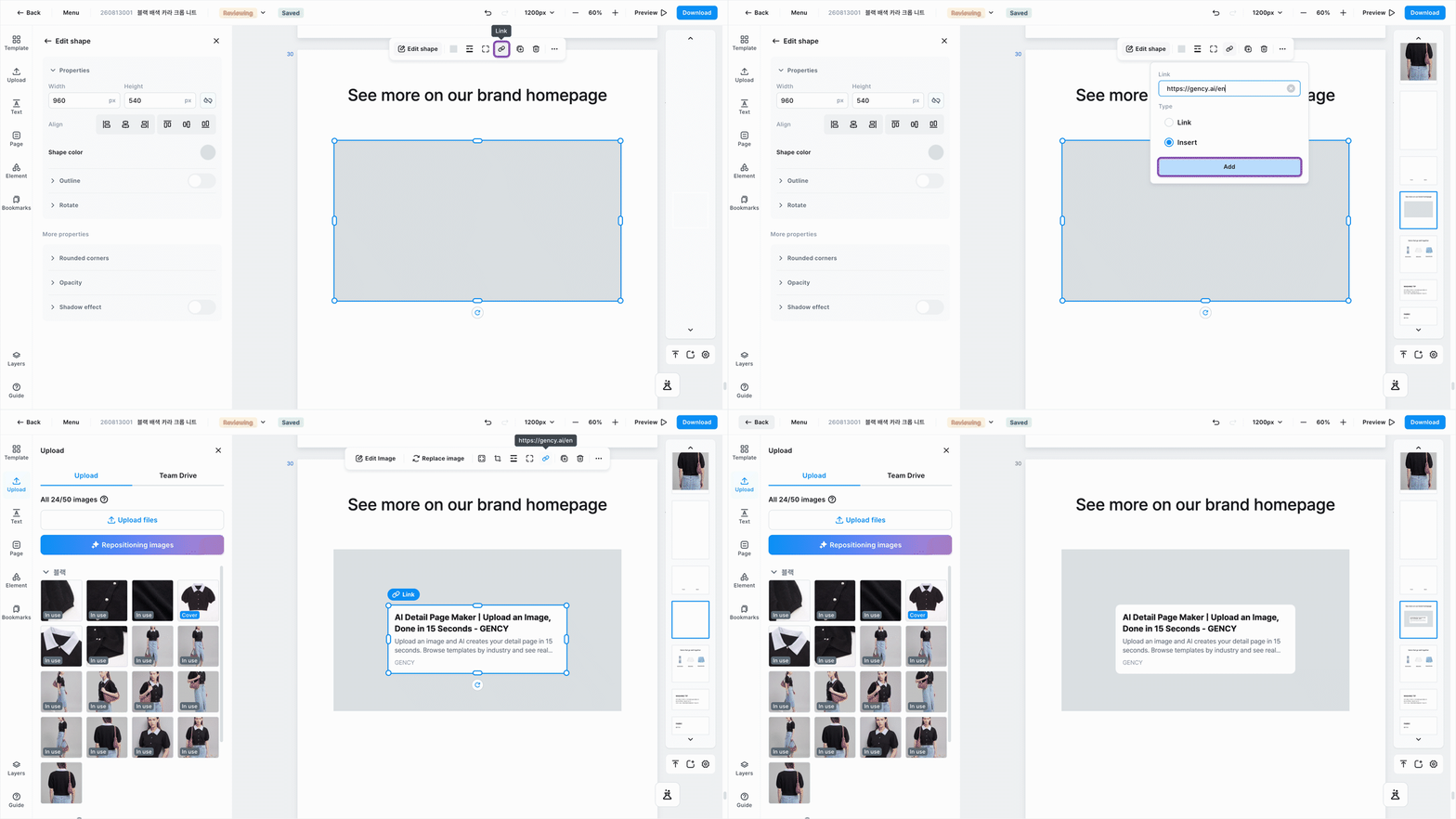
This example places a card to your brand homepage at the end of the page. Only the address went in, yet the card is filled with the site name and intro text. Customers click the card to reach the homepage.
To change or remove a link
Select the linked element and press [Link] again to see the address.
- Change the address and press [Edit] to update it.
- Press [Delete] to remove only the link — the photo or text stays.
- The arrow icon to the right of the address opens it in a new tab. Use it to check that the link is right.
See also
- Preview — Check that links work before you save.
- Download result — How to save as
htmlso links stay live.