
Fit bottom padding
When text or photos run past the bottom of a page, the page grows to fit its content. Learn how to set the bottom padding as a number, adjust the height by hand, and turn the feature off.
When you add more text or photos and the content runs past the bottom of a page, the page grows to fit its content. You don't have to adjust the page height by hand.
- When does it happen? When you drop an element or finish editing text and the content runs past the bottom of the page, the page grows right then.
- Where is it? The
Auto ㅣ Padding [N] pxcontrol that appears when you click a page and hover over its bottom edge, and theFit bottom paddingswitch under [Menu] › Convenience features. It's on by default.
A guide appears the first time a page grows
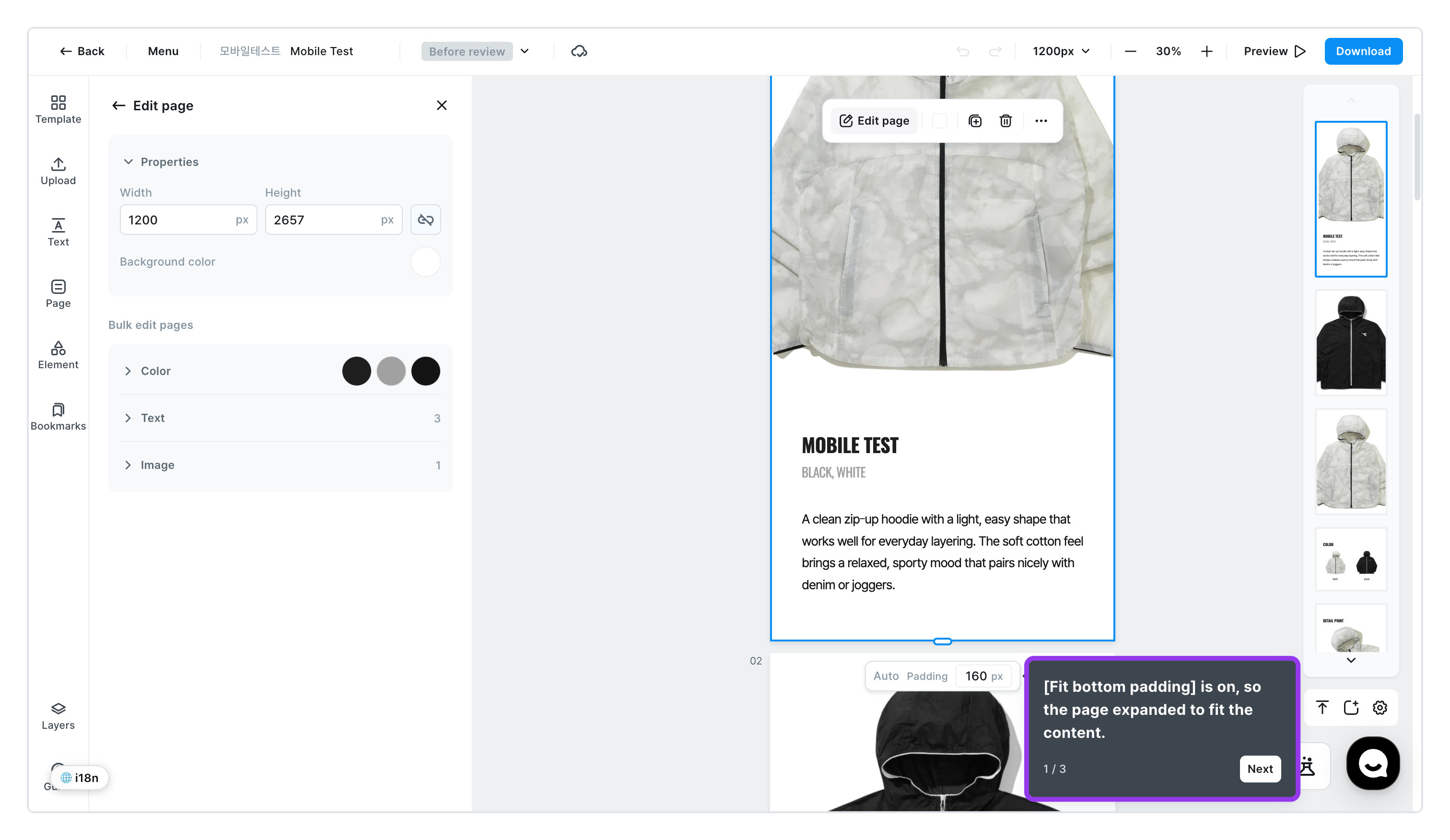
The first time a page grows on its own, a speech bubble appears at the bottom right of the page in three steps. Click [Next] to move on and [Confirm] at the end. It won't appear again.
| Step | Message |
|---|---|
| 1 / 3 | [Fit bottom padding] is on, so the page expanded to fit the content. |
| 2 / 3 | Enter a number in [Padding] to change the bottom padding. — the padding control appears below the page at this step |
| 3 / 3 | Don't need it? Turn it off anytime in [Menu] › Convenience features. |
How the page grows
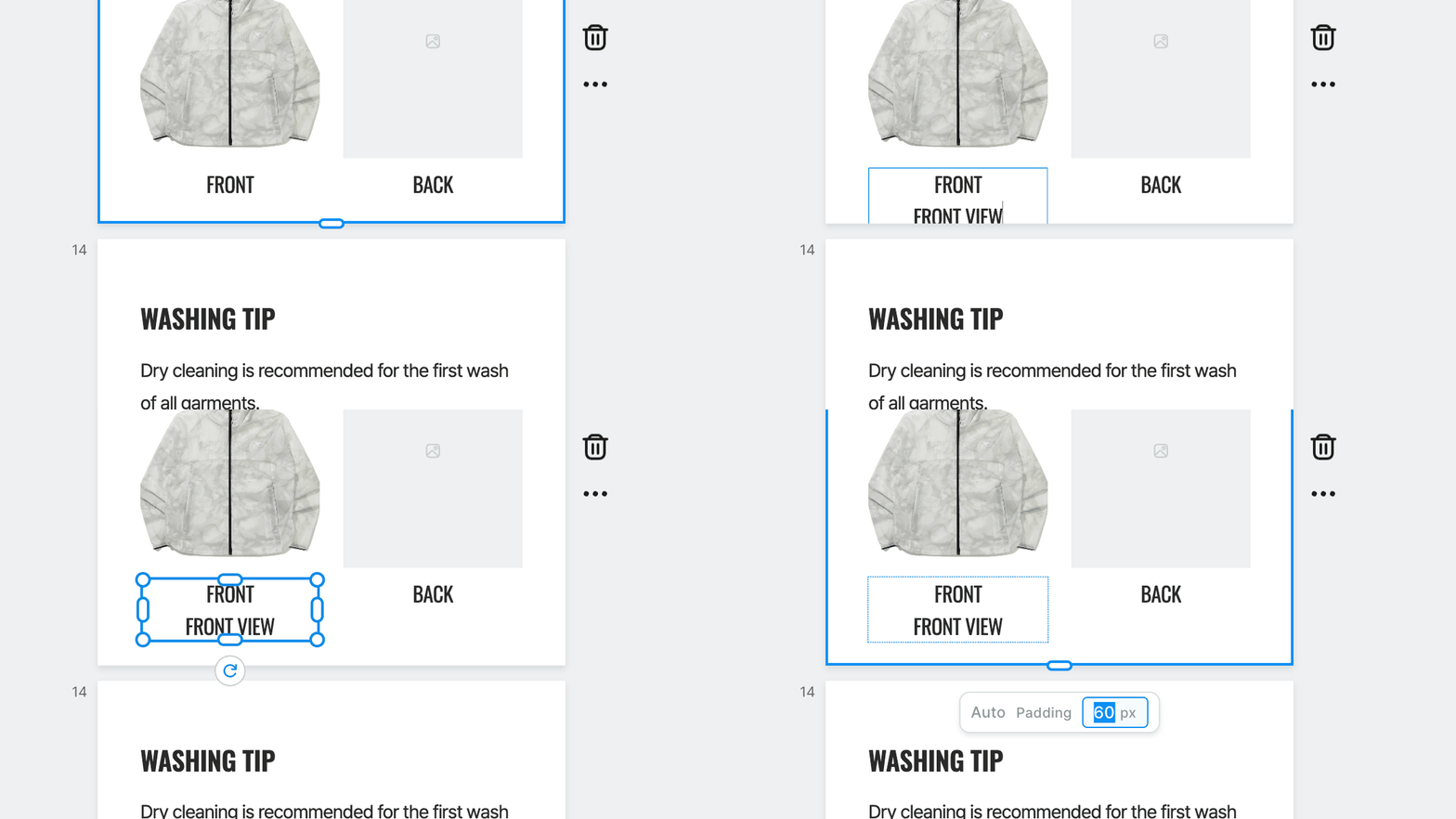
- The gap between the lowest element on a page and the page's bottom edge is that page's bottom padding. When content gets longer, the page grows while keeping this padding, and when content gets shorter it can shrink too. Add two lines of text, for example, and the page grows by exactly those two lines.
- It changes when you drop an element or finish editing text and click outside. Nothing changes while you're still dragging or typing. If it grew by mistake, one
⌘Z(Ctrl+Zon Windows) brings back both the text and the page height. - Photos that were already cropped past the page edge on purpose, like a full-bleed background, don't count. They stay cropped as they were.
- Place an element right against the bottom edge and that page's padding becomes 0, so it sits flush with no white strip below.
A photo that fills the page like a background doesn't stretch when the page grows. If a strip with no background shows at the bottom, enlarge the photo or match the page background color in Page.
To set the bottom padding as a number
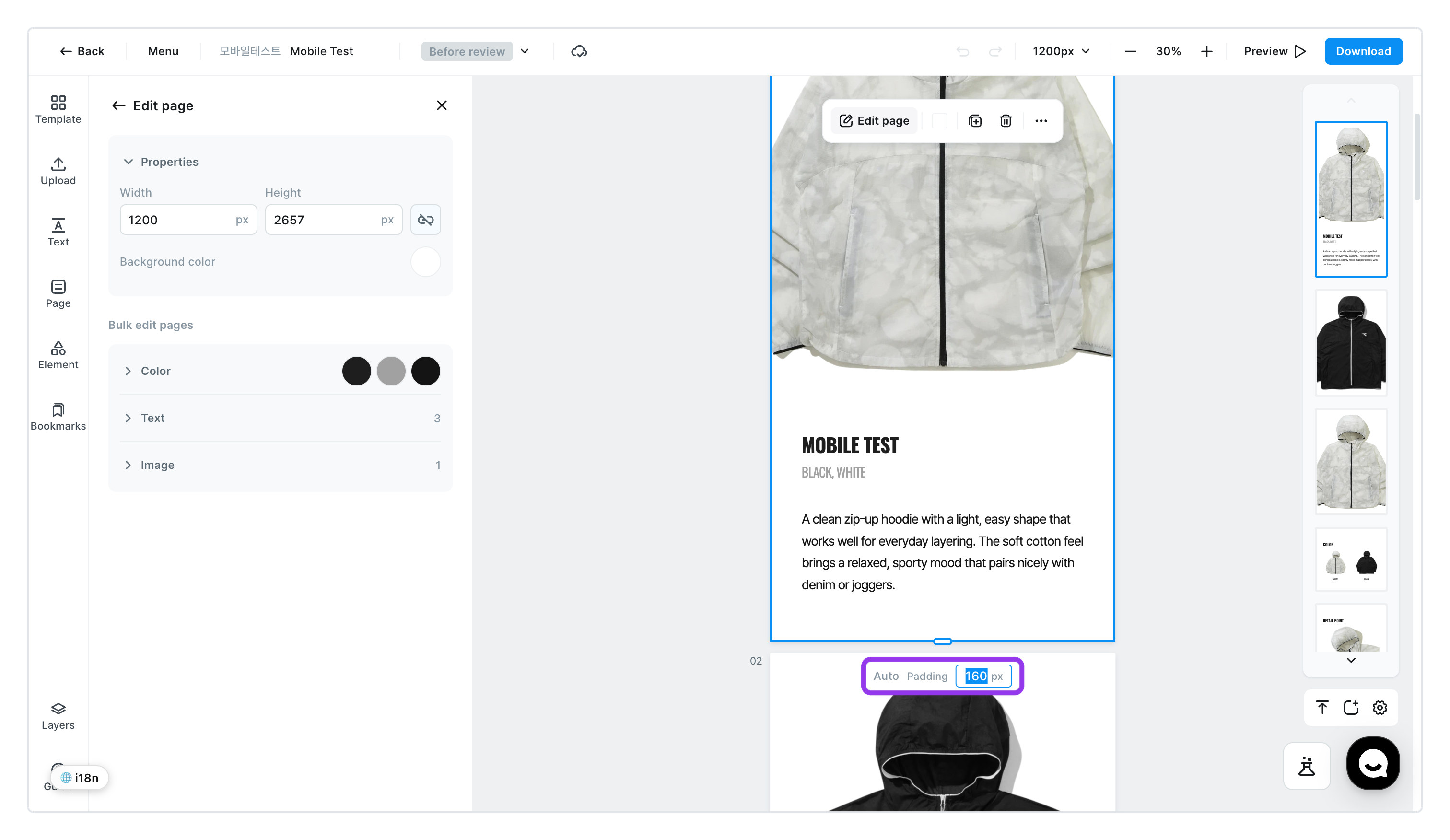
- Click the page and hover over its bottom edge
Auto ㅣ Padding [N] pxappears below the page. The number is the bottom padding the page is using right now.
- Change the
Paddingnumber and pressEnter- The page refits immediately. The value you enter applies to that page only, and the page keeps using it from then on.
To adjust the height by hand
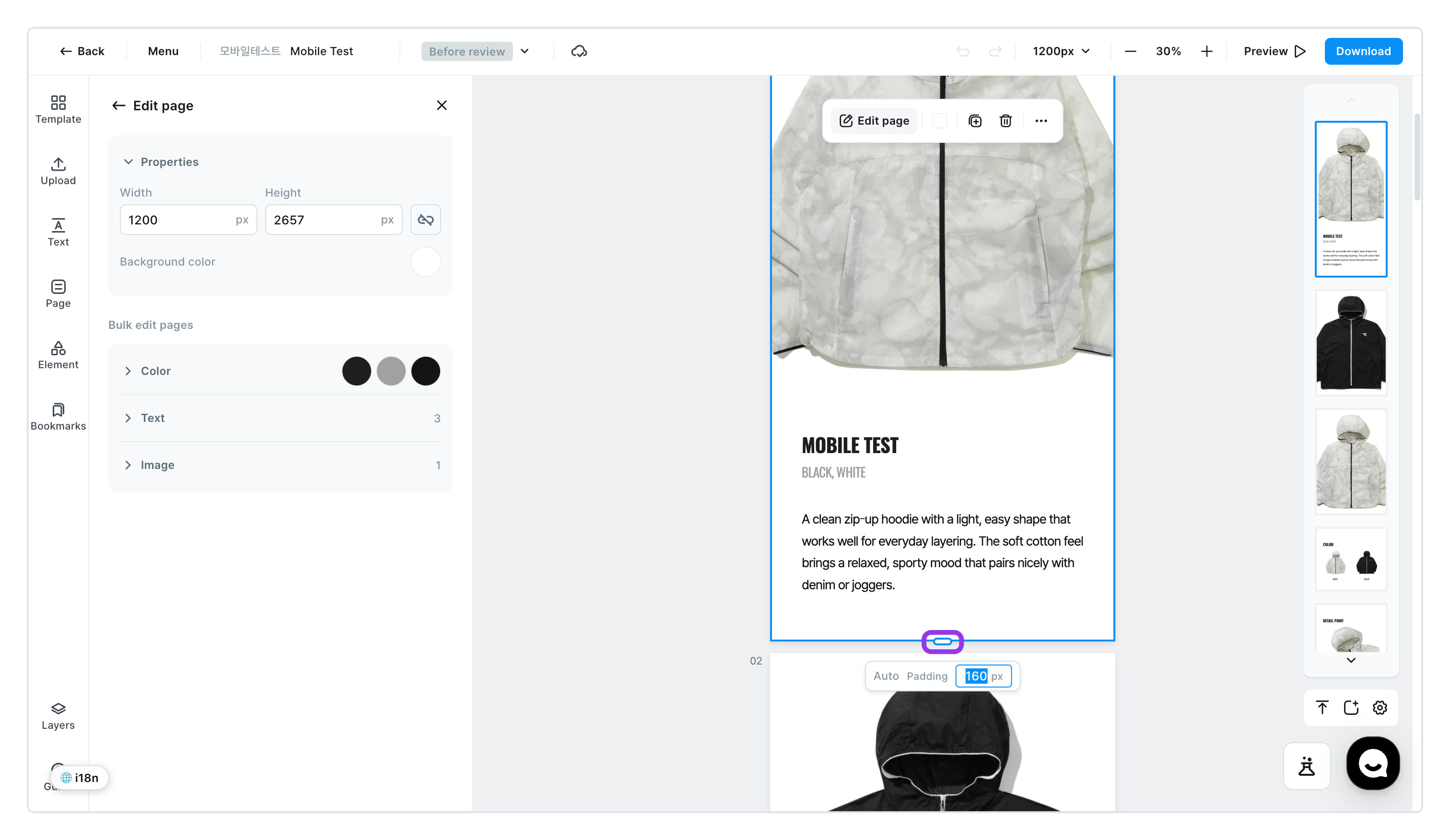
- Click a page and a handle appears at its bottom edge. Drag it to change the height. The arrow keys
↑↓move it 1 pixel at a time, or 10 pixels withShift. - A page whose height you changed by hand stops growing on its own. Click the page and hover over its bottom edge again, and the control now reads
Fit bottom ㅣ Padding [N] px. Click [Fit bottom] to fit the height to the content and go back to automatic. - There's no way to apply this to several pages at once. Each page is handled on its own.
To turn it off
![The Fit bottom padding switch under [Menu] › Convenience features](/en/assets/screen-editor-pagefit-menu-en.jpg)
Turn off the Fit bottom padding switch under [Menu] › Convenience features.
- Once it's off, pages no longer grow on their own and the control doesn't appear. You change the height with the handle only.
- It applies to your whole account. It stays off when you open other product detail pages, until you turn it back on.
- Turning it back on doesn't change any height at that moment. Pages follow your edits from the next change on.
This feature only handles page height. To change the width of the product detail page, use [Adjust size] at the top.