
Page
Add, remove, and reorder the pages of your product detail page. You can also change a page's background color or download a single page on its own.
A product detail page is a stack of sections flowing from top to bottom. Each one of those sections is called a page.
- Why does it matter? The page order is the order your customers see. It decides what you show first.
- Where do I change things? Add pages in the [Page] panel on the left; change the order and background color right on the edit screen.
Where do I add pages?
![Click [Page] in the left menu to open the page list](/en/assets/screen-editor-where-page-en.jpg)
Click [Page] in the left menu.
- [Add blank page] ㅣ adds one page with nothing on it.
Page list— the pages that come with your current Template, all lined up. Each shows how many pages it contains.- [View all] ㅣ spreads the pages out for a bigger look.
If you haven't picked a Template yet, you'll see Select a template to see the page list. Pick a Template first.
To work right on the edit screen
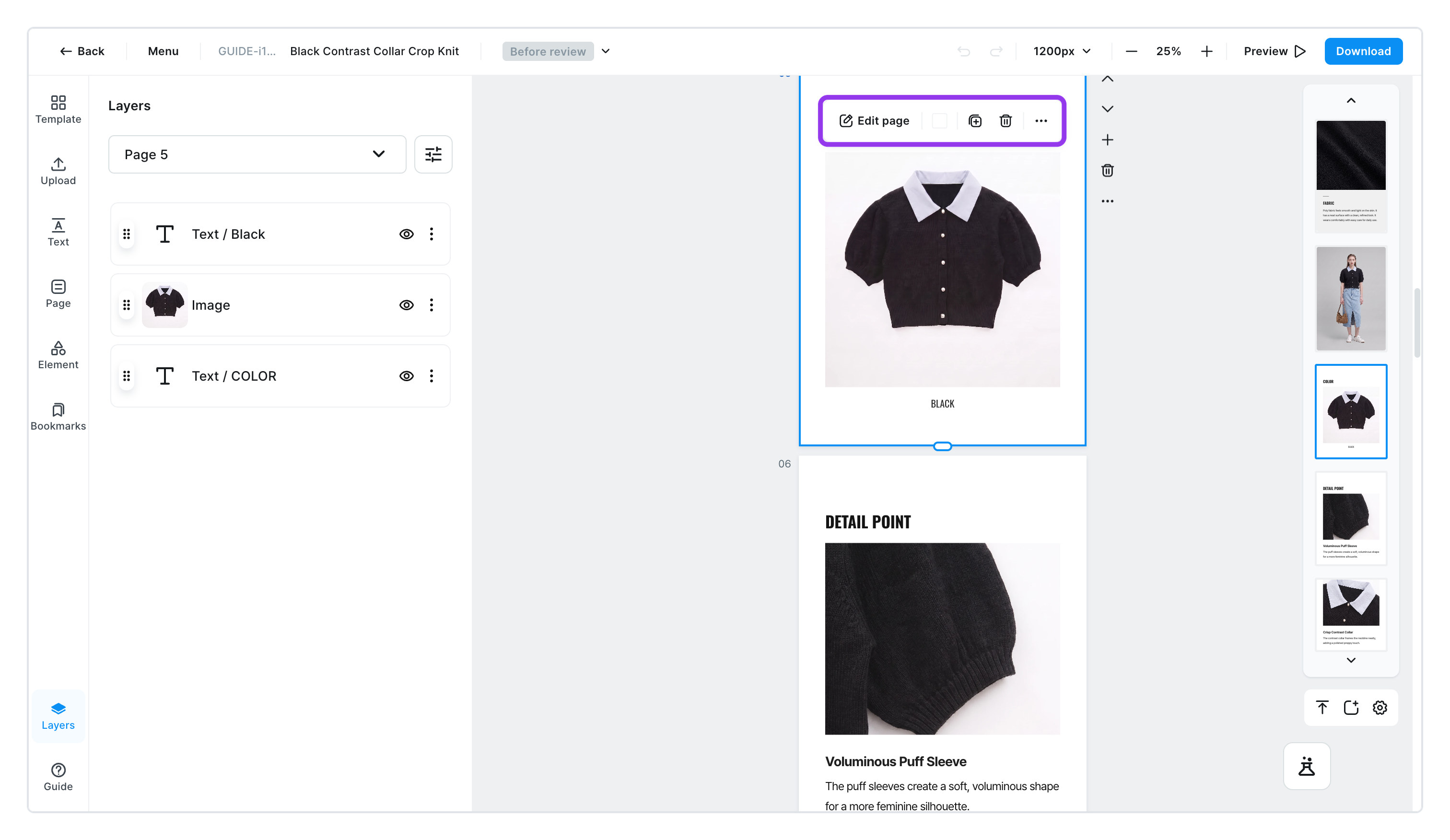
- Click a page on the edit screen
- A small menu appears above the page — [Edit page] · background color · duplicate · delete · more.
- Click [More] and you'll find these
| Item | What it does |
|---|---|
Paste ⌘V | Pastes what you copied onto this page. This is the only way to move something to another page. |
Duplicate page | Makes an identical copy of this page. |
Add page | Inserts a new page right after this one. |
Bookmark page | Saves this page so you can use it again in other product detail pages. |
Delete page | Deletes this page and everything on it. |
Image download (jpg) | Downloads just this page as a jpg file, right away. |
Image download (png) | Downloads just this page as a png file, right away. |
When you only need one page, grab it right here. No need to open the download window separately.
To reorder pages or add a background color
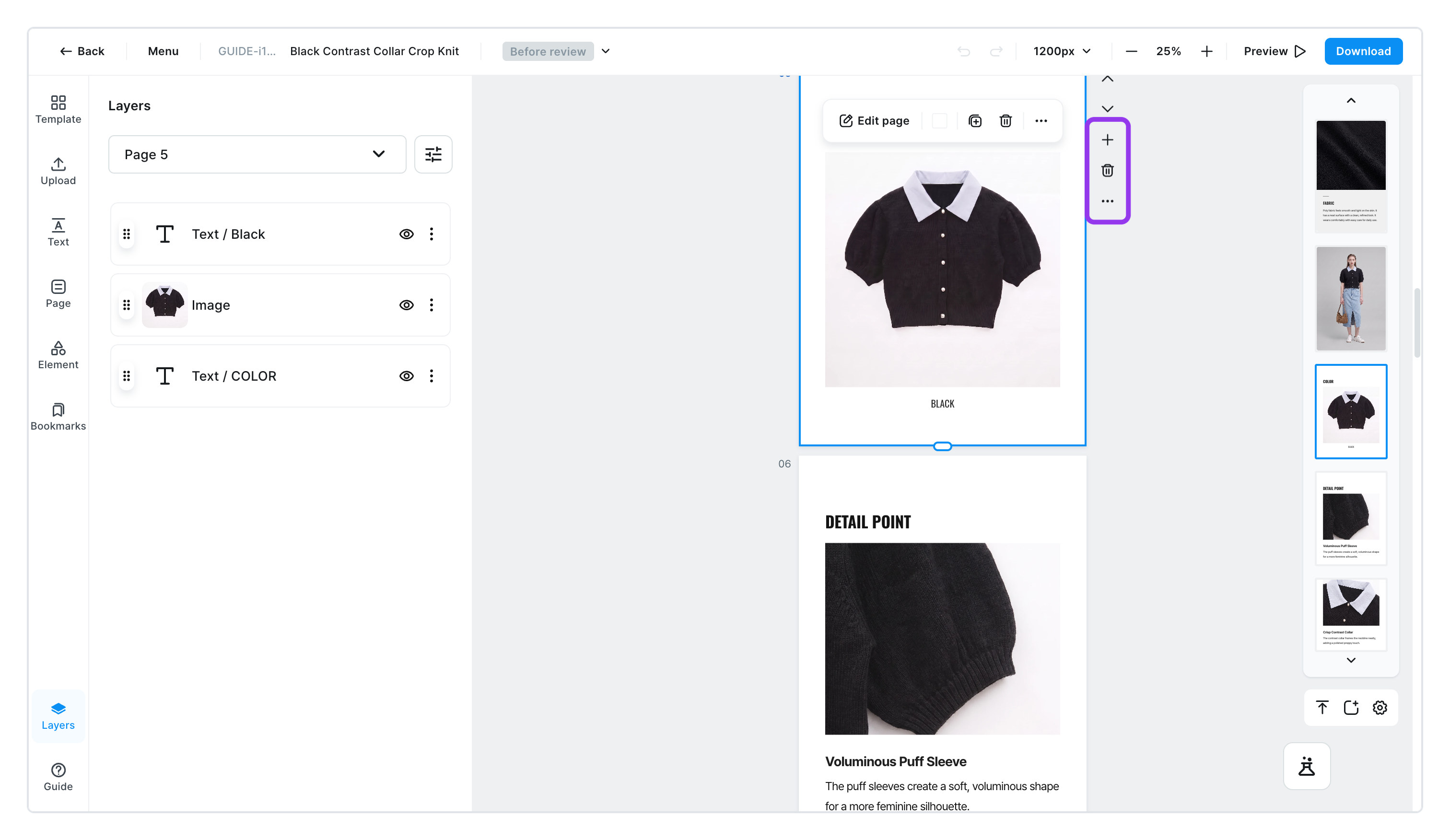
- Order ㅣ click [Move page up] · [Move page down] in the small menu above the page. The view follows the page as it moves.
- Background color ㅣ click the color circle in the same menu. Use [Apply background color to all pages] to give every page the same color.
- Insert in between ㅣ click [Add page] between two pages and a new page slots in right there.
- Back to the top ㅣ scrolled way down? Use [Go to top] to jump back to the first page.
Deleting a page deletes everything on it too. If you delete one by mistake, press ⌘Z right away to undo, or bring back an earlier point from the version history in Saving and version history.
Page height grows on its own when content runs past the bottom. To set the bottom padding or adjust the height by hand, see Fit bottom padding.