Download result
Download your finished product detail page as jpg, png, or html. Pick only the pages you want, or merge them into one long image.
Time to put it up in your shop. Download it in the format you want and register it as is.
- How many times can I download? No limit. Download again every time you make a change.
- What formats are there? Three:
jpg·png·html.
How do I download?
Open the download window
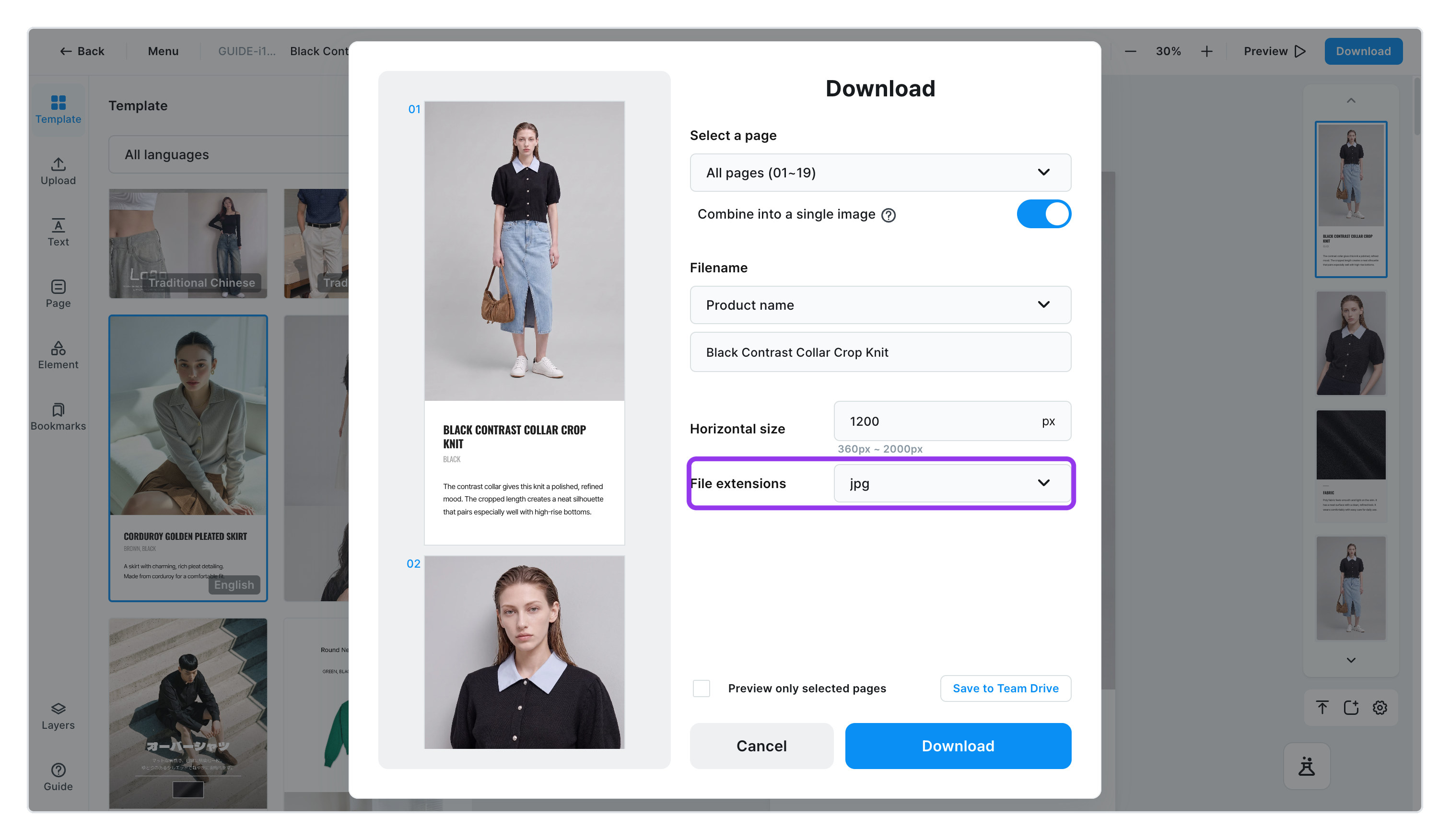
Click [Download] on the right side of the top menu. A window opens with your pages on the left and the options on the right.
Choose how to download
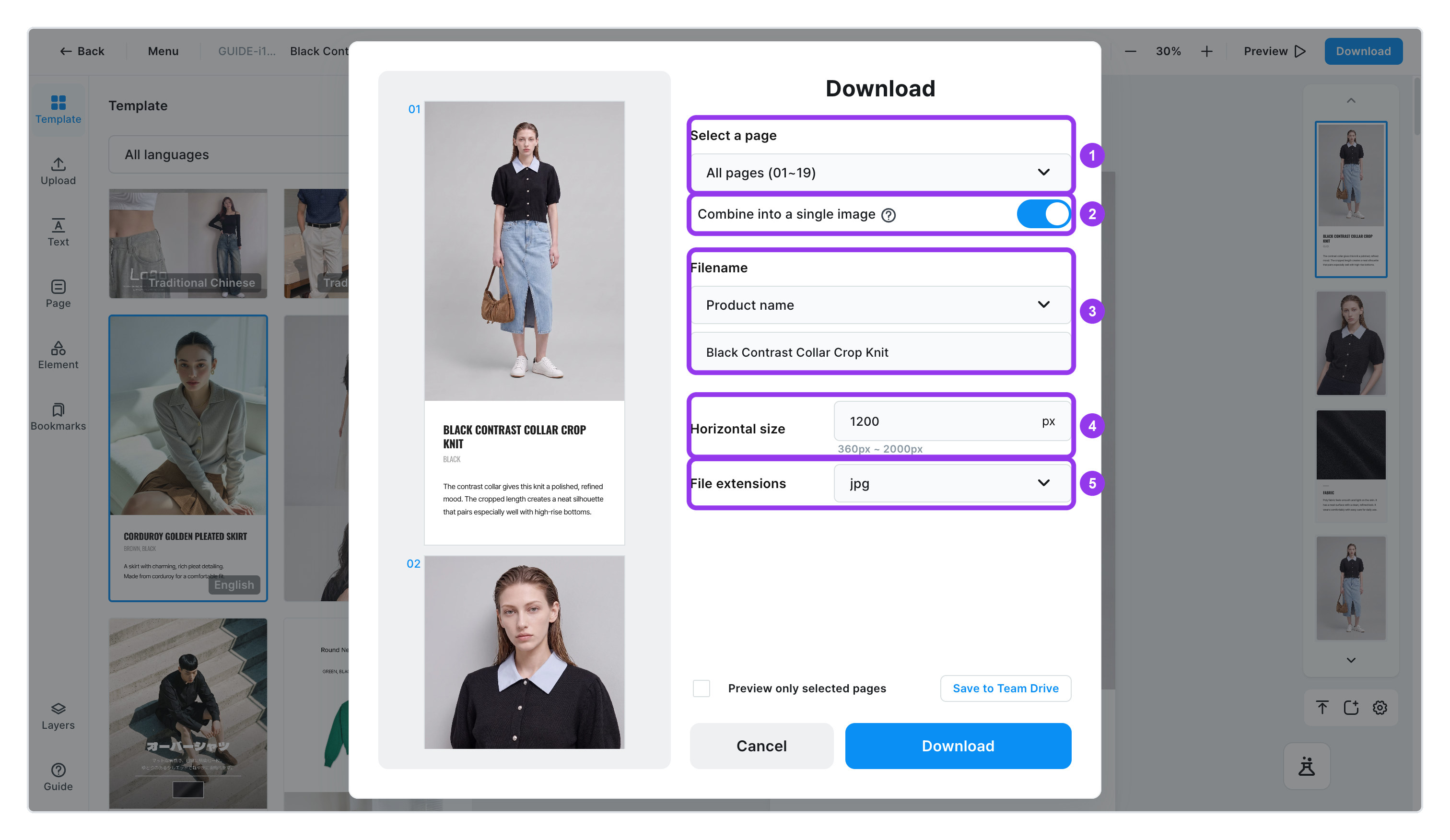
| What you choose | Good to know | |
|---|---|---|
| 1. Page selection | Download everything, or just a few pages | It starts set to download everything |
| 2. Merge into one image | Whether to join the pages top to bottom into one image | On by default. Shops usually take one long image |
| 3. File name | What to name the file | Choose Product name or Management name and it fills in for you. You can edit it yourself too |
| 4. Width | The image's width | Default 1200. You can set 360 to 2,000 |
| 5. File format | Which file type to get | jpg · png · html |
jpg suits photo-heavy product detail pages and keeps files light. png keeps text and lines crisper, but files get heavy.
Animated GIFs only keep moving in html. Download as jpg or png and a GIF is saved as a still of its first frame. See the animated GIF section in Upload.
Download
Click [Download] and the file is saved.
To download only the pages you need
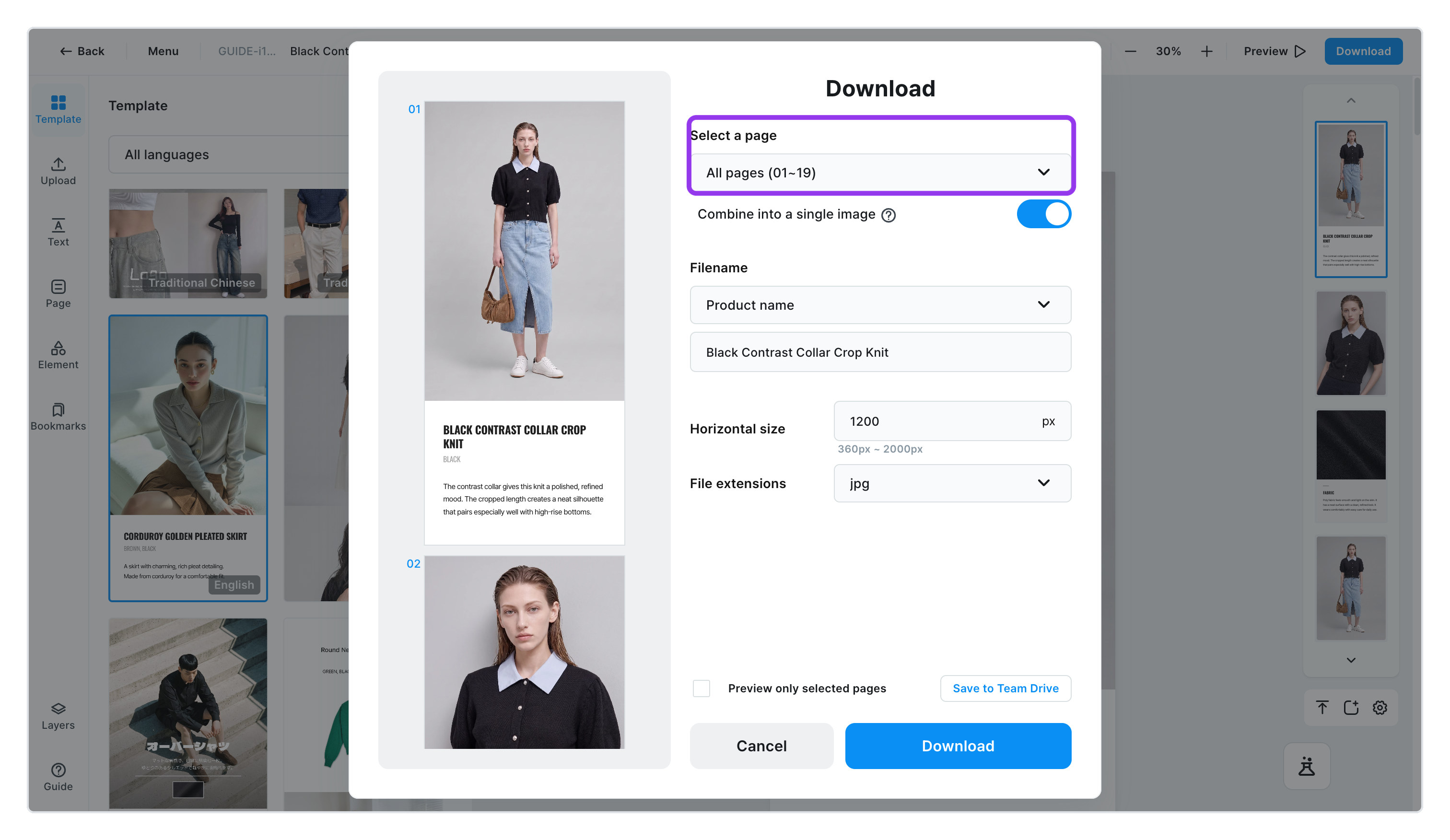
Choose Some pages and you can type the page numbers yourself. Type 2~7, 9 and pages 2 through 7 plus page 9 are saved. Use a tilde (~) or a hyphen (-) for ranges, and commas (,) for separate pages.
If counting page numbers is a hassle, choose Select directly in preview. You can look at the pages on the left and click the ones you want.
How do file names work?
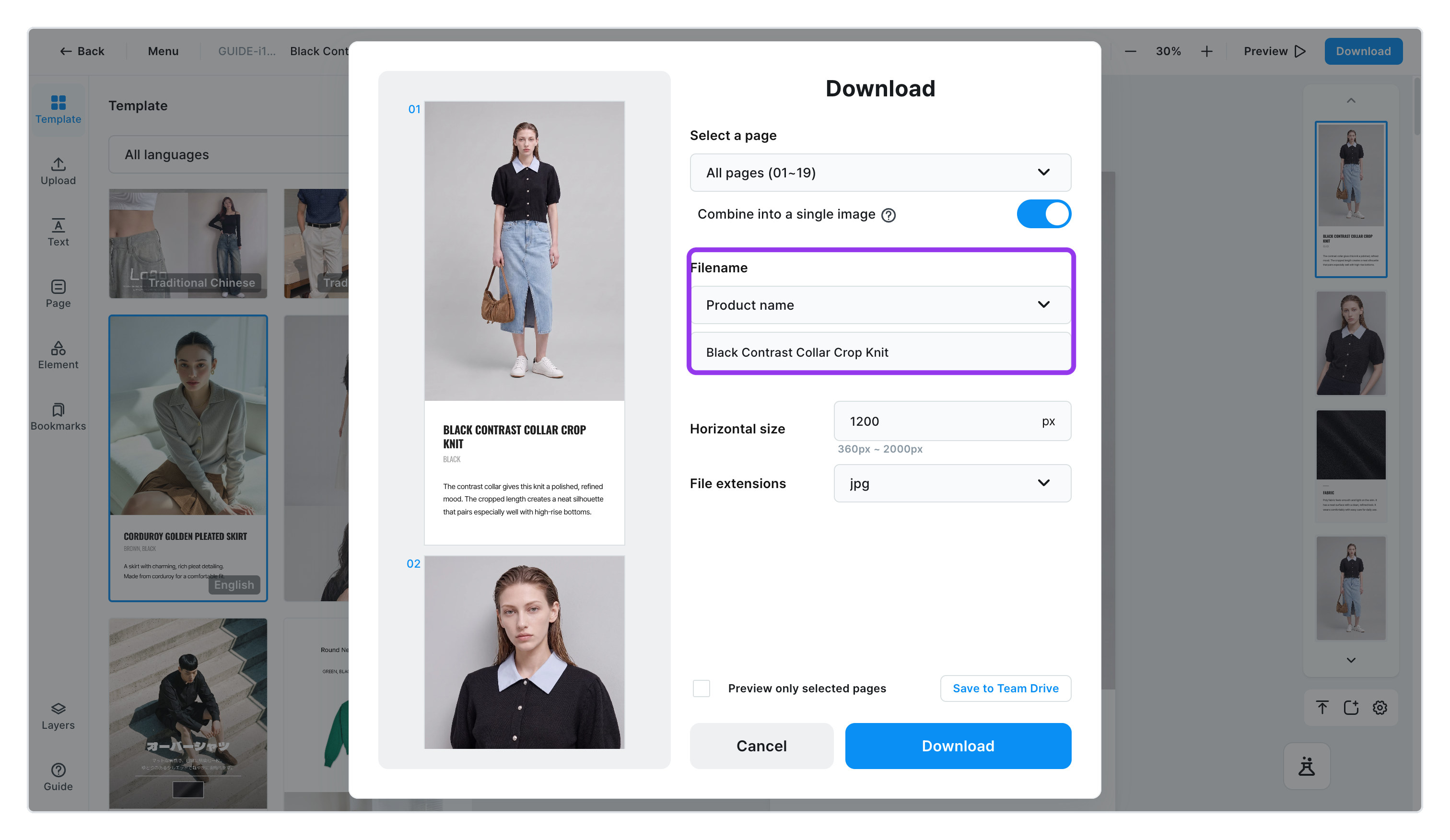
- Choose
Product nameorManagement nameand that name fills in automatically. Use it as is or edit it yourself. - Up to 50 characters. Go over and you'll see
You can enter up to 50 characters. - These characters can't be used in file names:
/\:*?"<>|
What's different about downloading as html?
html means downloading an actual web page, not a picture. The links you added stay live, so customers can click through.
If you just want the code instead of a file, click [Copy code], which appears under File format. When you see The html code has been copied., paste it straight into your shop's editor.
html can't have its width set here. It comes out at the size your product detail page was made. To change the width, first change the product detail page's own width in View settings.
To download just one page
Click that page on the edit screen and click [More] > [Image download (jpg)] or [(png)]. It saves right away — no need to open the download window.
My download came split into several files
When there are a lot of pages, they sometimes can't be joined into one image. When that happens, you'll see The image is too large to merge into one, so it has been split into a ZIP. and it saves as a compressed file. Unzip it and the split images are inside, in order. Just upload them in order.
Some pages were missing from my download
Once in a while, some pages fail to convert to images. You'll see Failed to convert N pages to images. Only the remaining pages were saved — please try again. The pages that worked were saved, so just download once more.
What's remembered next time
The File name source, File format, and Merge into one image are remembered exactly as you last used them — no need to set them again each time. Page selection and Width go back to their starting values each time you open the window.