
Saving and version history
How auto-save works in the GENCY Editor and how to roll back to an earlier point. Covers the save cycle, saving by hand, and restoring from version history.
Forgot to press a save button? No problem. Your work saves itself as you go, and if you change your mind you can roll back to an earlier point.
- Where is it? Saving by hand and pulling up an earlier point both live under [Menu] in the top menu.
- When does it save? 10 seconds after you pause.
What are auto-save and version history?
- Auto-save ㅣ saves on its own whenever you pause. No save button to hunt for.
- Version history ㅣ every save stacks up as a point in time. Later, you can roll the whole thing back to any of them.
- If undo cancels the one thing you just did, version history is more like going back to yesterday's state. Use it when you've been editing for a while and decide the earlier version was better.
The ⌘ in shortcuts is for Mac keyboards. On Windows, press Ctrl in the same spot.
To check whether it saved
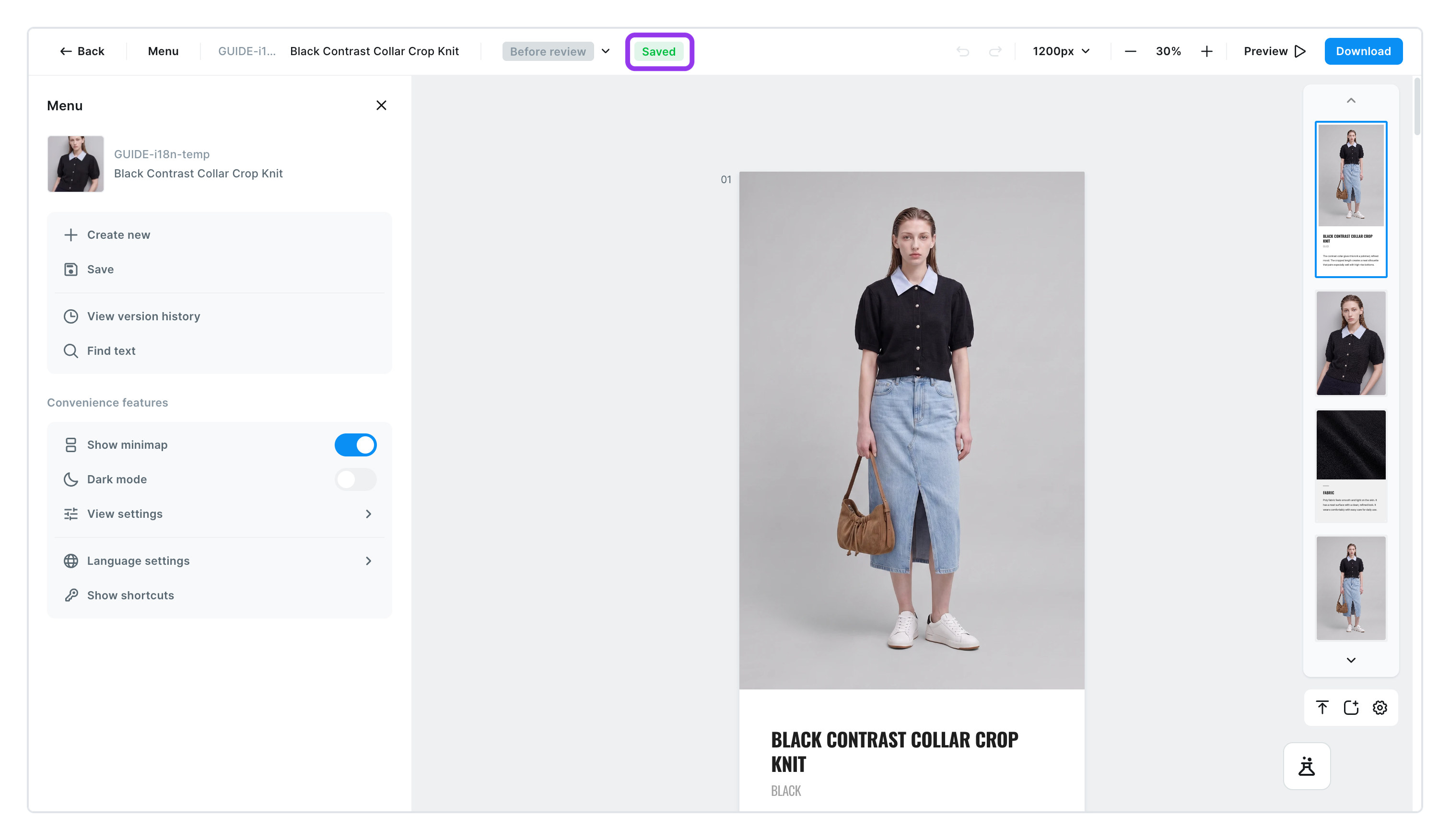
Look next to the product name in the top menu.
Savingㅣ saving right now.Savedㅣ everything up to your last action is saved.Save failedㅣ the save didn't go through. It retries by itself up to five times, at intervals of 1 → 2 → 4 → 8 seconds.
It only saves when something has changed. It saves 10 seconds after you pause, and at least once every 3 minutes while you keep working. Big changes like adding a photo or a page save right away, and it saves once more when you close the window.
There's no notification when it saves. It saves quietly so it doesn't interrupt your work. You only see a notice when you save manually.
If it keeps failing, you'll see Auto-save isn't available right now. Please try again shortly. Check your internet connection and click [Retry]. If you close the window in this state, everything after the last save is lost.
To save manually
-
Click [Menu] in the top menu
-
Click [Save]
- When it's done, you'll see
Saved successfully.
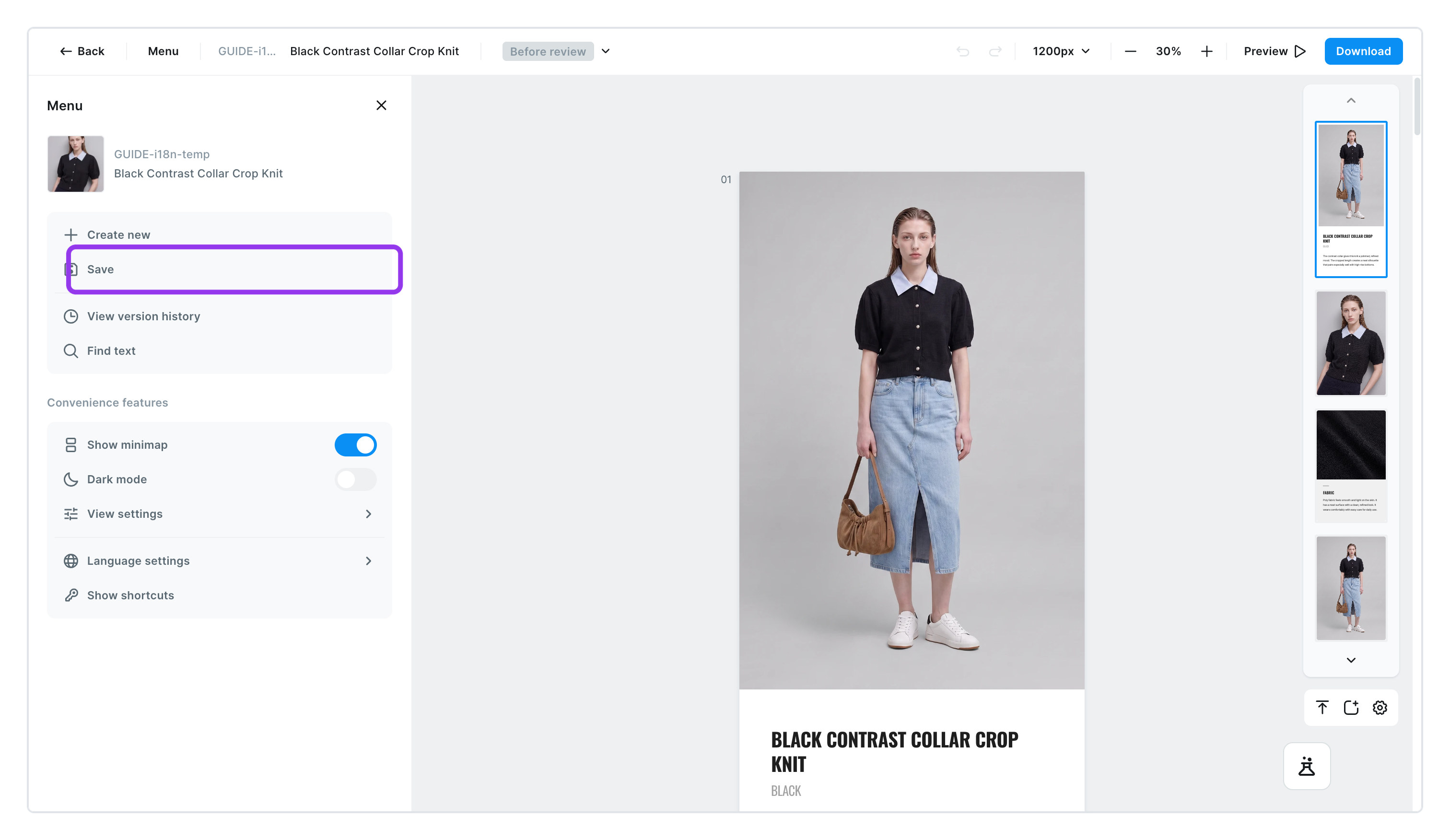
Open the menu and click Save - When it's done, you'll see
Photos in your uploads are kept separately, no matter what happens with saving. Photos you haven't placed on a page yet stay right where they are.
To roll back to an earlier point
Open the list of saved points
Click [Menu] > [View version history]. Your saved points appear on the right, grouped by date. Today and yesterday show as they are; anything older shows as a date, like May 7. Scroll down and older ones keep coming.
Pick the point to roll back to
Each row shows the time it was saved · who saved it · the Template applied at that save.
Latest version— the state you're looking at nowManual save— saved by hand. Automatic saves carry no labelTemplate changed·Size changed— means the Template or the width changed at that point
Roll back
Click [Restore] and a confirmation appears. At that moment, the state right before rolling back is automatically saved one more time. So even if you roll back and change your mind, you won't lose where you are now.
When it's done, [Undo restore] appears at the top of the screen for 5 seconds. If you rolled back by mistake, click it then.![[Undo restore] at the top of the screen](/en/assets/screen-editor-ver-step4-en.jpg)
Even after you pick a point, the edit screen in the middle keeps showing what you're working on now. The screen itself says The preview shows what you're currently editing. The selected version's view isn't available yet. So choose by the saved time and who saved it.
How long do saved points stick around?
- They stay with no time limit. It's the same on every plan.
- Automatically saved points can't be deleted by hand.
- The space this history takes up is counted separately from Team Drive storage. Even a full Team Drive leaves the history untouched.
Editing the same product detail page with several people at once isn't supported yet. If someone else saves first, you'll see Another user's changes have been applied. Please refresh and try again. and auto-save stops. Refresh, then pick up where you left off.