Template
Changing just the Template completely transforms the feel of your product detail page. Here's how to browse by category and language, preview, and apply one.
The same photos can look completely different depending on the layout they sit on. Pick a Template and the whole mood changes at once.
- What's a Template? A ready-made layout that decides how many photos go in and where the copy sits.
- When do I pick one? Decide first, before you start editing. Changing it later wipes out the edits you've made.
To change the Template
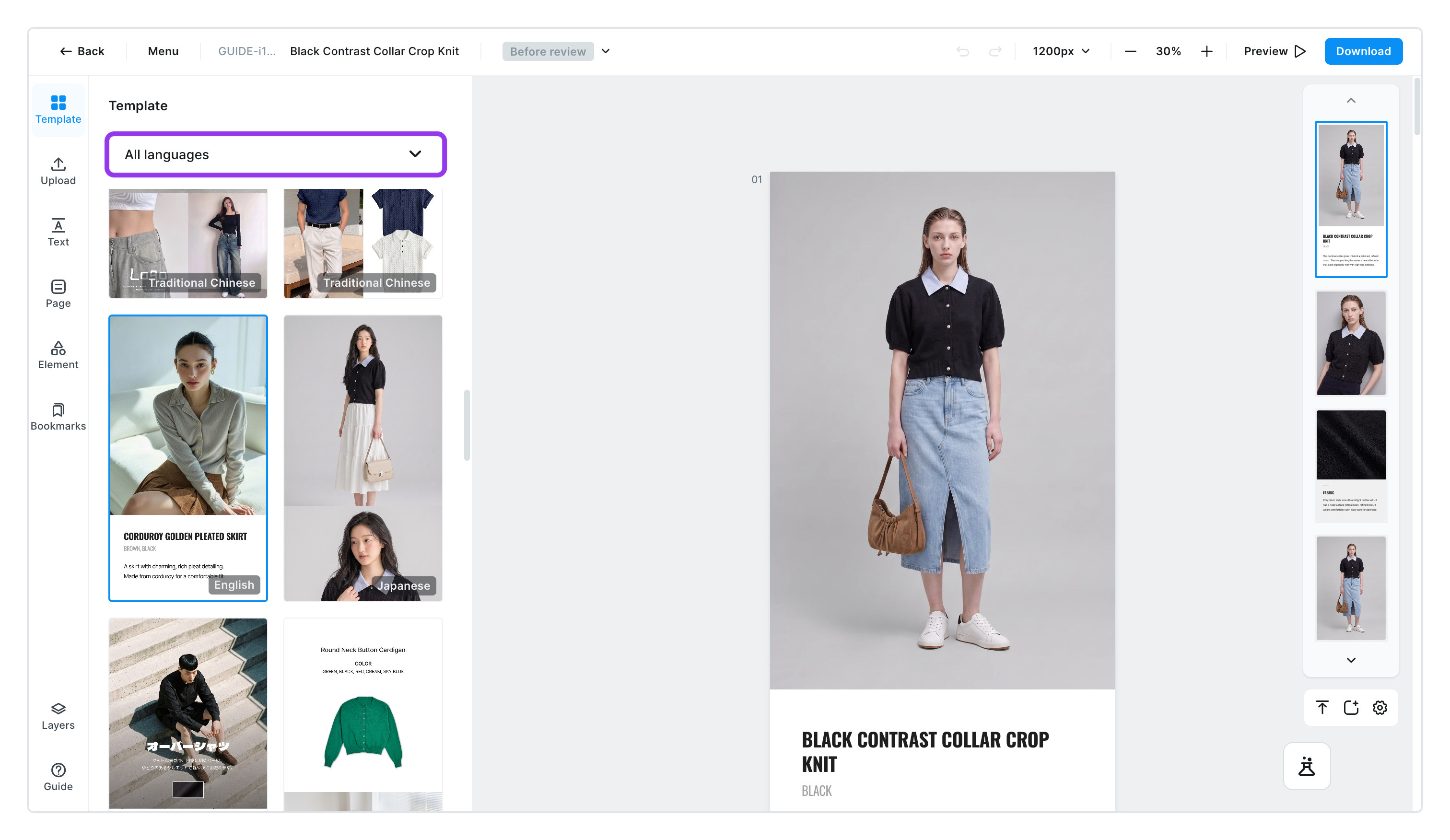
- Click [Template] in the left menu
- Narrow down the list with [All languages]
- Filter by the language of the copy built into each Template. Every Template card carries a language tag too.
- The list puts favorited (★) templates first, then templates in the language you chose when generating. That language also comes first in the language picker. You can add or remove favorites in the template preview on the create screen too.
- Click [Preview] on a Template you like
- You can see the result before applying it. It helps to compare two or three before deciding.
- Click [Apply template]
- Confirm
Change to the selected template?and the whole design changes.
- Confirm
warning
The pages you've edited will be lost. If you change the Template after polishing your copy and moving photos around, that work is gone. That's why it's best to settle on a Template before you start editing.
To go back to how it started
If you've been tinkering and decide the original was better, use [Reapply template]. It lays down a fresh copy of the Template you're using now. Keep in mind, your edits are lost here too.