
Upload
How to upload product photos, or swap out only the ones already placed. You can also pull photos straight from Team Drive.
Ready to upload the photos you'll use, or swap one that's already placed for another?
- What happens when I upload? AI places each photo where it fits best, on its own.
- How many can I use? Up to 50 photos per product detail page.
How do I upload photos?
![Click [Upload] in the left menu to open the panel for adding photos](/en/assets/screen-editor-where-upload-en.jpg)
- Click [Upload] in the left menu
- The top of the panel shows how many photos you're using, like
All images 7/50.
- The top of the panel shows how many photos you're using, like
- Click [Upload files] and choose your photos
- You can also drag and drop photos from your computer, several at a time.
Here's what you can upload.
| Item | Limit |
|---|---|
| File types | jpg · jpeg · png · gif · heic · webp |
| Size per upload | 80MB |
| Images per product detail page | 50 |
50 is the total for this one product detail page. If you've used 40, you can add 10 more; go over and you'll see You can use up to 50 images. Please tidy up your images. GIFs upload the same way.
Videos (MP4) can't go into a product detail page. They can be stored in Team Drive, but if you try to bring one into a product detail page you'll see MP4 files cannot be used outside of storage. and it won't go in.
To bring photos in from Team Drive
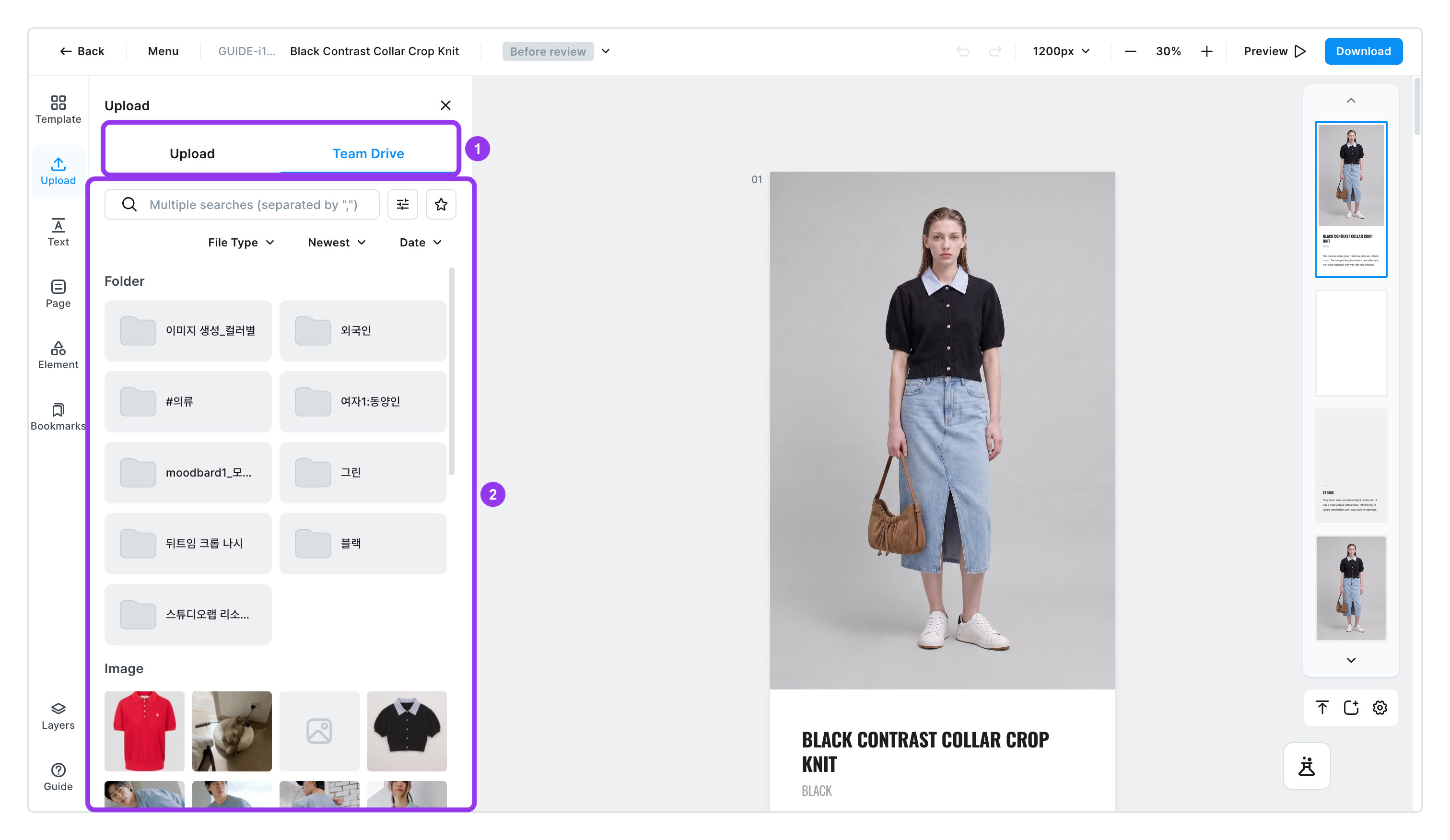
Team Drive is the photo library your team shares. Reuse photos you uploaded before without uploading them again.
- Click [Team Drive] at the top of the panel
- Open a folder and pick your photos
- Use
Favoritesto gather the photos you reach for most. - Sort by newest, oldest, name, or size, and filter by file type too.
- Type several names separated by commas to search for them all at once.
- Use
If you see Files in the trash cannot be added., that photo is sitting in the trash. Restore it first, then try again.
To place an animated GIF
Add it exactly like a regular photo. Once it's on the edit screen it keeps playing on its own — no play button needed.
- In the Upload tab ㅣ it sits on its first frame with a
GIFbadge in the bottom right. - To preview it ㅣ hover and it starts moving; [More] > [Preview] opens it larger.
What you can't do with a GIF
- Color grouping ㅣ GIFs can't be analyzed for color, so they all collect under
Other colors. Move one into another color group and it springs back. - Automatic rearranging ㅣ [Rearrange images] won't place GIFs for you. Drag them where you want them.
- Set as cover image ㅣ a GIF can't be the cover.
- Image adjustments ㅣ color tuning, filters, and blends don't apply.
Shape-level features like resizing, cropping, rotating, shadows, and rounded corners all work with the animation intact. Replacing the image works too.
To keep a GIF moving in the file you download, save as html. Download it as jpg or png and only the first frame is saved. See Download result for details.
To swap only a photo that's already placed
![[Replace image] in the menu that pops up above a photo you click](/en/assets/screen-editor-image-replace-en.jpg)
Use this when you want to switch just one photo for another. The size and position stay put — only the photo changes.
- Click the photo you want to swap on the edit screen
- A small menu appears above the photo.
- Click [Replace image] in that menu
- Pick the new photo
- Photos already used in the product detail page are marked
In use, and the main photo is markedCover.
- Photos already used in the product detail page are marked
I added photos and [Rearrange images] lit up
This button lights up when you add photos or change colors. Click it and all your photos and copy get laid out again from scratch.
Rearranging can't be undone. Anything you've placed by hand disappears along with it. Double-check before you click.
A photo won't delete?
-
Images in use in the editor cannot be deletedThis photo is currently placed in your product detail page. Remove it from the edit screen or replace it with another photo, then delete it.
-
The image currently used as the cover cannot be deleted.It's set as the cover photo for your product detail page, so it can't be deleted directly. Set another photo as the cover first, then delete it.