View settings
Use rulers, grids, and guides to place things precisely, and switch to a dark screen. This is also where you set your product detail page's width.
Eyes getting tired, or nothing to line things up against? Adjust the view to fit the way you work.
- Where do I change it? It's all under [Menu] > Convenience features.
- What can I change? Page preview · rulers, grids, and guides · your product detail page's width. Dimming the screen is covered separately in Dark mode.
To place things precisely
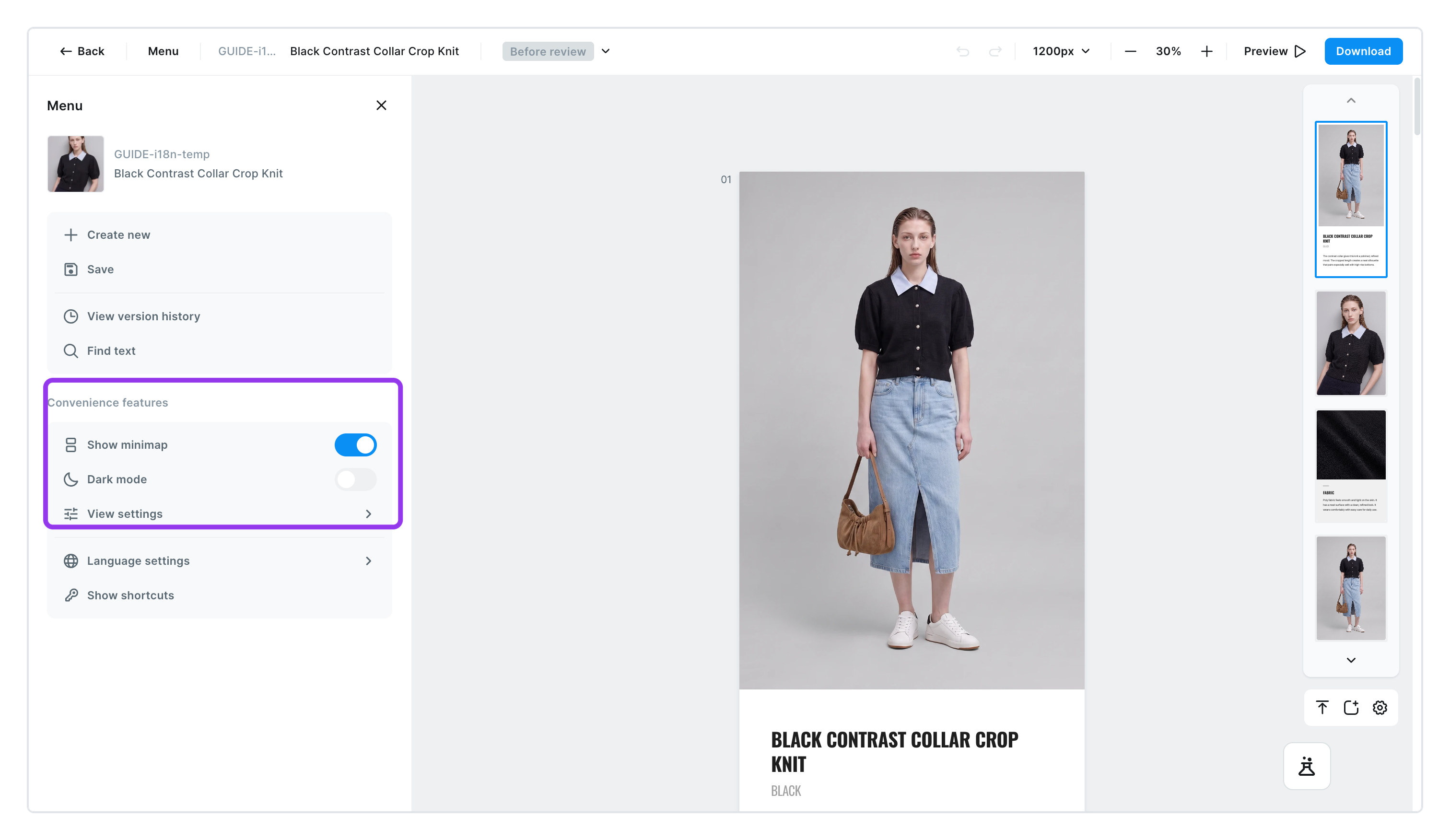
- Open [Menu] > Convenience features > [View settings]
- Everything starts turned off.
- Turn on only what you need
Rulers— rulers appear along the top and left of the screen. Drag out from a ruler to create a guide.Grid— overlays graph-paper squares on the page. Handy for keeping sizes consistent.Guides— shows the guides you've made.
- Too many guides? [Delete all guides]
- Clears the guides on every page at once.
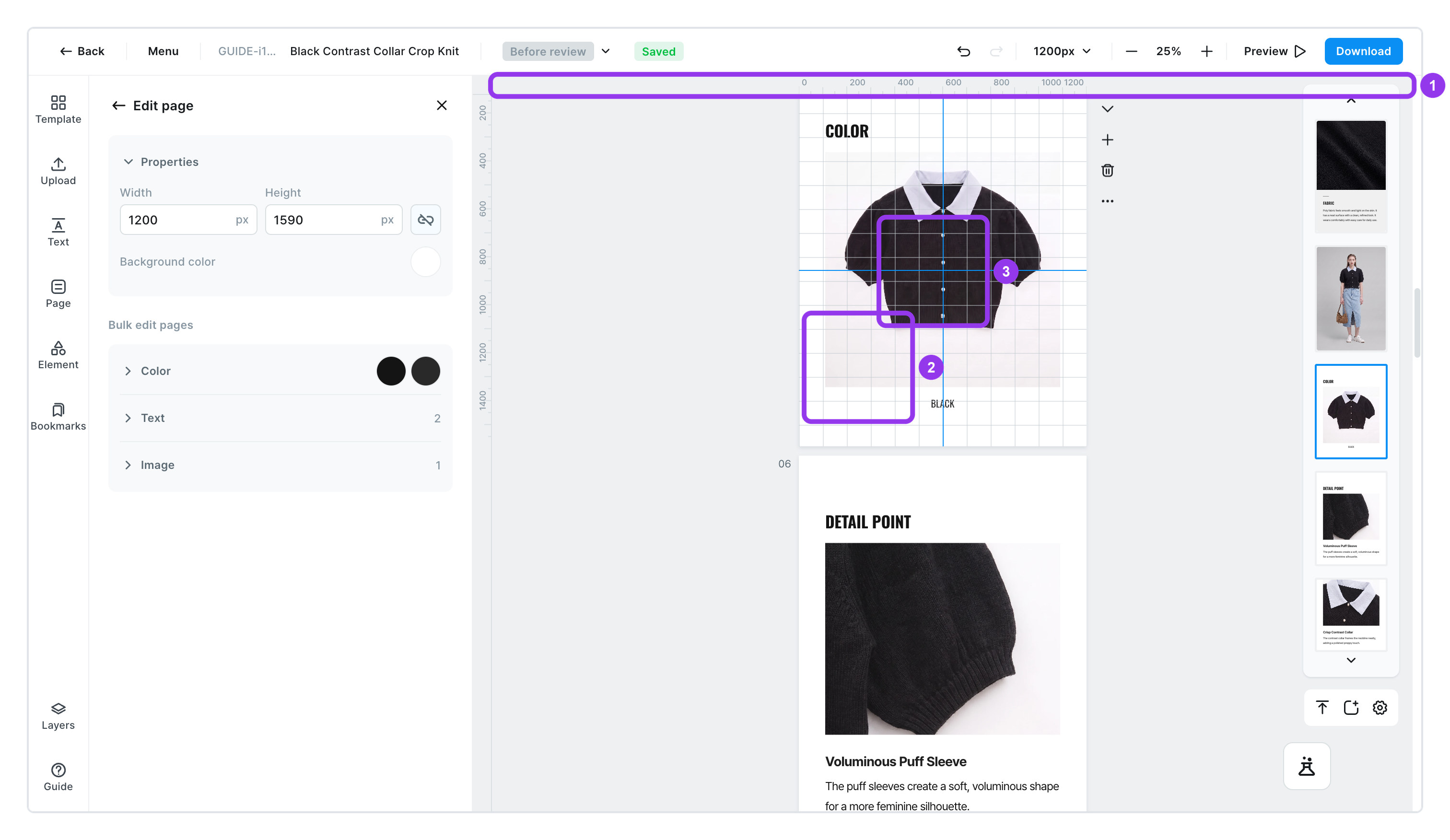
| No. | What | How it looks |
|---|---|---|
| 1 | Rulers | Rulers appear along the top and the left. Drag out from one to create a guide |
| 2 | Grid | A faint grid overlays the page |
| 3 | Guides | The blue lines you drew. You can draw them both ways |
Guides are reference lines you only see on screen. They never show up in the actual product detail page or the files you download, so draw as many as you like.
To see every page at a glance
Turn on [Menu] > Convenience features > [Show minimap] and all your pages line up small along the right side. Click any page to jump straight to it. A big help when you have lots of pages.
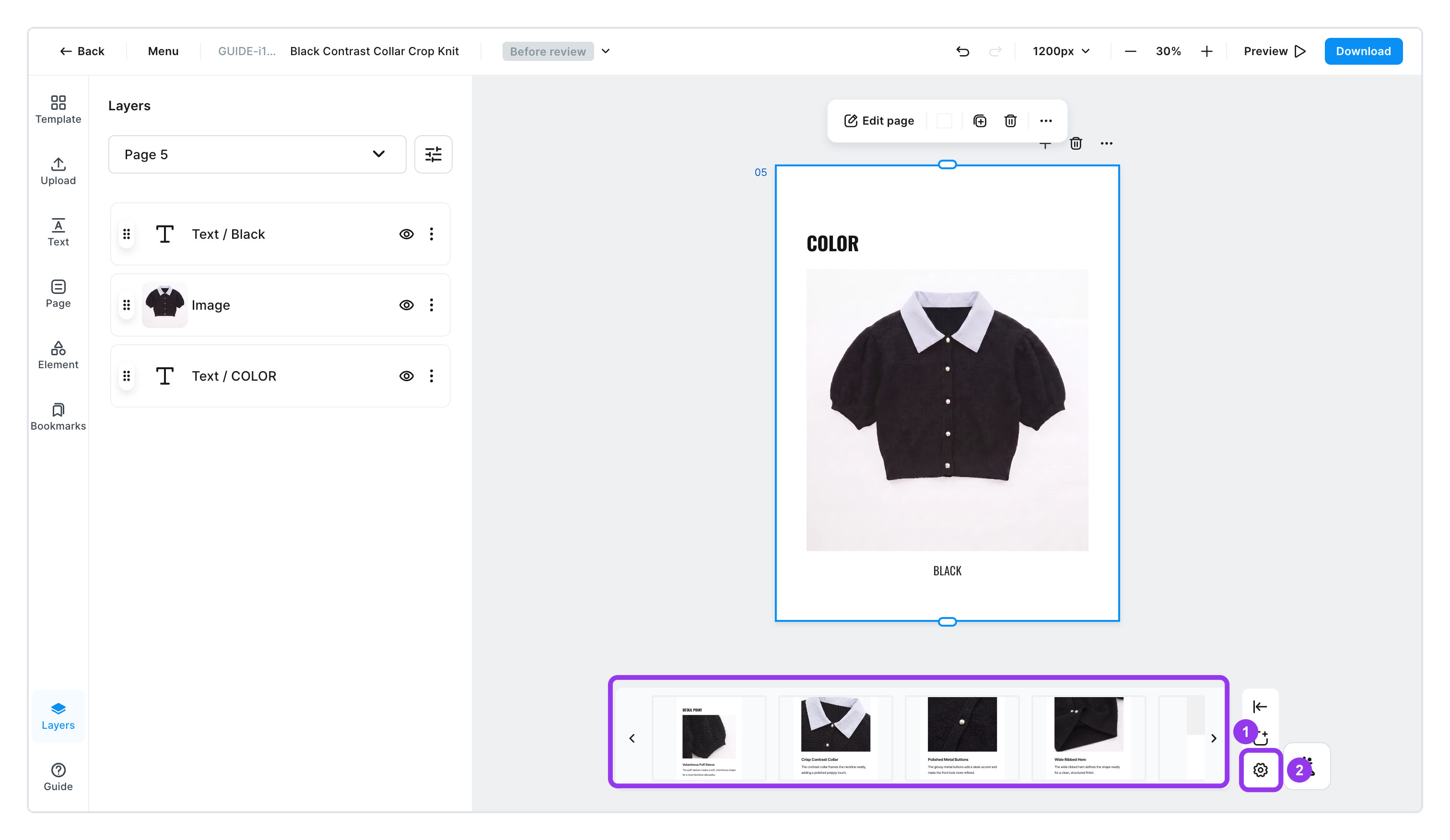
The minimap can run vertically or horizontally. Click the gear ([Minimap settings]) below the minimap.
| No. | Item | What it does |
|---|---|---|
| 1 | Minimap | Vertical scroll lines the pages up on the right; Horizontal scroll lines them up along the bottom |
| 2 | [Minimap settings] | Choose between Vertical scroll and Horizontal scroll here |
Horizontal gives the tall product detail page more room; vertical is easier for skimming how many pages you have.
To zoom in and out
- Click
− % +in the top menu. - Press
⌘0for actual size, or⌘⇧0to fit the whole thing on screen. - Pinching in and out with two fingers on a laptop trackpad works too.
To change your product detail page's width
This sets how wide your product detail page is. Every shop recommends a slightly different size, so change it when you need to.
- Click
1200pxin the top menu - Type a number in
Widthand click [Apply]- You can set anywhere from 360 to 2,000. The default of 1200 is plenty for most shops.
- If your pages have different widths, it shows
Mixed.
- Choose what happens to the content
Keep content as is— photos and text stay the same size; only the side margins grow or shrink.Resize content together— everything inside grows along with the wider page.