Image Guide
A guide to the recommended conditions for the product images used to generate GENCY detail pages. It covers image-quality standards—real photos of apparel or jewelry, at least 1200px wide, PNG format, 6 or more images—and the types of images to avoid.
The better the images you upload, the higher the quality of the detail page the AI creates. Refer to this guide when preparing your images.
Before Uploading
Please check the following before uploading your images.
- Upload only apparel or jewelry images. Other categories (food, electronics, etc.) may not be recognized by the AI.
- Use real photos, not illustrations or drawings.
- We recommend a width of at least 1200px.
- To reduce quality loss, we recommend the PNG format over JPG/JPEG.
- For images you'll reuse across multiple detail pages, it's efficient to upload them in advance to Team Drive.
| Item | Standard |
|---|---|
| Image formats | PNG, JPG, JPEG, WebP, HEIC |
| Image dimensions | Up to 15,000px in width/height (at least 1200px wide recommended) |
| File size | Up to 80MB per file |
| Minimum number of images | 6 or more |
Images to Avoid
For accurate image analysis, please avoid the following types.
Not Recommended
These are images that may reduce the AI's analysis accuracy.
| Images containing text | Images with harsh lighting | Low-resolution images |
|---|---|---|
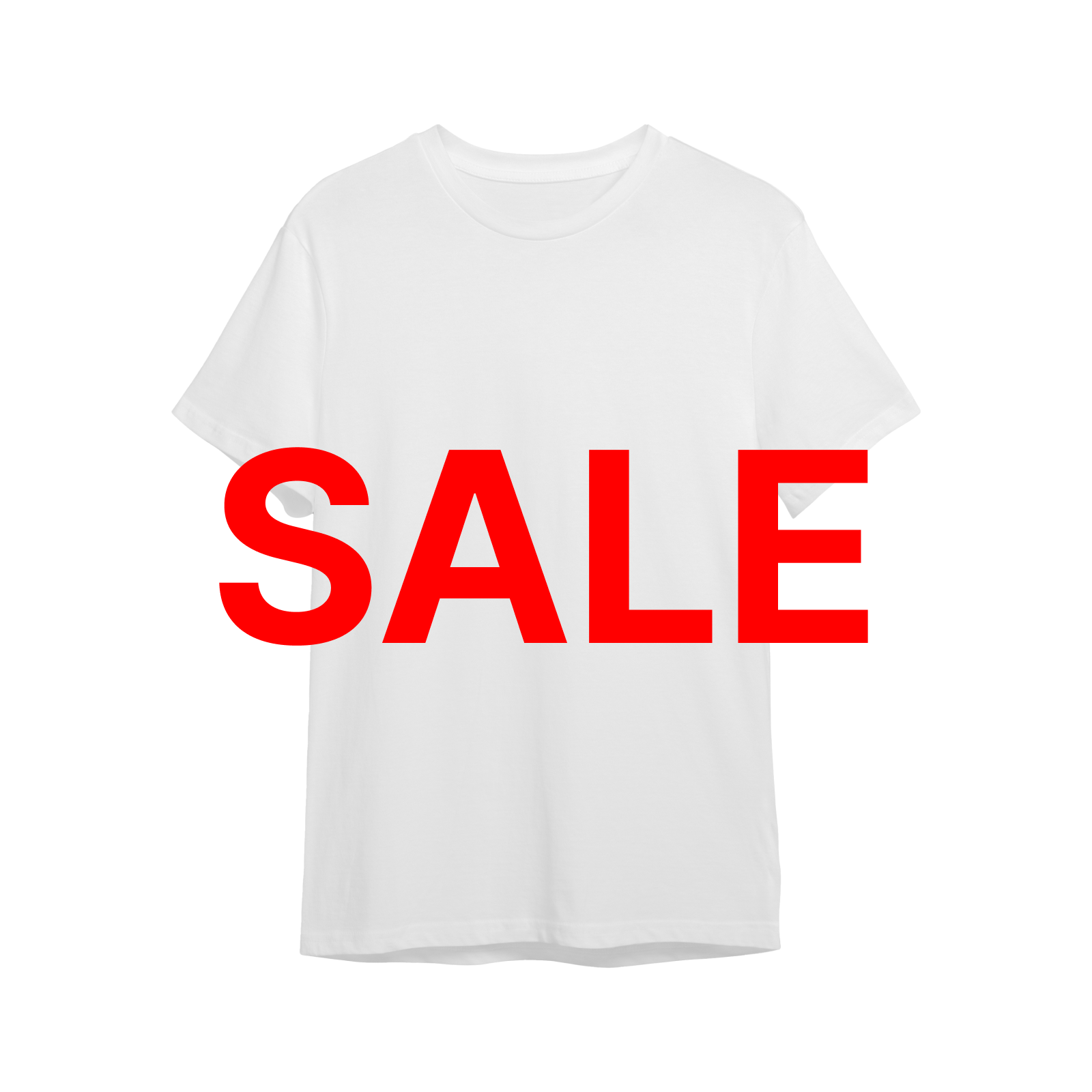 | .png) | .png) |
 .png) | .png) |
Unrecognizable
These are images the AI cannot recognize. Uploading this type of image may prevent the detail page from generating properly.
| Non-apparel/jewelry images | Images not of worn apparel |
|---|---|
.png) | .png) |
 .png) |
Recommended Images
The closer your images match the guidelines below, the more polished your detail page will be.
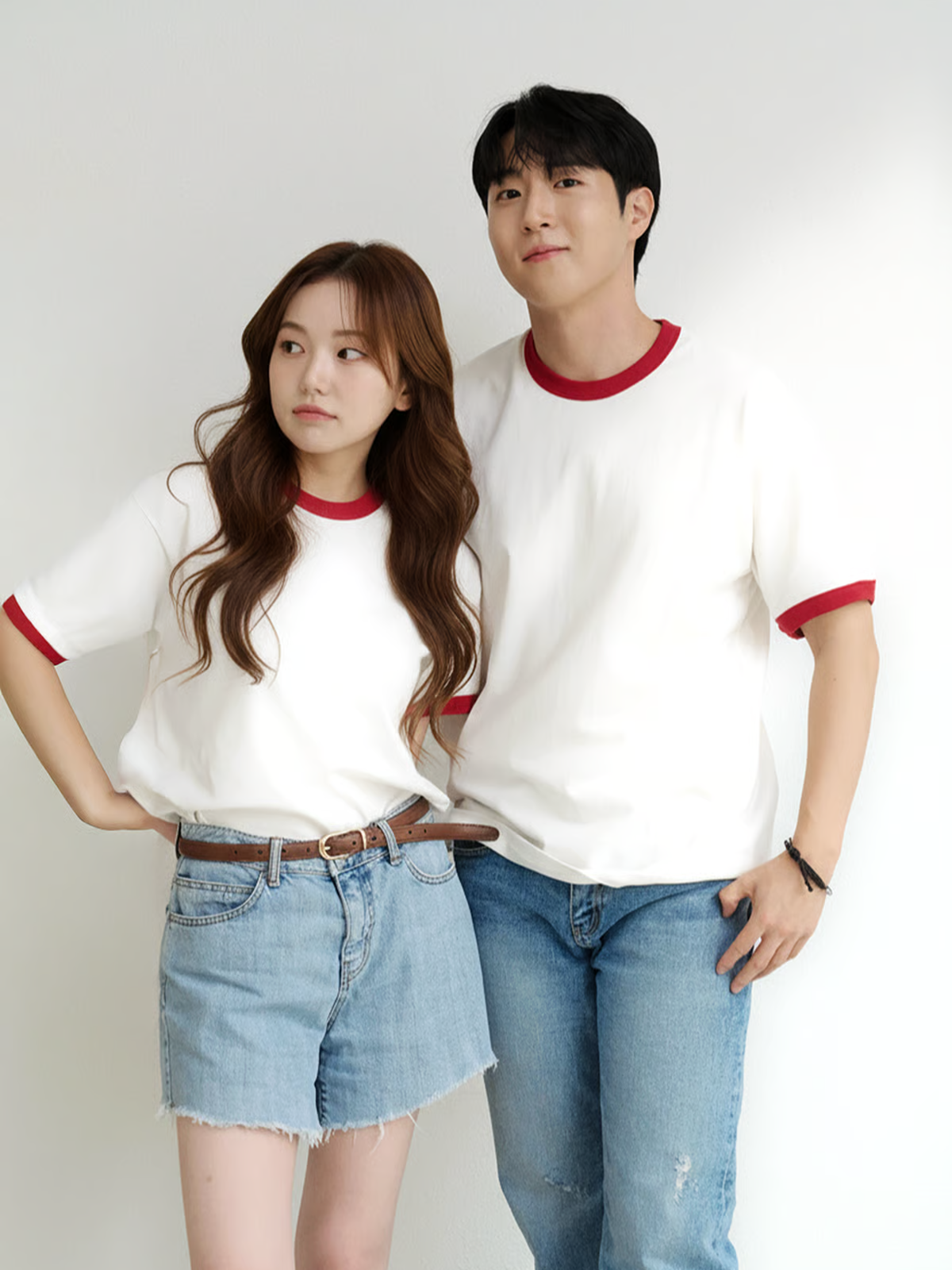
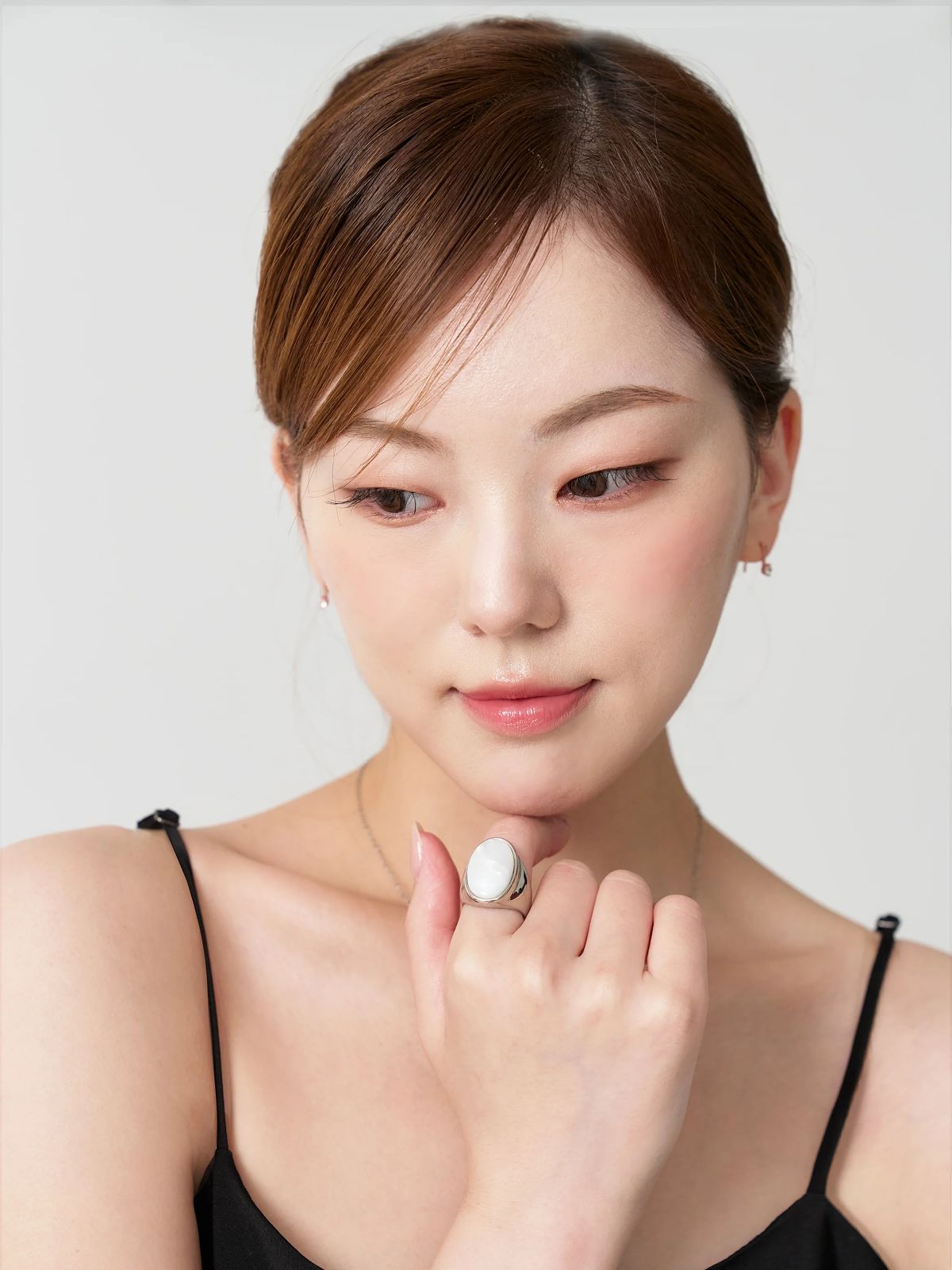
Model Images*
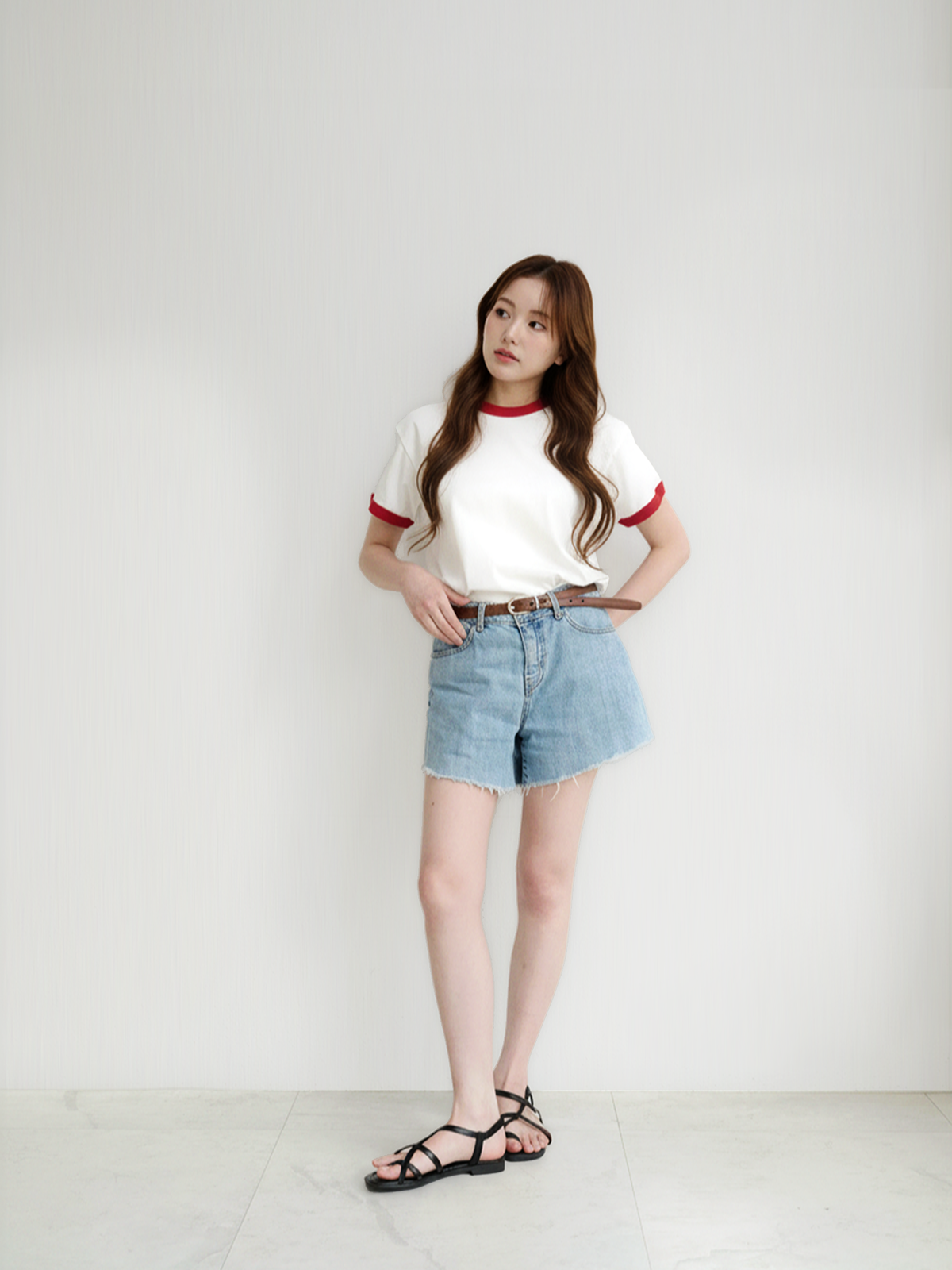
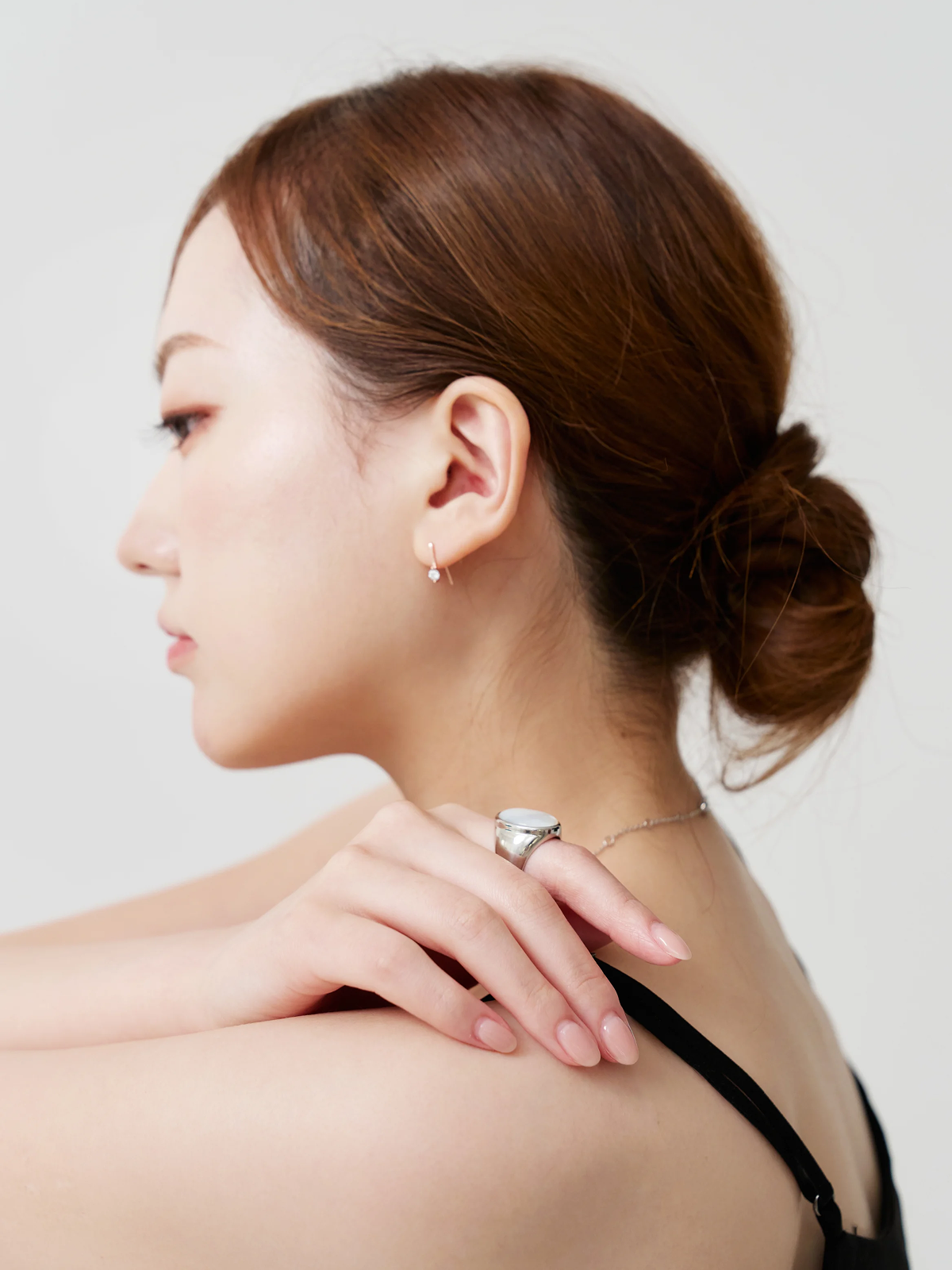
Images of a model wearing the product are a core element of the detail page.
- Just one image is enough to generate, but the more images you upload from various angles and distances, the richer the results you'll get.
- Backgrounds can be either indoors or outdoors.
| Apparel image example | Jewelry image example |
|---|---|
 |  |
 |  |
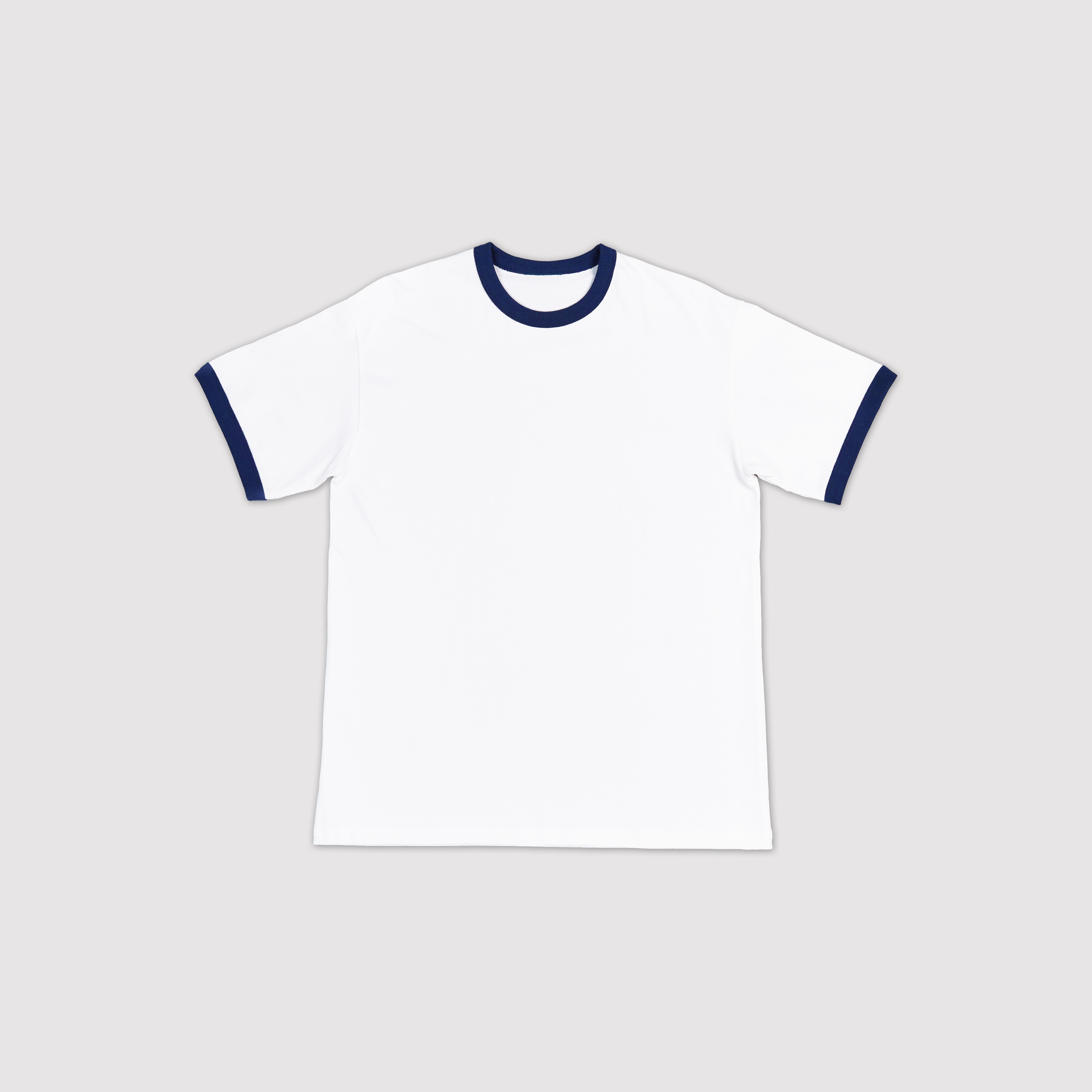
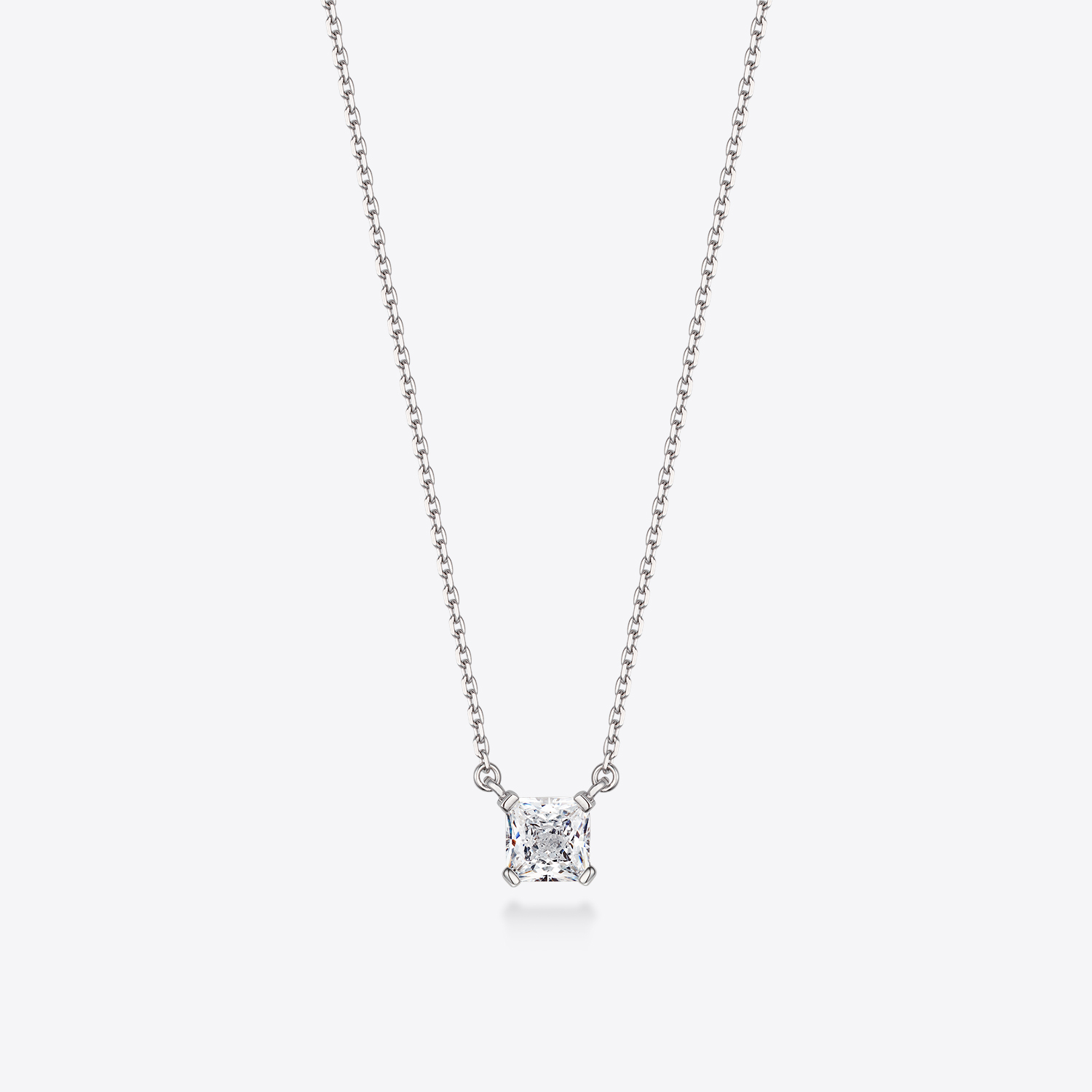
Product Images
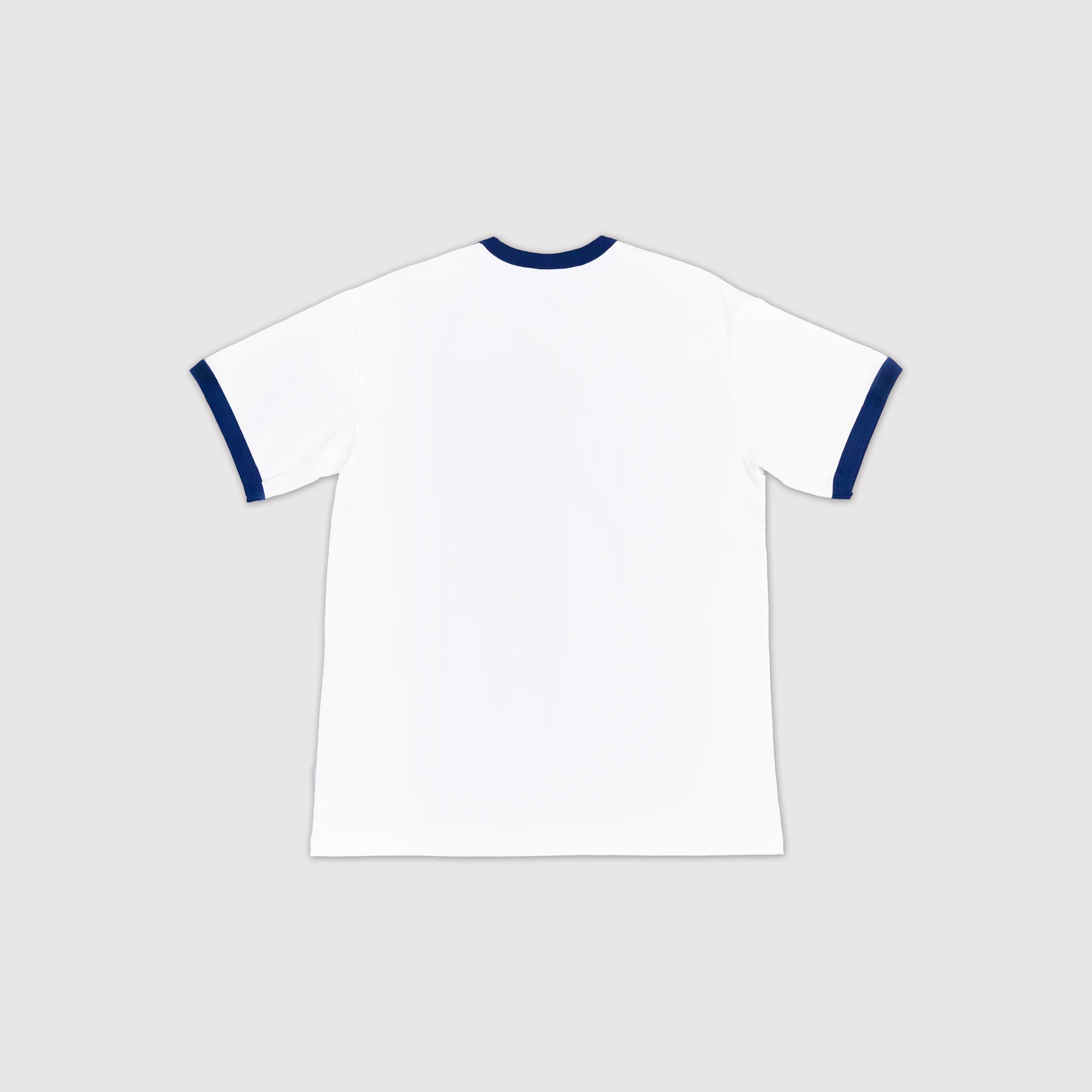
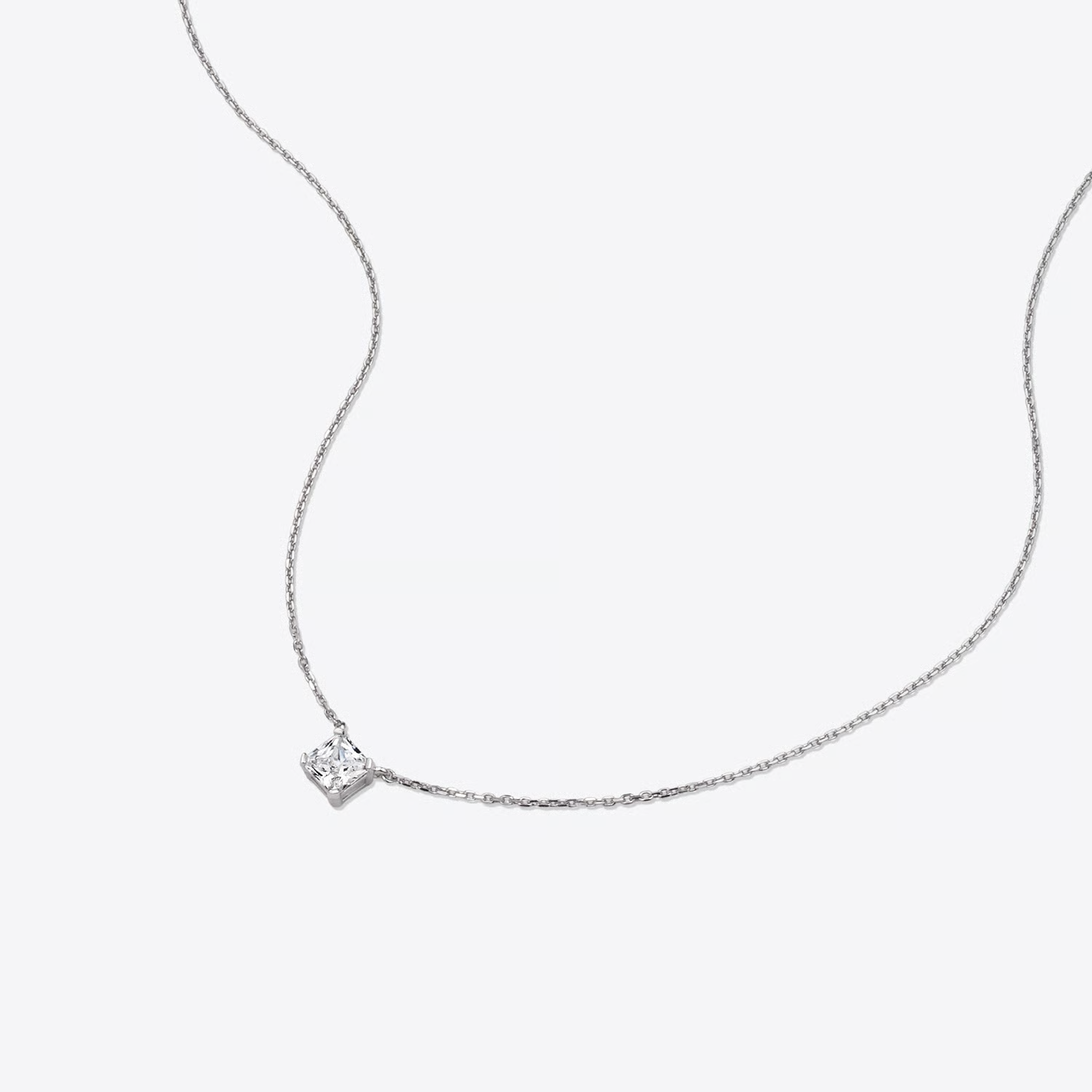
These are images that show the product itself. Using images with clean backgrounds improves the AI's recognition rate.
- Apparel: Use images where the front and back are distinguishable.
- Jewelry: Use images from various angles and distances.
| Apparel image example | Jewelry image example |
|---|---|
 |  |
 |  |
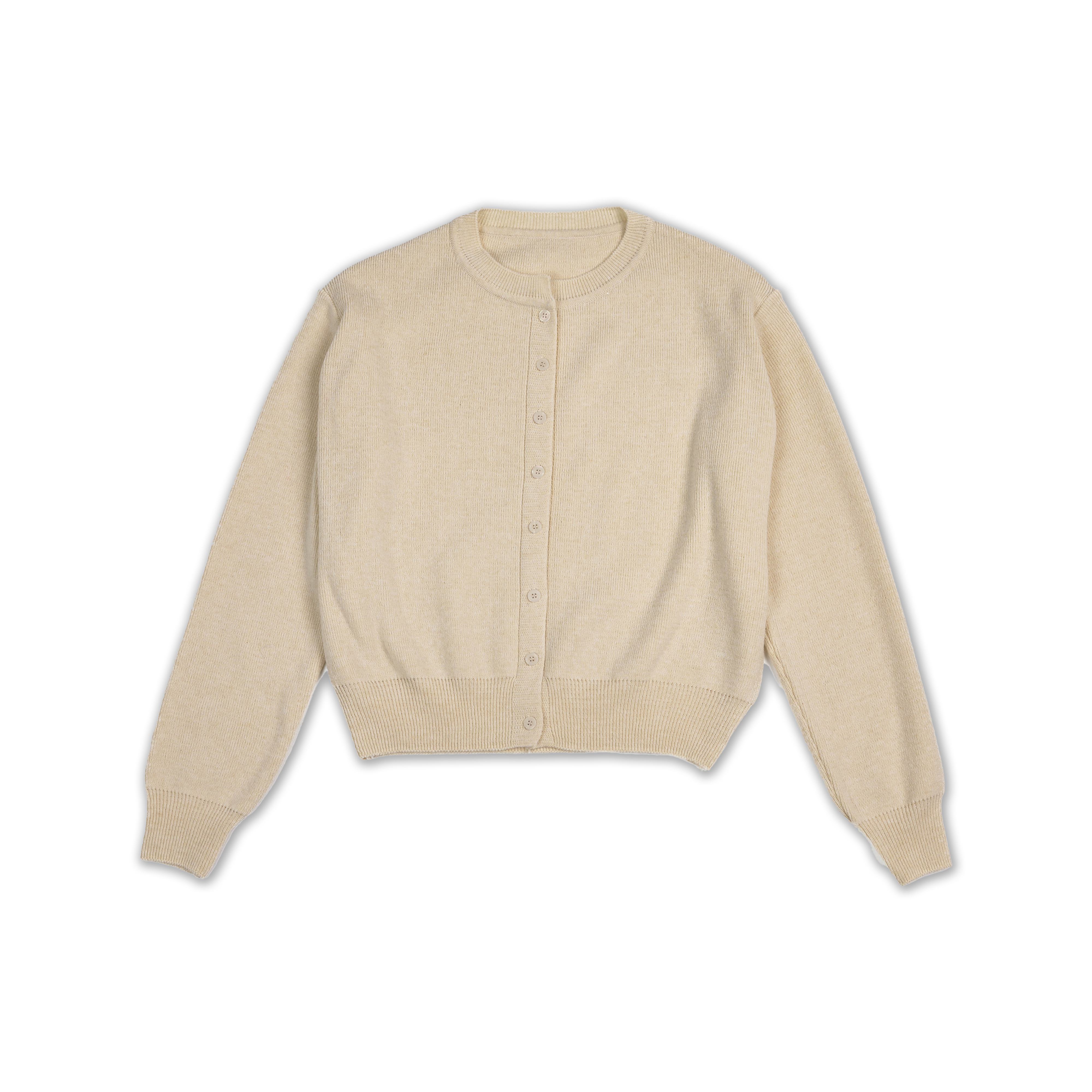
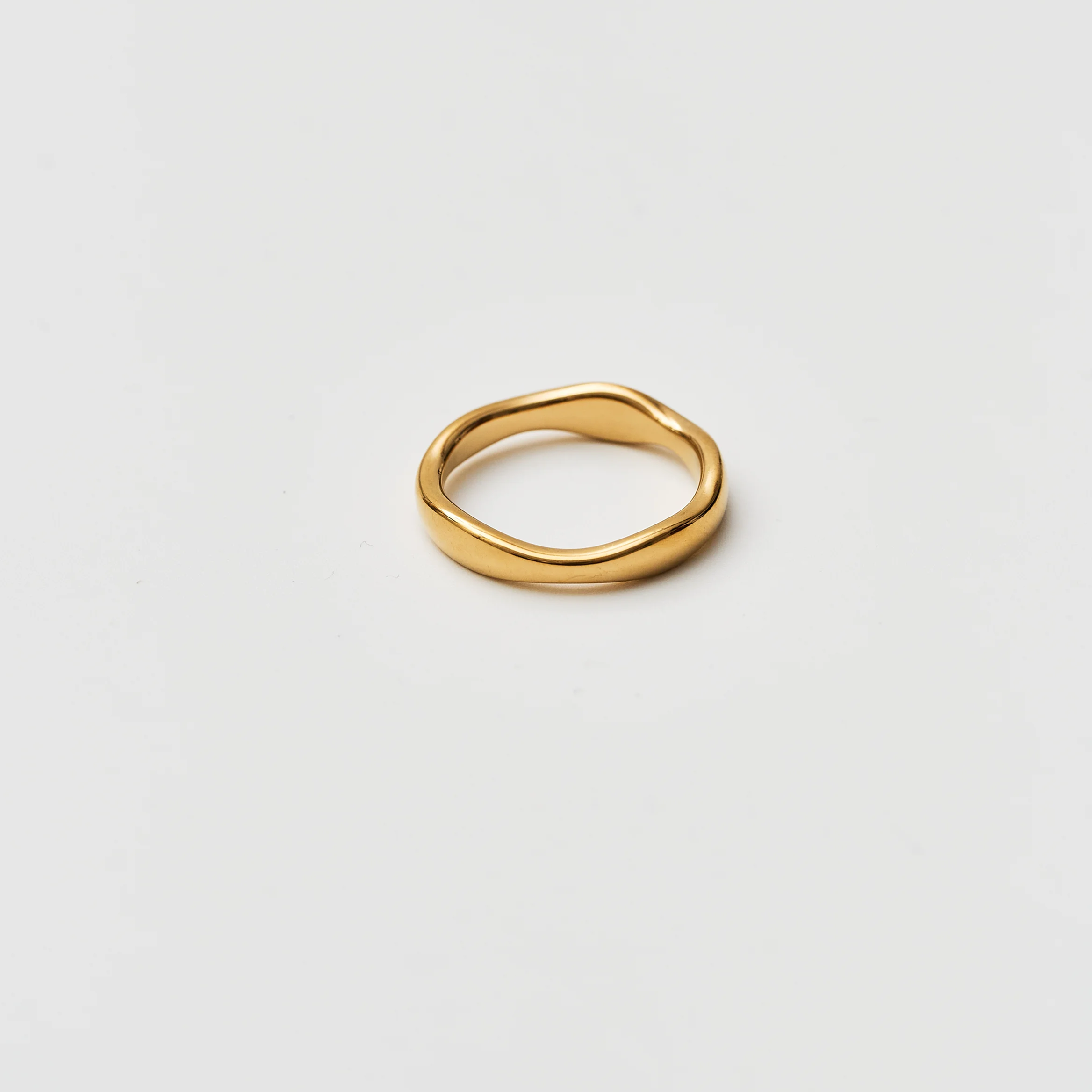
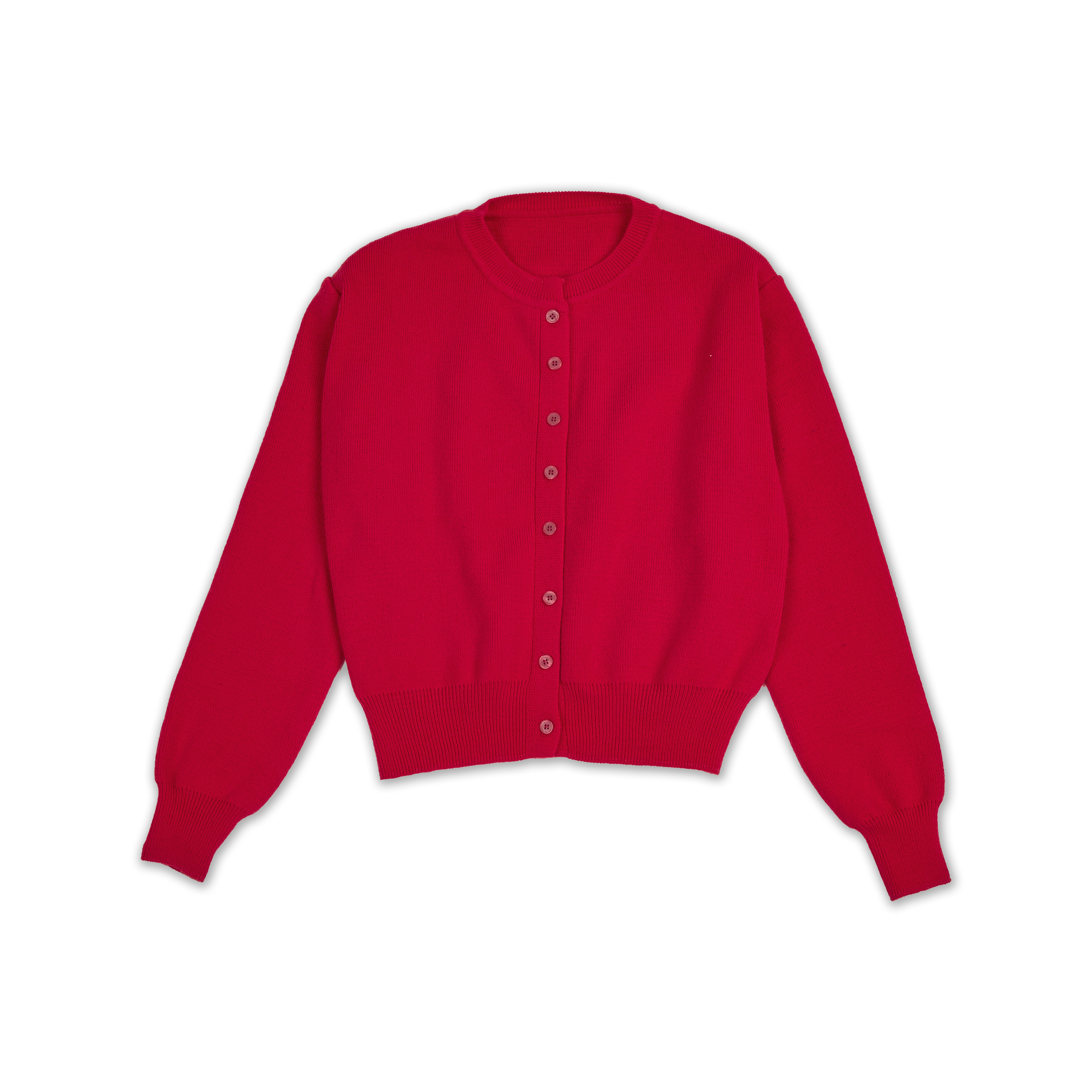
Color Images
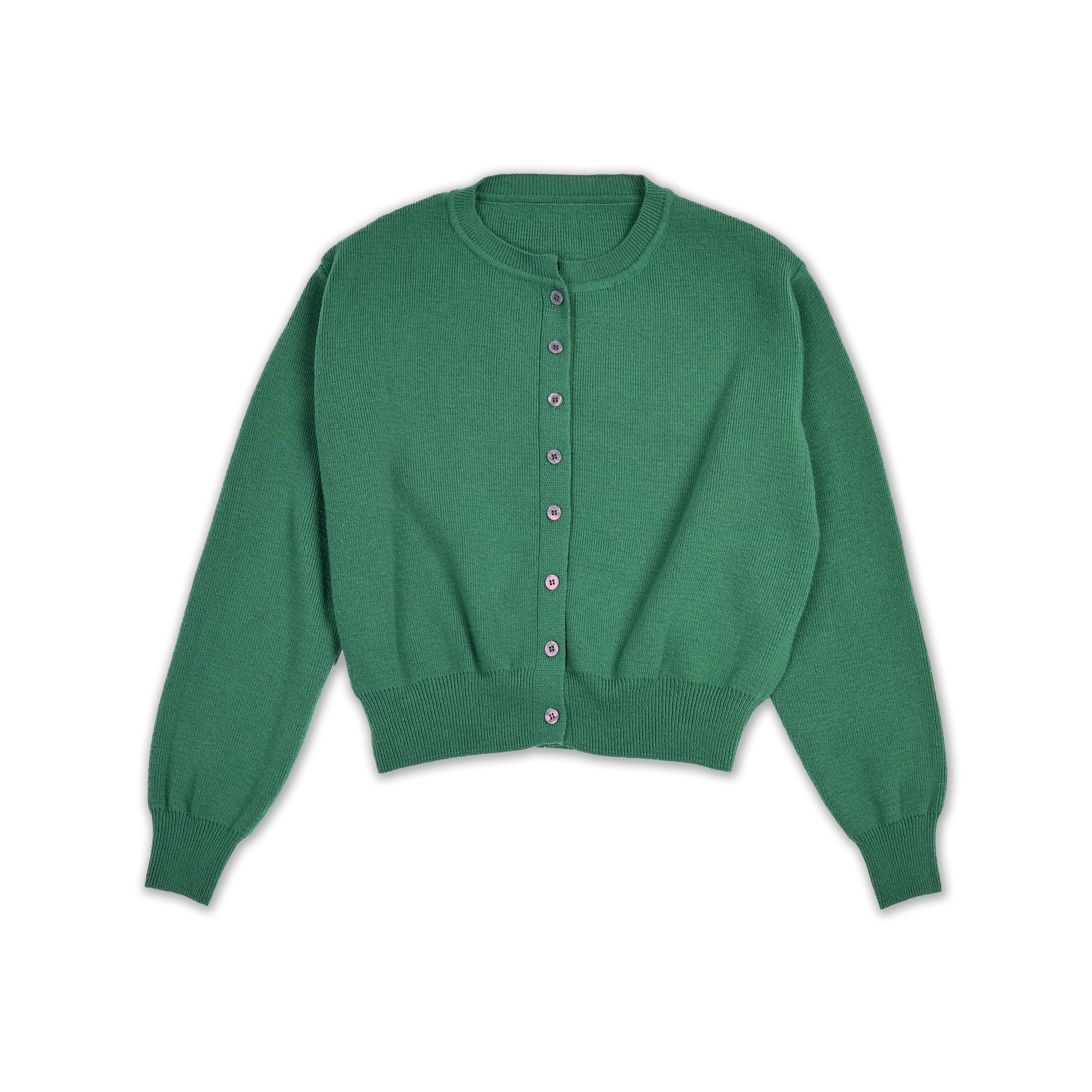
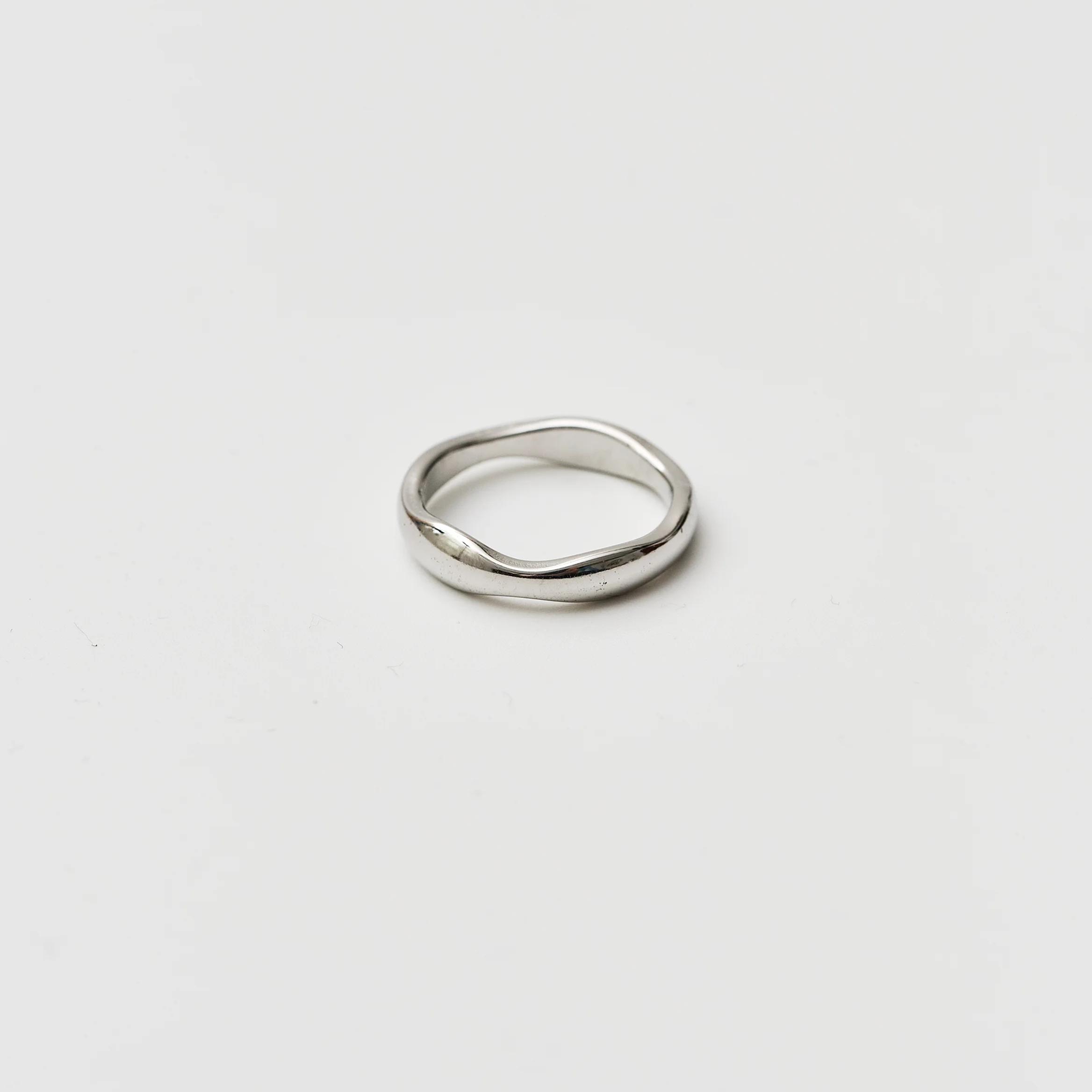
If you want to showcase multiple color options, upload product images for every color together. We recommend using images with clean backgrounds.
| Apparel image example | Jewelry image example |
|---|---|
 |  |
 |  |
 |
- Images with cluttered backgrounds like the ones below can make it difficult to recognize colors accurately.
.png) | .png) |
Material Images
Use images that clearly show the texture of the material. It's important to shoot so that the material fills the frame.
.png) | .png) |
- If the material doesn't fully fill the frame, the AI may analyze it as a detail image.
.png) |
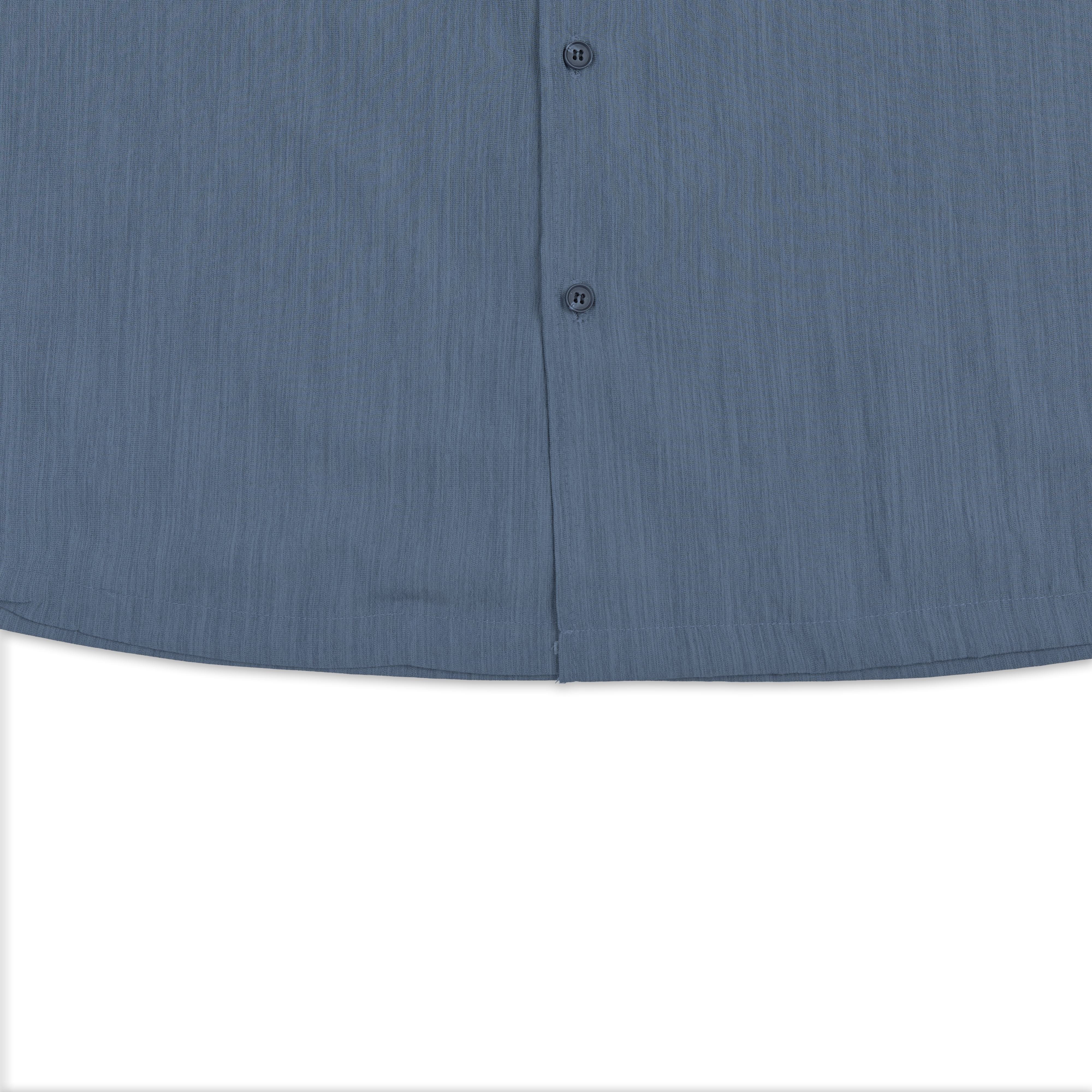
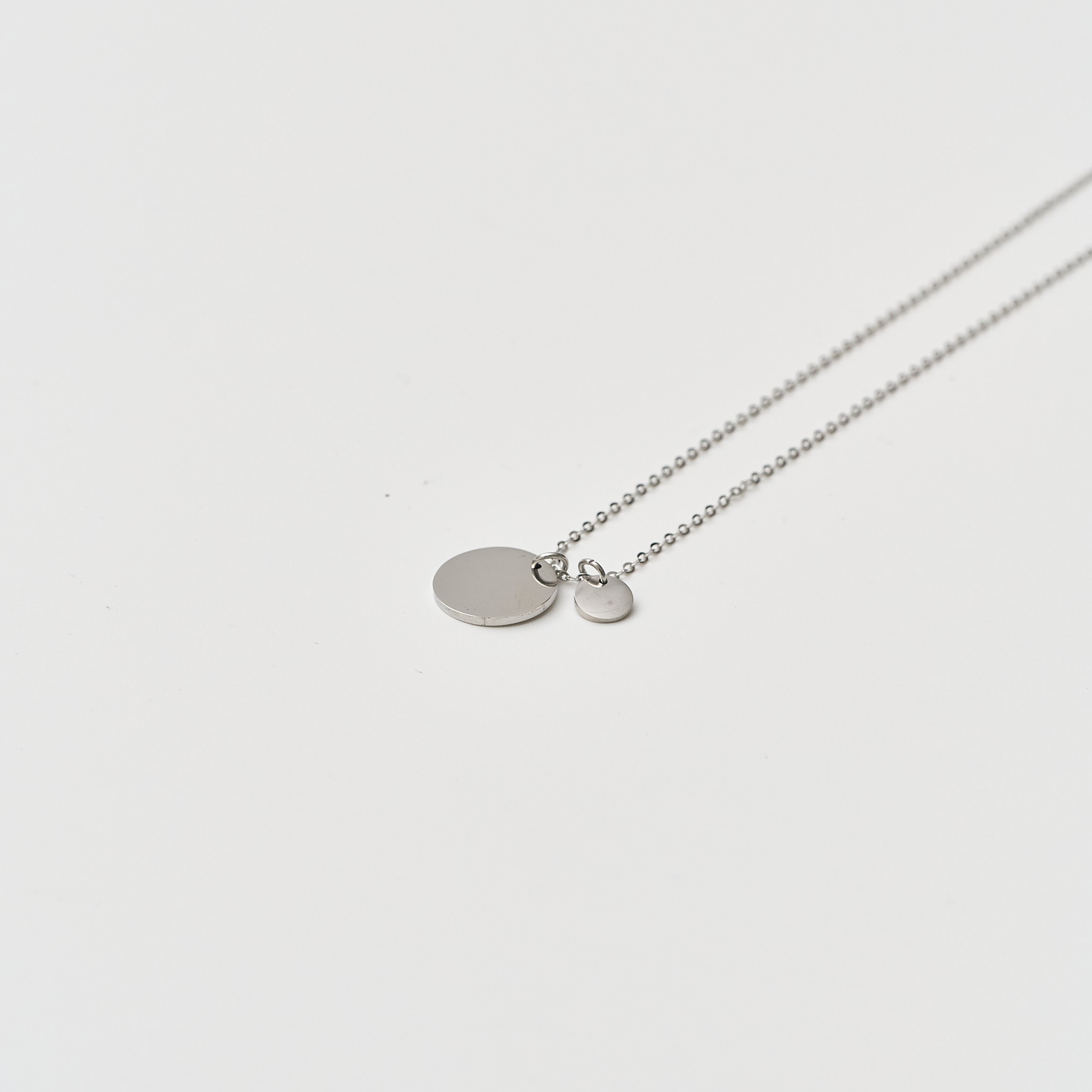
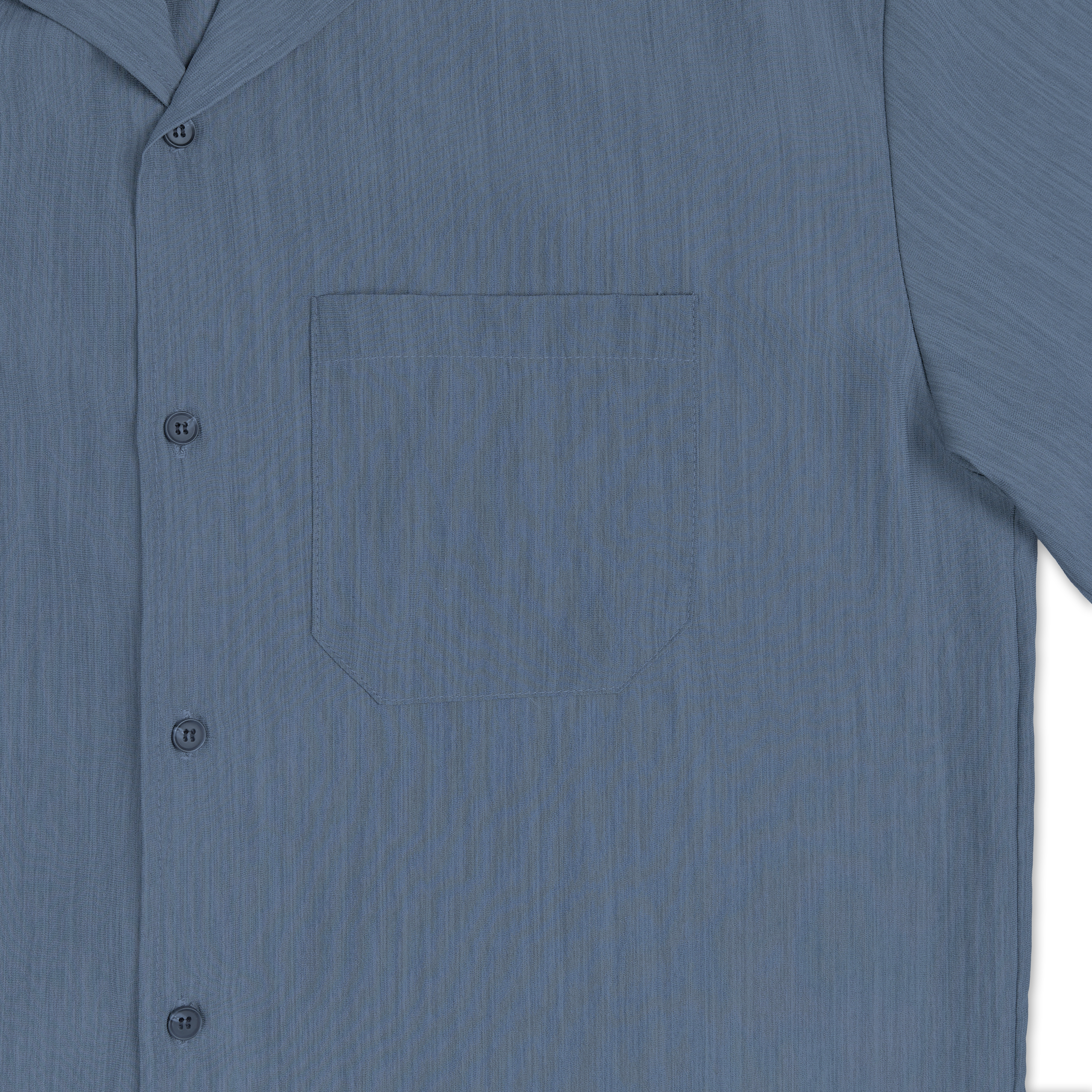
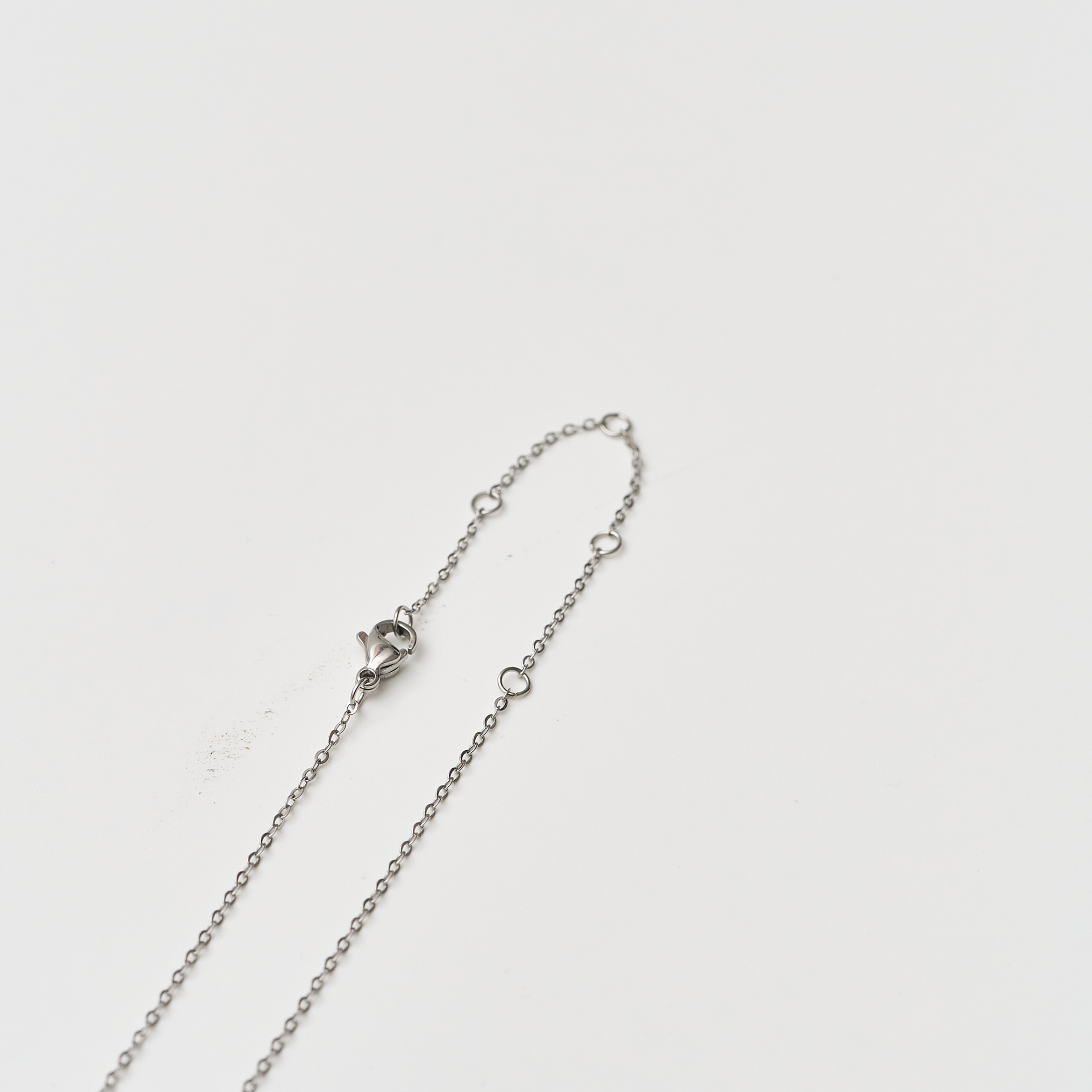
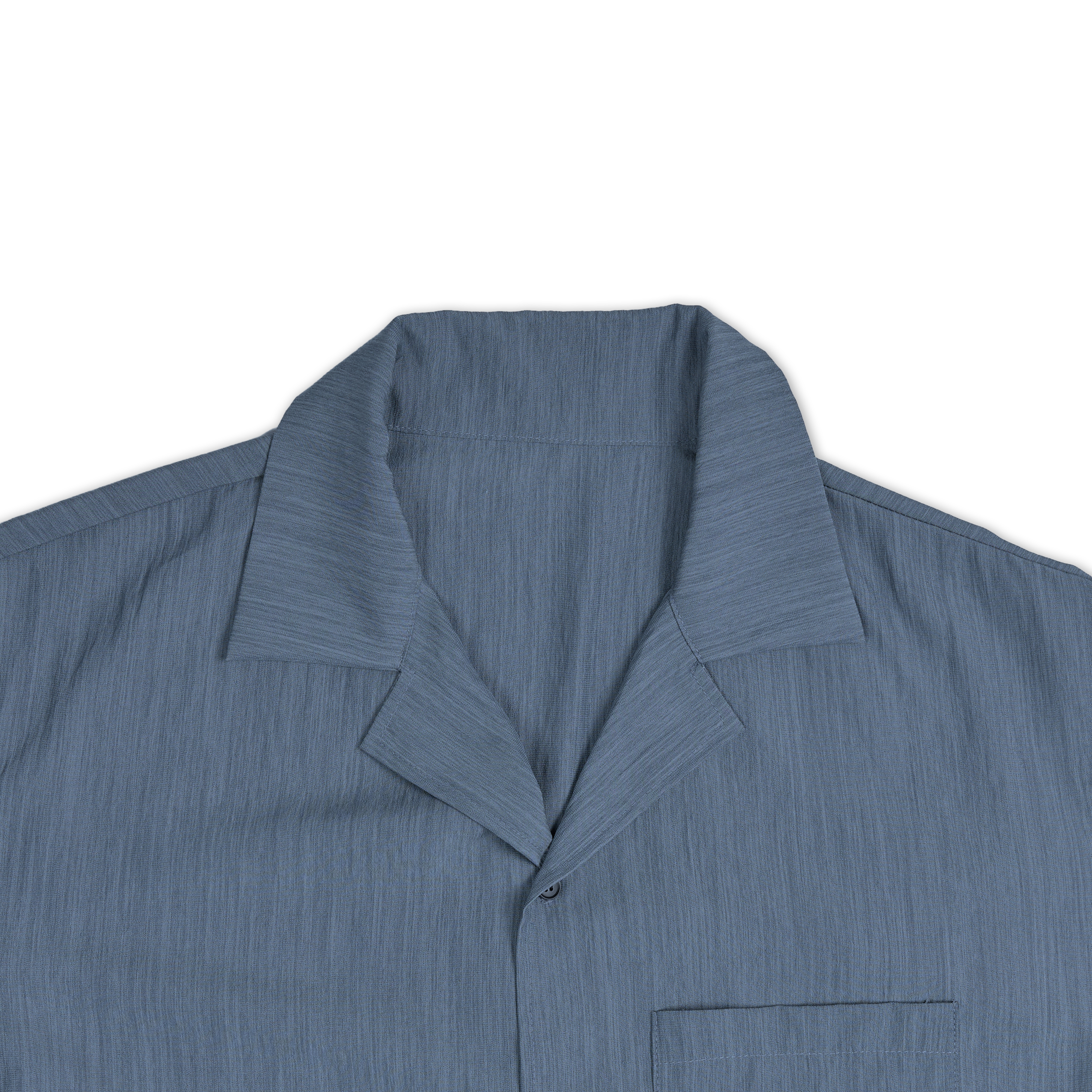
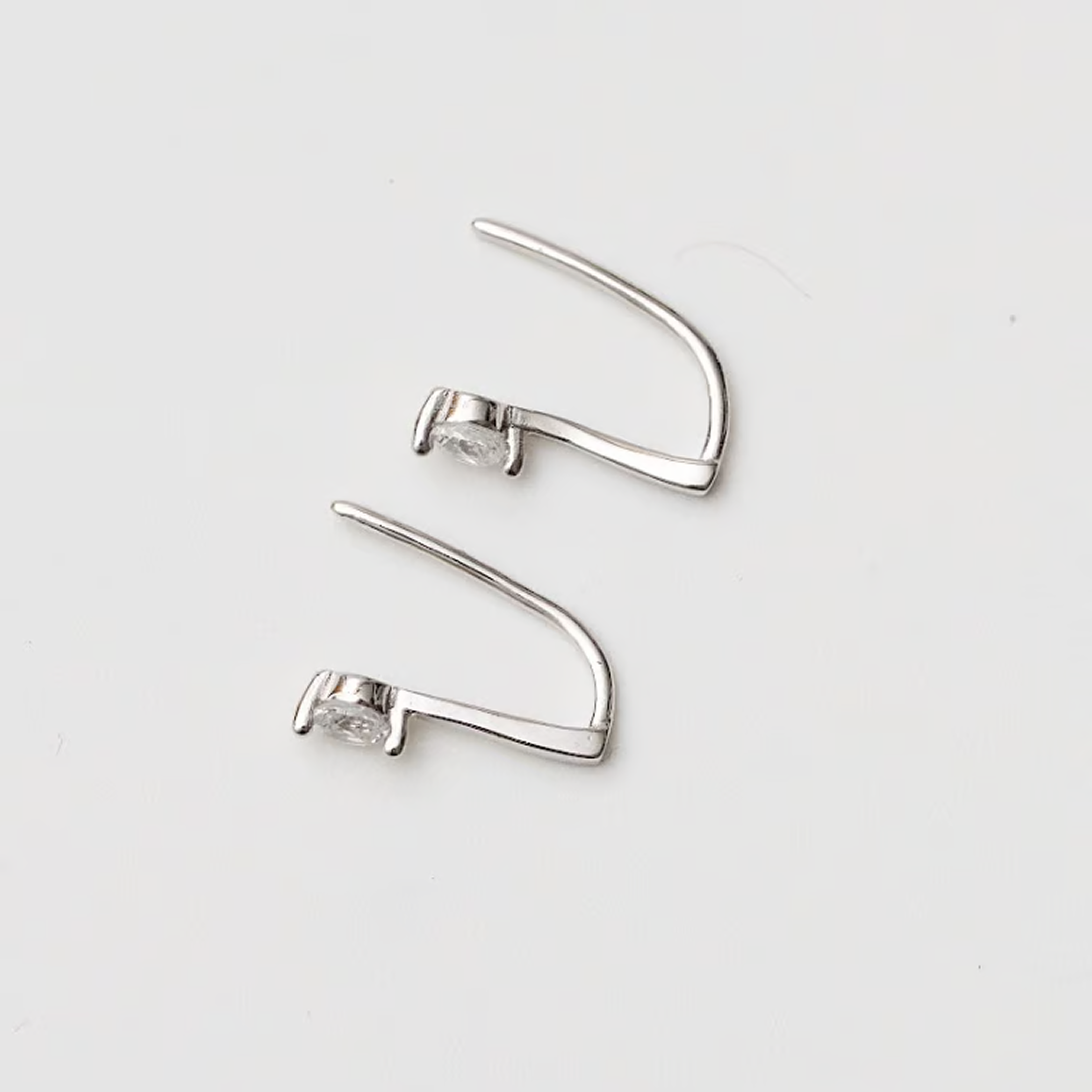
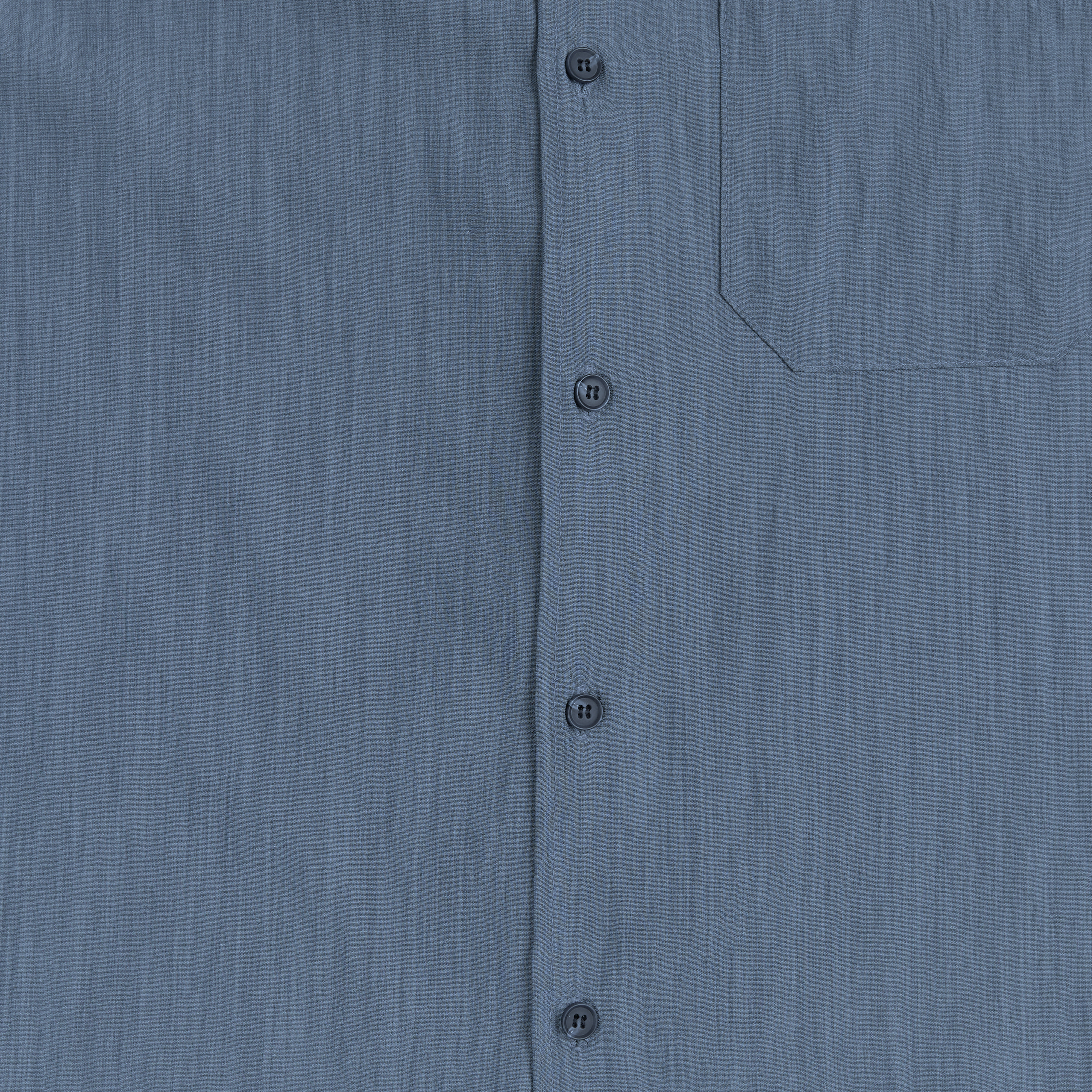
Detail Images
These are close-up images of the parts of the product you want to emphasize. Please use images with clean backgrounds.
| Apparel image example | Jewelry image example |
|---|---|
 |  |
 |  |
 |  |
 |
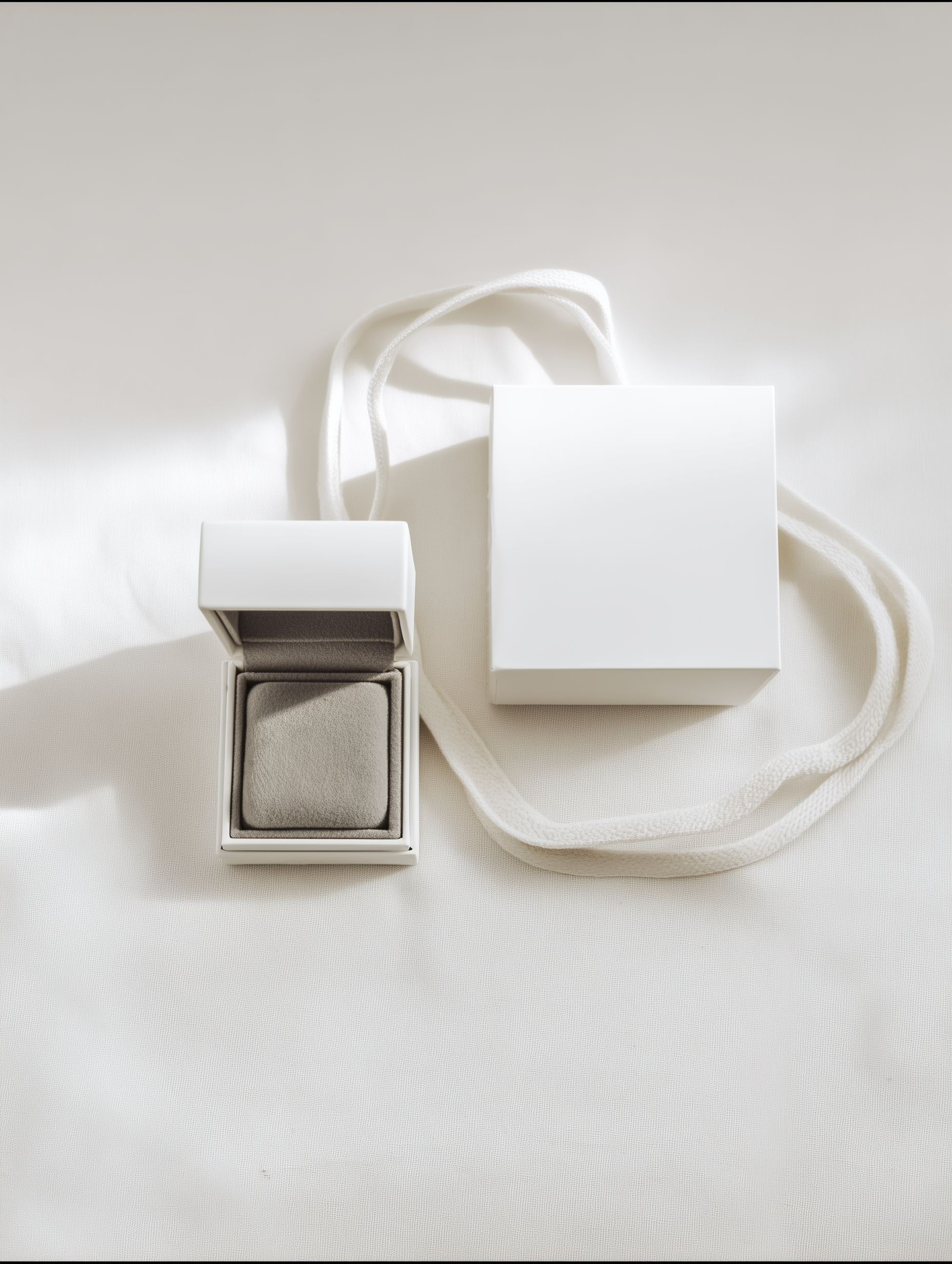
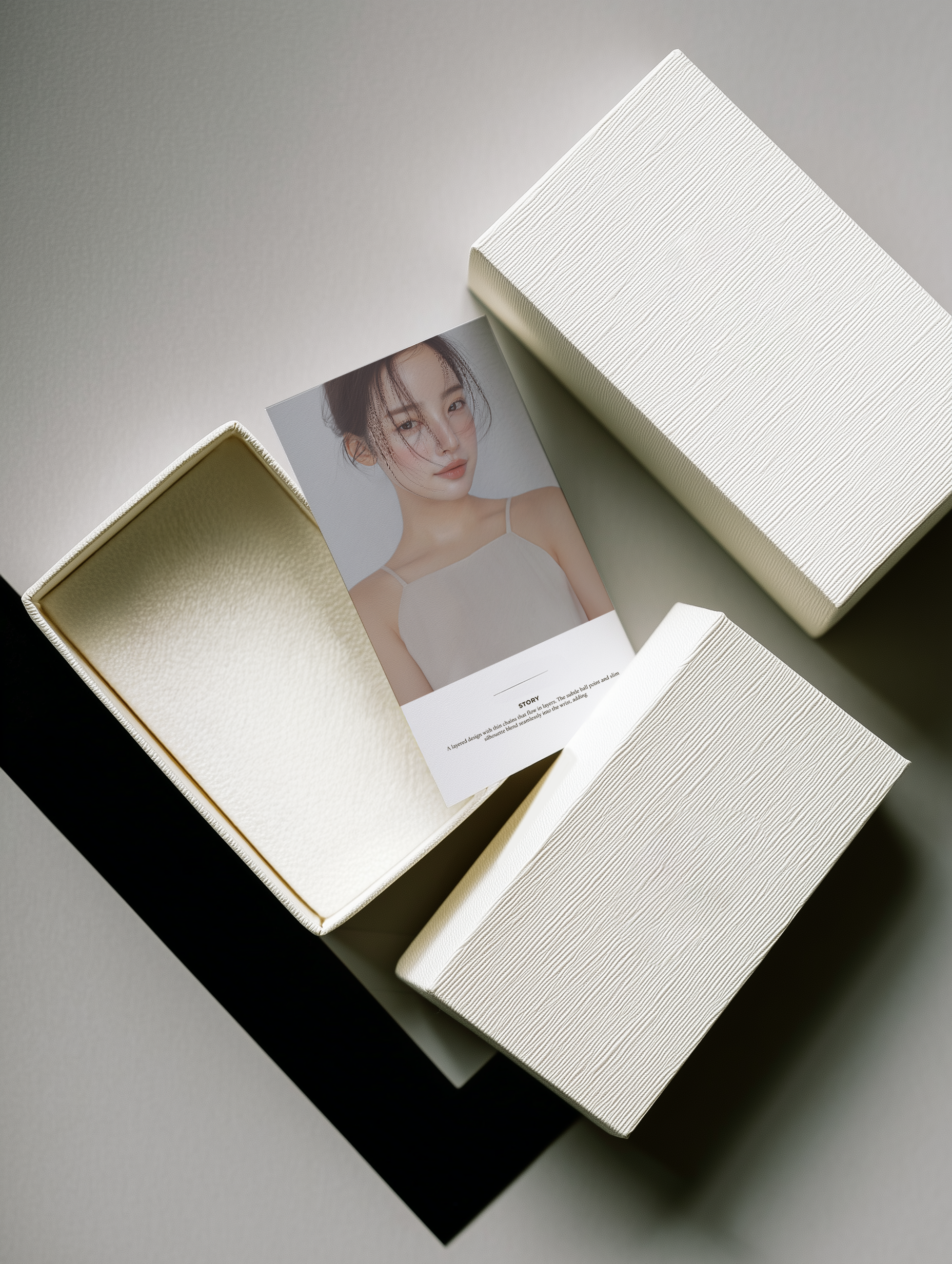
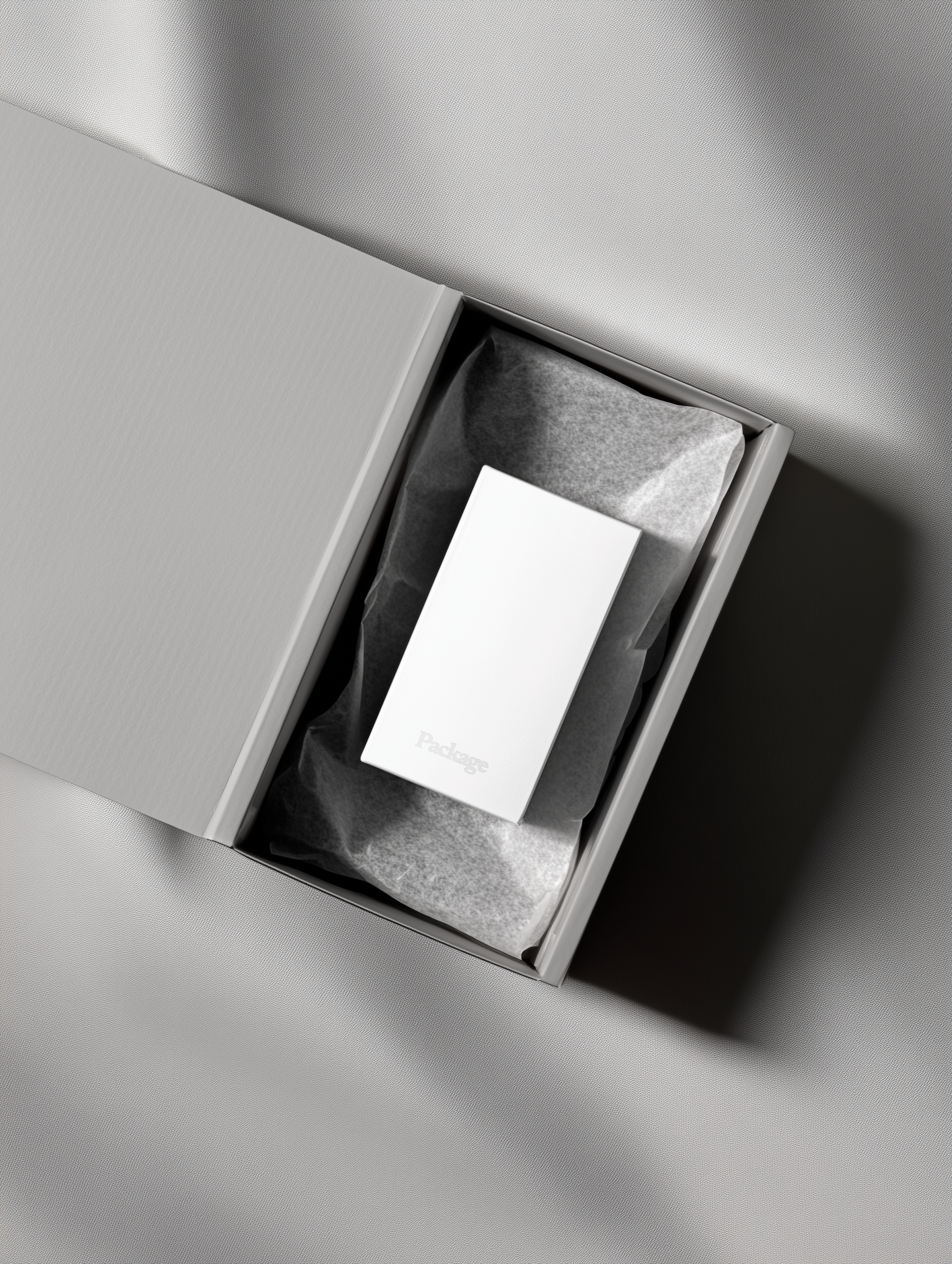
Packaging Images (Jewelry Only)
If your jewelry product has packaging images, upload them along with the packaging description in the additional information.
 |  |  |
Try It Out with Sample Images
If it's your first time, download the sample images below and try generating a detail page.
Apparel sample images.zip Jewelry sample images.zip