Detail Pages by Language
Build detail pages in Korean, Japanese, English, and Traditional Chinese. Rather than translating a finished page, GENCY writes fresh copy in the language you pick — swap the template and the layout and the words change together. Covers how the display language decides the output, how to switch in the Editor, and what is kept as typed.
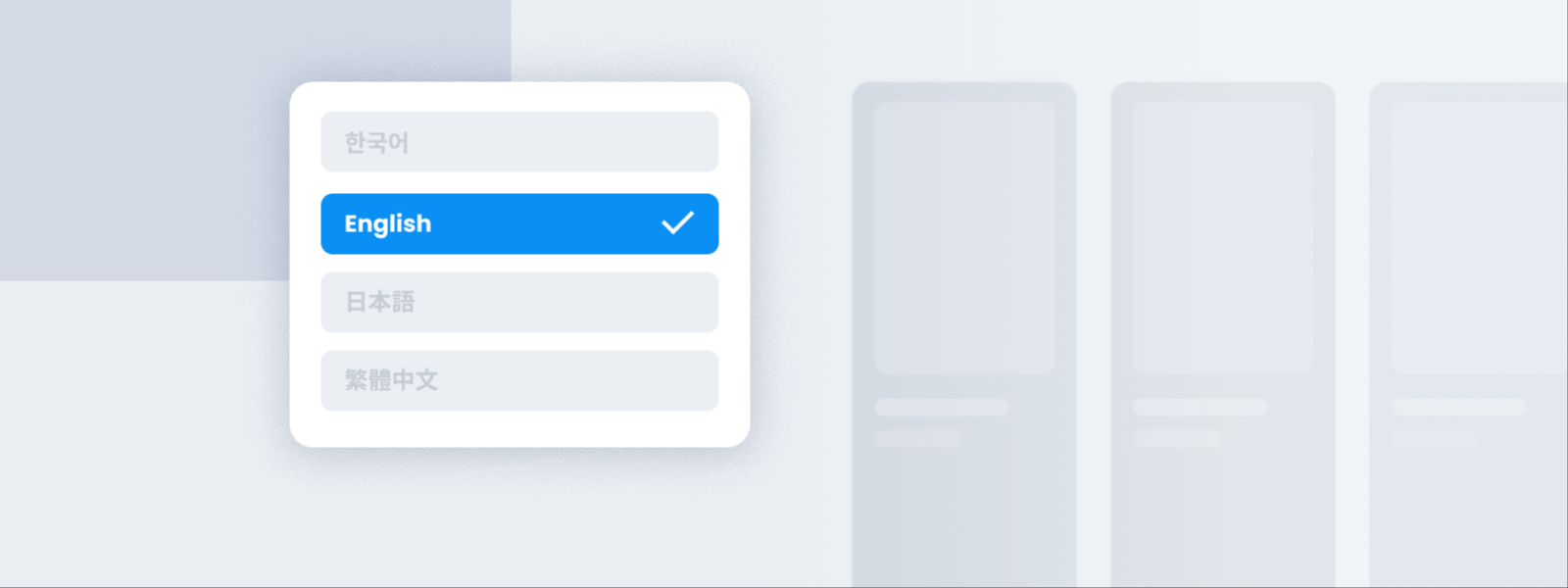
Korean, Japanese, English, and Traditional Chinese. You can build detail pages in these four languages.
To list a product on an overseas channel, the detail page has to be in the local language too. The usual route is to finish the page in one language and send it out for translation — but translation moves sentences across; it does not write copy. A literal rendering reads oddly to local shoppers, and the launch waits while the work goes back and forth.
GENCY skips the translation step. Pick a Japanese template and the AI writes the copy in Japanese from scratch. The product images and the information you already entered stay as they are, so there is no need to rebuild the page — you only swap the template. Each language has its own templates, so the layout changes along with the words.
Supported languages
| Language | Shown in the template list as |
|---|---|
| Korean | Korean |
| Japanese | Japanese |
| English | English |
| Traditional Chinese | Traditional Chinese |
All four are included by default. The number of templates and their designs differ from language to language.
Which language will it generate in?
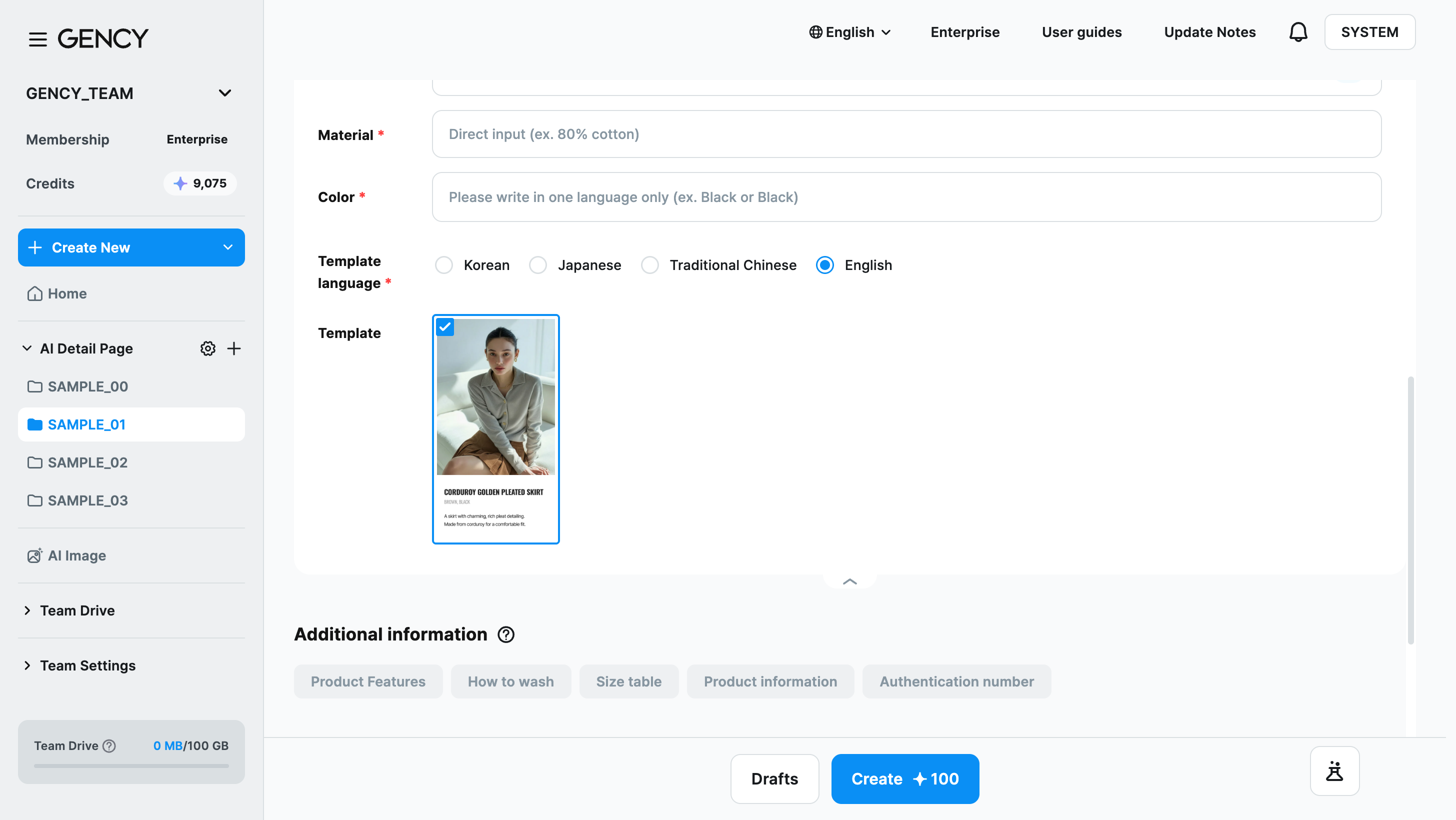
A detail page is built in the language you choose under Template language in Step 3 of the create screen. Pick Korean, Japanese, Traditional Chinese, or English, and the templates in that language appear in the row, with the copy written fresh in that language. → Creating a Detail Page
- At first the display language is selected. Once you choose, the language you picked last is selected by default from the next generation on.
- The display language (the globe icon at the top right) only changes the language of menus and buttons. It is separate from the detail page language.
You can still change the language after generating. Just apply a template in the language you want from the Template tab in the Editor.
Changing the language in the Editor
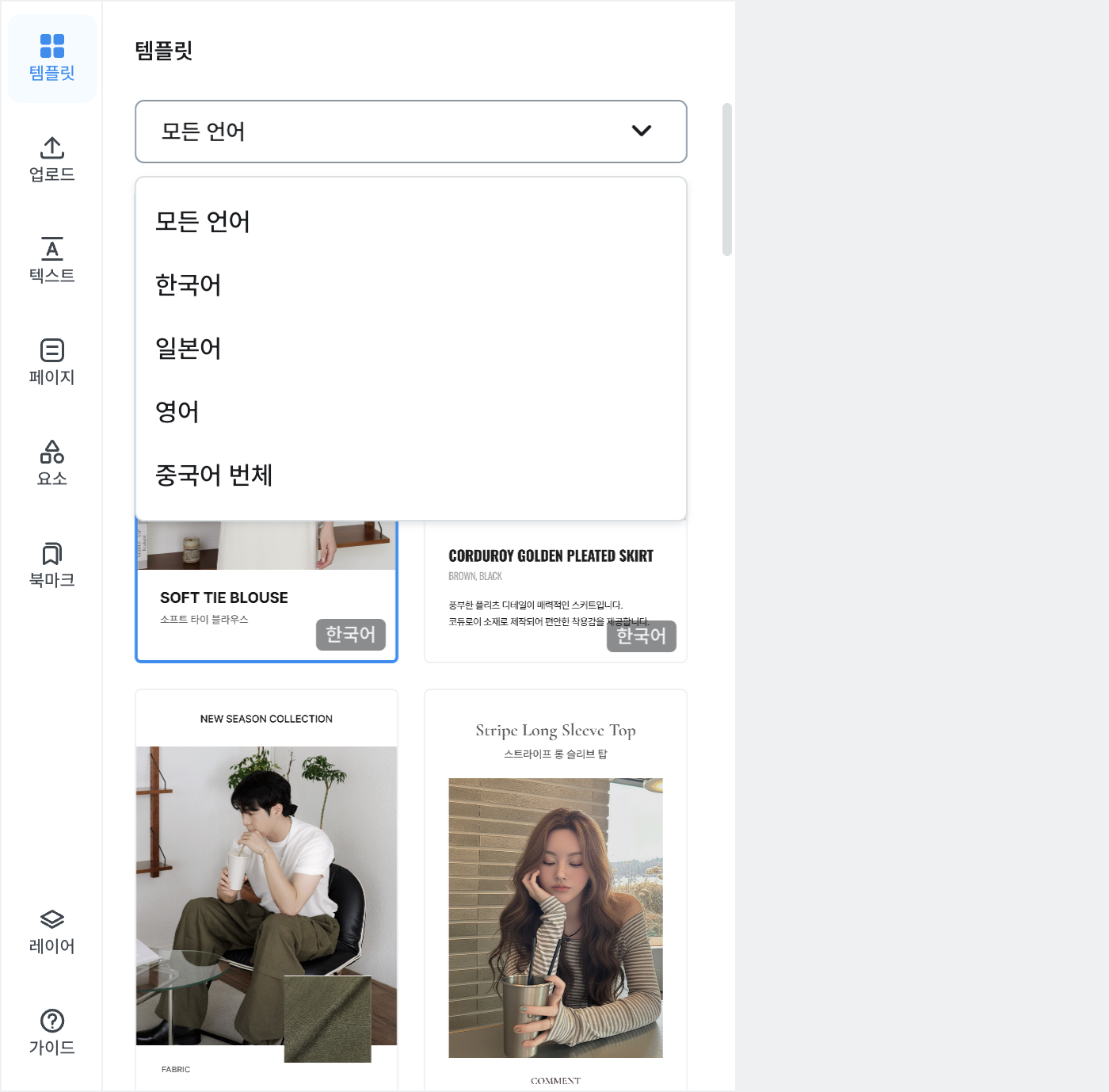
- In the left panel of the Editor, click the Template tab.
- The language picker at the top of the panel starts on All languages. Templates for all four languages appear in one list, and each card shows its language at the bottom right. The list puts your favorited templates first, then templates in the language you chose when generating, and that language also comes first in the language picker.
- To narrow the list, pick Korean / Japanese / English / Traditional Chinese. Only that language remains.
- Applying a template changes the layout and regenerates the copy in that language.
If you have already edited the page, a confirmation reading "Pages you have worked on will be deleted" appears.
Text you rewrote by hand is replaced with the new copy as well. Switching languages after a lot of editing throws that work away, so decide on the language before you start editing.
What changes when you switch languages
| Item | When the language changes |
|---|---|
| Layout | Replaced by the chosen template's structure |
| Copy | Regenerated in that language |
| Inserted text (size-chart labels, etc.) | Follows the template language |
| Information you entered (fabric, color, etc.) | Kept exactly as typed — not translated |
| Product images | Kept as they are |
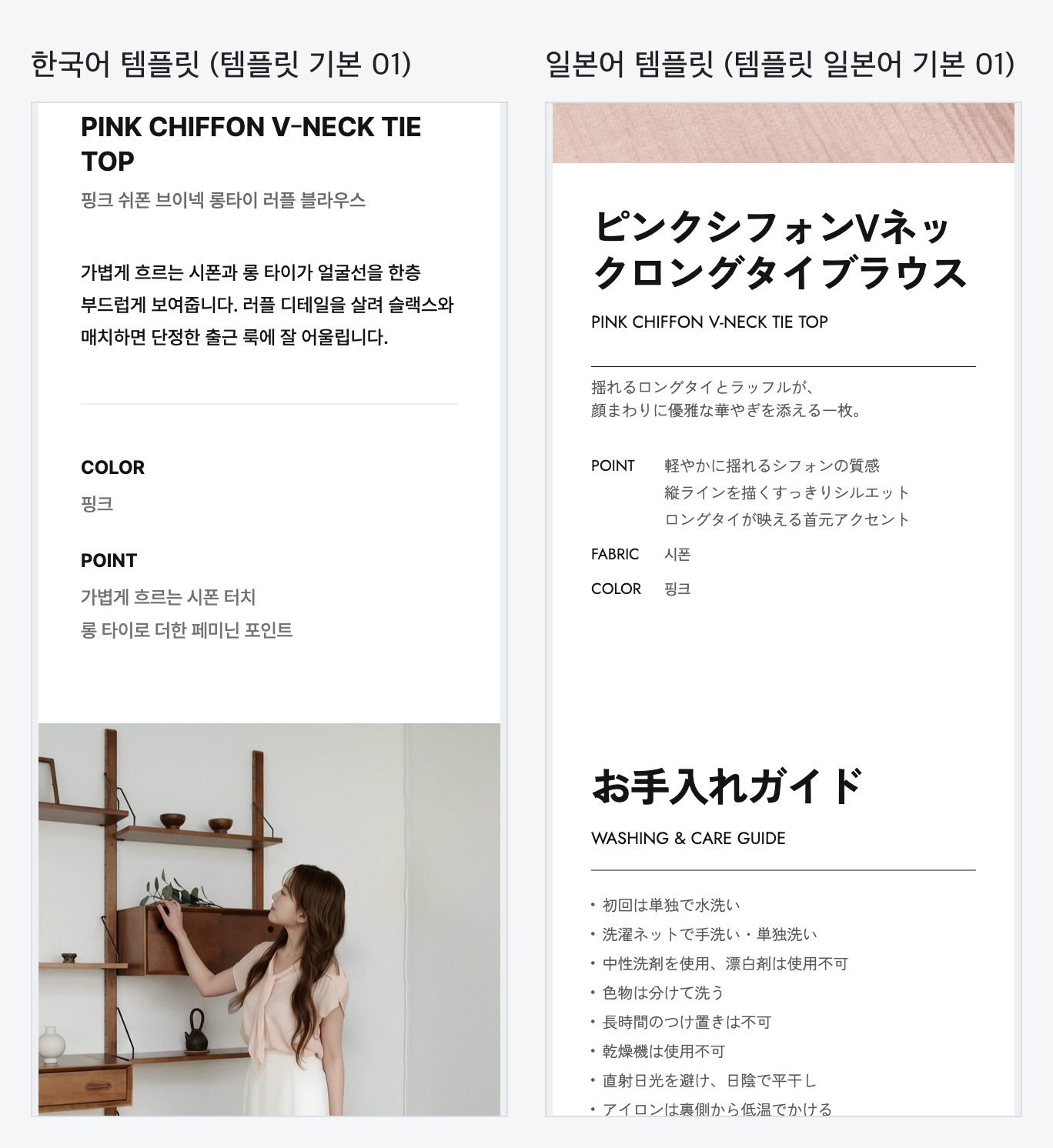
The values you type for fabric and color are carried over as-is, not translated. If you entered 시폰 as the fabric, the FABRIC row on the Japanese page still reads 시폰.
If you plan to publish in Japanese, English, or Traditional Chinese, enter the fabric, color, and product features in that language at the generation step as well.
Frequently asked questions
I wanted Japanese, but it generated in another language.
If you saw "It was not generated in the language you selected", that language's templates are not available in your workspace.
Pick that language in the Editor's Template tab and apply it, and the page is regenerated in it. If the message keeps appearing, contact your account manager.
Can I turn a Korean detail page I already made into Japanese?
Yes — apply a Japanese template from the Editor's Template tab.
Note that it does not translate the existing wording; it writes new Japanese copy, so anything you edited by hand in the Korean version is not kept.
If I change the display language, do the pages I already made change too?
No. The display language only changes the language of menus and buttons. The detail page language is set by Template language on the create screen.
To change the language of a page you've already made, apply a template again in the Editor.