
Team Management
Learn how to create a team and invite members to share your workspace and credits using the Enterprise-only team management features in GENCY. It covers the permission differences between Owner, Admin, and Member roles, and how to use the Member management, Payment / Management, and Team settings menus.
Team management is a feature exclusive to Enterprise client companies.
If multiple people need to create and manage detail pages together, use the team features. GENCY lets you share a workspace and credits on a per-team basis.
You can use team-related features in the Team Space at the bottom of the left sidebar.
Team Space Menu
| Menu | Description |
|---|---|
| Payment / Management | Check the team's credit balance and manage top-up/usage history |
| Manage members | View the list of team members, invite, and manage them |
| Manage team | Change basic settings such as team name and plan |
Checking Team Members
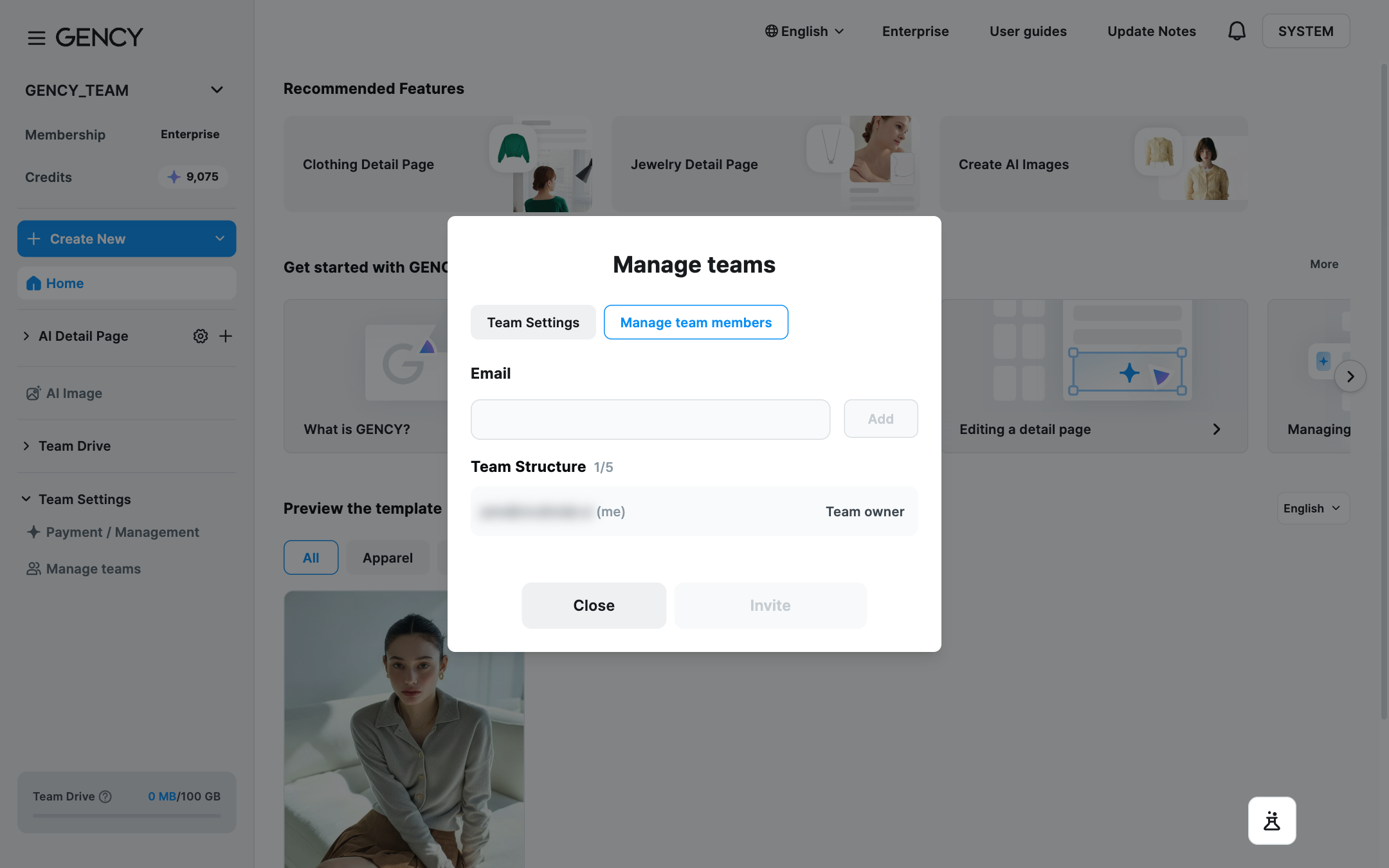
Click Manage members to see the list of members currently belonging to the team and each member's role.
Team Roles
| Role | Description |
|---|---|
| Team owner | The administrator with all team permissions. Can manage team settings, members, and delete the team. Only 1 can be designated per team. |
| Team admin | Can manage members, including inviting team members and changing permissions. Multiple people can be designated. |
| Team member | Can generate and edit detail pages in the workspace. Cannot invite members or change permissions. |
Team Size Limit
- The maximum number of team members is determined by your plan.
- The current count and maximum count are displayed together (e.g., 10/10).
Inviting New Team Members
The team owner can invite new team members using the procedure below.
- Go to the Manage members screen.
- Select the invite function and enter the email address of the member you want to invite.
- An invitation link is sent to the email address you entered.
- Once the invited member clicks the link, they join the team.
To invite a team member, that member must first complete sign-up for GENCY.
Changing Team Settings
In Manage team, you can view and change the team's basic information.
- Change the team name
- Check the membership (plan)
Related Guides
- Topping up and managing credits → Payment / Management