



Getting started with Team Drive
GENCY Team Drive is a cloud image storage space shared across your whole team. Learn how to organize product images into folders, manage them systematically with favorites and trash, and load them directly in the Editor to use in detail pages.
Team Drive is a team-wide cloud image management space. You can upload product images in one place, organize them into folders, and load them directly in the Editor to use in your detail pages.
Team Drive Screen Layout
Team Drive is divided into a left sidebar and a main content area.
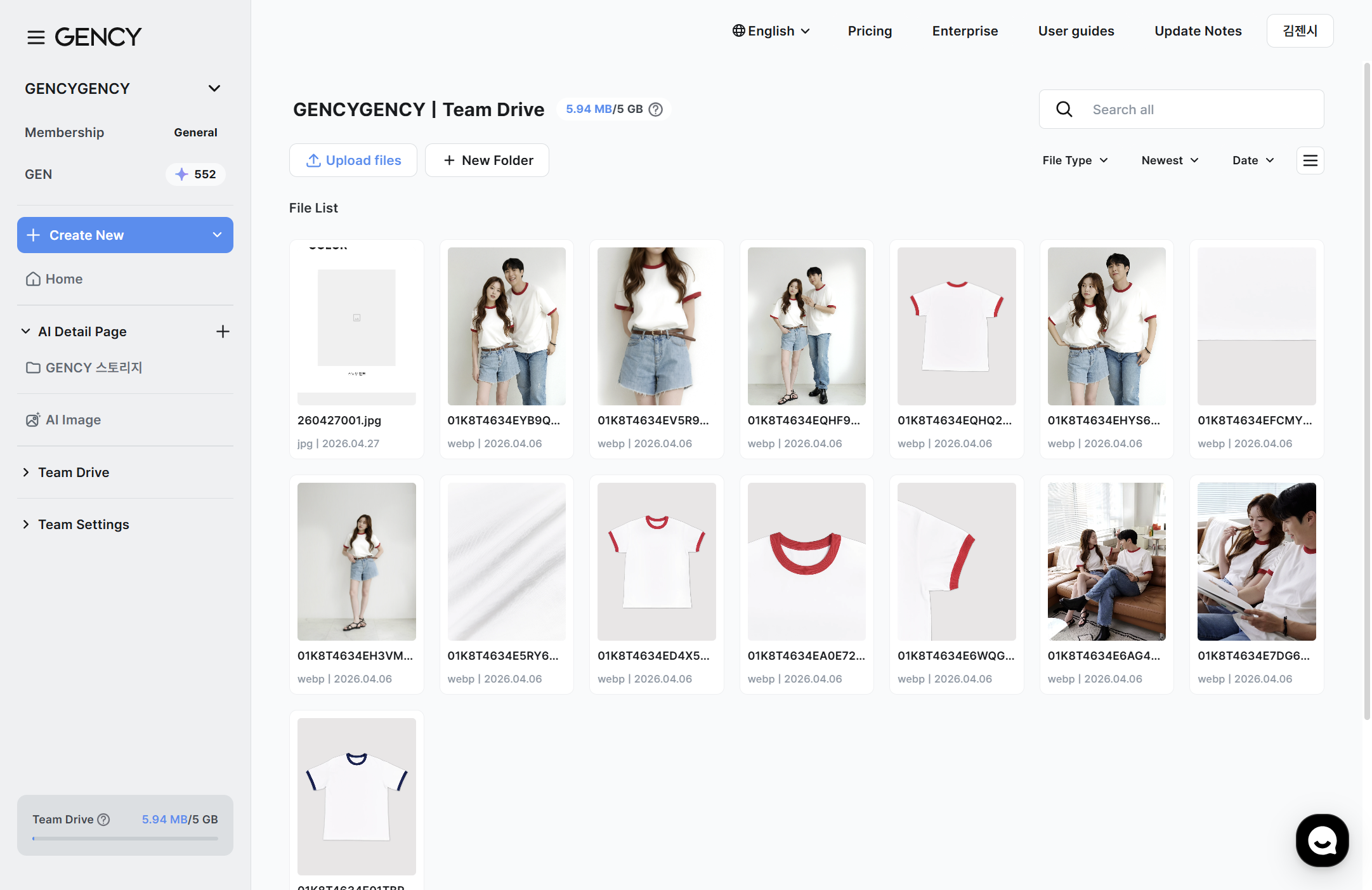
Navigating from the sidebar
From the left sidebar, you can move to Team Drive's main areas.
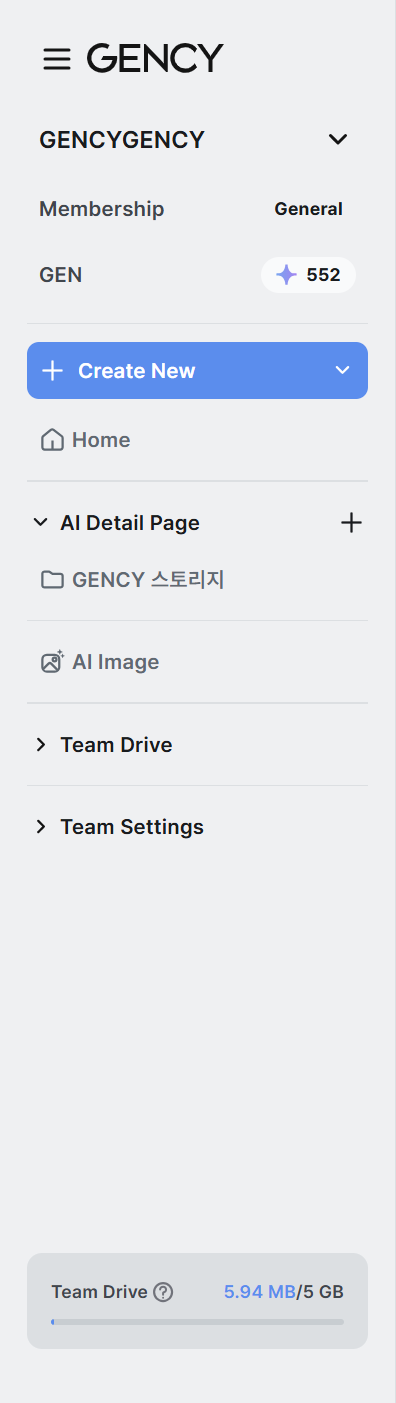
- Team Drive ㅣ The default storage space shared by the entire team. You can create folders within it to organize.
- All Files ㅣ View all files in Team Drive at a glance.
- Bookmarks ㅣ Gather only the files and folders you've starred for quick access.
- Trash ㅣ Deleted files are kept for 30 days. You can restore them within that period or delete them permanently.
What you can do in the top toolbar

At the top, Team name | Team Drive and your current Team Drive usage (e.g., 0.01GB/5GB) are displayed.
- Upload File ㅣ Clicking opens a dropdown to choose an upload method (Folder upload / File upload / Import from phone).
- + Add new folder ㅣ Create a new folder in the current location.
- File type ㅣ Filter by file format (folder, JPG, PNG, GIF, WebP, MP4).
- Sort ㅣ Change the sort order of the file list (newest, oldest, by size, by name).
- Date ㅣ Filter to only files within a specific date range.
Viewing the file list
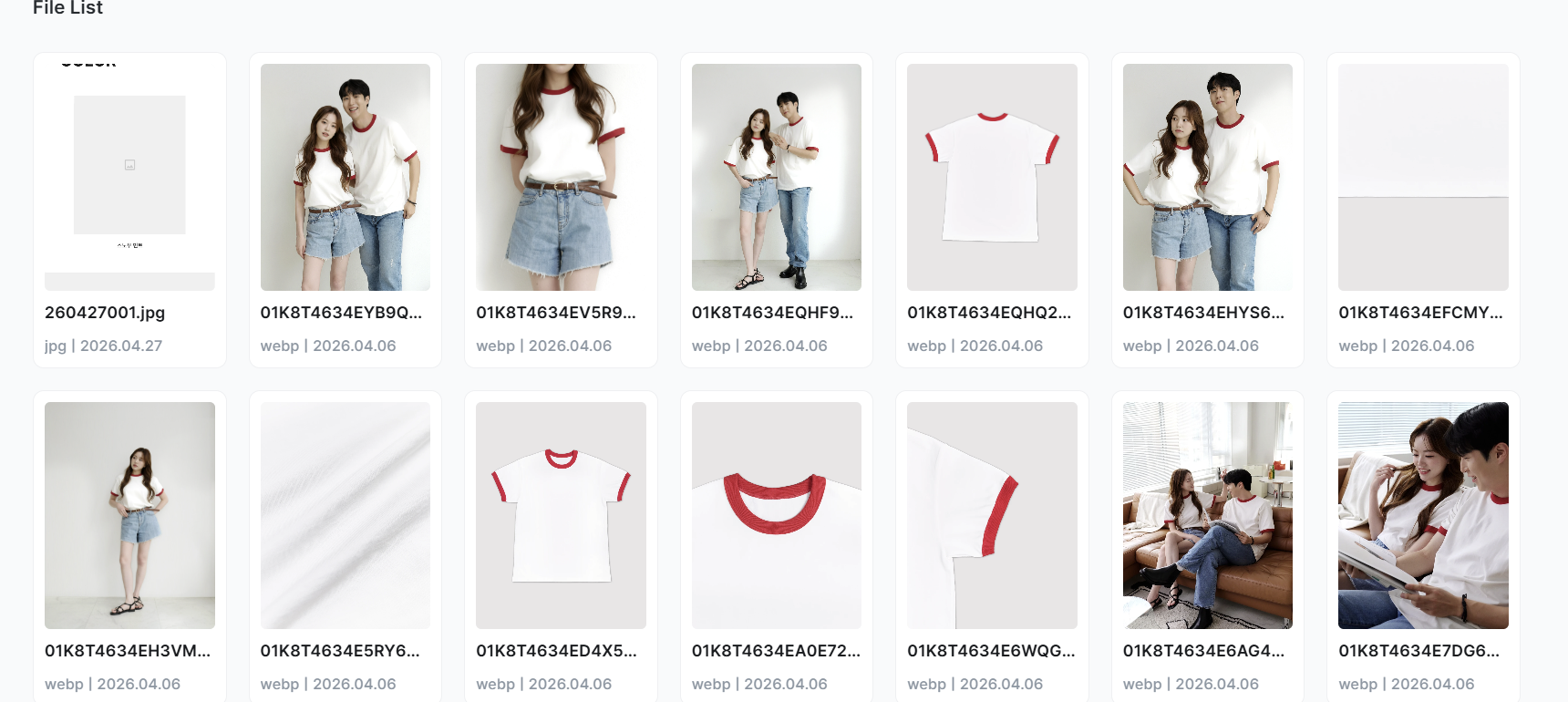
You can switch files and folders between thumbnail view (default) and list view. Each file card displays an image preview, file name, format, and upload date.
Checking your Team Drive capacity
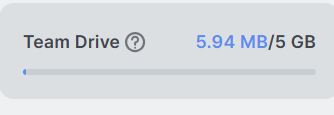
Each team is allocated a Team Drive capacity. You can check your current usage at the bottom of the sidebar and in the top title bar. If you exceed your capacity, a "Team Drive capacity exceeded" notice appears and you can't upload new files.
| Plan | Included capacity |
|---|---|
| Standard (BASE) | 5GB |
| Enterprise (ENTERPRISE) | 100GB |
If you're low on capacity, delete unnecessary files or free up space by emptying the trash.
Files in the trash also count toward your capacity.
Organizing with Folders in Team Drive
Team Drive is the default storage space that all team members use together. You can create folders and organize by any criteria you like, such as brand, season, or category.
- Folders can be nested up to 3 levels deep.
If you exceed 3 levels, the button is disabled along with the notice "You can only create folders within folders up to 3 levels deep."
Bookmarking Frequently Used Files
You can add files or folders to your bookmarks by clicking the star on them.
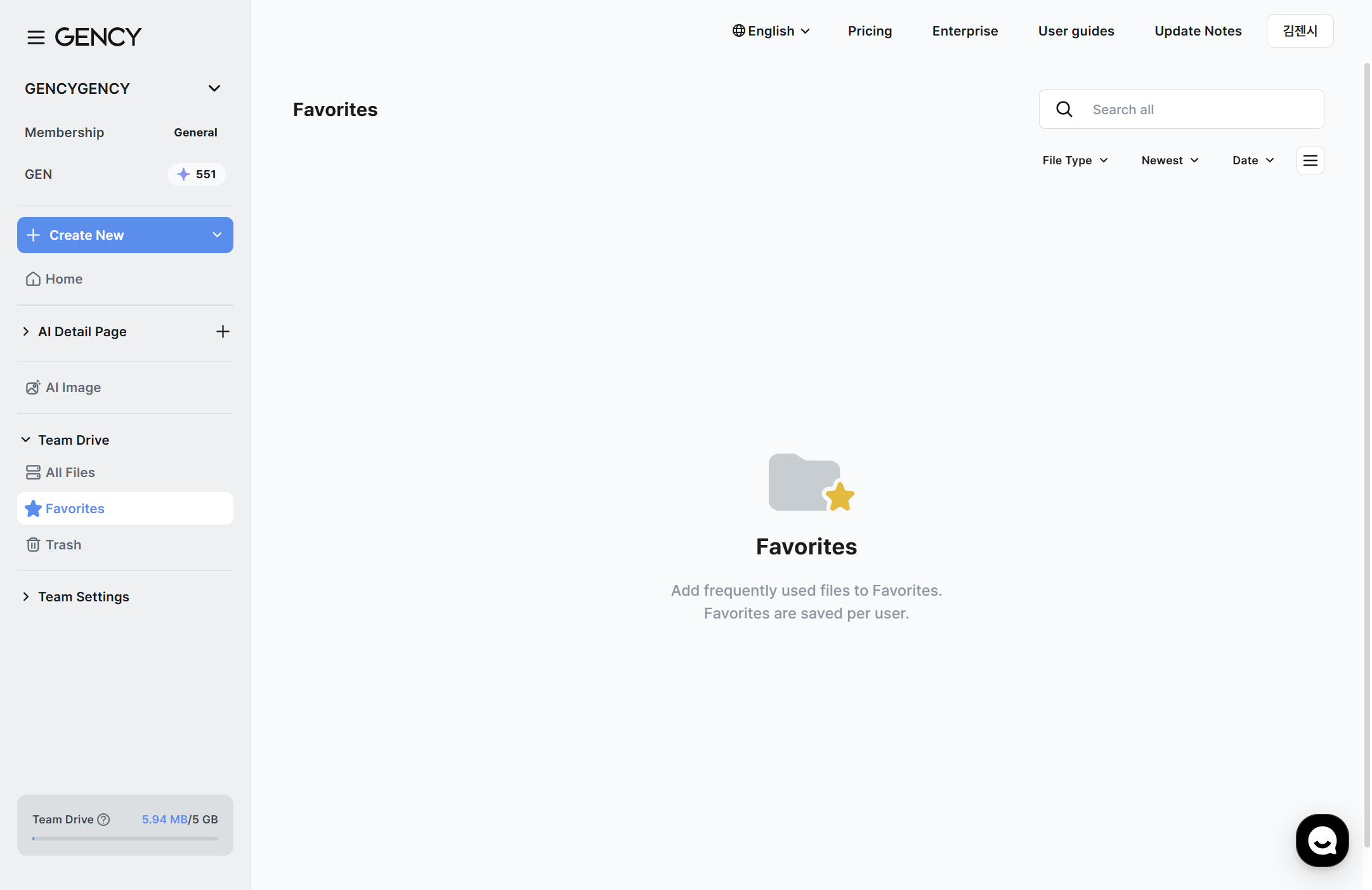
- Hover over a file or folder and a star icon appears. Click it to add to bookmarks.
- In the sidebar's Bookmarks tab, you can gather and view only the items you've starred.
- Click the star again to remove it from bookmarks.
- Bookmarks are saved per user. They are not visible to other team members.
You can't add new files or folders in the Bookmarks tab.
Work in Team Drive and then add to bookmarks.
Restoring Deleted Files
Deleted files move to the trash and are automatically deleted permanently after being kept for 30 days.
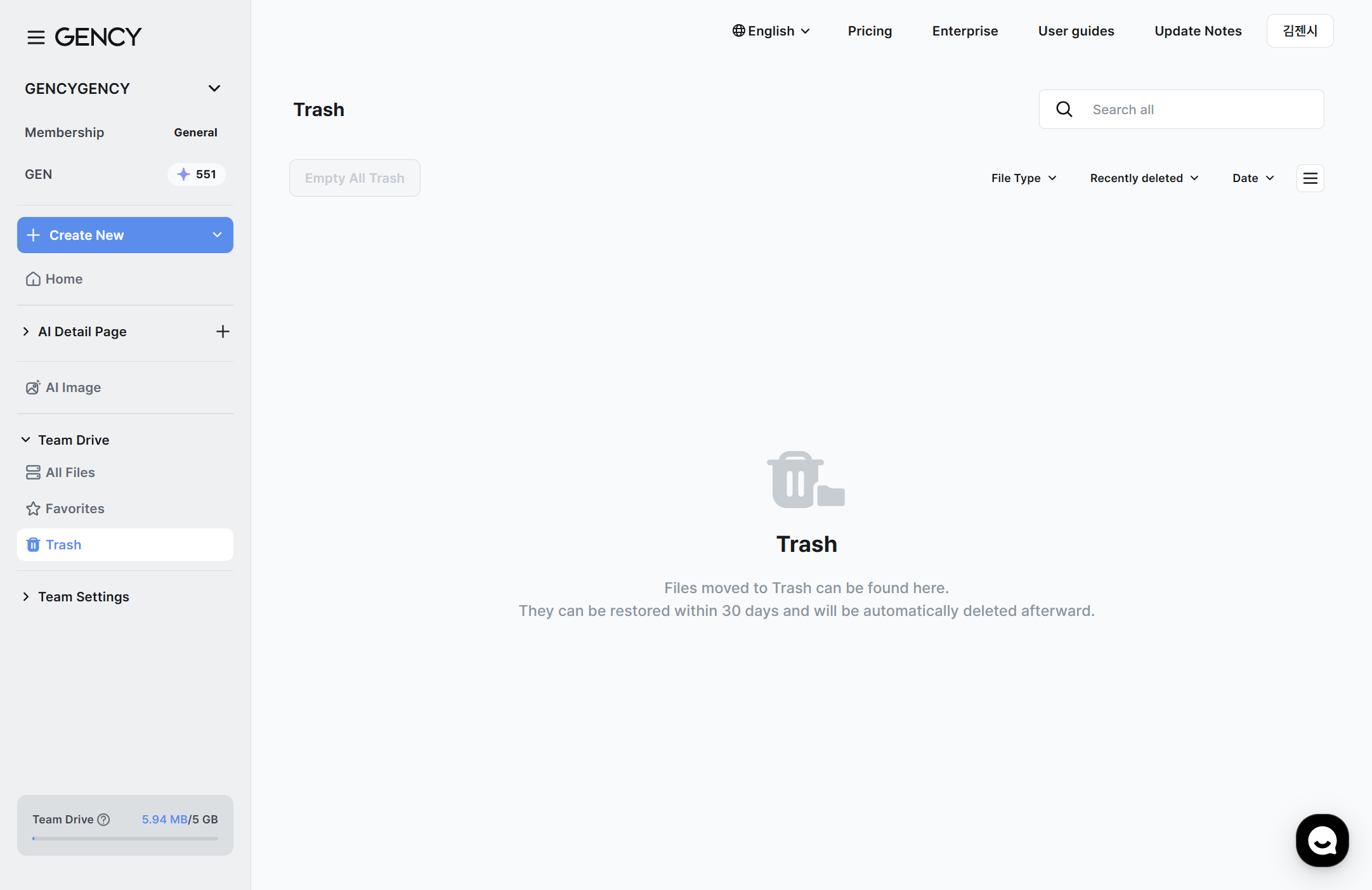
- Restore ㅣ Select a file in the trash and restore it to return it to its original location.
- Delete permanently ㅣ Deletes completely and immediately. Permanently deleted files cannot be recovered.
- Empty entire trash ㅣ Permanently delete all items in the trash at once.
- Each file shows a "To be permanently deleted in N days" indicator so you can check the remaining retention period.
Permanently deleted files cannot be recovered. Please double-check before deleting.
Viewing Image Details
Double-click a file to open the image detail screen.
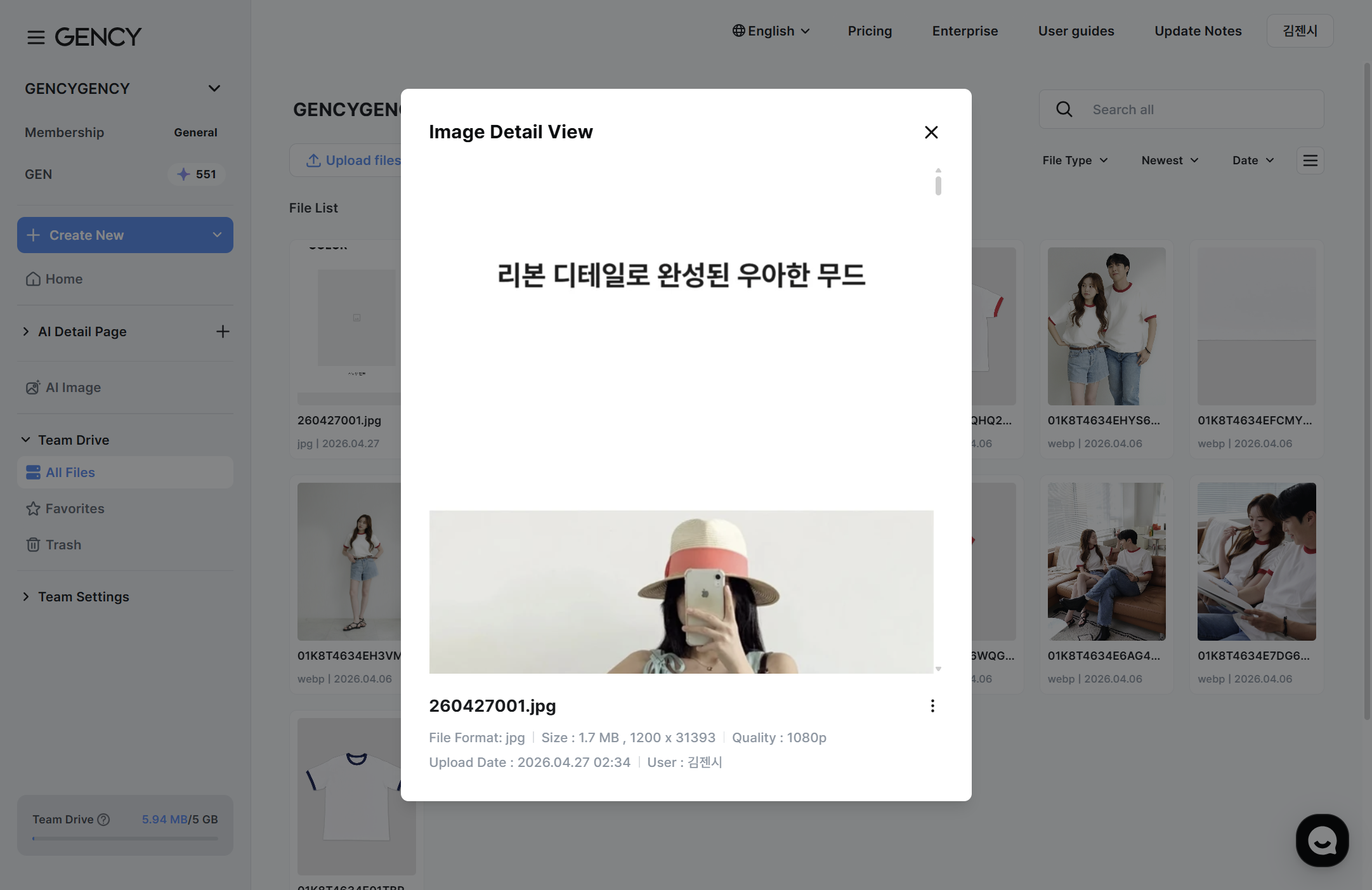
In the detail view, you can check the original image preview, file name, format, size and resolution, upload date, and the user who uploaded it.
Loading Team Drive Images in the Editor
Images uploaded to Team Drive can be loaded directly in the detail page Editor.
- In the Editor's Image tab, select Import from Team Drive.
- Browse the Team Drive folders and select the images you want.
- Click the "Add Files" button, and the selected images are added to your detail page.
You can select up to 50 images at once.
The current selection count is shown at the bottom in the form "Images selected N/50".
For details, refer to [Editor] Upload.
Files in the trash cannot be added in the Editor.
Related Guides
- How to upload files → Uploading Files
- Organizing files/folders → Managing Files & Folders
- Using images in the Editor → [Editor] Upload
- Image preparation standards → Image Guide