
Managing Files & Folders
Learn how to create, move, and rename folders and organize files by searching, filtering, and sorting in GENCY Team Drive. Quickly reach frequently used files with favorites, and restore files kept in the trash anytime within 30 days.
This guide explains how to organize the files and folders you've uploaded to Team Drive and quickly find the items you want.
Creating and Managing Folders
Creating a folder
- Click the + Add new folder button in the top toolbar.
- When the "Add new folder" dialog appears, enter a folder name.
- Click Add to create a new folder in the current location.
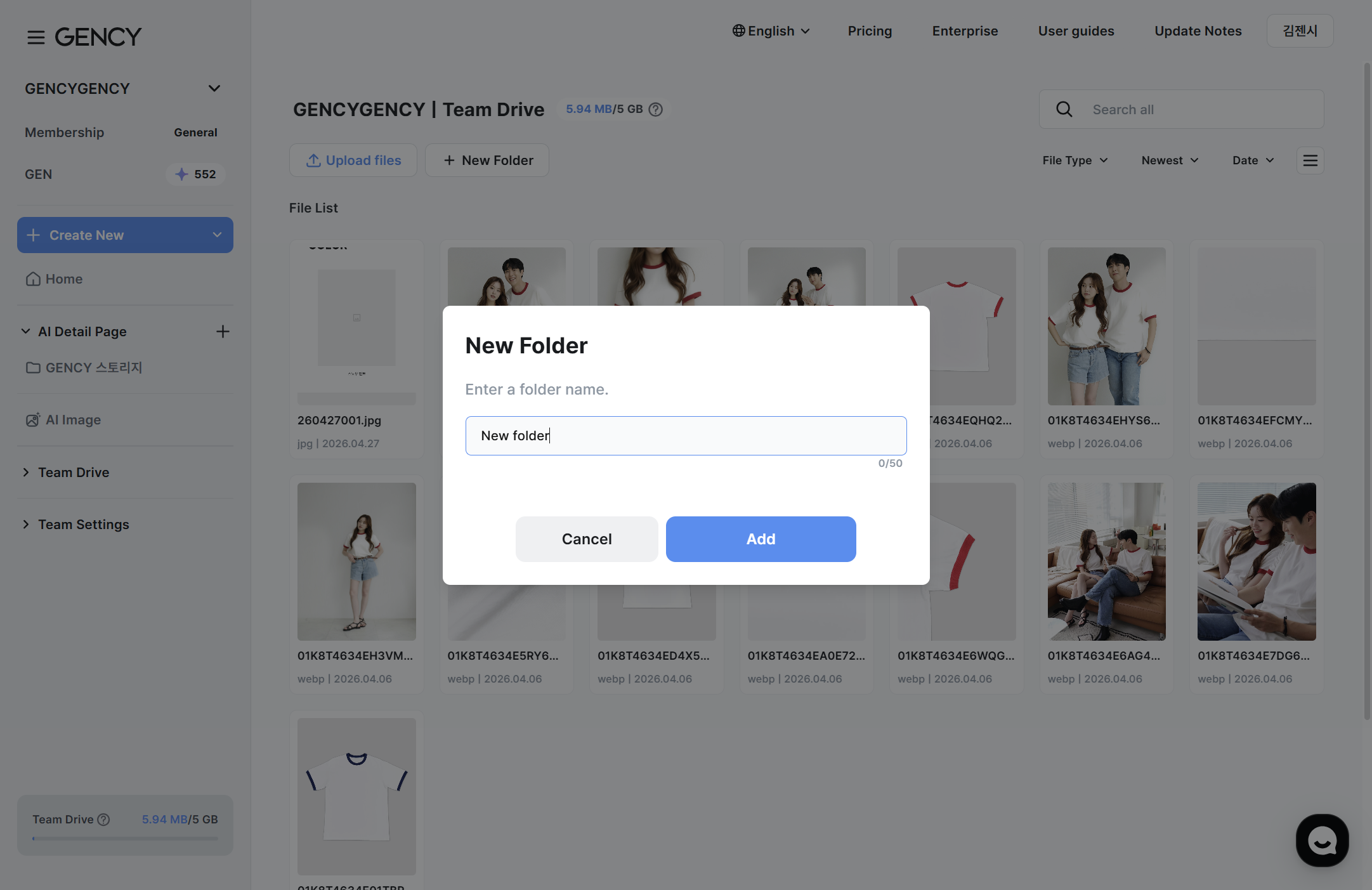
Folder names can be up to 50 characters.
If a folder with the same name already exists in the same location, a duplicate notice appears.
Folders can be nested up to 3 levels deep.
If you exceed 3 levels, the button is disabled.
What you can do with the right-click menu
Right-click a file or folder, or hover over it and click the ⋮ (more) icon, to bring up the context menu.
- Create detail page ㅣ Instantly create a detail page from the selected image
- Rename folder/file ㅣ Change the name (up to 50 characters)
- Move ㅣ Move to another folder
- Download ㅣ Download the file
- Trash ㅣ Move the file/folder to the trash
Moving a folder
- Right-click the folder to move and select Move.
- Select the destination folder to move to.
- Click Move.
You can't move to the same path.
Renaming a folder
- Right-click the folder and select Rename folder.
- Enter the new name and click Rename.
Deleting a folder
When you delete a folder, all files and folders within it move to the trash together.
- Right-click the folder and select Trash.
- In the confirmation dialog, click Move to trash.
The default folders (Team Drive, Bookmarks, Trash) cannot be deleted or renamed.
Managing Files
Renaming a file
- Right-click the file and select Rename file.
- Enter the new name. The extension is kept automatically.
- Click Rename.
Moving a file
You can move a file to another folder. You can also select multiple files and move them at once.
- Select the files to move (multiple allowed).
- Click Move in the bottom menu, or right-click and select Move.
- Select the destination folder and click Move.
Deleting a file
Select a file and click the Trash button to move it to the trash. You can restore it within 30 days.
Downloading a file
Select a file and click Download to download the original file.
- If you select a single file, it downloads right away.
- If you select multiple files or a folder, they are bundled into a ZIP file. A notice with an estimated time appears while the bundle is being prepared, and the download starts automatically once it is ready.
- You can move to another screen while it is being prepared. Click X on the notice to stop the download.
- If you close the browser tab or refresh the page while the file is being prepared, the automatic download is canceled. In that case, select the files again to download them.
You can download up to 50GB at once.
If you exceed it, please reduce your file selection.
Switching View Modes
Use the view toggle icon on the right of the top toolbar to choose between two modes.
- Thumbnail view ㅣ Displays images in a card-style grid. Lets you check files quickly and visually.
- List view ㅣ Displays file name, file type, editor, upload date, and file size in a table.
Finding the Files You Want
Search
Enter a file name or folder name in the search bar in the top toolbar and press Enter to find matching items.
Sort
In the Sort dropdown, you can change the sort order of the file list.
- Newest / Oldest — By upload date
- Largest / Smallest — By file size
- Name ascending (A-Z) / Name descending (Z-A) — By file name
In the trash, you can also use Recently deleted / Oldest deleted sorting.
Filter
- File type ㅣ You can display only the format you want among folders, JPG, PNG, GIF, WebP, and MP4.
- Date ㅣ Select a start date and end date in the calendar to display only files uploaded during that period.
Working on Multiple Files at Once
Selection methods
- Click ㅣ Click a file to select it.
- Shift + click ㅣ Range-select from the first file to the file you click.
Bottom action bar
When you select files, an action bar appears at the bottom of the screen. Along with "N selected", you can do the following.
- Create detail page ㅣ Instantly create a detail page from the selected images
- Move ㅣ Move the selected items to another folder
- Download ㅣ Download the selected files (ZIP if multiple)
- Trash ㅣ Move the selected items to the trash
- Deselect ㅣ Clear all selections
Managing Bookmarks
Add files or folders you use frequently to bookmarks for quick access.
- Add ㅣ Click the star icon on a file/folder to add it to bookmarks.
- Remove ㅣ Click the star again to remove it from bookmarks.
- View ㅣ In the sidebar's Bookmarks tab, gather and view only the items you've starred.
Bookmarks are saved per user.
You can't add new files or folders in the Bookmarks tab.
Managing the Trash
You can manage deleted items in the trash.
Restoring
- Click Trash in the sidebar.
- Select the file or folder to restore.
- Select Restore from the right-click menu to return it to its original location.
When you restore a folder, the files and folders within it are restored together too.
Deleting permanently
- Right-click the file and select Delete permanently.
- In the confirmation dialog, click Delete permanently.
Emptying the entire trash
- Click the Empty entire trash button at the top of the trash.
- In the confirmation dialog, click Empty trash.
Permanently deleted files cannot be recovered. Please double-check before deleting.
Automatic deletion
Files in the trash are automatically deleted permanently 30 days after being deleted. Each file shows a "To be permanently deleted in N days" indicator, so restore important files before the deadline.
Related Guides
- Uploading files → Uploading Files
- Team Drive overview → Team Drive
- Using images in the Editor → [Editor] Upload