
Uploading Files
Learn the three ways to upload product images to GENCY Team Drive: folder upload, file upload, and QR-code mobile upload. It also covers upload conditions—PNG, JPG, JPEG, WebP, HEIC, MP4, GIF formats, up to 80MB per file, and 5GB (standard) / 100GB (Enterprise) storage.
When you upload product images to Team Drive, the entire team can share them and load them directly in the Editor to use.
Before Uploading
| Item | Requirement |
|---|---|
| Supported formats | PNG, JPG, JPEG, WebP, HEIC, MP4, GIF |
| File size | Up to 80MB per file |
| Image resolution | Up to 15,000px wide · up to 50,000px tall |
| Team Drive capacity | Standard 5GB / Enterprise 100GB |
Formats other than image and video files (PDF, documents, etc.) cannot be uploaded.
Uploads are also restricted when your Team Drive capacity is exceeded.
Uploading Images
Click the Upload File button in the top toolbar to choose from three upload methods.
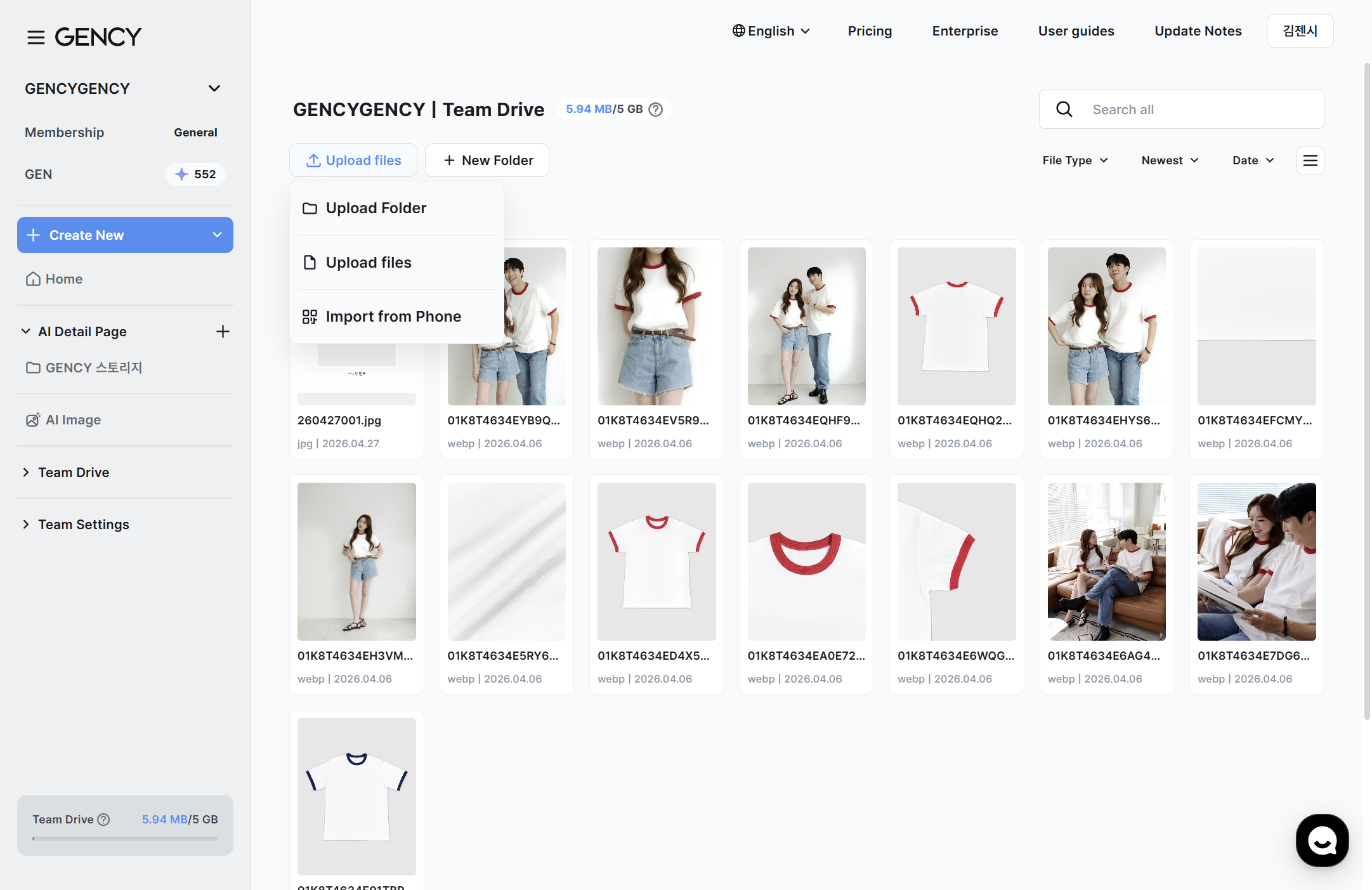
File upload
Select and upload individual image files.
- In the top toolbar, click Upload File → File upload.
- When the file selection window opens, select the images to upload.
- Click Open to start the upload.
Folder upload
You can upload images by folder all at once.
- Click Upload File → Folder upload.
- Select the folder to upload.
- The image files in the folder are uploaded all at once.
Drag & drop
You can also select images in your file explorer and drag them directly onto the Team Drive screen.
- You can drag and upload multiple files at once.
- When you drag, a blue dashed border appears along with the notice "Drop the files to complete the upload."
Import from phone (QR upload)
This is useful when you're away from your PC or want to upload photos on your mobile device right away.
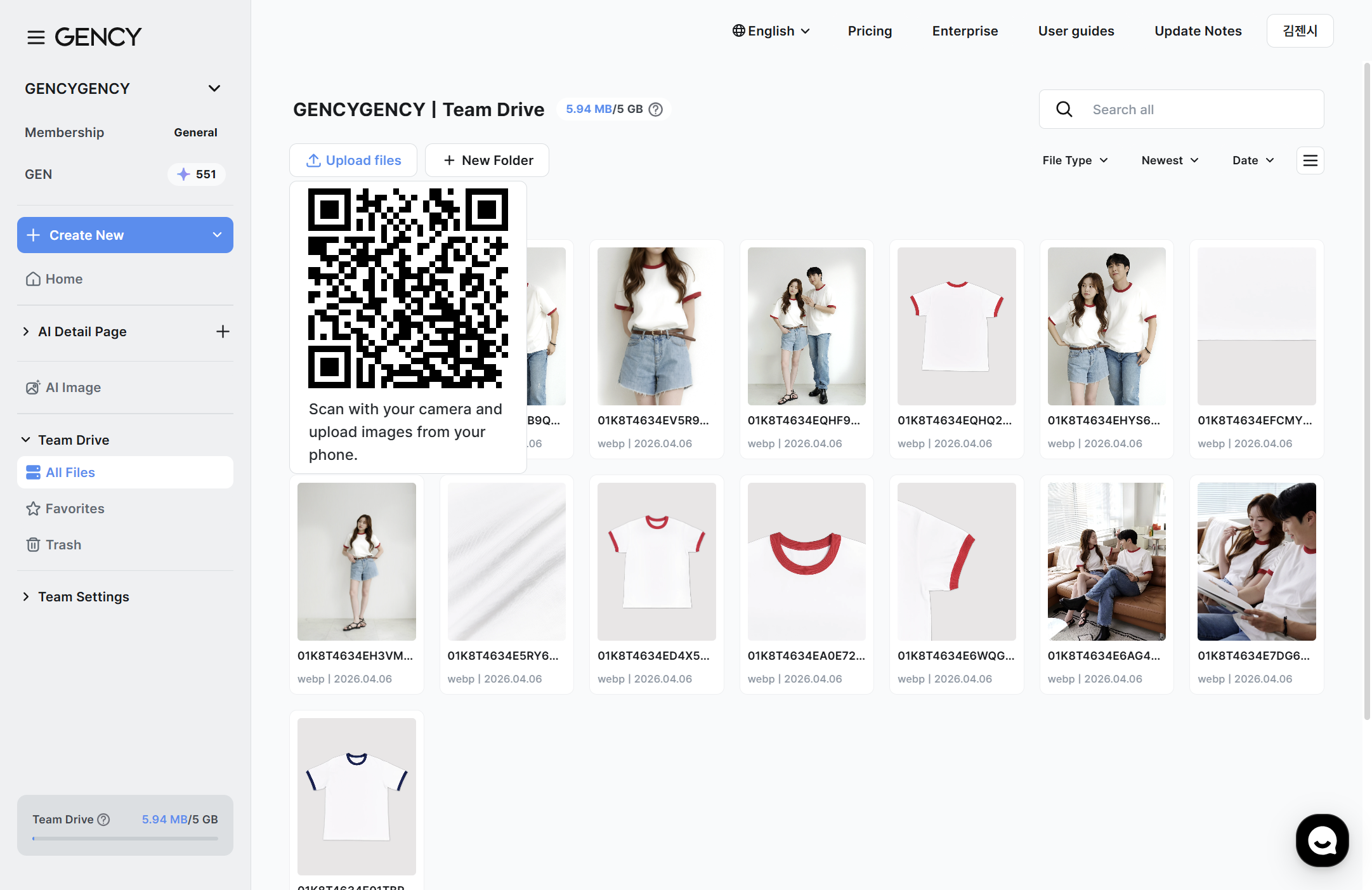
- Click Upload File → Import from phone.
- A QR code appears on the screen.
- Scan the QR code with your mobile camera.
- Select images in your mobile browser, and they're uploaded directly to Team Drive.
On a successful QR scan, the message "Scan successful." is displayed.
If it fails, you can generate a new QR code with the "Reload QR" button.
Checking Upload Progress
When a file upload starts, an upload progress panel appears in the bottom right of the screen.
- Uploading ㅣ The message "Uploading N files" is shown along with the progress of each file.
- Upload complete ㅣ A green check icon is displayed for each file, and the file appears in the list immediately.
- Upload failed ㅣ A red icon is displayed for failed files.
You can close the upload panel with the X button in the top right.
When an Upload Error Occurs
If an upload fails, a "File upload not possible" dialog appears and explains the cause.
| Error type | Notice message | Solution |
|---|---|---|
| Resolution/size exceeded | "The maximum uploadable image width/height is 15,000px, and the size is 80MB." | Reduce the file size or resolution and upload again |
| Unsupported format | "The file is corrupted or in an invalid format." | Use only PNG, JPG, JPEG, WebP, HEIC, GIF, or MP4 formats |
| Capacity exceeded | "Your Team Drive is full, so files can't be uploaded. Please clean up your files." | Delete unnecessary files or empty the trash to free up space |
Uploaded images are saved to Team Drive, and all team members can access them.
Organizing into folders after uploading lets you manage more efficiently. → Managing Files & Folders