

Generating AI Images
How to use GENCY AI image generation. Turn a single product photo into product retouch, detail, and model-wearing images. Choose from 9 aspect ratios by intended use plus 2K/4K quality and the number of images, so you get exactly the shots you need at the size you need.
What is AI image generation?
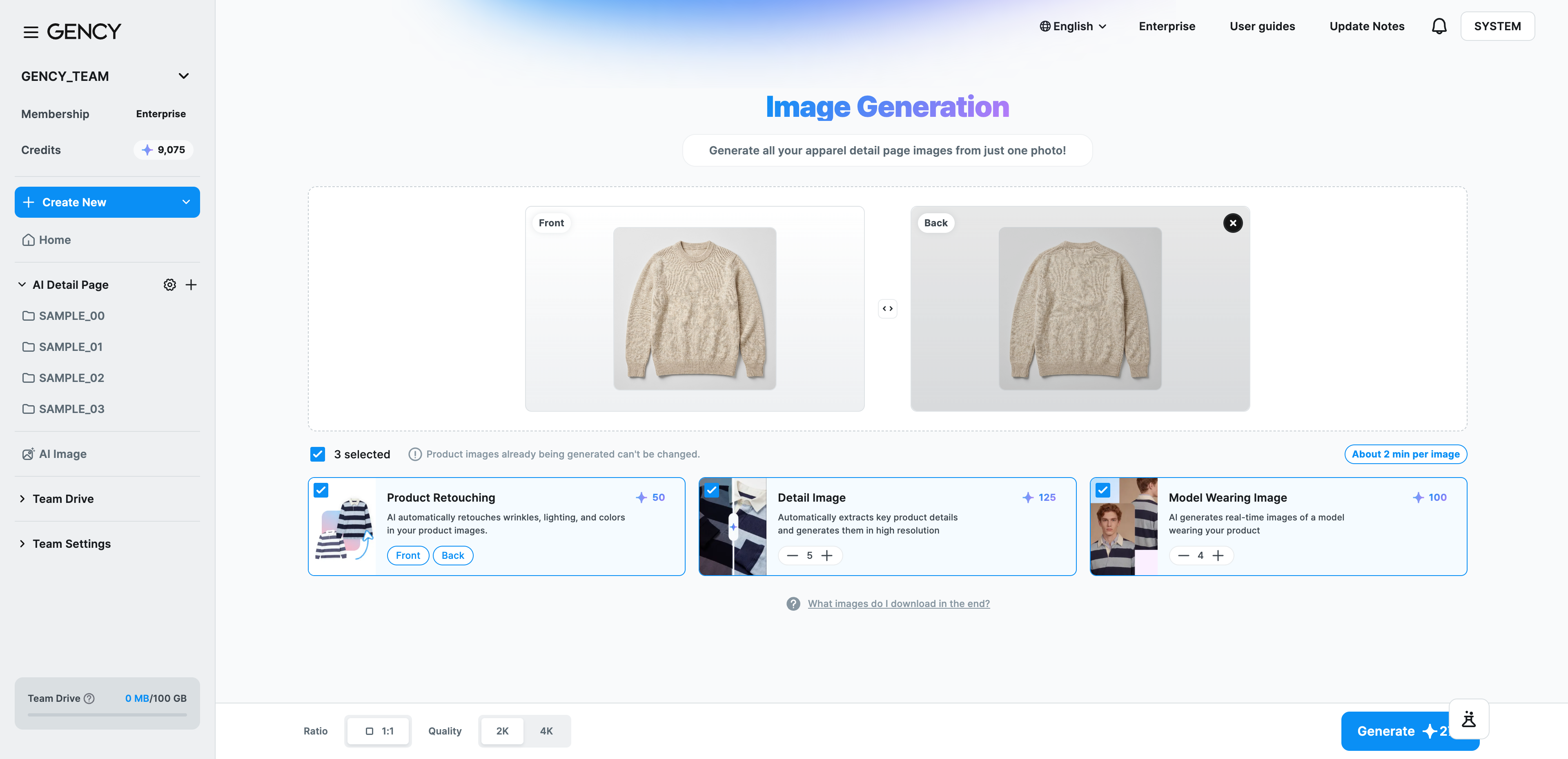
It generates all the shots you need for a product detail page at once. Just upload one product image.
- Product Retouching — a cleaner, retouched version of the photo you uploaded
- Detail Image — images that show the product's details
- Model Wearing Image — a virtual model wearing your product
You can select the options and generate them all at once, or pick only some of them.
Get only what you need, in the size you intend to use. Set how many images each option produces, and choose the aspect ratio that fits your purpose — thumbnails, product detail pages, Instagram — along with 2K or 4K quality. No more receiving shots you won't use, or cropping them again afterwards.
How credits are charged
Credits are charged per image. 2K costs 25 credits per image, 4K costs 50.
Total credits = total number of images selected × credits per image for that quality
For example, 11 images at 2K costs 275 credits. The credits to be charged appear in real time on the option cards and the Generate button, so you can check before you click.
- Options you don't select are not charged.
- If generation fails, the credits charged are refunded.
- If you don't have enough credits, a top-up prompt appears when you click Generate.
Your credit balance is shown at the top of the left sidebar. For top-ups and plans, see Payment / Management.
Getting started in 5 steps
- Open the screen — In the sidebar, click 'Create new' > 'Generate AI images'.
- Upload your product image — One front image is required. The back image is optional; if you don't upload one, AI creates it for you. Upload both front and back at once and AI sorts them automatically.
- Choose options and image counts — Select at least one option and set how many images each one produces.
- Check aspect ratio and quality, then Generate — Choose the aspect ratio and quality in the bottom bar, confirm the credits to be charged, then click.
- Review results — When it's done, you can see the results on the 'View all generated images' screen. The list updates to complete on its own without refreshing.
The three generation options
The estimated time appears on screen based on the number of images you selected, at roughly 2 minutes per image.
Option A. Product Retouching
Produces a cleaner, retouched version of your product photo. You can choose which sides to retouch — front and back (front is always included) — and the image count matches the number of sides enabled. Within categories such as brightness and tone, only one choice can be selected.
Option B. Detail Image
Shows your product's details from various angles and close-ups. You can set the count from 1 to 8 images, with 5 as the default.
At 5 images or more, one material image is included. It shows the texture of the fabric, which is useful on a product detail page.
Option C. Model Wearing Image
Produces images of a virtual model wearing your product. You can set the count from 1 to 8 images, with 4 as the default.
When you choose this option, you select the model, style, and outfit on the screen that follows after you click Generate.
Once image generation starts, you cannot change the model, style, or outfit. Please confirm your choices before proceeding.
Choosing aspect ratio and quality
Select them in the bottom bar. The first time, it starts at 1:1 and 2K; after that, the settings your team used most recently are filled in automatically. The same applies to image counts.
| Group | Aspect ratio (use) |
|---|---|
| Square | 1:1 Thumbnail |
| Portrait | 2:3 Short detail page · 3:4 Long detail page · 4:5 Instagram Feed · 9:16 Short-form video |
| Landscape | 3:2 Main banner · 4:3 Promotion · 5:4 Product Detail · 16:9 Sub banner |
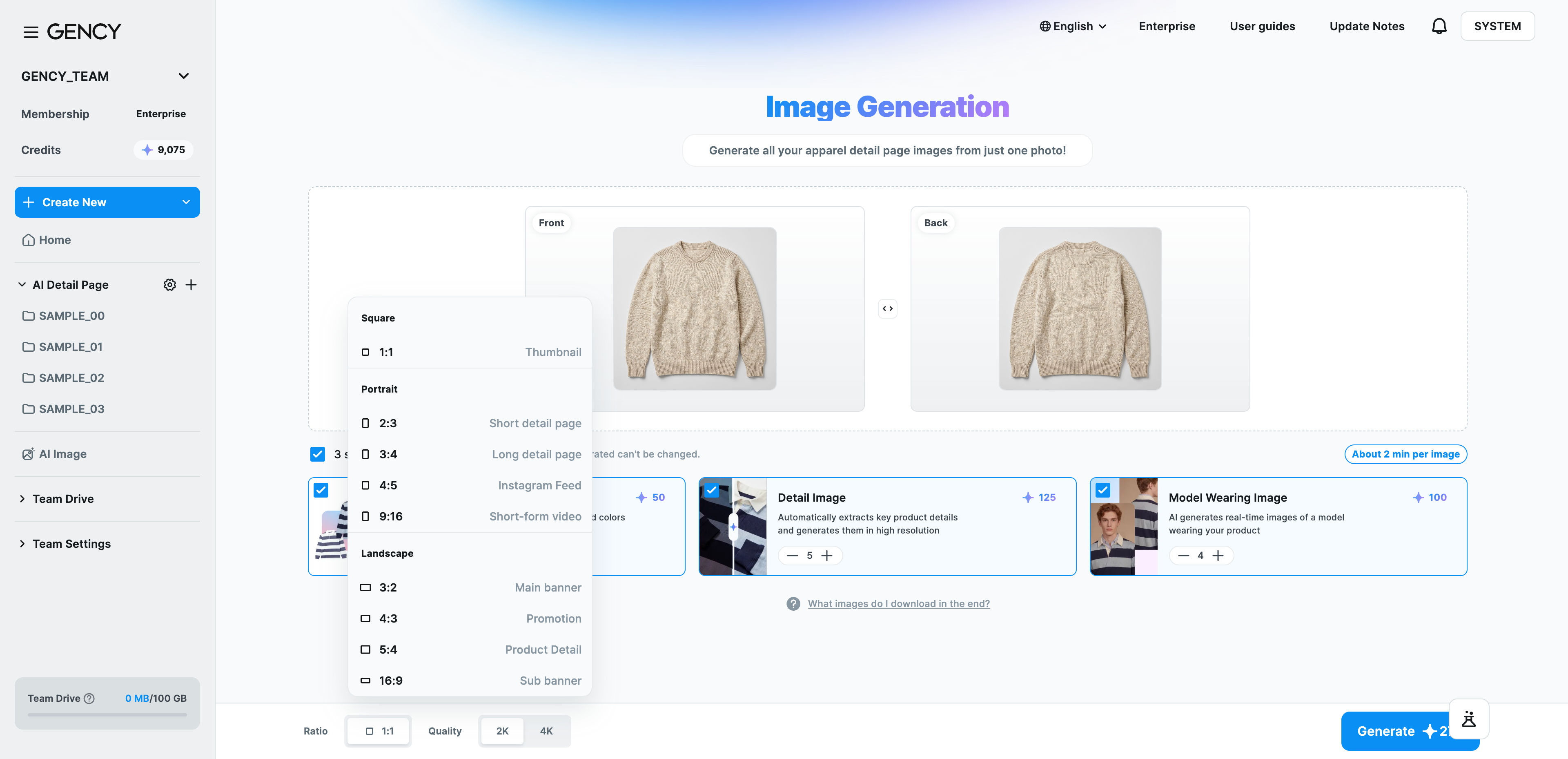
For quality, you can choose 2K or 4K. The credits charged per image depend on the quality.
Choosing model, style, and outfit
This screen appears when you choose model-wearing images. Set the three areas in order.
Model selection
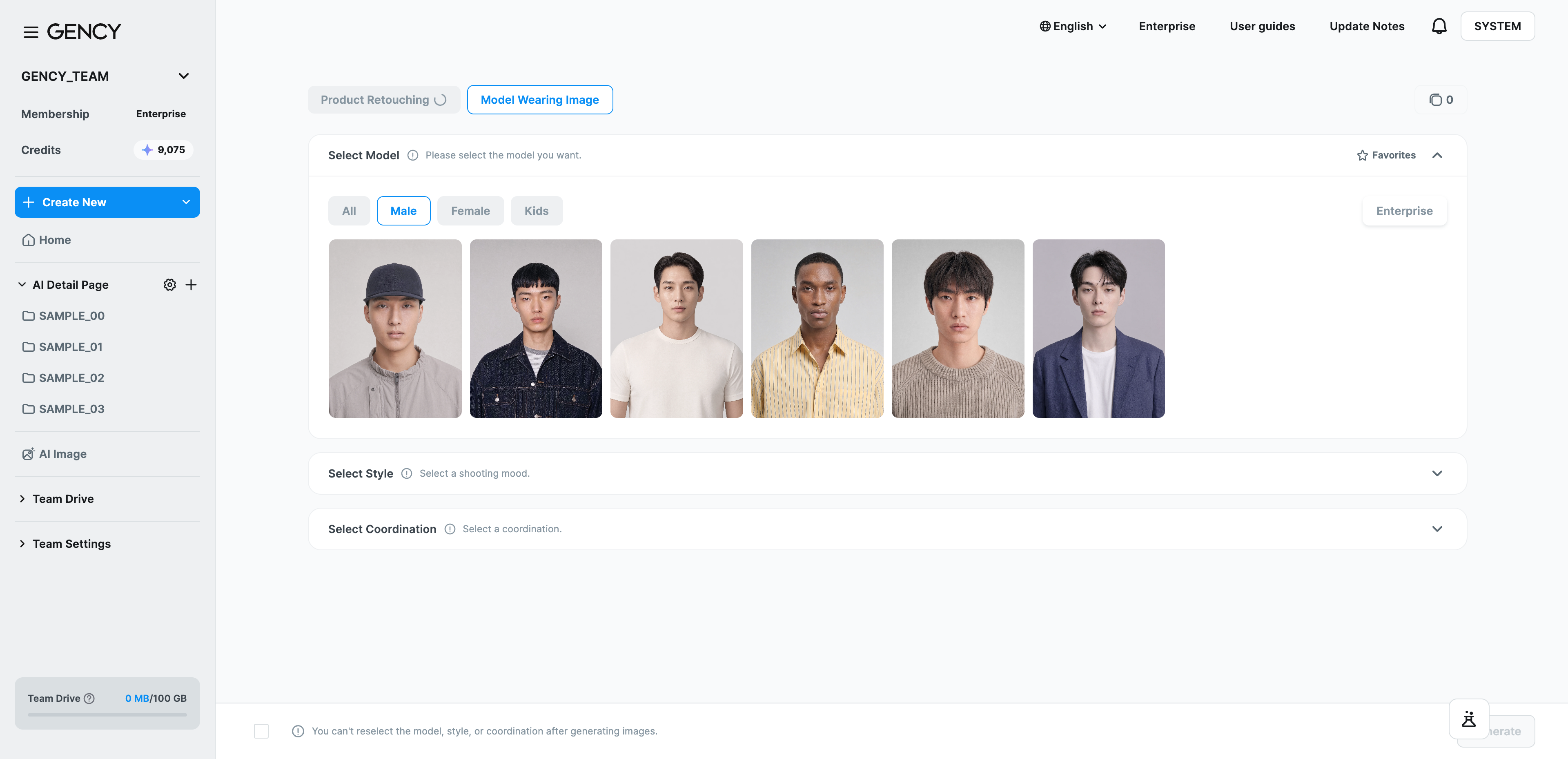
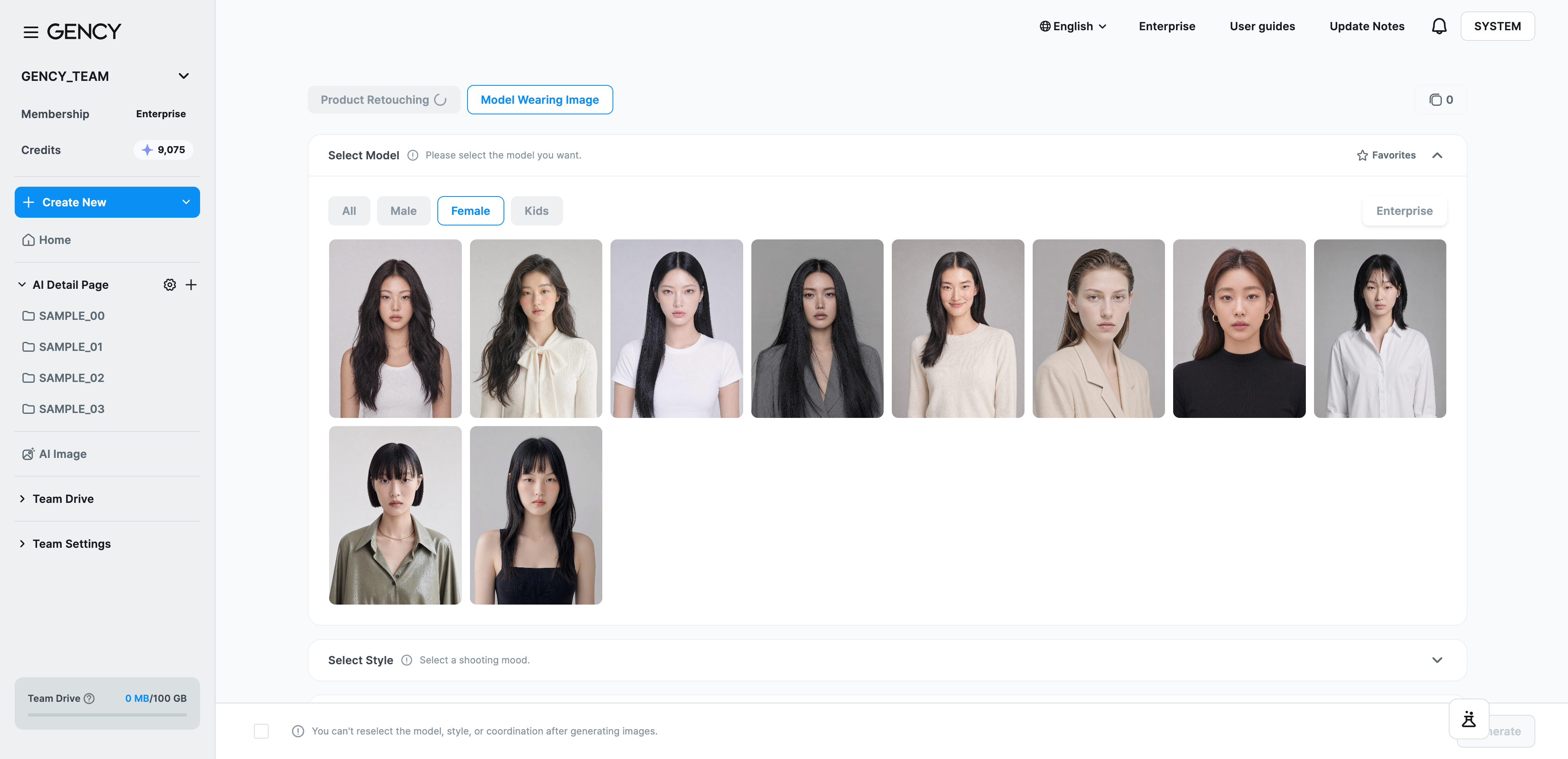
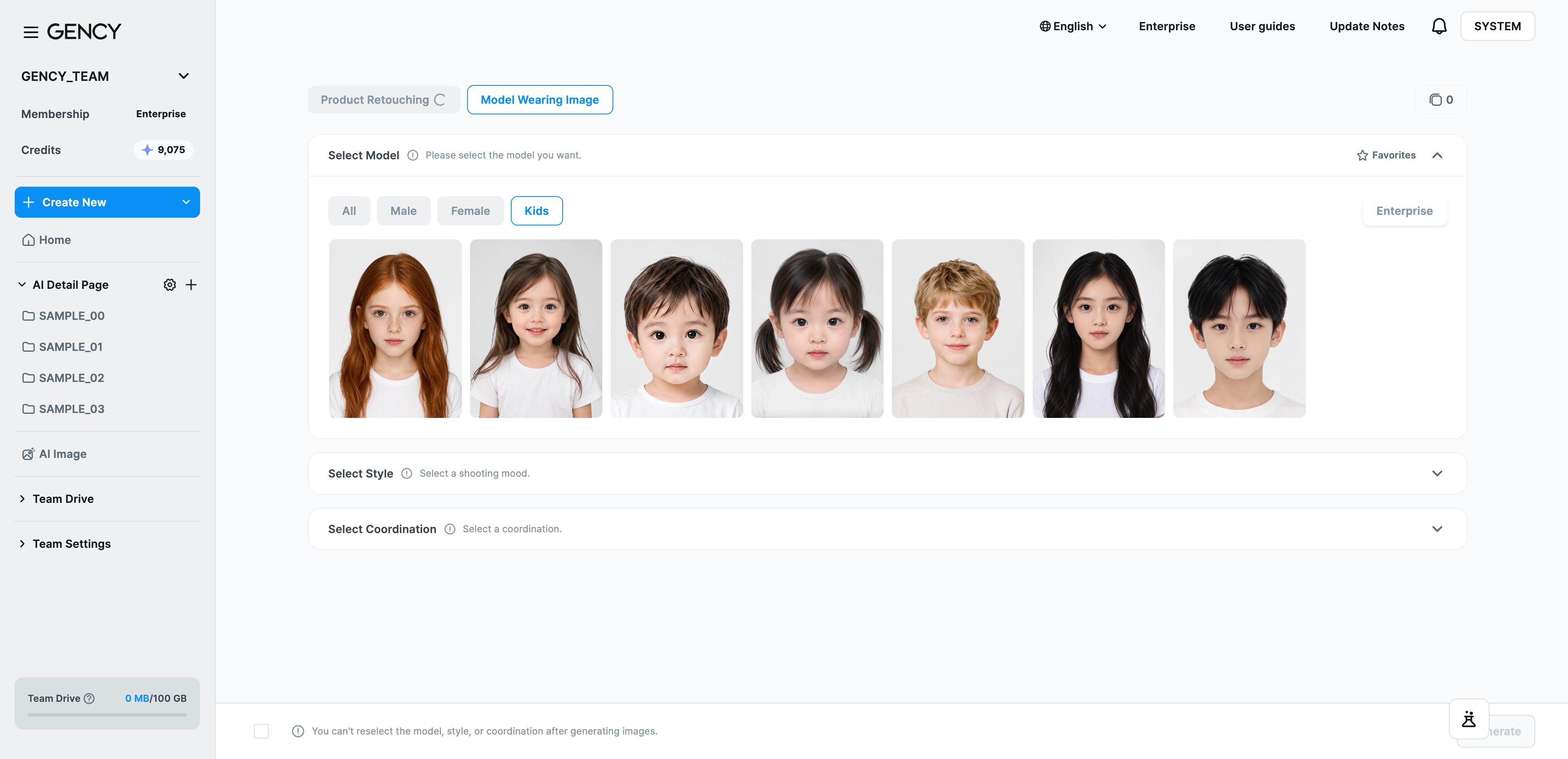
Choose from 23 virtual models. Filter with the All · Men · Women · Kids tabs, and star the models you use often to collect them under Favorites.
Along with adults, there are kids models, so you can create children's clothing as well.
6 men
10 women
7 kids
Enterprise customers can add team-only models through a separate inquiry. Added models appear in the Enterprise tab. Please contact your account manager.
Style selection
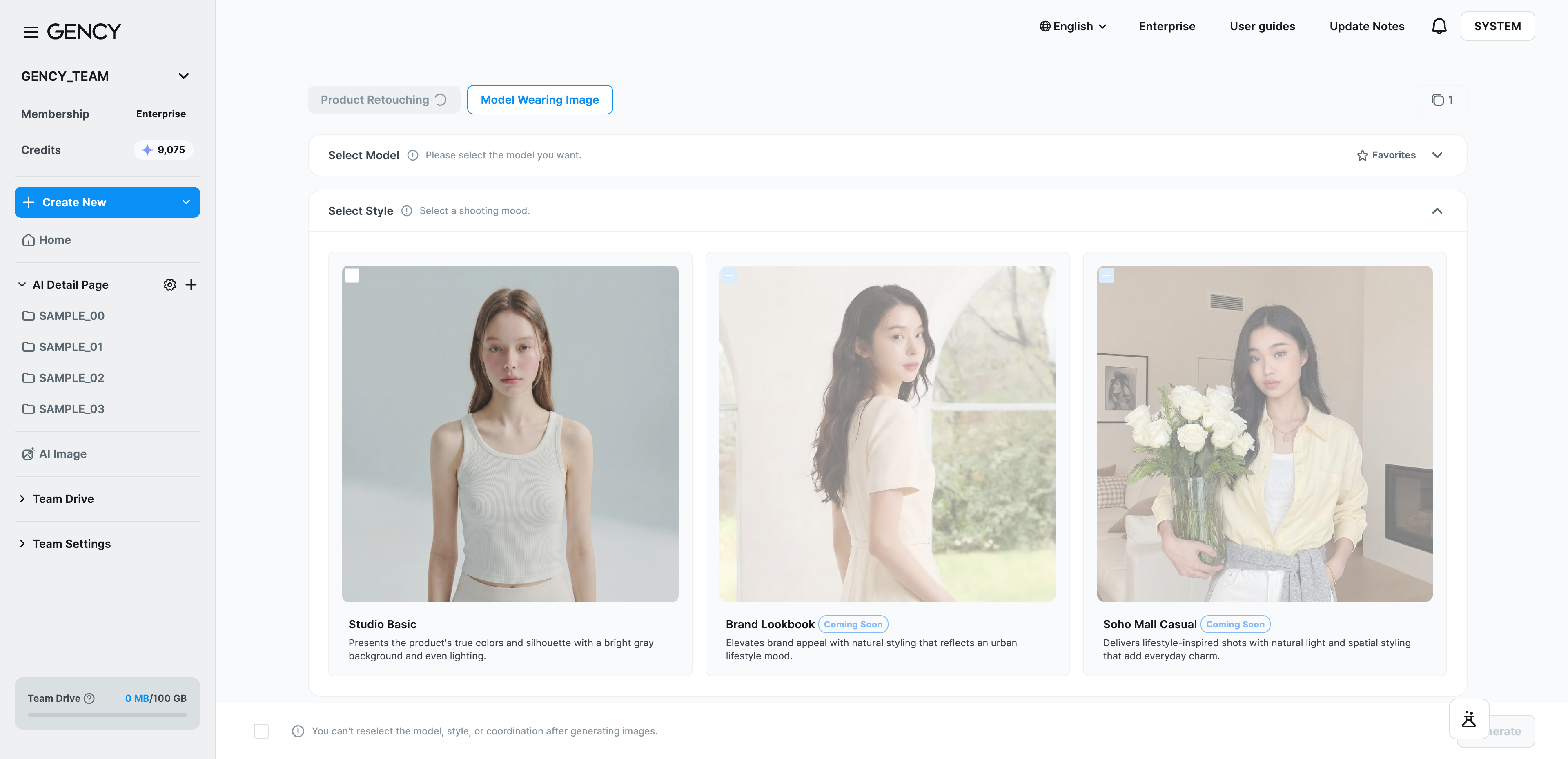
This is where you choose the shooting mood. Studio Basic is available now, with two more in preparation.
| Style | What it looks like | Status |
|---|---|---|
| Studio Basic | A bright grey background and even lighting render the product's true color and silhouette crisply | Available |
| Brand Lookbook | Natural staging with an urban lifestyle mood that elevates brand feel | Coming soon |
| Soho Mall Casual | Emotive shots with an everyday atmosphere, staged in spaces that feel lit by natural light | Coming soon |
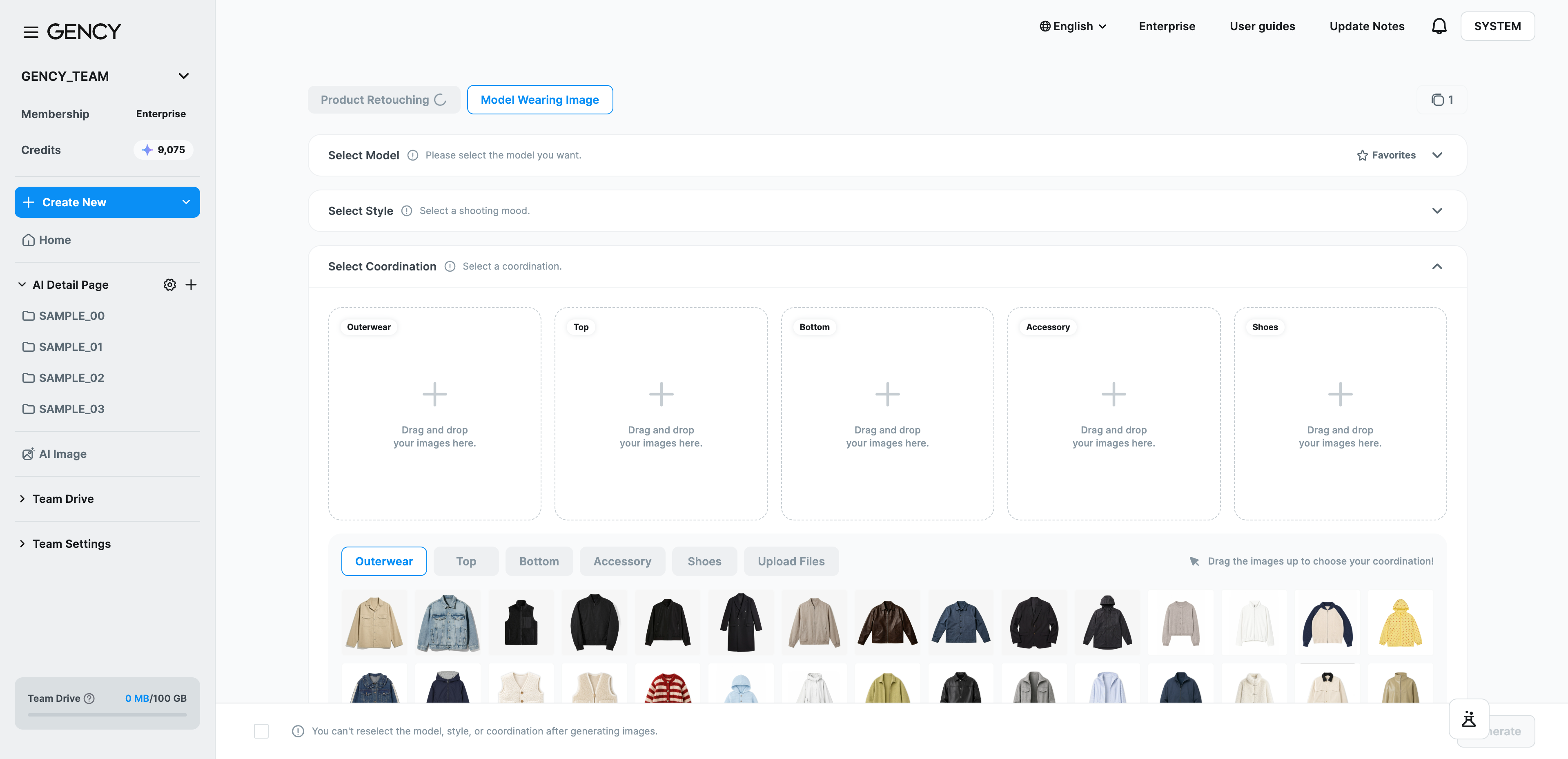
Outfit selection
Place the items you want the model to wear into the slots. There are 5 slots — outerwear · top · bottom · accessory · shoes — and each slot holds one item. (Accessory covers items other than clothing and shoes, such as bags, hats, belts, and socks.)
Drag an item upward from the gallery below into a slot. Each slot tab comes with presets, so you can dress the model right away without preparing anything, and to use your own image, go to the File upload tab.
Leave it empty and AI completes the outfit for you.
Reviewing and downloading results
Result images are produced in the aspect ratio you chose at generation. When downloading, you can choose the quality (2K/4K) and the format (PNG/JPG).
Select a result image and the detail panel shows the selected options, prompt, model, outfit, aspect ratio, quality, size, and file size — and you can regenerate right there.
Where to save
You can save to your computer, save to Team Drive, or send images straight to Create product detail page.
4K can only be downloaded one image at a time. It works by upscaling an image generated at 2K, so 4K cannot be selected when you pick several images at once. Upscale credits are charged in addition, and the amount is shown on the download screen.
Download file names (when saving to your computer)
The extension of the format you chose is appended to {history name}_{option}_{sequence}. The history name is the generation date (e.g. 2026.05.20), the option is product, detail, or model, and the sequence is a 3-digit number.
- Single image:
2026.05.20_product_001.png - Whole project:
2026.05.20_001.zip(contains the images for each option) - If the name already exists, a number is appended:
2026.05.20_001 (2).zip
Regeneration
If you don't like a result, you can generate it again. Regeneration also charges credits.
| Plan | Regeneration credits |
|---|---|
| Standard | Same as the initial generation (25 credits per image at 2K, 50 at 4K) |
| Enterprise | Unlimited and free within 24 hours of the initial generation; charged per image afterwards |
The regeneration popup shows your credit balance and the credits to be charged. When an Enterprise customer regenerates within 24 hours, it is labeled 'Free regeneration'.
Storage limit
Images created through regeneration can total up to 500MB per project. When the limit is reached, a 'Regeneration capacity exceeded' notice appears. This applies equally to Standard and Enterprise.
Viewing generation history
Go to 'AI Images > Generation history' in the sidebar to see everything you've created.
- Thumbnail view (default) — a grid showing the representative image, project name, creation time, image count, and file size
- List view ㅣ a table showing Project · Creation Date · Edit Date · Workers · Recent editors · Generation History · File size
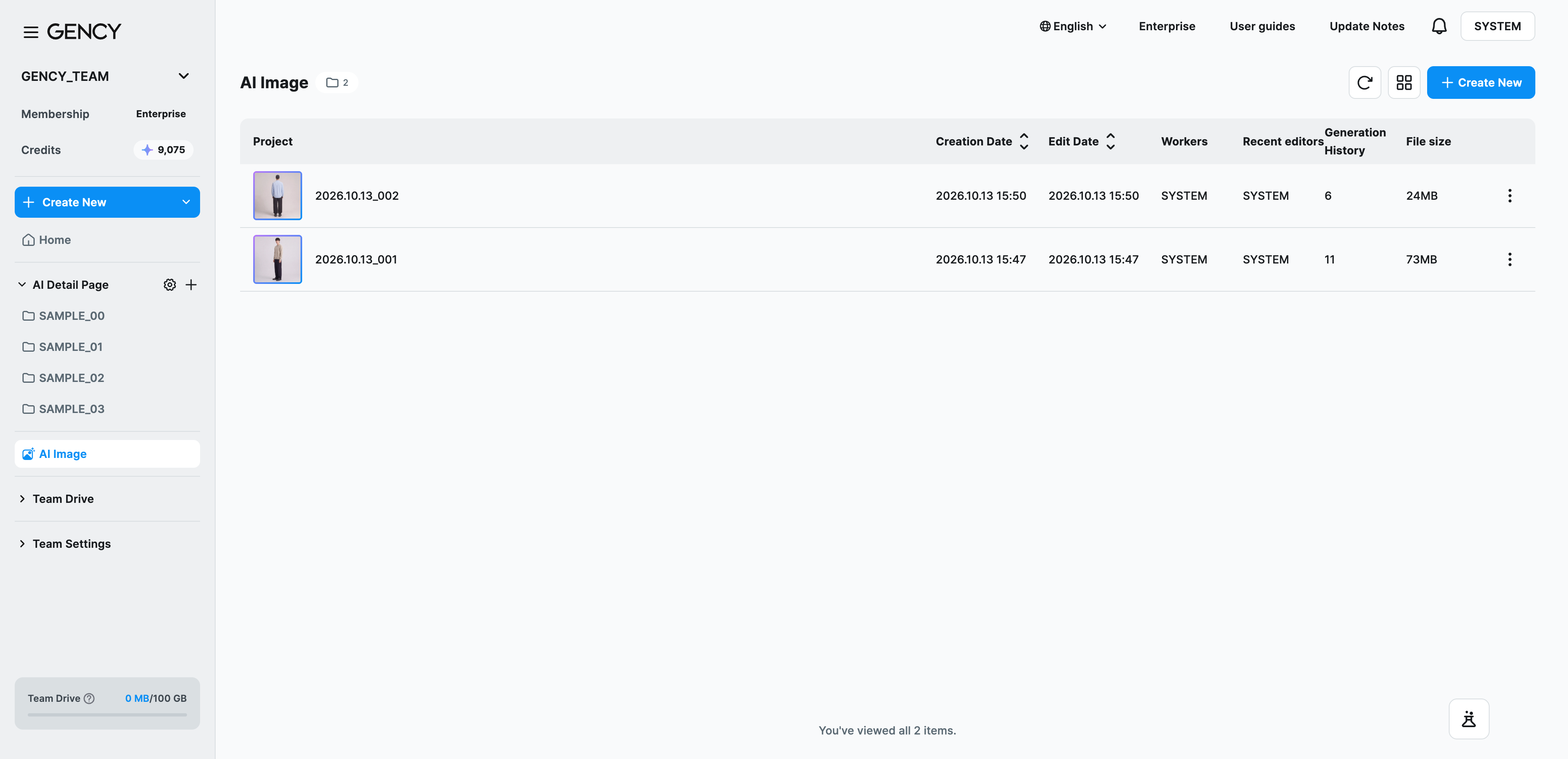
List view lets you see who created a project and who edited it last. Click Created or Edited to sort. This is helpful for tracking work history when a team shares the workspace.
Projects you no longer need can be removed with 'Delete' in the ⋮ menu on the right. Deleting also removes the images, so download anything you need first.
All generation history is kept for up to 1 year.