Align & spacing measurement
We've improved the guidelines, resizing, rotation, and alignment features in the Editor so you can position and manipulate elements more precisely.
At a glance
New1
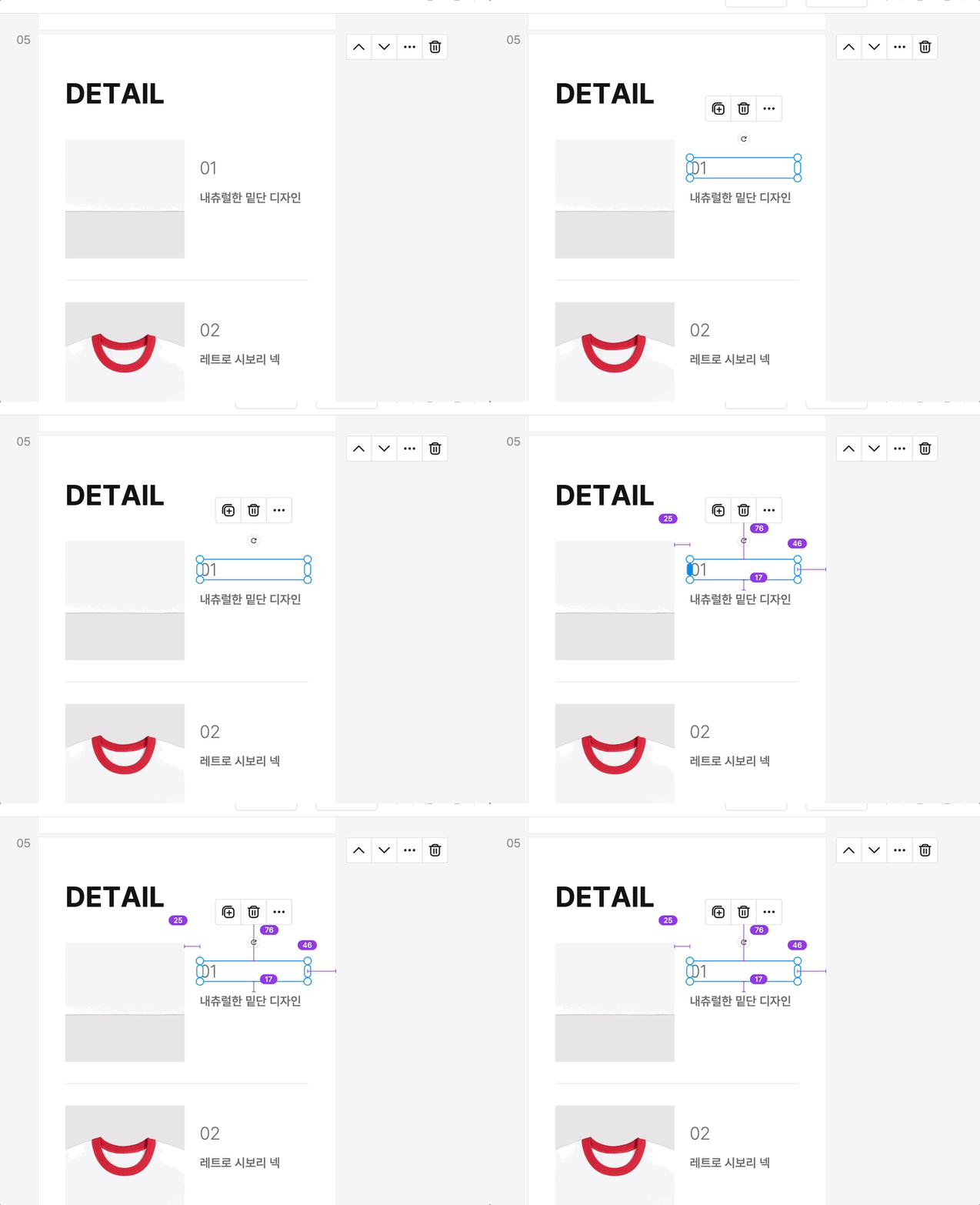
Check element spacing in numbersPreviously you had to eyeball the spacing between elements, but now you can check the exact spacing with a single shortcut.
Previously you had to eyeball the spacing between elements, but now you can check the exact spacing with a single shortcut.
With an element selected, press the Alt key (Mac: Option key) to display the spacing to nearby elements in px.
- Vertical spacing appears on the right, and horizontal spacing appears at the top.
Improved2
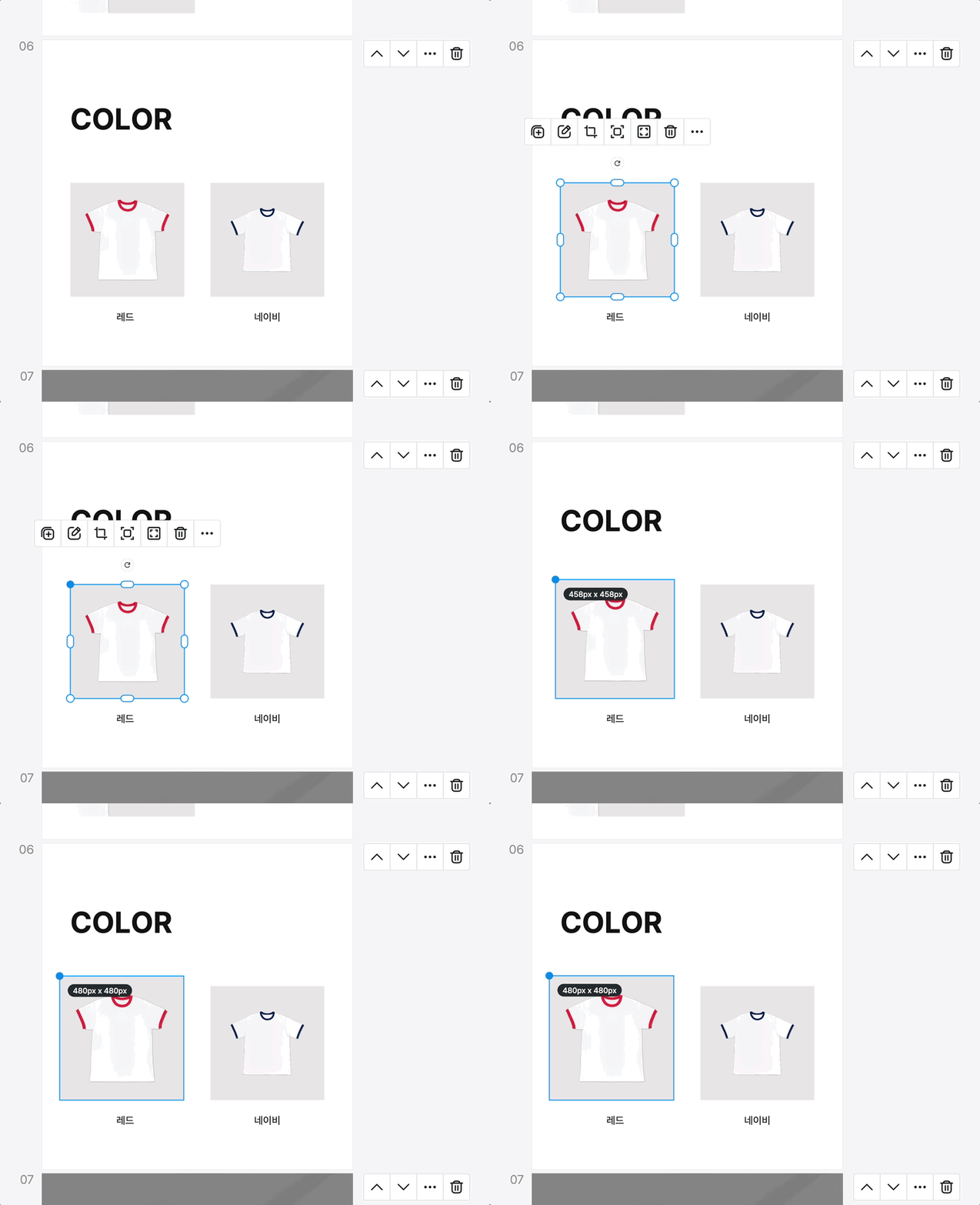
Measurement display while resizingPreviously, when resizing an element by dragging, you had to check separately how much it had changed.
Previously, when resizing an element by dragging, you had to check separately how much it had changed. Now the changing measurements are shown immediately as a real-time tooltip while you drag.
- Drag the corner handles → resize while maintaining the aspect ratio
- Drag the edge handles → resize in one direction only (no aspect ratio lock)
- It works the same way even when multiple elements are selected.
Angle display while rotatingPreviously it was hard to tell how many degrees an element had been rotated.
Previously it was hard to tell how many degrees an element had been rotated. Now the current angle (e.g., 90°) is displayed in real time while you drag.
- Move the mouse outside the corner handles to see the rotation cursor.
- When multiple elements are selected, they rotate together around the group's center.

New1
Align to page & groupPreviously you had to position multiple elements one by one, but now you can organize them all at once with the align and distribute spacing functions.
Previously you had to position multiple elements one by one, but now you can organize them all at once with the align and distribute spacing functions.
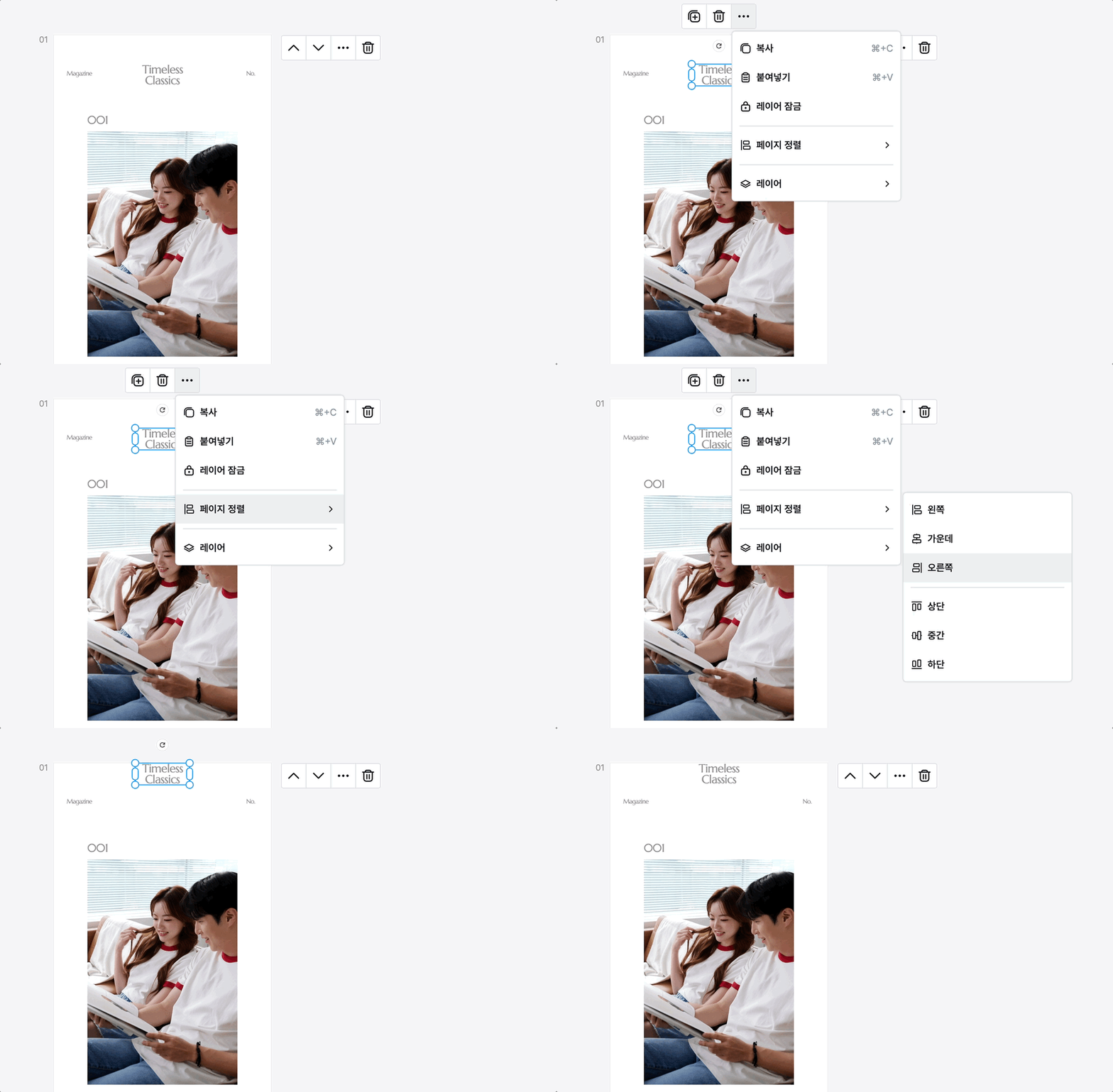
Align to page
Select elements and right-click > Align to page to position them relative to the page.
- Horizontal: Left / Center / Right
- Vertical: Top / Middle / Bottom
Align elements
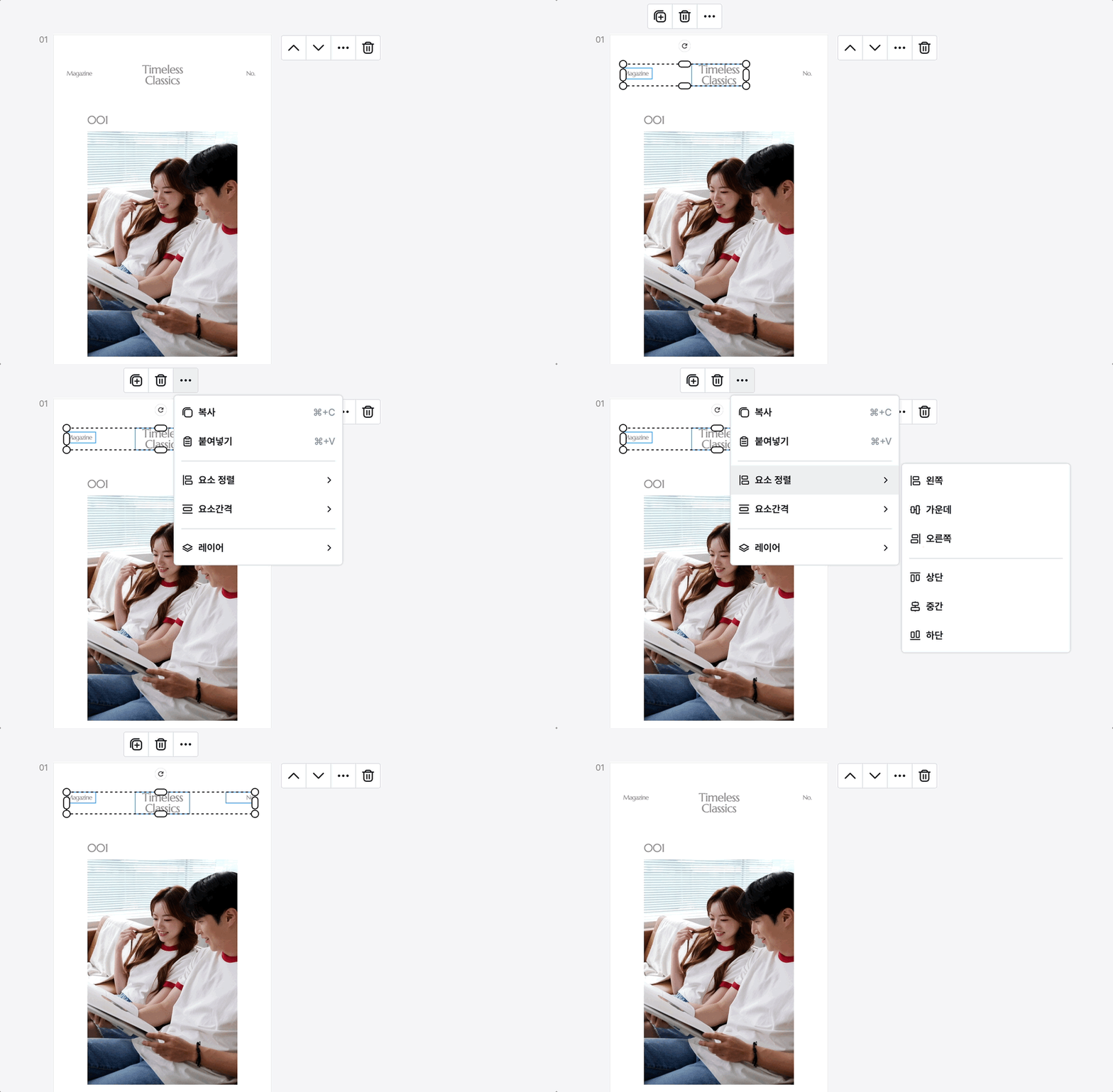
After selecting multiple layers, go to More (···) > Align elements to align the layers' positions.
- Left: Align to the leftmost layer
- Center: Center-align to the average position of all layers
- Right: Align to the rightmost layer
- Top: Align to the topmost layer
- Middle: Center-align to the average position of all layers
- Bottom: Align to the bottommost layer
Element spacing
After selecting multiple layers, go to More (···) > Element spacing to adjust the spacing between the layers.
- Distribute vertical spacing: Evenly distribute the vertical spacing between layers.
- Distribute horizontal spacing: Evenly distribute the horizontal spacing between layers.
- Custom spacing: Enter the value you want (px) directly, or adjust by 1px with the +/- buttons.
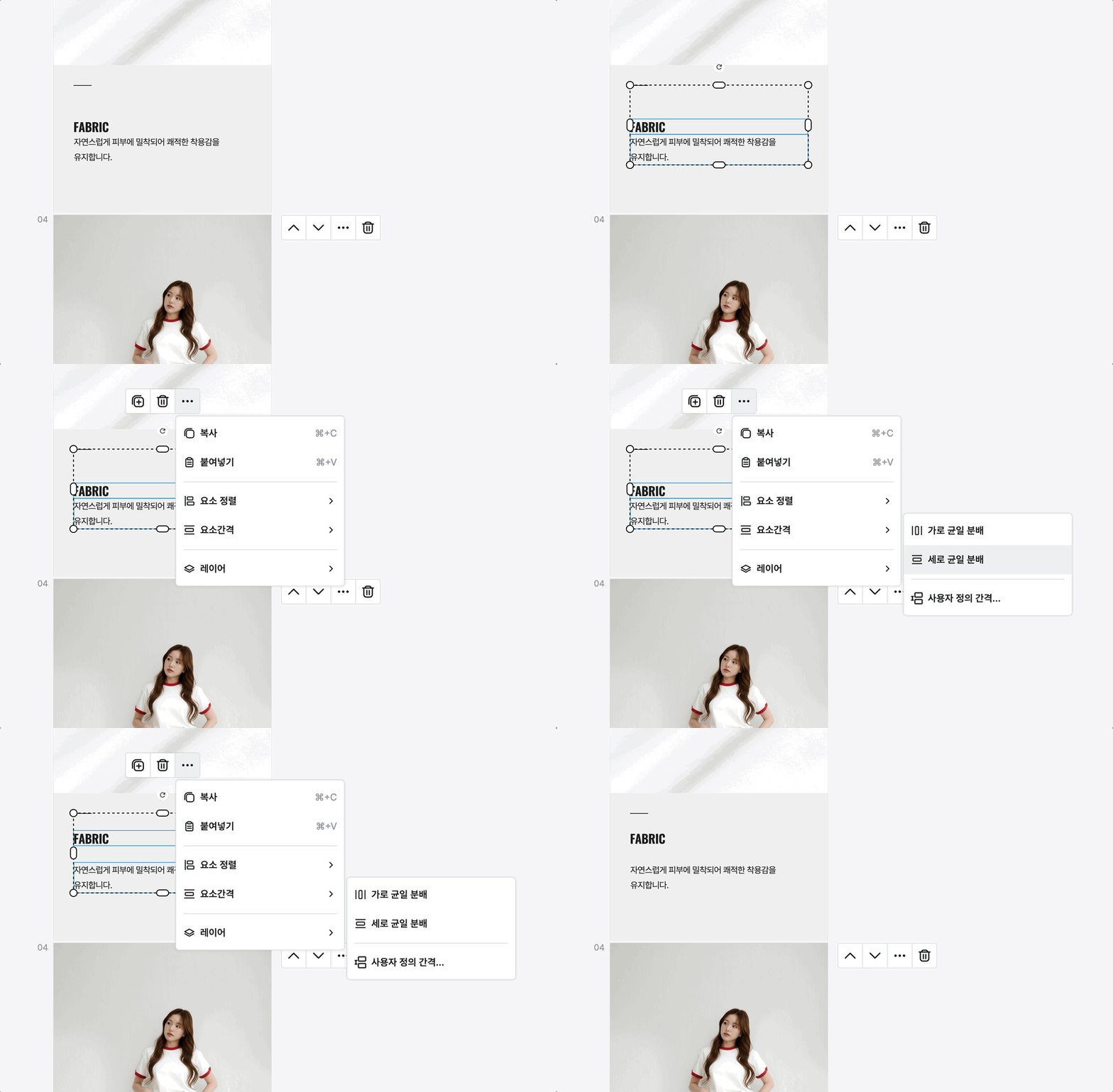
If the spacing between layers is inconsistent, it is displayed as Mixed. Pressing +/- in this state first unifies the spacing to the average value and then adjusts it.
— The GENCY team