Editor overhaul
The most important place for making product detail pages — the Editor — is all new. We reorganized the screen and its features so you can work faster. The product detail pages you were working on open just as before, so check what changed and pick up where you left off.
At a glance
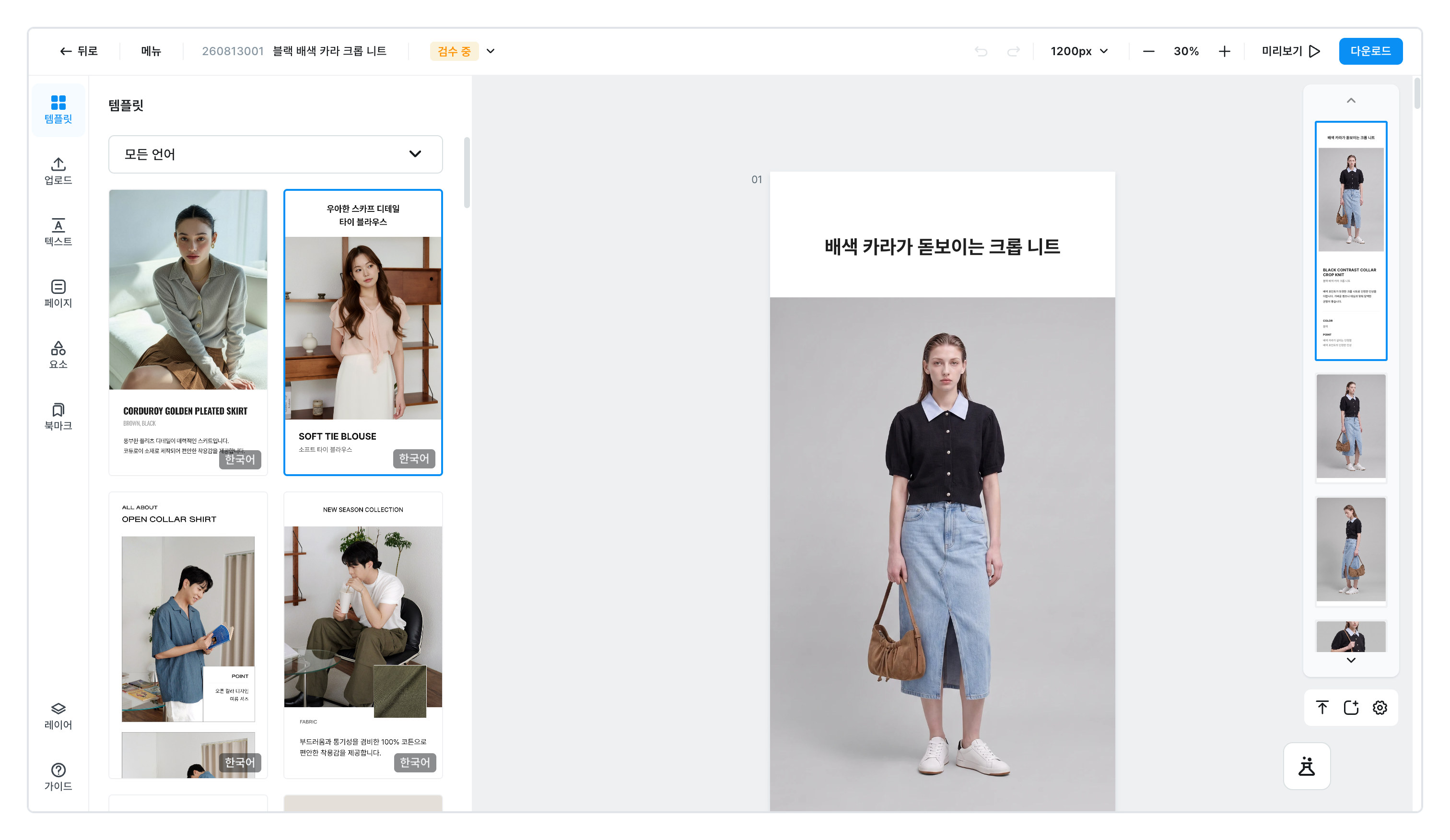
- 1MenuSave, version history, find text, dark mode and shortcuts all live here. Menu
- 2Layers tabPick overlapping elements from a list. New in this release. Layers tab
- 3CanvasClick what you want to change and the toolbar appears right here. Toolbar
- 4PreviewSee only the finished result full screen, and download it from there. Preview
New8
Saving now happens on its ownForget about the save button.
Forget about the save button. Your work saves 10 seconds after you pause, and at least once every 3 minutes while you keep working. Big changes like adding a photo or a page save immediately, and closing the window saves once more.
You can always check the save status at the top of the screen — Saving · Saved. Because saving happens quietly so it never interrupts you, there is no notification when a save succeeds. Notifications appear only when you save manually.![Clicking [Menu] opens Save, Version history, and Find text on the left](/en/assets/screen-editor-where-menupanel-en.jpg)
When you've edited for a while and the original looked better, use version history. If undo cancels the single action you just took, version history is closer to going back to yesterday's state. Click [Menu] → [Version history] and the saved points appear grouped by date.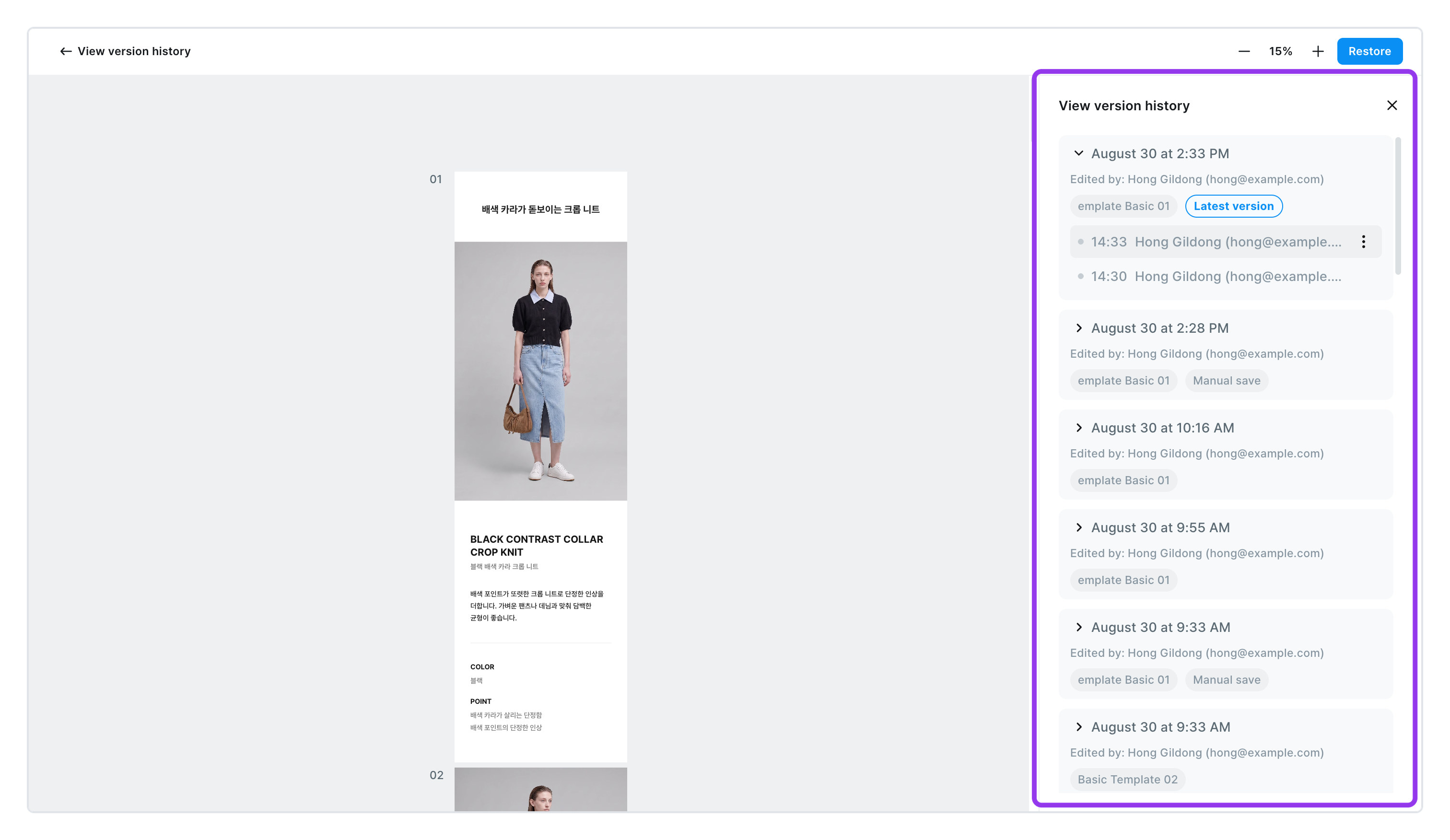
- Each row shows the time it was saved, who saved it, and the template applied at that moment. Rows you saved yourself carry a
Manual savelabel. - When you click [Restore], the state right before restoring is automatically saved one more time. So even if you change your mind, you won't lose where you are now.
- Once the restore finishes, [Undo restore] appears at the top of the screen for 5 seconds. Click it there if you restored the wrong point.
![[Undo restore] appearing at the top of the screen](/en/assets/screen-editor-ver-step4-en.jpg)
Save history is kept with no time limit, whatever your plan.
A toolbar appears right where you clickClick whatever you want to change and a small toolbar appears right above it.
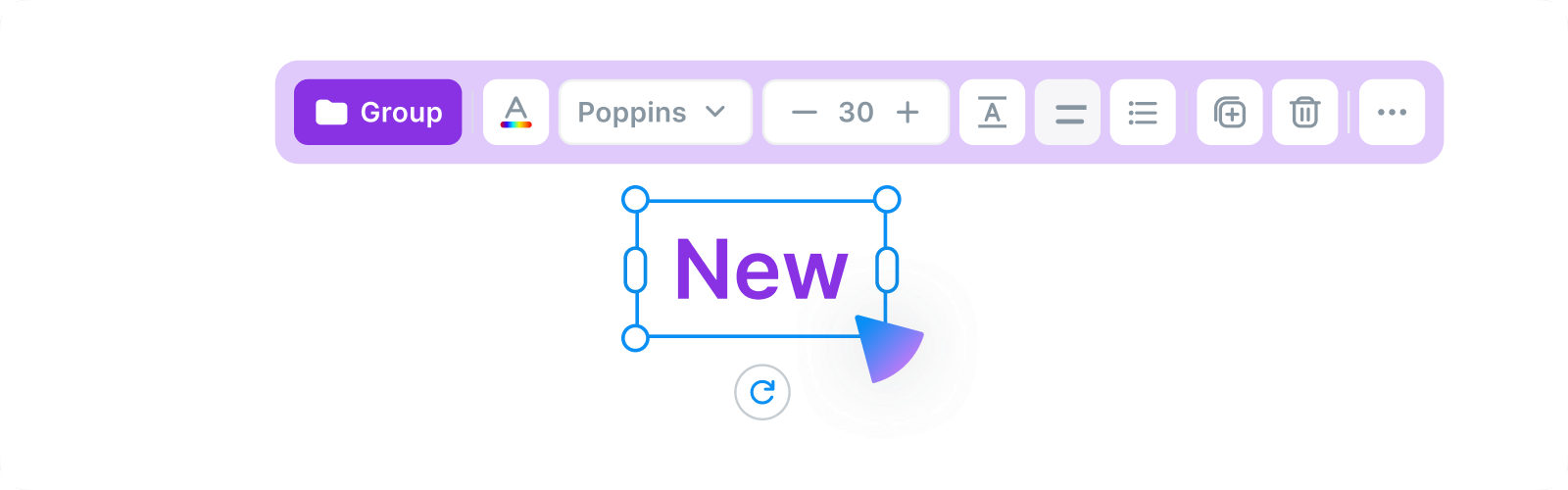
Click whatever you want to change and a small toolbar appears right above it. No more hunting through tabs. Click a photo and you get the photo toolbar, click text and you get the text toolbar, click a page and you get the page toolbar.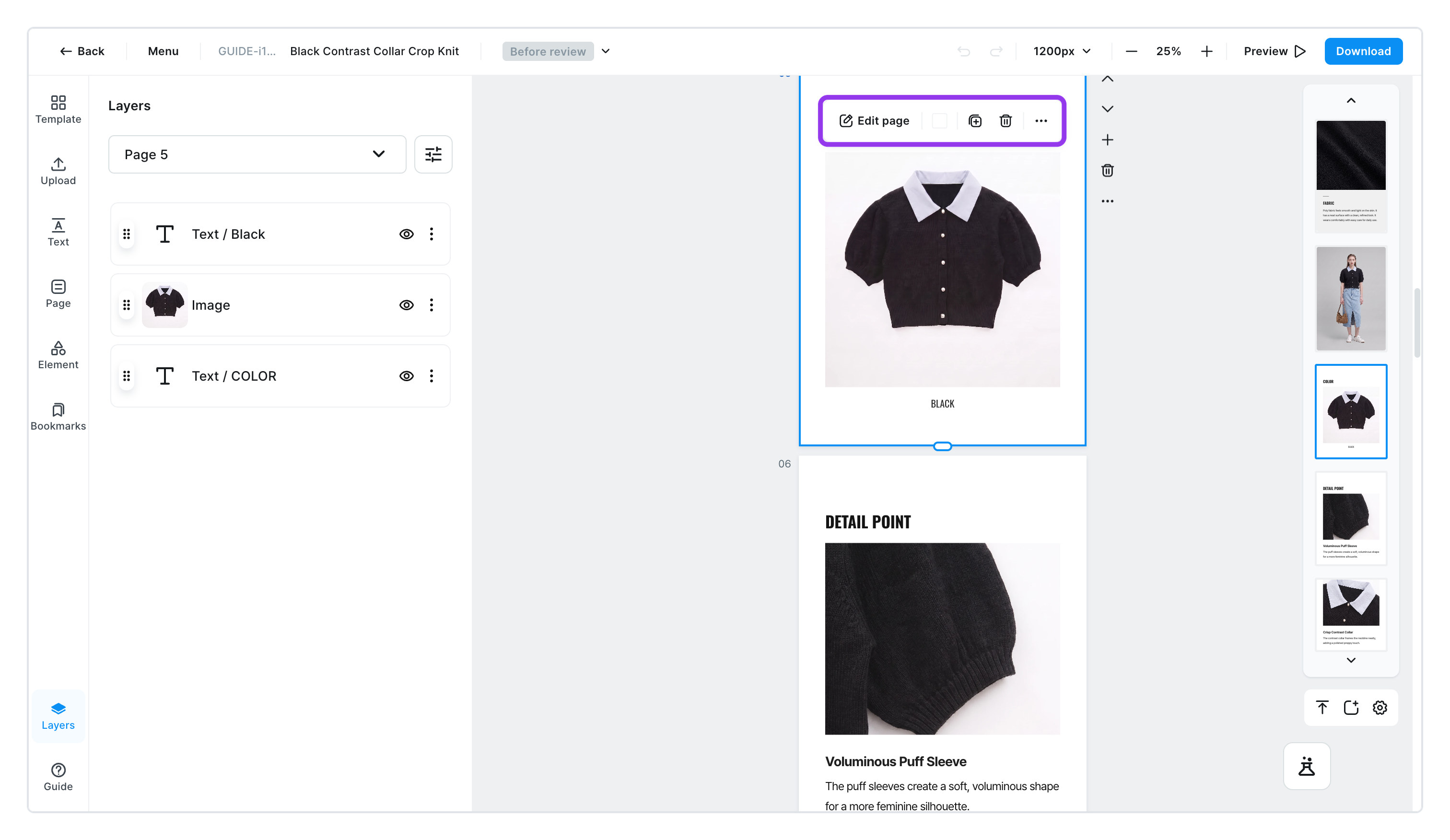
[More] on the page toolbar gathers the page actions.
- Paste ㅣ pastes what you copied into this page. This is the only way to move an element to another page.
- Duplicate page · Add page · Delete page · Bookmark page
- Image download (jpg / png) ㅣ saves just this one page right away. No need to open the download dialog.
Change the background color straight from the color circle on the toolbar, and reorder pages with the up and down buttons beside them.
Bulk edit — many at onceWhat used to mean fixing colors one by one and fonts one by one is now a single step.
What used to mean fixing colors one by one and fonts one by one is now a single step. Drag a box across empty space and everything inside it is selected; hold Shift and click to add them one at a time.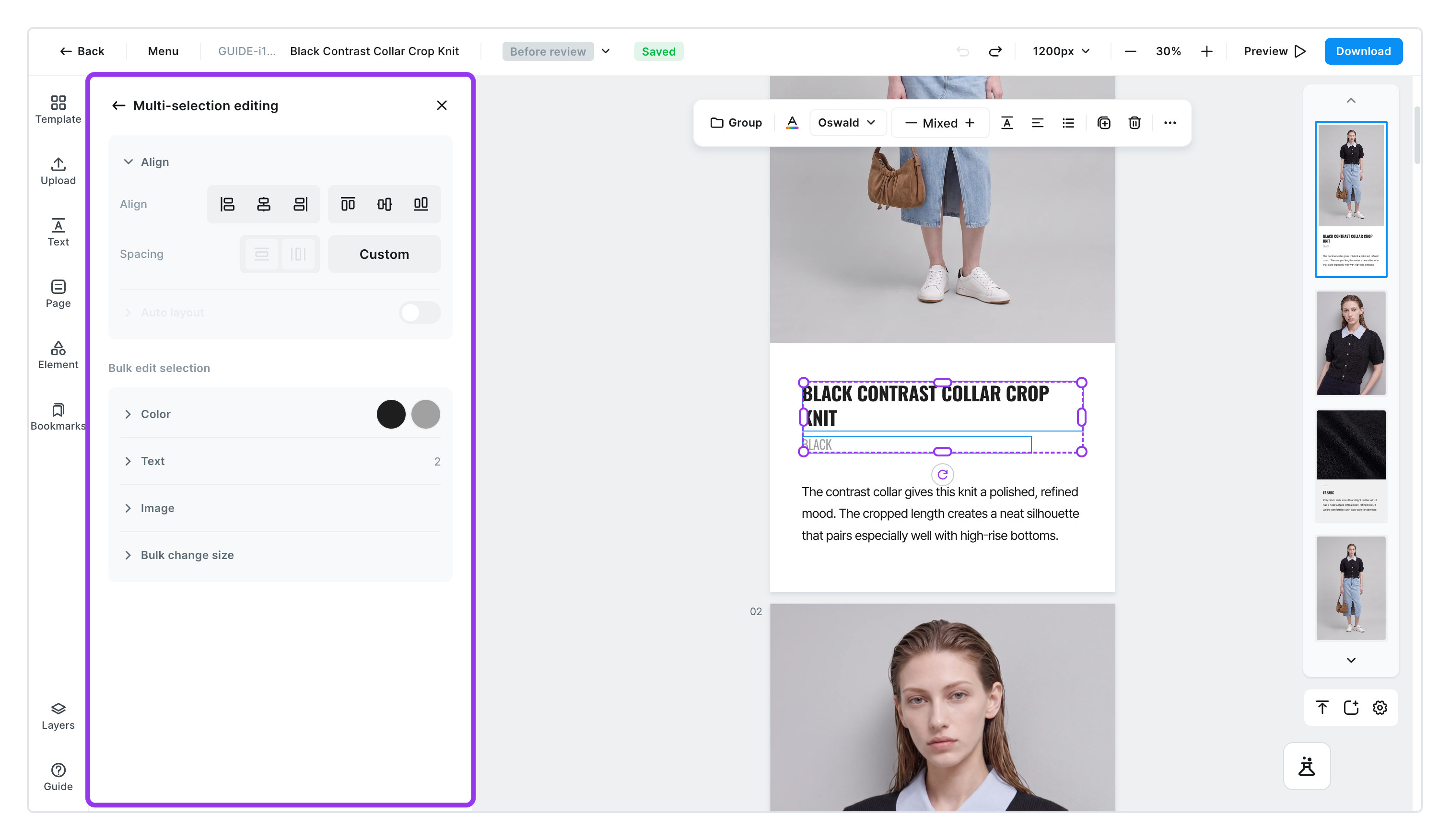
| Item | What it changes |
|---|---|
| Color | Every color used in your selection, changed to another in one go |
| Text | Font and size, all at once |
| Image | The selected photos, swapped for others |
| Resize all | Width and height, set to the same size |
It applies immediately, with no confirmation dialog. If you don't like it, ⌘Z (Ctrl+Z on Windows) takes it back.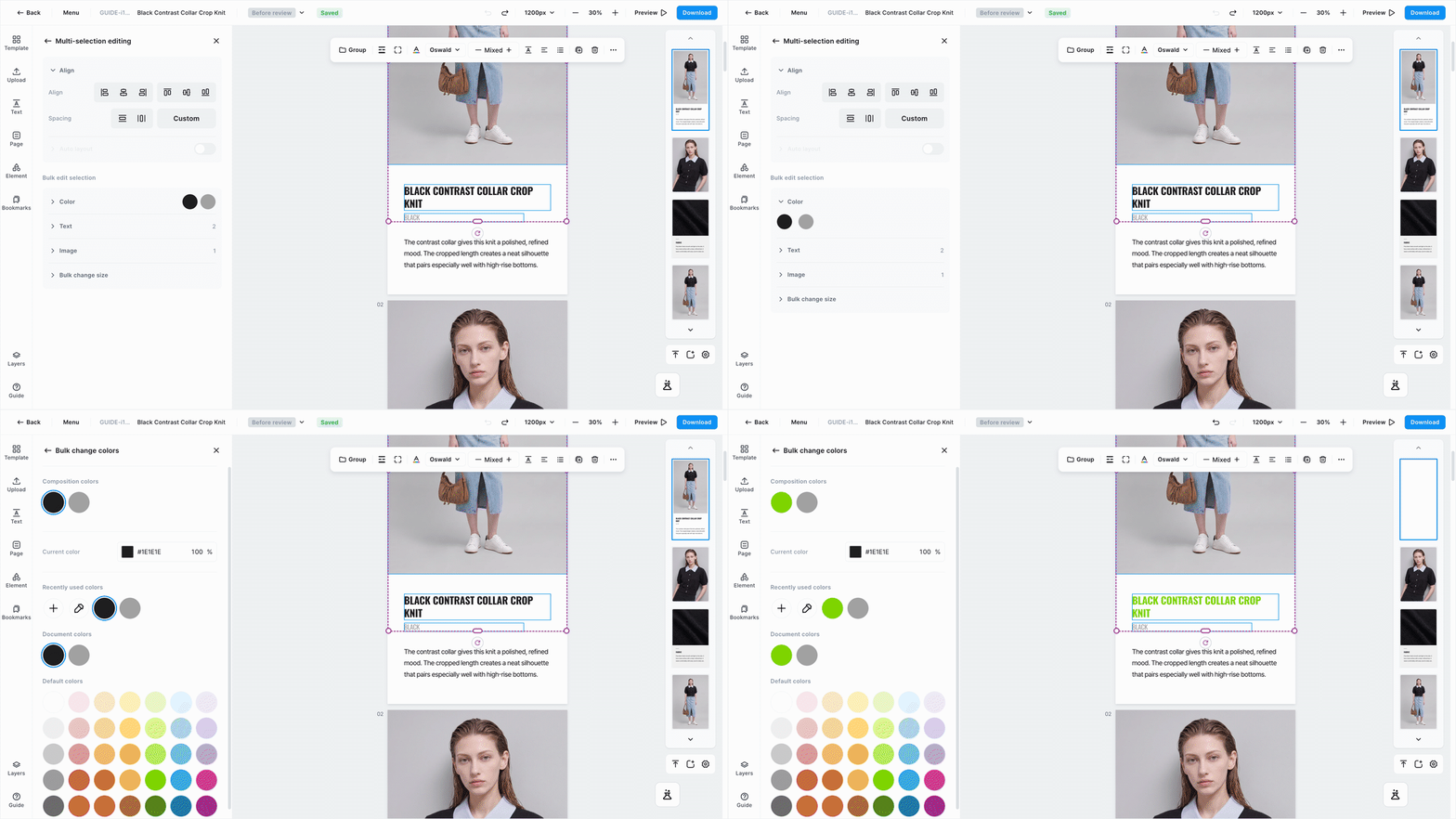
Mixing photos and text in one selection is fine. It applies only where it makes sense — select both and change the color, and only the text color changes while the photos stay put. Click a page and use page bulk edit to apply the same idea across that whole page.
Groups and auto layoutSelect two or more and press [Group] (⌘G) to handle them as one.
Select two or more and press [Group] (⌘G) to handle them as one. They move together and resize together. To change just one item inside, double-click your way in and press Esc to come back out. They don't have to be the same kind, and groups can be grouped again.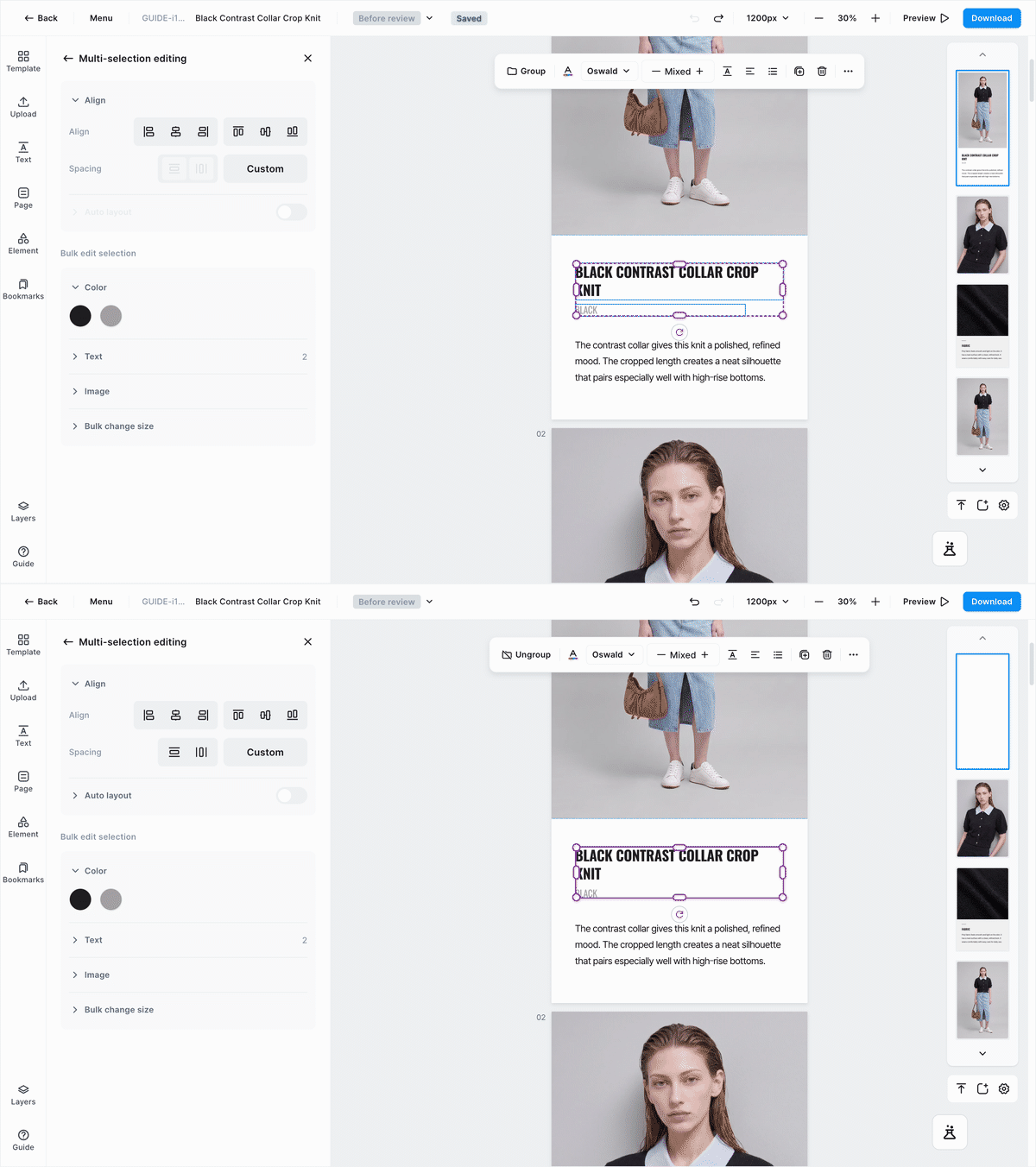
Once grouped, turn on [Auto layout] and the spacing inside looks after itself. Say you lined up four photos and evened out the gaps by hand. Delete one and you're left with a hole to fix by moving everything again. With auto layout on, the remaining three line themselves back up.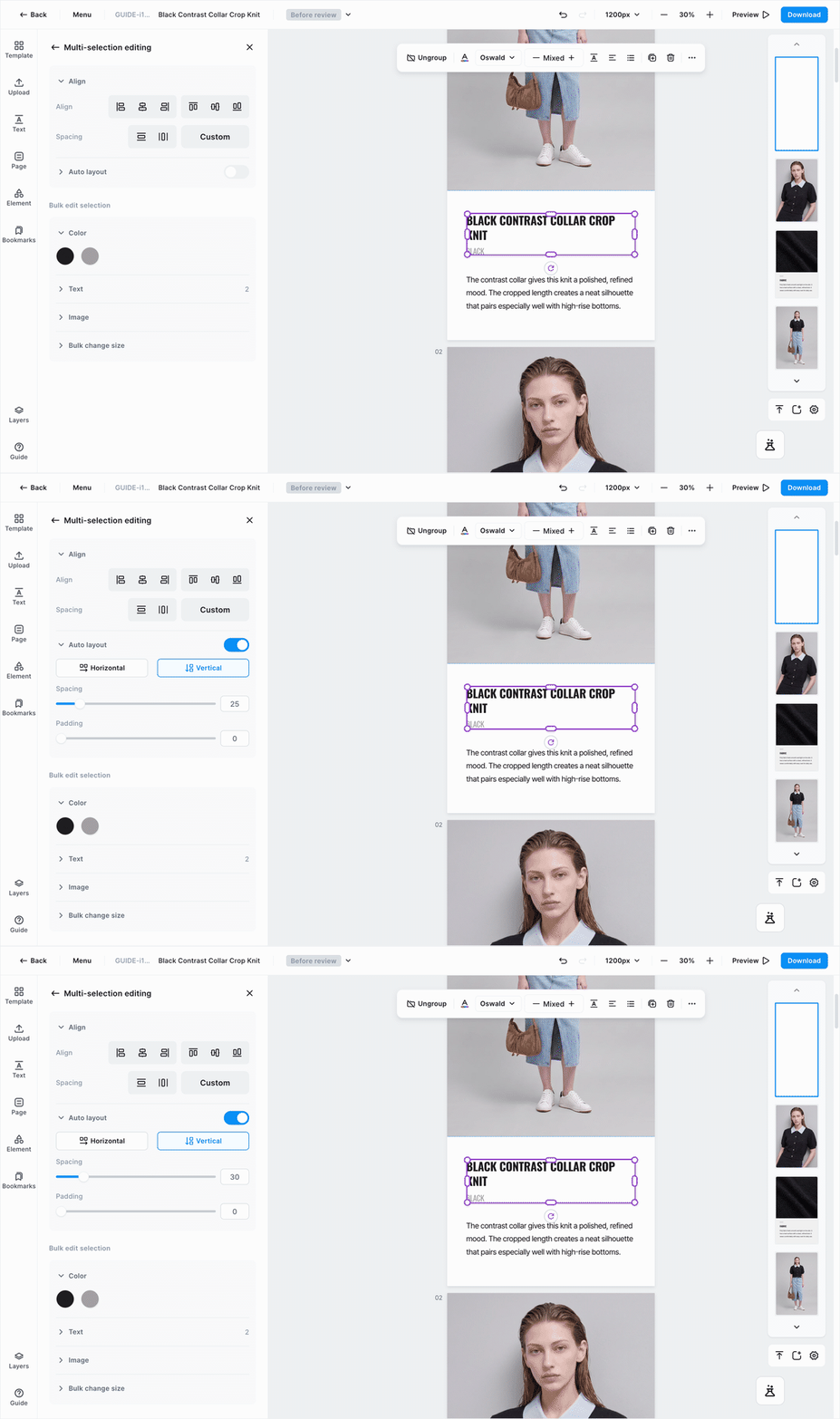
- Choose which way they line up —
HorizontalorVertical. Spacingis the distance between the items inside;Paddingis the distance between the group's edge and its contents.- With it on, you can drag items inside to reorder them. The rest line up around wherever you drop it.
Animated GIFs go in as they areAdd a GIF like any other photo and it keeps playing on the edit screen — no play button needed.
Add a GIF like any other photo and it keeps playing on the edit screen — no play button needed. In the upload panel the first frame sits still with a GIF label in the bottom right, and it starts moving as soon as you hover over it.![Click [Upload] in the left menu to open the panel for adding photos](/en/assets/update-editor-upload-en.jpg)
- What works ㅣ resizing, cropping, rotating, shadows, rounded corners. You can style it and keep the motion.
- What doesn't ㅣ color adjustments, filters, and blend won't apply, and neither will color grouping, auto-rearrange, or setting it as the cover.
To keep the motion, you must save as html. Save as jpg or png and you get a still of the first frame.
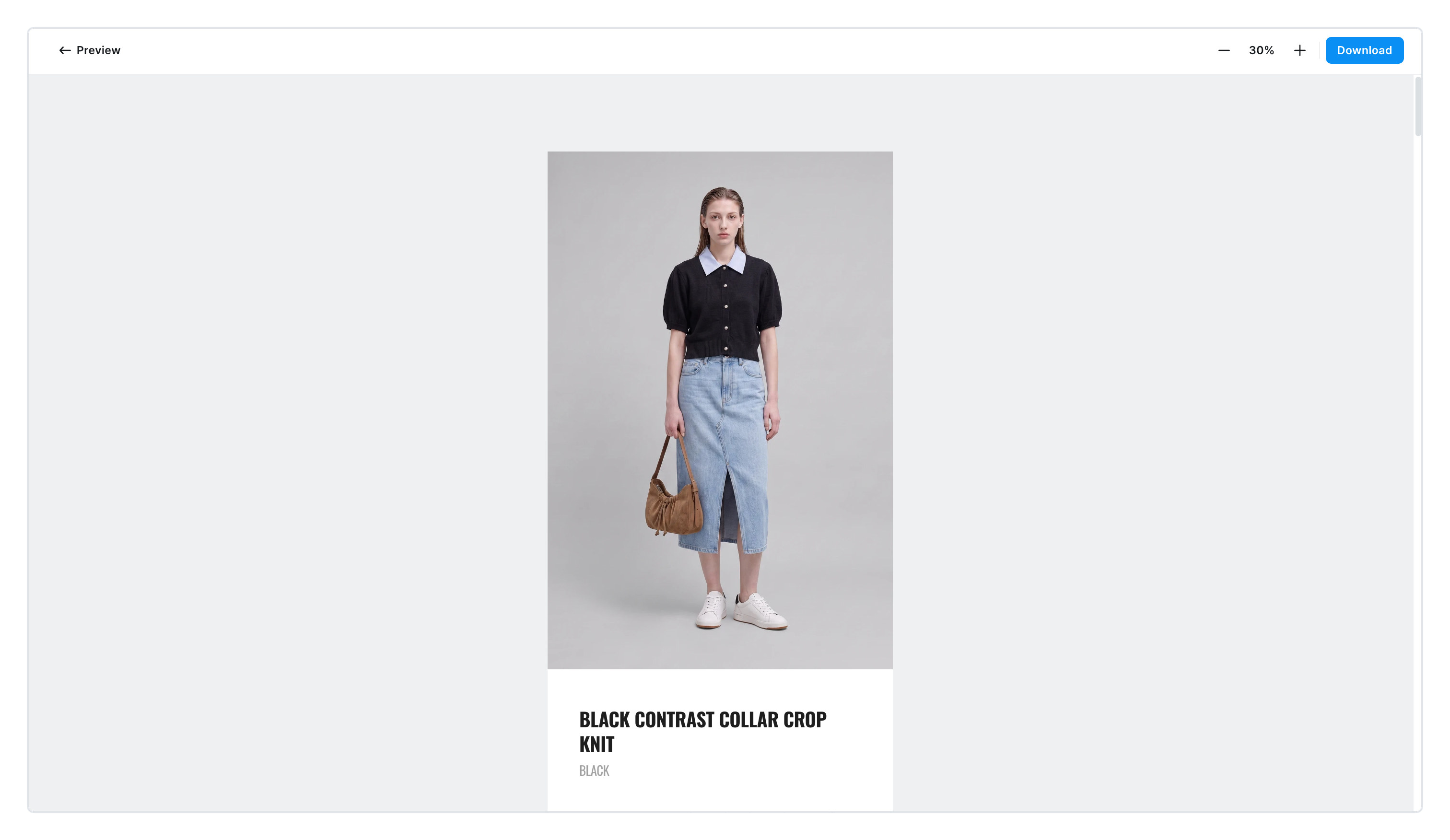
Preview — the finished result as it isClick [Preview] at the top right and the page fills the screen with only the finished result — no selection marks, no guides.
Click [Preview] at the top right and the page fills the screen with only the finished result — no selection marks, no guides. Check it here before you download.
- Flip through pages with the arrows, and zoom in and out with
− % +. - Links you added actually open. Use this to make sure no address is wrong.
- When everything looks right, hit [Download] without leaving the screen.
Dark modeWorking late, a bright screen is hard on the eyes.
Working late, a bright screen is hard on the eyes. Turn on [Menu] → convenience settings → [Dark mode] and the area around the edit screen dims so your eyes tire less.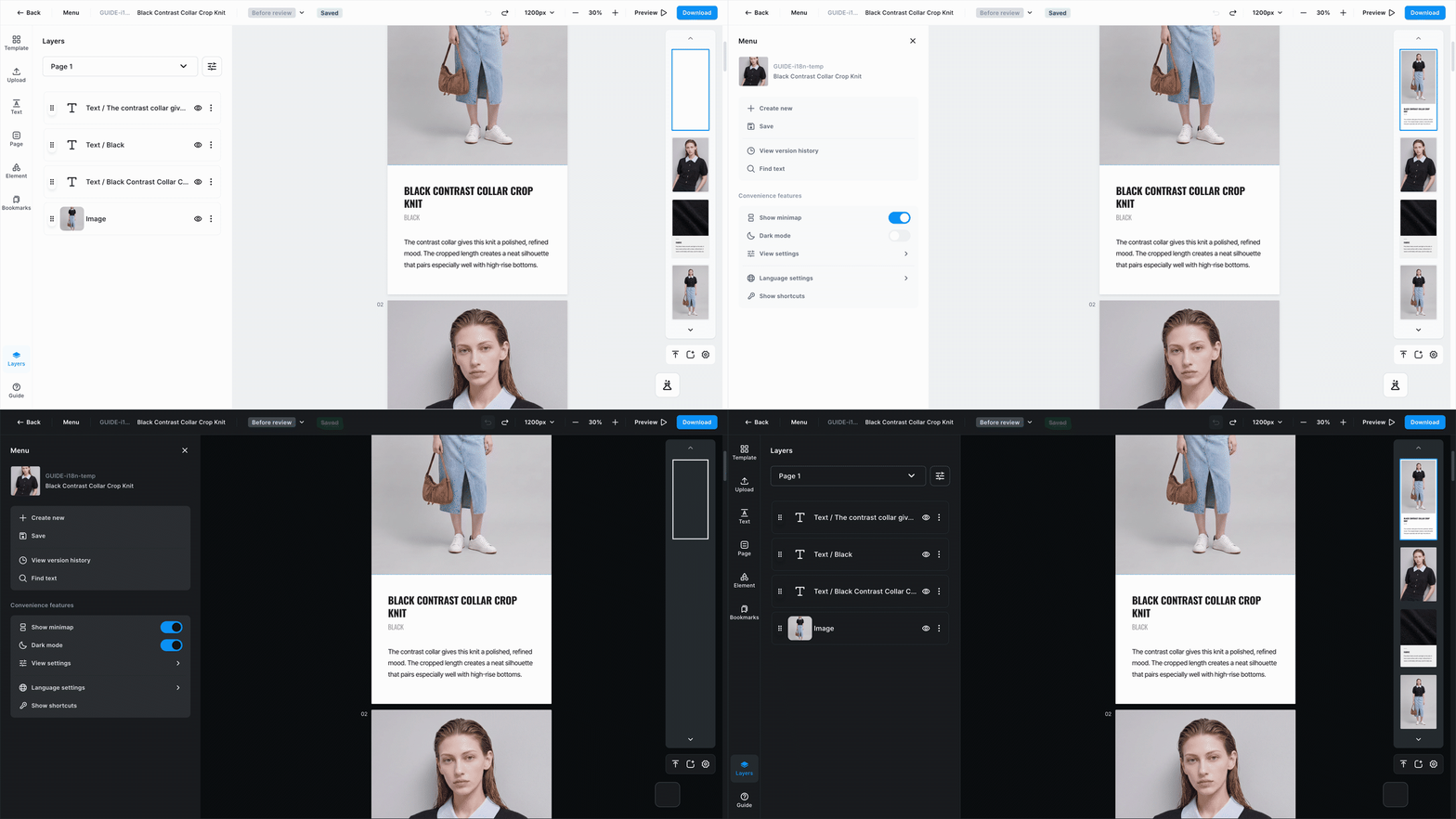
Only the screen dims — your product detail page stays exactly the same. The finished page and the files you download are untouched. Turn it on once and it stays on next time you come back.
The same convenience settings let you turn rulers · guides · grid on and off. Drag from a ruler to create a guide; guides are reference lines that show on screen only, so they never appear in the files you download.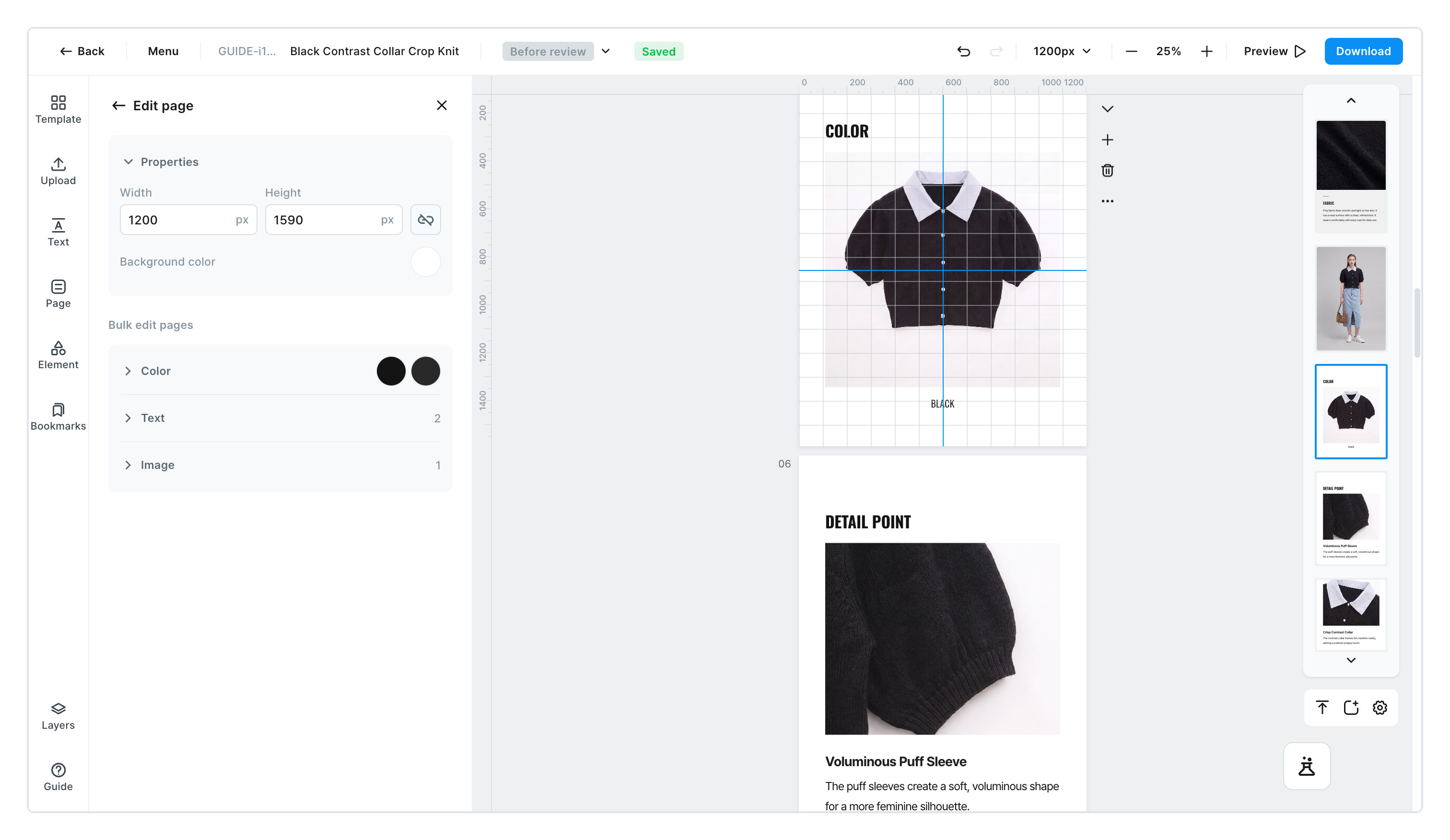
Layerspick overlapping elements precisely from a list, and hide one temporarily with the eye icon.
pick overlapping elements precisely from a list, and hide one temporarily with the eye icon.
Improved1
Vertical text · Find text · Replace image · ShortcutsVertical text ㅣ lay text out top to bottom.
- Vertical text ㅣ lay text out top to bottom. It suits Japanese product detail pages well.
- Find text ㅣ use [Menu] → [Find text] to search a long product detail page and change wording in one go.
- Replace image ㅣ select a photo, then click a new one in the upload panel and the size and position stay while only the photo changes. A product detail page can use up to 50 photos.
- Shortcuts ㅣ run common actions straight from the keyboard. The full list is under [Menu] → [View shortcuts].
Worth knowing
- To keep a GIF moving, save as
html. Saved asjpgorpngit becomes a still of the first frame. - To move elements to another page, use paste. It is under [More] in the page toolbar.
- A single product detail page can use up to 50 photos.
Try it yourself
The biggest change in this release is that the toolbar follows what you pick. Pick a photo and the photo tools appear; pick text and the text tools appear, right there.
Try text, a shape, a photo. The toolbar above changes completely with what you pick, and color, size, align and corners really work.