Pick a template first · Fit bottom padding · Inner alignment
Three things just got easier. Pick the template before you generate, pages grow to fit what you put on them, and grouped items line up where you tell them to.

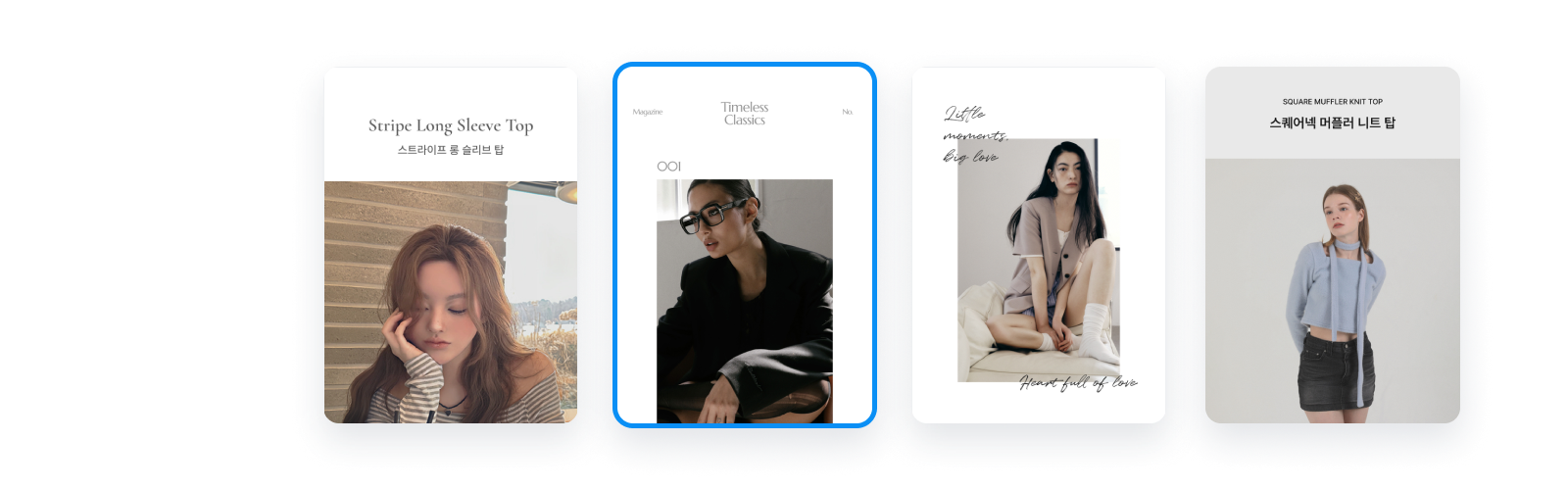

At a glance
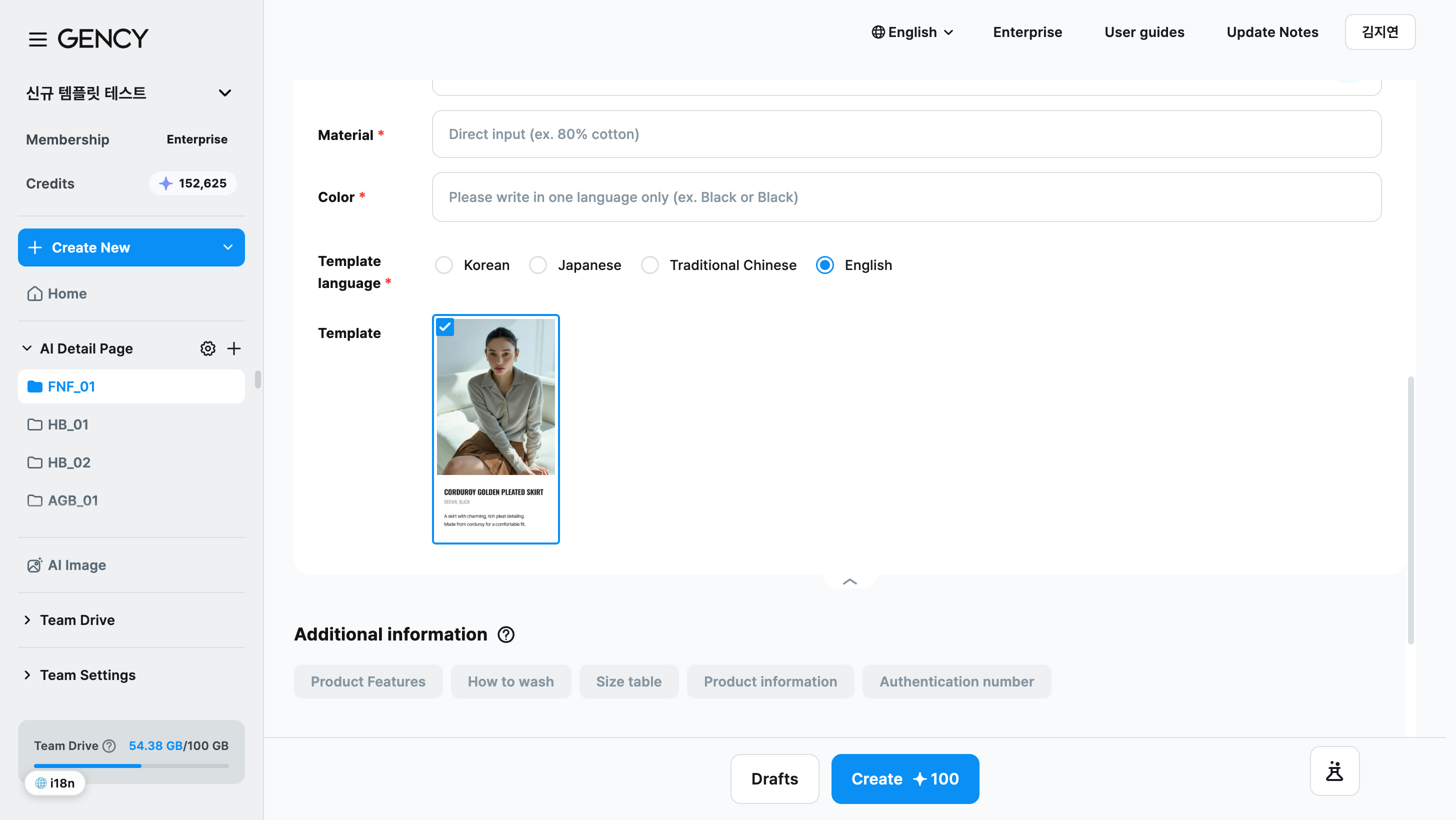
- 1Template languagePick Korean, Japanese, Traditional Chinese, or English and that language's templates appear in the row below. Your choice becomes the default next time. Creating detail pages
- 2TemplateClick a card to choose it and use [Preview] to check the whole page. The check mark shows the selected template. Creating detail pages
- 3FavoriteHover over a card and click the star to favorite it. Favorites come first on the create screen and in the Editor's template tab. Creating detail pages
- 4GenerateGenerates with the language and template you chose. You can still switch templates in the Editor afterwards. Creating detail pages
New2
Pick a template before generatingChoose the template language and template on the create screen, check the whole thing in a preview, then generate. Favorited templates come first.
Until now you had to generate first and then switch templates in the Editor. Now you choose the template language (Korean · Japanese · Traditional Chinese · English) and the template on the create screen, check the whole thing with [Preview], and then generate.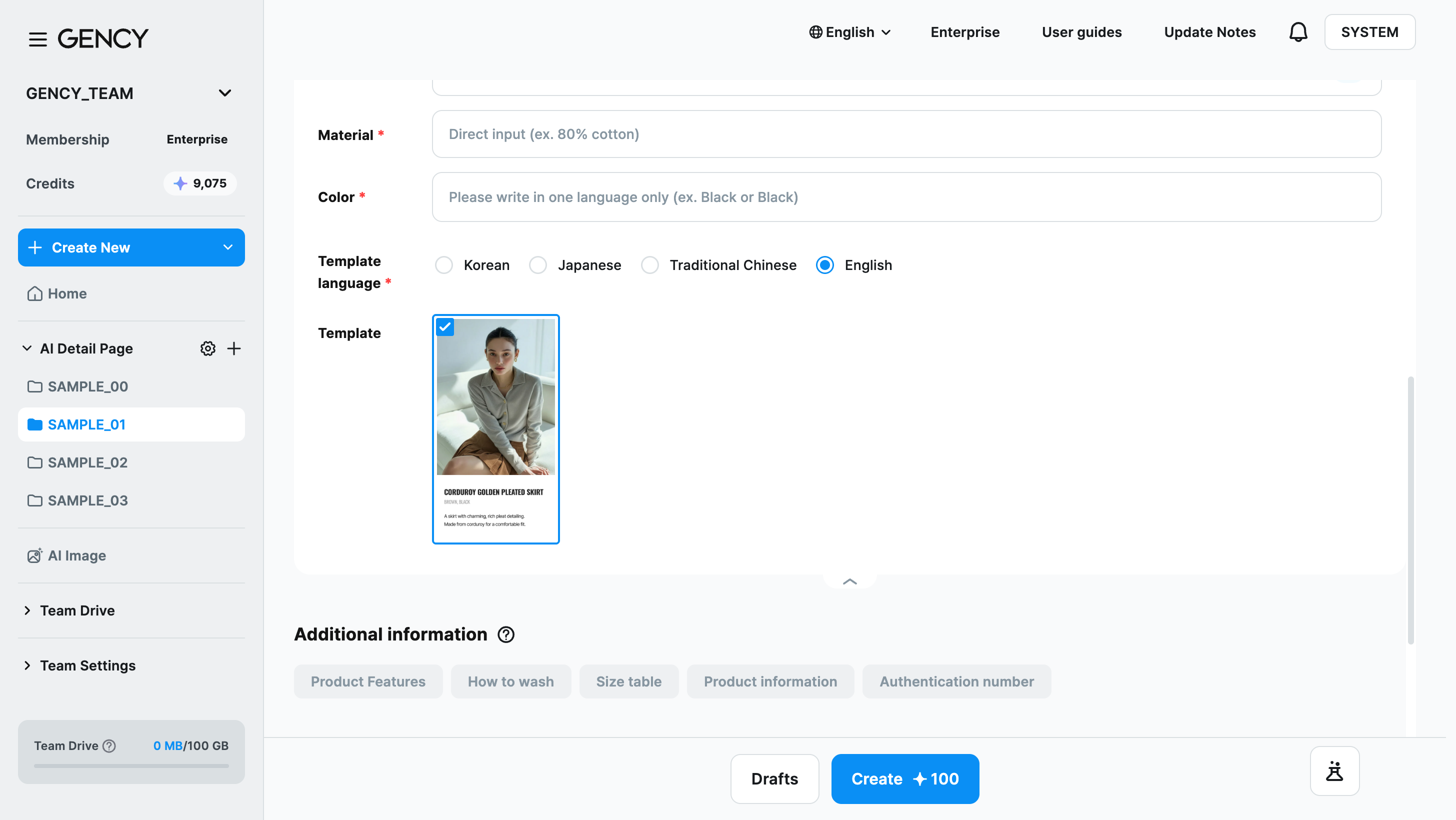
- Hover over a card and click the star to favorite it. Favorited templates come first both on the create screen and in the Editor's Template tab.
- Once you pick a template language, it's selected by default from the next generation on. The display language (globe icon) now only changes the language of menus.
- The Editor's Template tab is sorted favorites first, then templates in the chosen language.
Fit bottom paddingWhen content runs past the bottom of a page, the page grows to fit it. Set the bottom padding as a number, or adjust the height by hand with the handle.
Add a few lines of text or drop in another photo, and when the content runs past the bottom of the page, the page grows to fit it. It happens the moment you drop an element or finish editing text, and the page keeps the bottom padding it already had.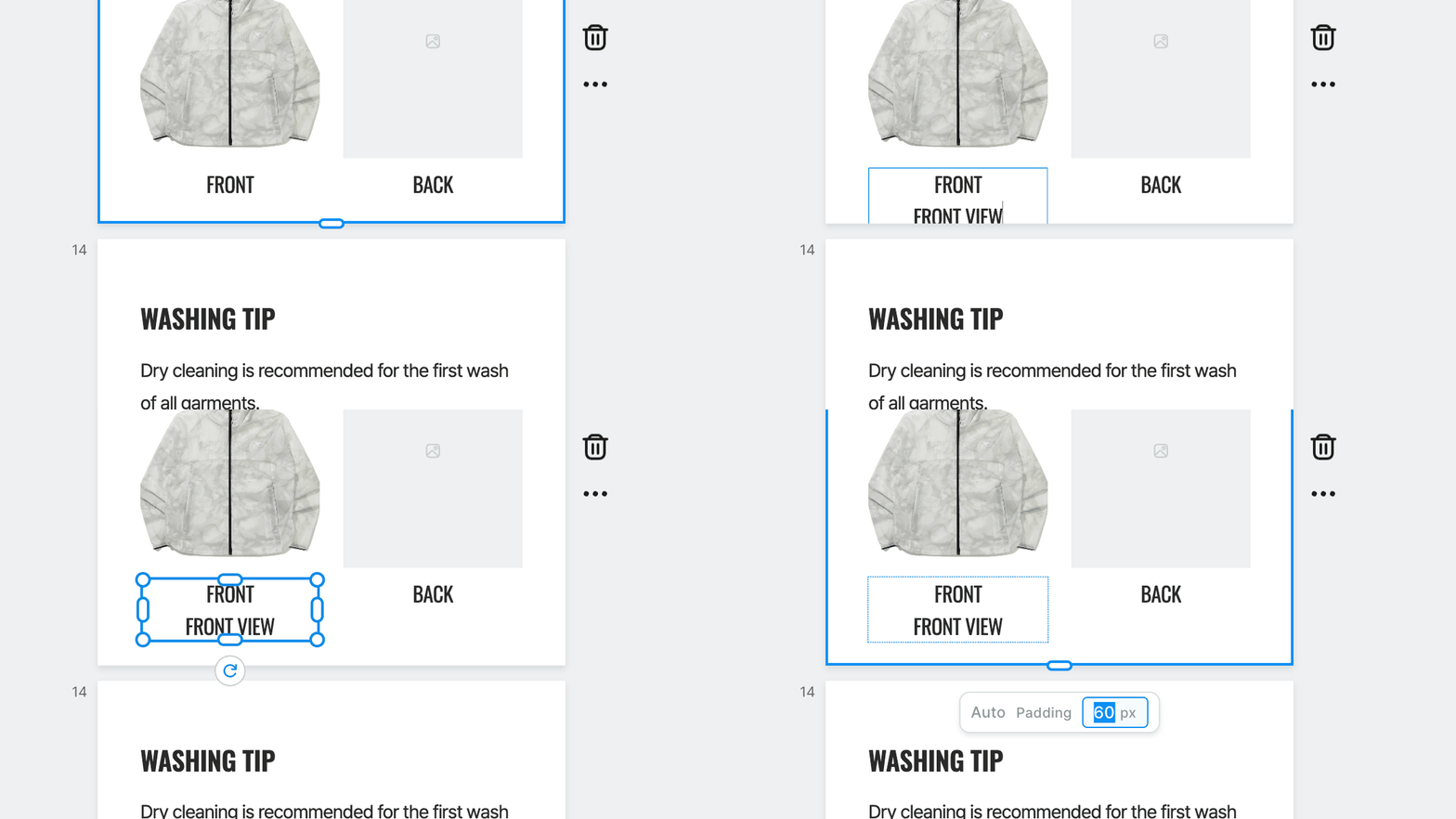
- Click a page and hover over its bottom edge to see
Auto ㅣ Padding [N] px. Change the number and pressEnterto set that page's bottom padding. - Drag the handle at the bottom edge to set the height by hand. A page you've adjusted stops growing on its own — click [Fit bottom] in the same control to go back to automatic.
- Don't need it? Turn off
Fit bottom paddingunder [Menu] › Convenience features. It applies to your whole account.
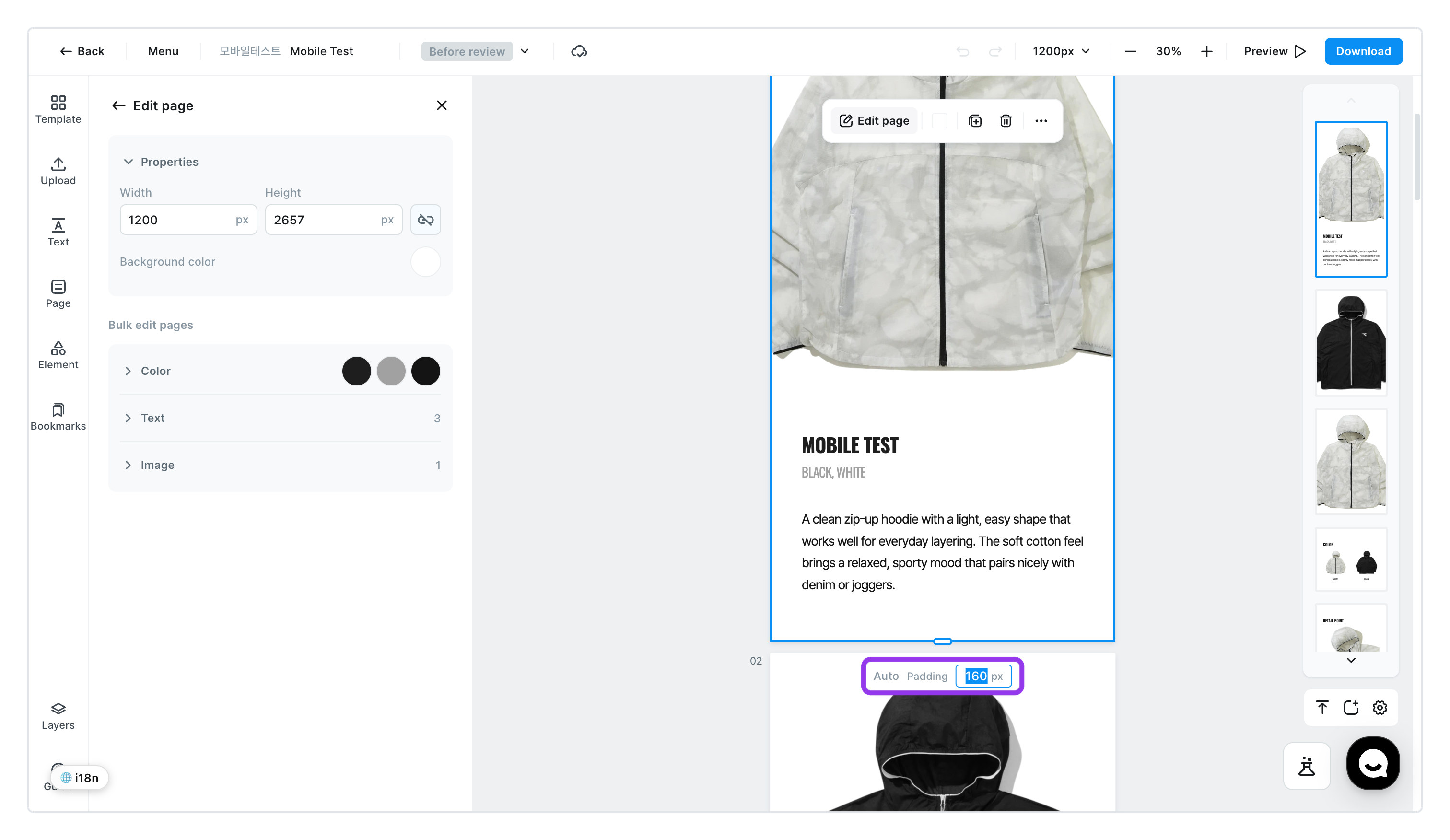
A photo that fills the page like a background doesn't grow with the page. If a strip with no background shows at the bottom, stretch the photo or match the page background color.
Improved1
Inner alignment for auto layoutChoose one of nine positions — top, center or bottom, left, center or right — for the photos and text inside a group.
Group photos and text of different sizes, turn on [Auto layout], and a nine-cell Inner Alignment grid appears under Size and Alignment in the left panel. Combine top, center or bottom with left, center or right to choose where the items sit.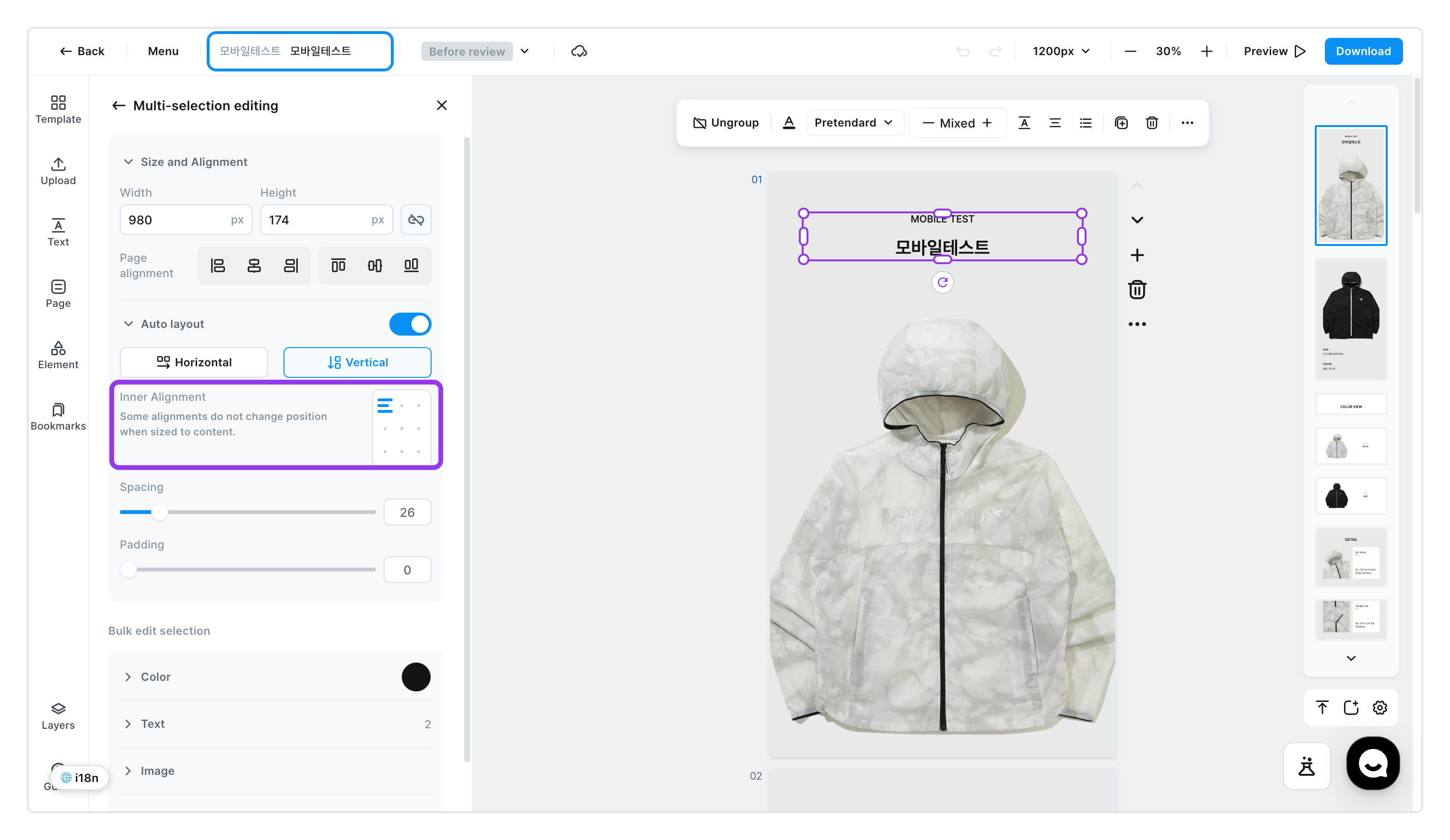
- A group is sized to its content by default, so along the direction items are laid out there's no empty space and nothing moves. Enter a
WidthorHeightlarger than the content to see the alignment take effect. - Anything you've set on an individual item inside the group stays as it is.
For details, see Fit bottom padding and Groups and auto layout.
The GENCY Team
Worth knowing
- Grew when you didn't want it to? One
⌘Z(Ctrl+Zon Windows) brings back both the text and the page height. - A photo that fills the page like a background doesn't grow with it. If a strip shows at the bottom, stretch the photo or match the page background color.
- Don't need it? Turn off
Fit bottom paddingunder [Menu] › Convenience features. It applies to your whole account.