Download product detail pages in bulk · Notifications
No more going in and out of the Editor to download product detail pages one at a time. Pick them in the workspace, request them all at once, and carry on with what you were doing while they're prepared.

At a glance
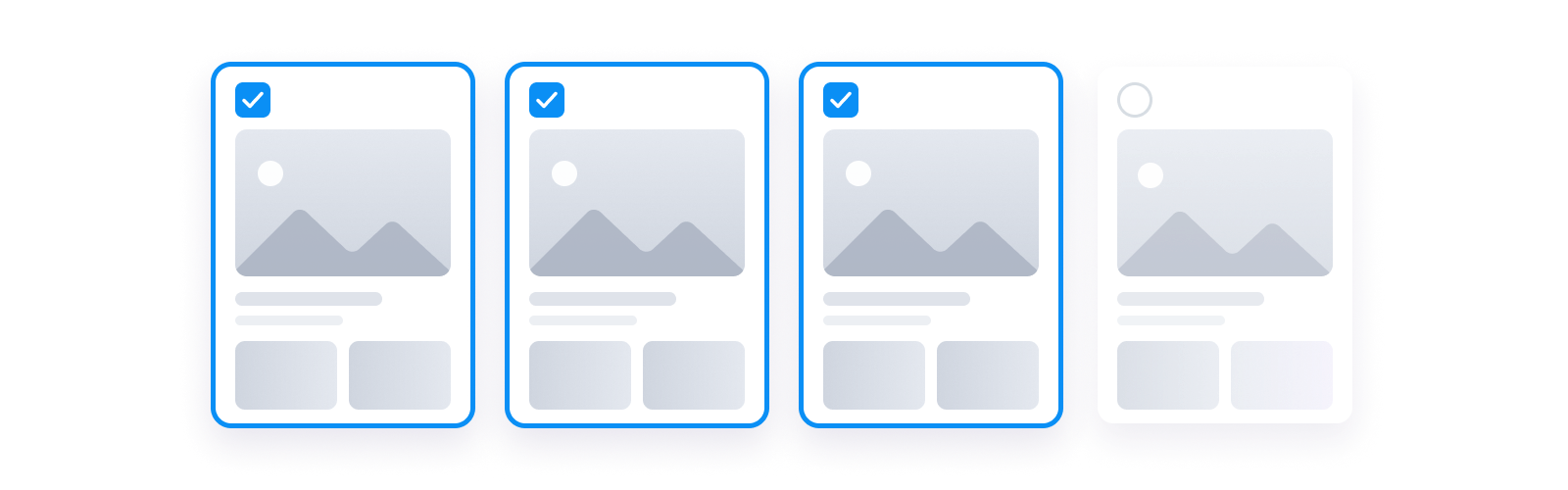
- 1Pick pagesCheck them in list or card view. You can pick up to 50 at a time. How to pick
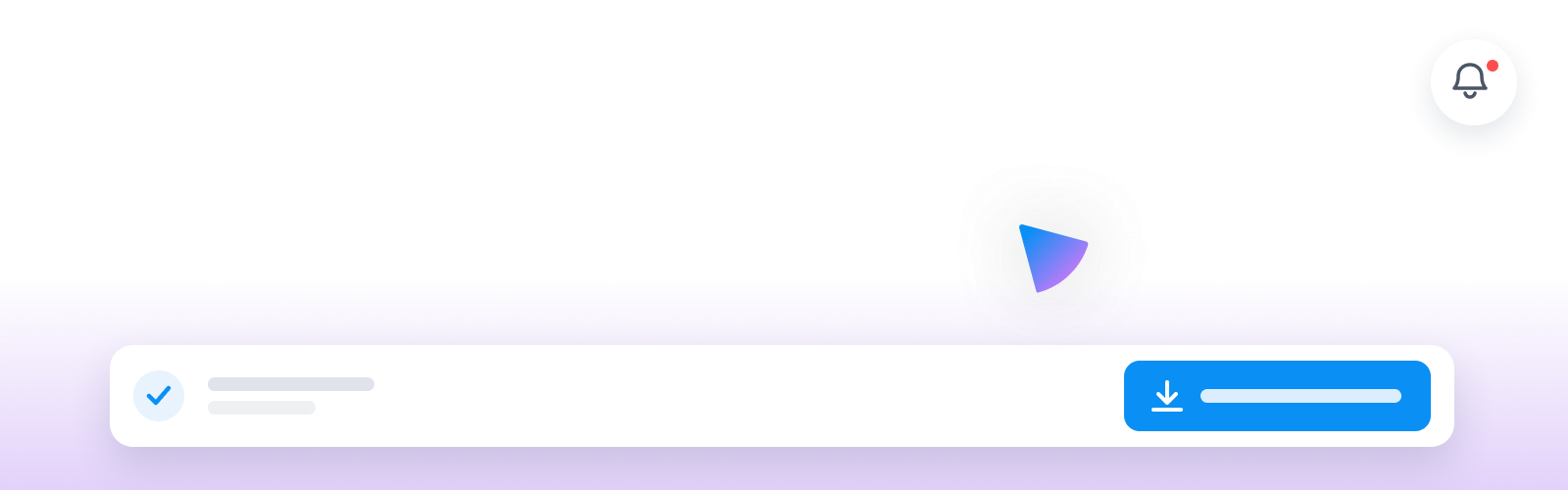
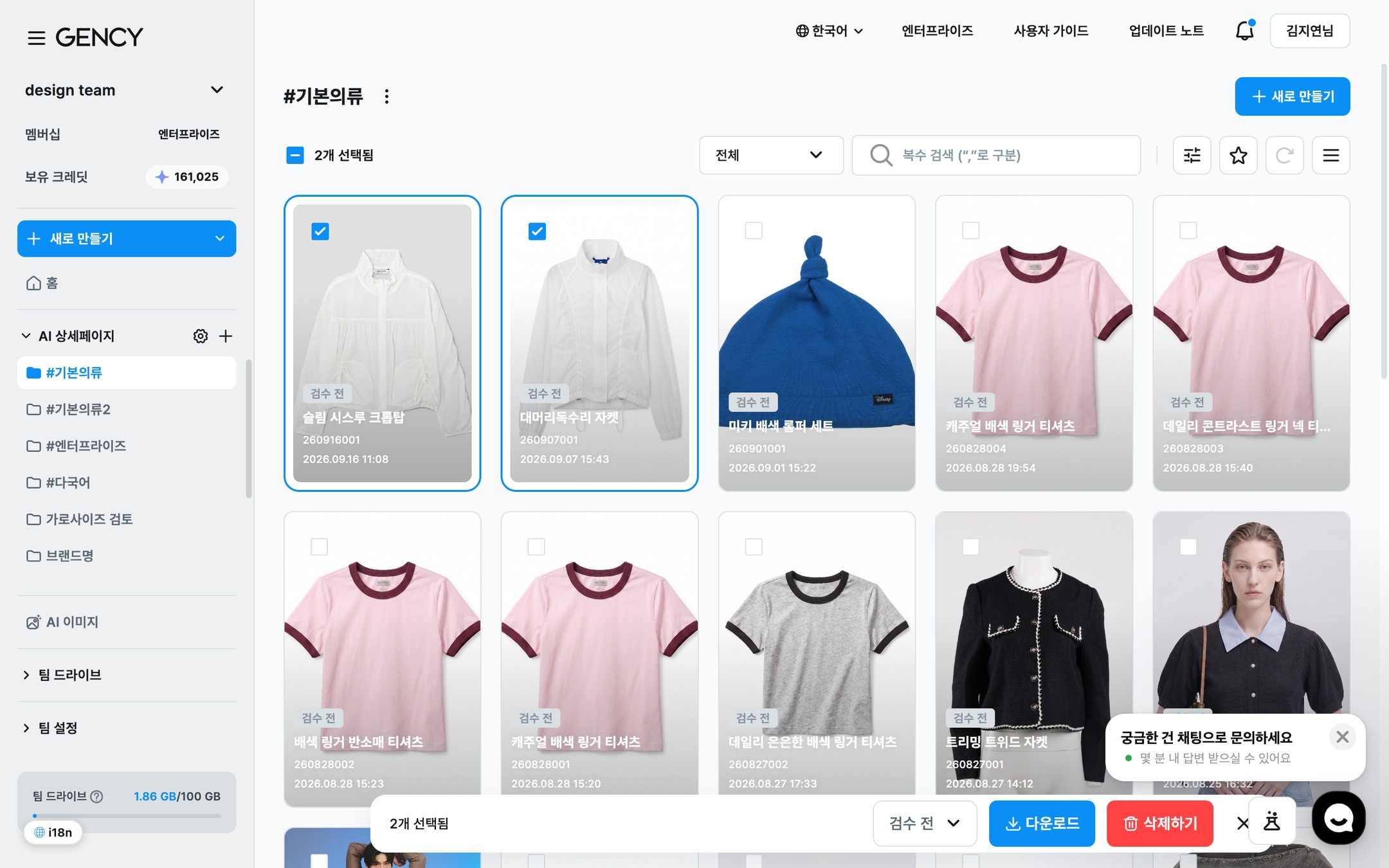
- 2Action barAn action bar appears at the bottom once you pick something. [Download] is the new button here. Downloading in bulk
- 3DownloadOpens a window where you choose merge, file name, width, file type, and where to save. Choosing settings
- 4BellProgress and results collect here. A dot appears while something is in progress or unread. Checking progress
New2
Download product detail pages in bulkPick several in the workspace and get them all at once. No more opening the Editor one by one — save straight to your computer or Team Drive.
Select product detail pages in the workspace list and [Download] now appears in the action bar at the bottom. Click it to open the settings window, and up to 50 are saved at once the way you set them up there.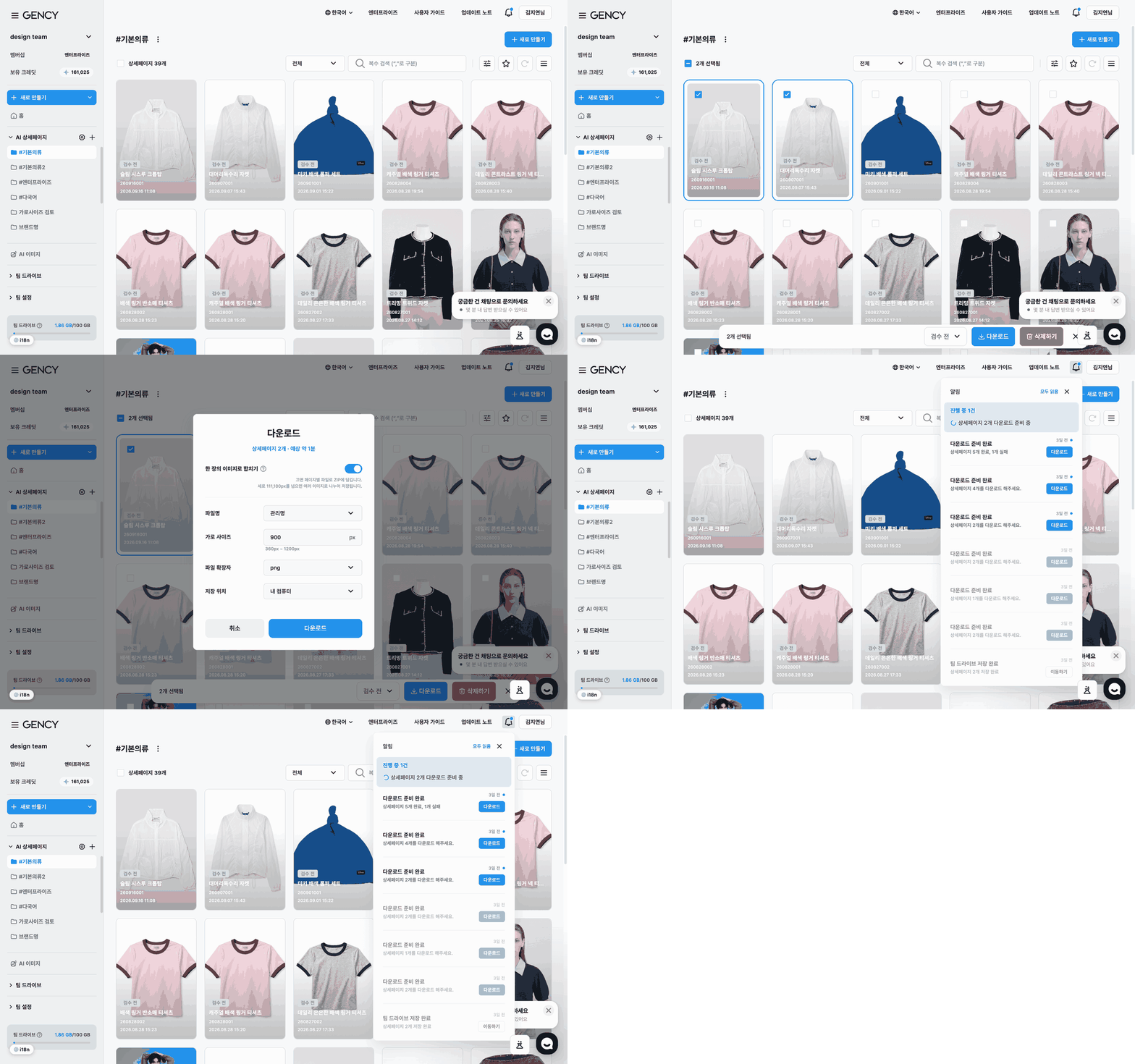
- Set merge · file name · width · file type · save location once and it applies to everything you picked.
- Choose to save to My computer or Team Drive. If you pick Team Drive, a window opens for choosing the folder.
- Your last settings come back next time. If you always download the same way, there's nothing to change.
- To download just one, click ⋮ on a product detail page in the list and choose [Download].
You can download regardless of review status. Before review, in review, and reviewed all work. Only product detail pages that failed to generate are left out.
What you get
File names use the management name or product name, whichever you chose in the settings window. Even when you pick several, each one keeps its own name.
- My computer — one page comes as a file; several come bundled in a single zip.
- Team Drive — saved as folders instead of a zip, so preview and individual downloads keep working in the drive.
- Very long images are split automatically. The split length depends on the width and is shown in the settings window. A split page still counts as one completed product detail page.
See Downloading in bulk for all the settings and the file structure.
Notification panelKeep working while your download is prepared. Click the bell at the top to see progress and results.
When you request a download, the notification panel opens on its own. You can switch workspaces or do something else while the files are prepared.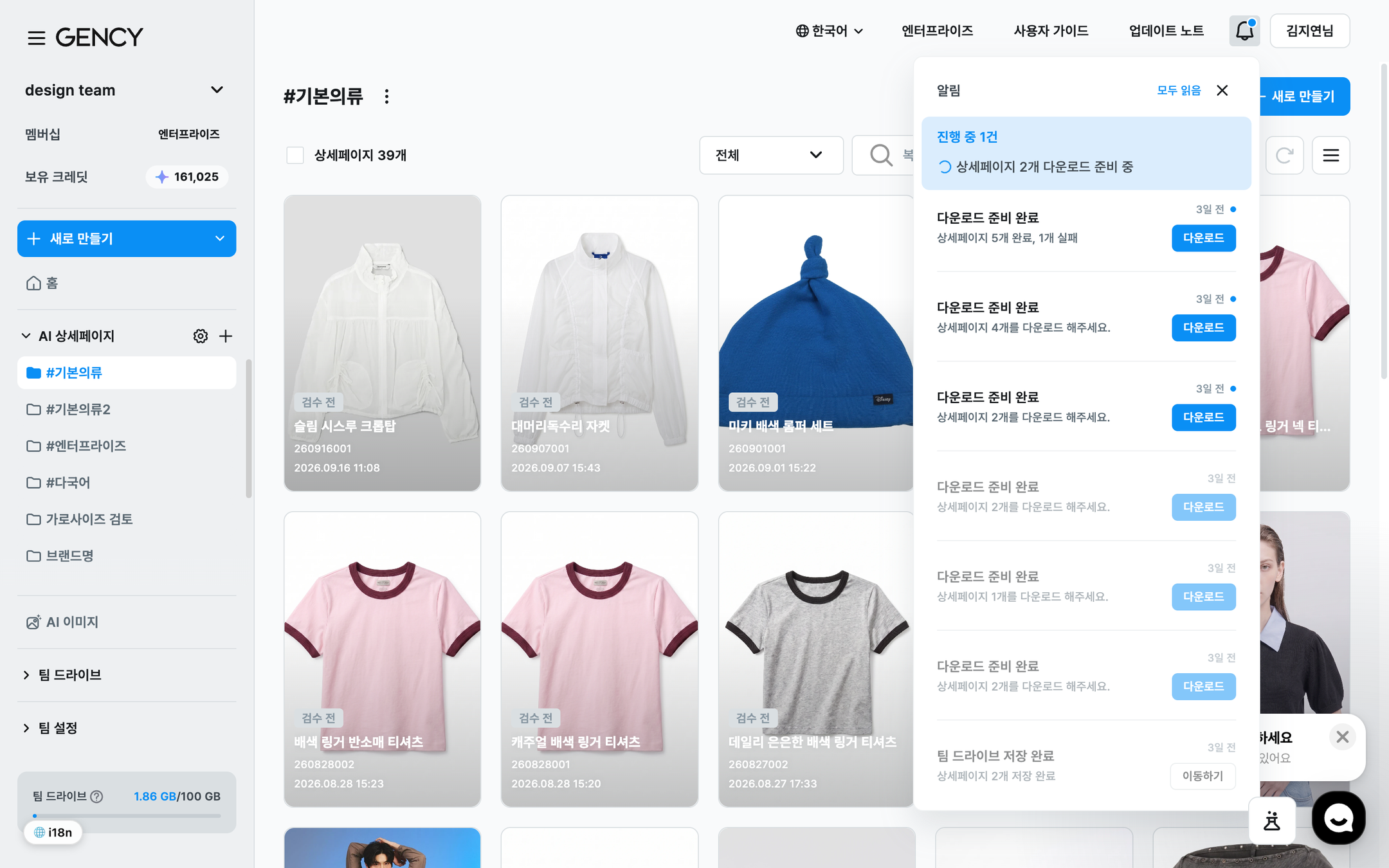
- When it's ready, you'll see "Your download is ready. Check the notification panel." Click [Download] in the panel to get it.
- If you saved to Team Drive, [Go to] takes you straight to where it was saved.
- Click the bell at the top to reopen the panel anytime. A dot appears on the bell while something is in progress or there are results you haven't checked.
- The dot on an unread result disappears when you click that row. You can also clear them all with [Mark all as read] at the top.
It's fine to close the window or refresh while files are prepared. GENCY's servers do the work, so the results will be waiting when you come back and open the notification panel.
Worth knowing
- You can download up to 50 at a time. Pick more and you'll see a notice instead of starting the download.
- It doesn't use credits. You're only saving product detail pages you've already made.
- Product detail pages that failed to generate are left out. There's nothing to download for them.