4 new default templates
Four more default templates are available for clothing detail pages: two romantic designs that put the model in front and two minimal designs with wide product photos. Pick them right away on the Create screen.

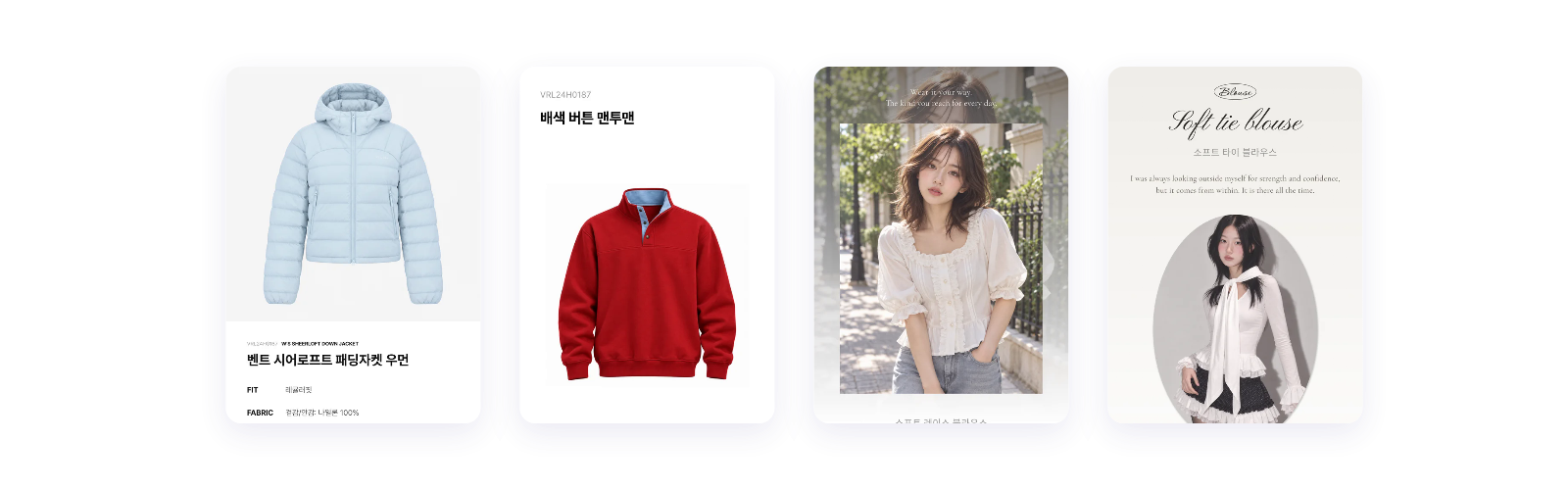
At a glance
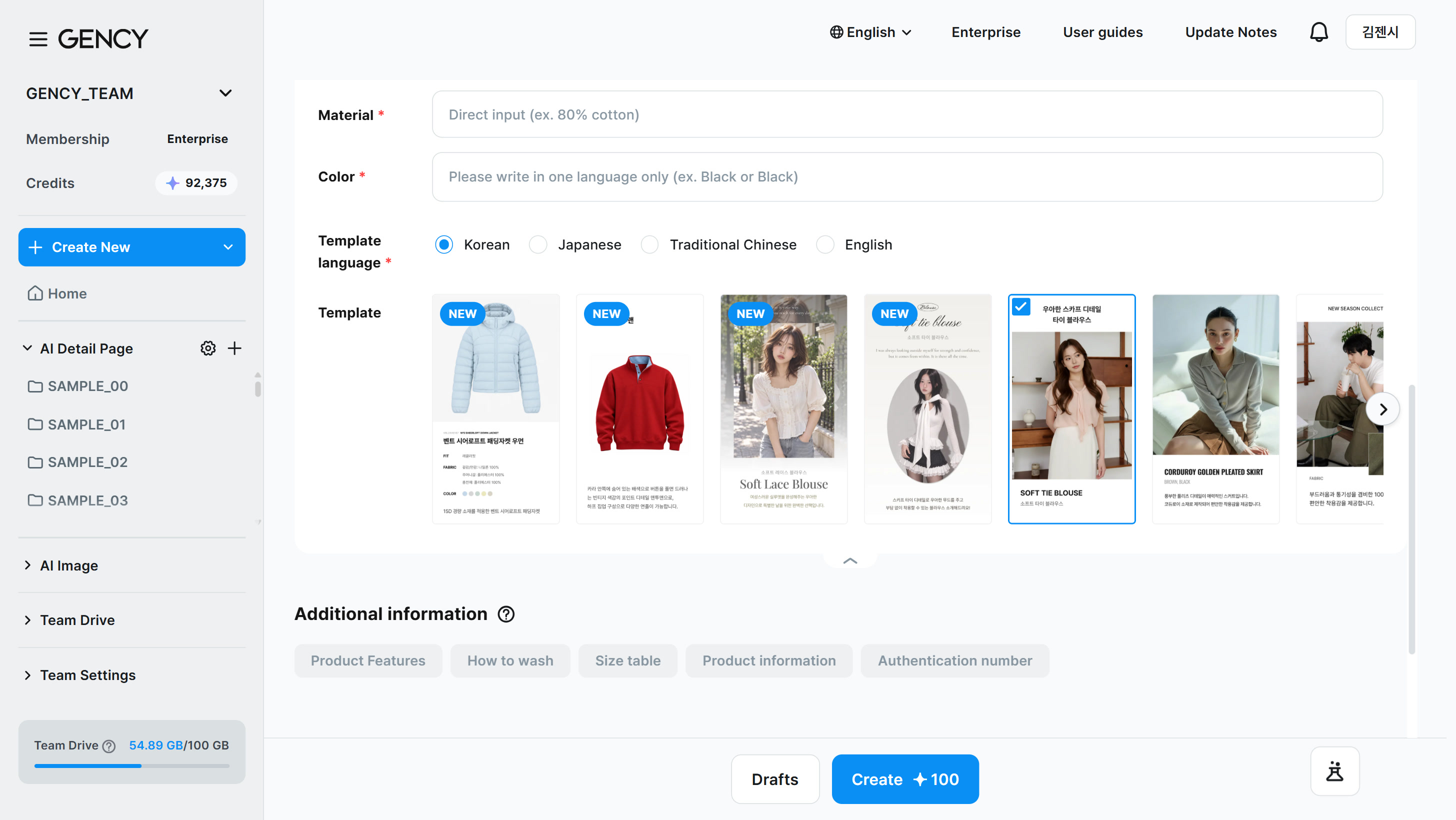
- 14 new templatesCards with a NEW mark are the templates added in this update. On the Create screen they come first. Create a detail page
- 2Template languageThe new templates are Korean templates. Choose Korean as the template language to see them right at the front. Create a detail page
- 3CreatePick a card and create right away. For detail pages you already made, switch to a new template in the editor's Template tab. Create a detail page
New2
2 romantic designsDesigns that show large model shots. A good fit for products where the feel of wearing them matters.
These designs show large model shots and set the mood with script-style English titles and soft backgrounds. They suit products where you want to convey how it feels to wear them.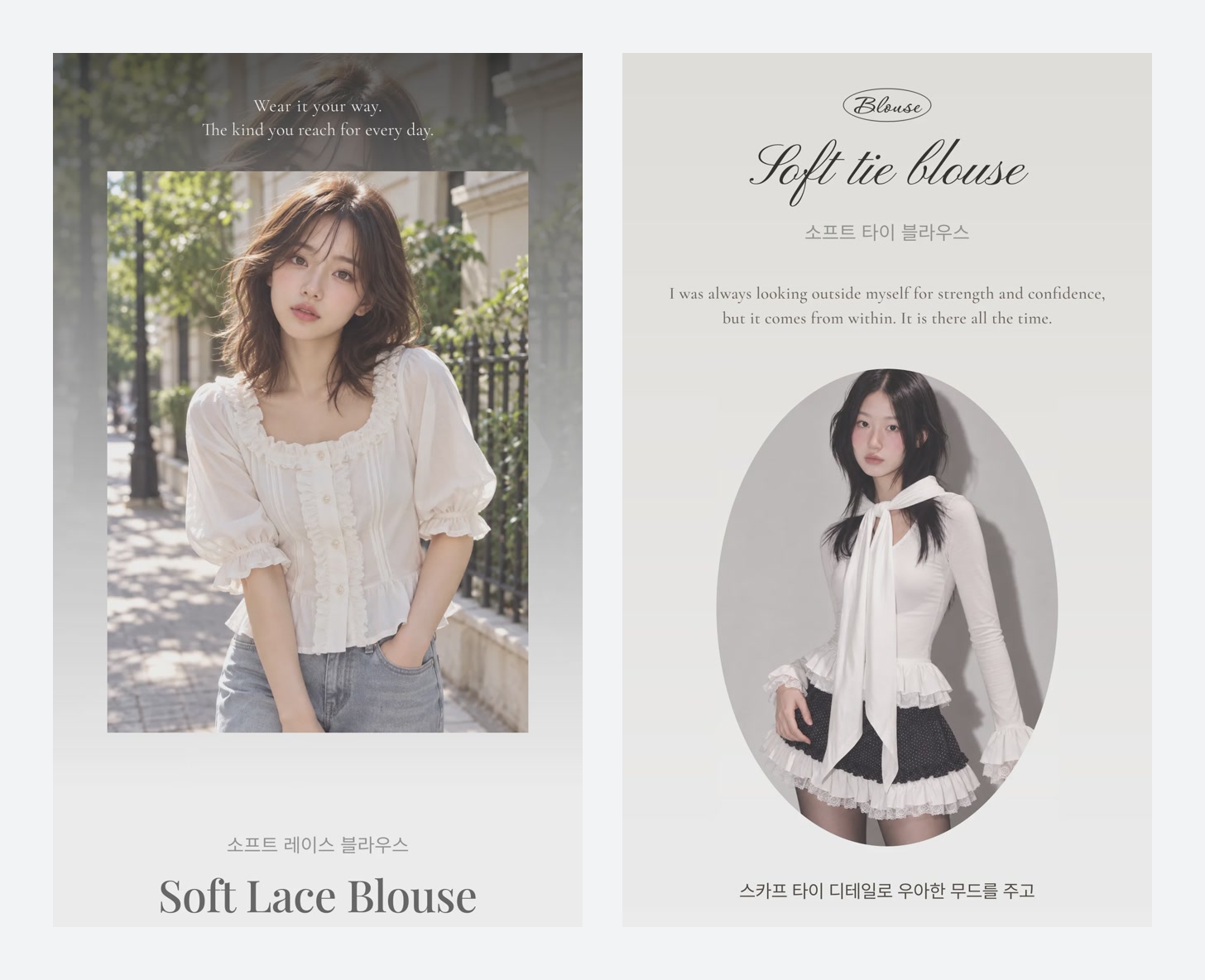
2 minimal designsDesigns that lay out product photos wide and keep the information clean. A good fit for products shot mainly as product photos.
These designs spread product photos wide across the page and organize the product name and details cleanly. Products shot mainly as product photos look polished too.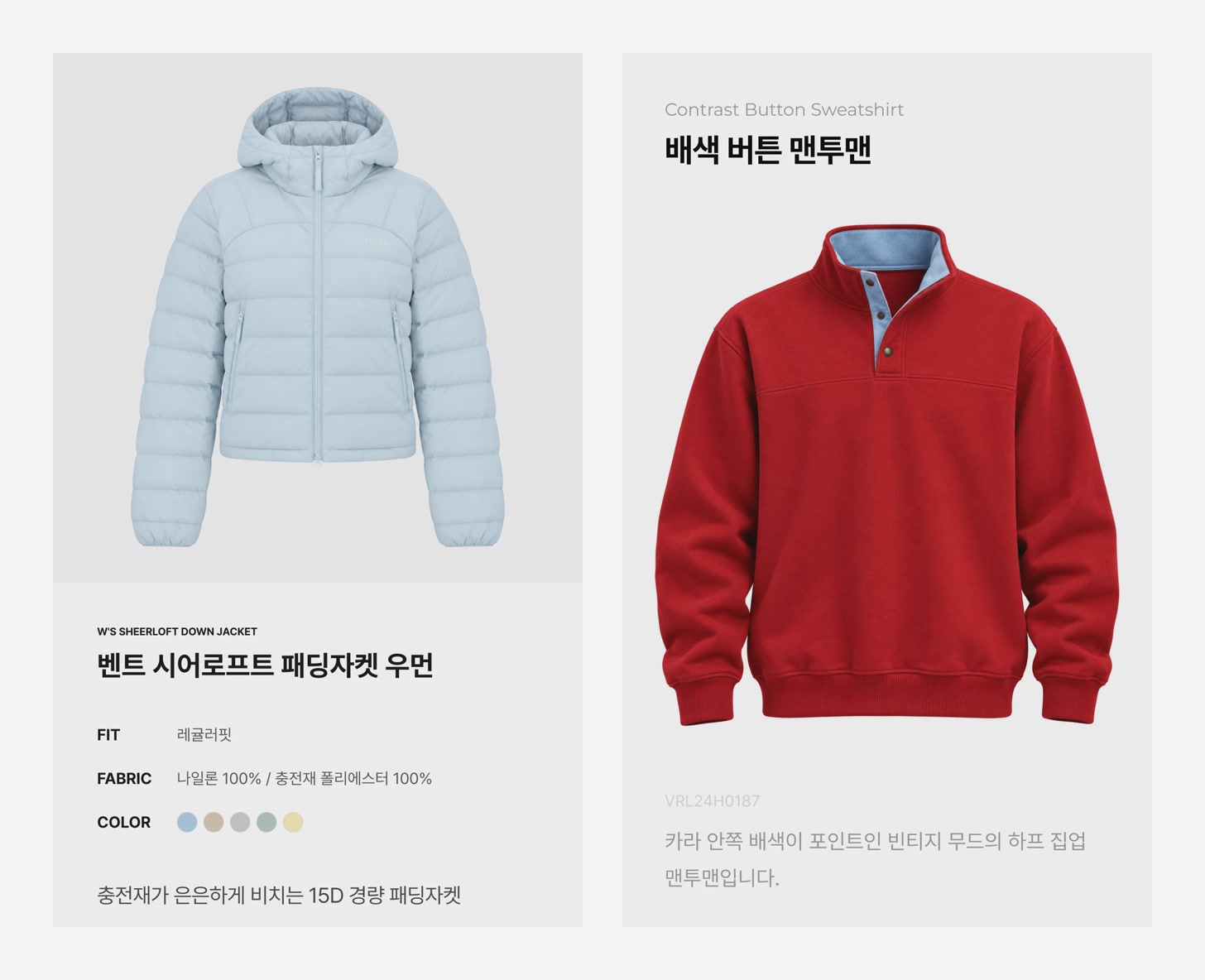
Improved1
New templates are marked NEWNew templates show a NEW mark in the Home template preview, on the Create screen, and in the editor's Template tab. On the Create screen they come first.
Newly added templates show a NEW mark. You can see it in Template preview on Home, on the Create screen, and in the editor's Template tab.
- On the Create screen, new templates come first in the template row. Choose a card and click [Preview] to see the whole design.
- The editor's Template tab keeps its original order (favorites → templates in the language you chose).
- You can also switch detail pages you already made to a new template in the editor's Template tab.
Worth knowing
- The order in the editor's Template tab stays the same. New templates come first only on the Create screen. In the editor, look for the NEW mark.